
1. Настройка
1.1 Распакоўка і змесціва ўпакоўкі
Carefully remove all items from the packaging. Ensure all components are present before proceeding with installation.
- Тэлевізар Roku Select Series 55" з падтрымкай 4K
- Стойкі і шрубы
- Пульт дыстанцыйнага кіравання
- Кіраўніцтва карыстальніка

Figure 1: Contents of the Roku Select Series 55-inch TV package.
1.2 Фізічная ўстаноўка
The Roku Select Series TV can be installed using the included stands for table mounting or by using a compatible VESA wall mount (200 x 100 mm, sold separately).
Table Mount Installation:
- Пакладзеце тэлевізар экранам уніз на мяккую, чыстую паверхню, каб пазбегнуць драпін.
- Attach the two TV stands to the designated slots on the bottom of the TV using the provided screws. Ensure they are securely fastened.
- Асцярожна падніміце тэлевізар і пастаўце яго на ўстойлівую, роўную паверхню.
Ўстаноўка насценнага мацавання:
For wall mounting, refer to the instructions provided with your VESA 200 x 100 mm compatible wall mount kit. Ensure the wall can support the weight of the television (approximately 20.1 pounds without stand).

Figure 2: TV dimensions and package contents overview.
1.3 Падключэнне перыферыйных прылад
The TV features multiple ports for connecting external devices. Refer to the back panel diagram for port locations.

Figure 3: Rear panel connections including HDMI, USB, and network ports.
- Парты HDMI (усяго 3): Connect gaming consoles, Blu-ray players, soundbars, or other HDMI-enabled devices.
- USB-порт (усяго 1): Падключыце USB-назапашвальнікі для прайгравання медыяфайлаў.
- Порт Ethernet (LAN): Для праваднога падключэння да Інтэрнэту.
- Уваход для антэны/кабеля: Падключыце антэну для эфірнага вяшчання або падключэння кабельнага тэлебачання.
- Optical (S/PDIF) Output: For digital audio output to a sound system.
1.4 Пачатковае ўключэнне і падключэнне да сеткі
- Падключыце шнур сілкавання да тэлевізара і разеткі.
- Націсніце кнопку харчавання на пульце дыстанцыйнага кіравання, каб уключыць тэлевізар.
- Follow the on-screen instructions to complete the initial setup, including language selection (English, Spanish, French, Portuguese are supported).
- Select your preferred network connection:
- Wi-Fi: Выберыце сваю сетку Wi-Fi са спісу і ўвядзіце пароль.
- Ethernet: If an Ethernet cable is connected, the TV will automatically attempt to establish a wired connection.
- The TV will guide you through linking to a Roku account, which is necessary to access streaming channels and features.
2. Інструкцыя па эксплуатацыі
2.1 Функцыі дыстанцыйнага кіравання
The included voice remote provides intuitive control over your TV. It operates via Bluetooth, eliminating the need for direct line-of-sight.

Figure 4: Roku Voice Remote layout and key functions.
- Кнопка харчавання: Уключае або выключае тэлевізар.
- Directional Pad (OK button in center): Навігацыя па меню і выбар элементаў.
- Павялічыць/паменшыць гучнасць: Рэгулюе гучнасць тэлевізара.
- Кнопка адключэння: Уключае або выключае гук тэлевізара.
- Гукавая кнопка: Актывуе галасавы пошук і кіраванне.
- Імгненны паўтор: Перамотвае на некалькі секунд назад падчас прайгравання відэа.
- Кнопка прамога эфіру: Accesses the live TV channel guide.
- Quick Launch Buttons: Dedicated buttons for popular streaming apps (e.g., Netflix, Disney+, Apple TV, Prime Video). These can be customized for your favorite apps.
- Згублены дыстанцыйны шукальнік: If the remote is misplaced, use the Roku mobile app to activate an audible alert from the remote.
2.2 Home Screen Navigation and Streaming
The Roku home screen provides quick access to all your streaming channels, inputs, and settings.
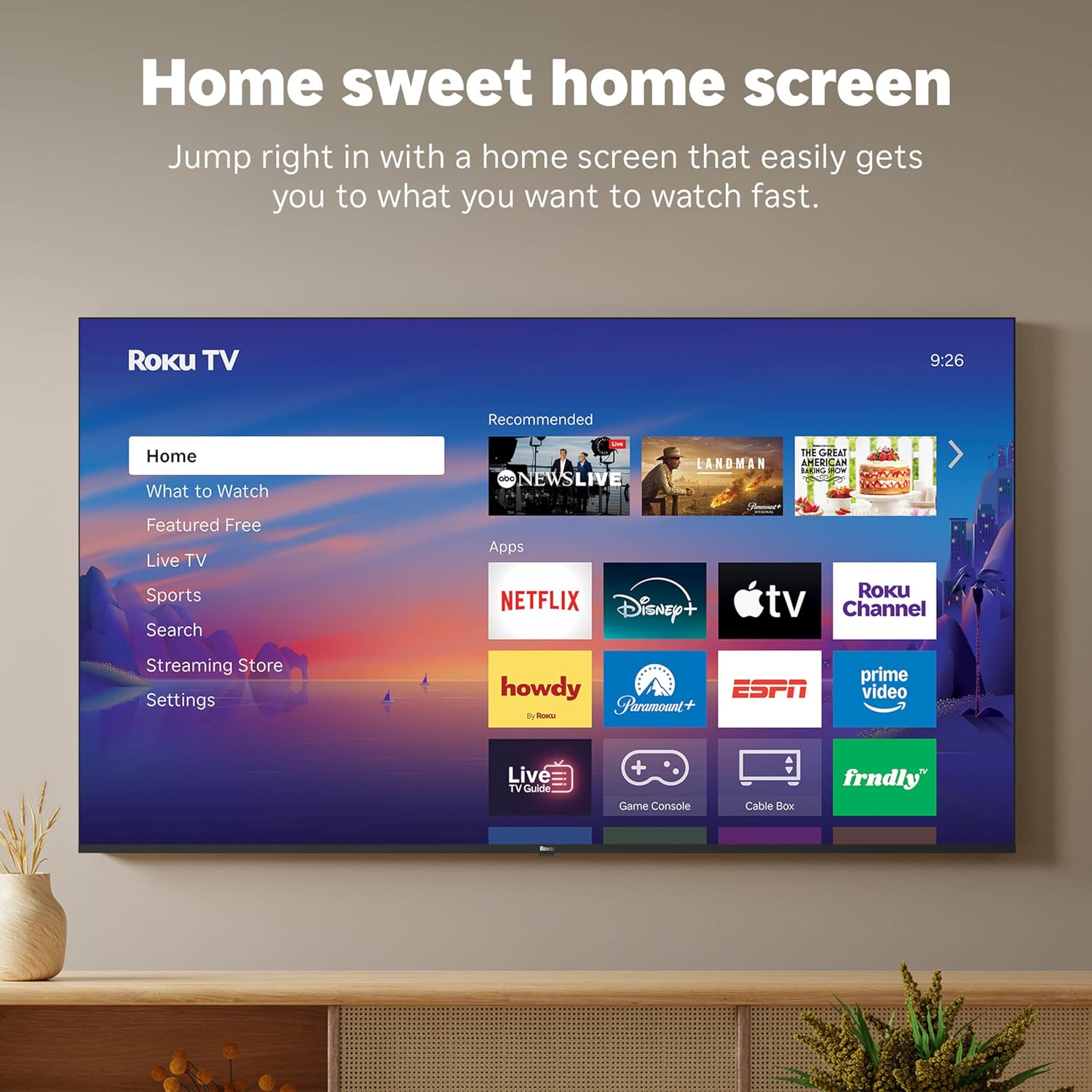
Малюнак 5: Інтэрфейс галоўнага экрана тэлевізара Roku.
- Use the directional pad on your remote to navigate through the menu options on the left side of the screen (Home, What to Watch, Live TV, Sports, Search, Streaming Store, Settings).
- Select an app icon from the main grid to launch your desired streaming service.
- The TV's fast Wi-Fi and optimized app launch ensure quick access to entertainment.
2.3 Налады выявы і гуку
The Roku Select Series TV offers advanced picture and sound technologies for an enhanced viewвопыту.
- 4K QLED-дысплей: Provides sharp 4K resolution and accurate colors.
- Падтрымка HDR10: Enhances contrast and color depth for compatible content.
- Разумная выява Roku: Automatically optimizes incoming TV signals and selects the appropriate picture mode for content.
- Dolby Audio: Delivers clear speech and enhanced sound quality through the integrated 2.1 channel speakers (20 Watts maximum output power).
- Рэжым Bluetooth-навушнікаў: Падключыце Bluetooth-навушнікі для праслухоўвання музыкі ў прыватным парадку, не перашкаджаючы іншым.
2.4 Voice Control and Smart Home Integration
Control your TV and integrate it into your smart home ecosystem.

Figure 6: Roku TV's smart home compatibility.
- Roku Voice: Use the voice button on your remote to search for content, launch apps, or control playback.
- Сумяшчальнасць з разумным памочнікам: The TV is compatible with Siri, Alexa, and Google Assistant for voice control through external smart devices.
- Apple AirPlay: Share videos, photos, music, and more from your Apple devices directly to your TV.
2.5 Live TV Access
Access live television channels directly from the home screen.

Figure 7: Live TV channel guide interface.
- Connect an antenna to the TV's Antenna/Cable input.
- Use the 'Live TV' option on the home screen or the dedicated button on the remote to access the channel guide.
- The TV supports ATSC tuner type for digital broadcasts.
3. Тэхнічнае абслугоўванне
3.1 Чыстка тэлевізара
- Заўсёды адключайце тэлевізар ад сеткі перад чысткай.
- Выкарыстоўвайце мяккую, сухую тканіну без ворса, каб акуратна працерці экран і корпус.
- Для ўстойлівых плям злёгку пачысціцеampПрацярыце тканіну вадой або мяккім неабразіўным сродкам для чысткі экранаў. Не распыляйце ачышчальнік непасрэдна на экран.
- Пазбягайце выкарыстання агрэсіўных хімікатаў, абразіўных губак або растваральнікаў, бо яны могуць пашкодзіць пакрыццё тэлевізара.
3.2 Абнаўленне праграмнага забеспячэння
The Roku TV receives automatic software updates to provide new features and improvements. Ensure your TV is connected to the internet to receive these updates.
4. Выпраўленне непаладак
If you encounter issues with your Roku TV, consider the following basic troubleshooting steps:
- Няма харчавання: Пераканайцеся, што шнур харчавання надзейна падключаны як да тэлевізара, так і да спраўнай электрычнай разеткі. Паспрабуйце іншую разетку.
- Няма выявы/гуку: Пераканайцеся, што выбрана правільная крыніца ўваходнага сігналу. Праверце ўсе кабельныя злучэнні (HDMI, антэна і г.д.) на наяўнасць няшчыльнасці.
- Пульт не адказвае: Replace the AAA batteries in the remote control. Ensure there are no obstructions between the remote and the TV (though Bluetooth reduces this issue). Re-pair the remote if necessary (refer to Roku support documentation).
- Праблемы з падключэннем да сеткі: Перайсці да Налады > Сетка > Праверыць падключэнне to diagnose network problems. Restart your router and modem.
- Праграма не загружаецца/выходзіць з ладу: Try restarting the app. If the issue persists, remove the app and reinstall it from the Streaming Store.
- Дрэнная якасць выявы: Check your internet speed for streaming content. For broadcast TV, adjust your antenna. Ensure the TV's picture settings are appropriate for the content being viewрэд.
For more detailed troubleshooting or persistent issues, visit the Roku support website or consult the full User Manual PDF available online.
5. Тэхнічныя характарыстыкі
| Асаблівасць | Дэталь |
|---|---|
| Назва мадэлі | Roku 55" Select Series 4K |
| Нумар мадэлі | 55R5D5 |
| Памер экрана | 55 цалі |
| Тэхналогія адлюстравання | 4K UHD, LED, QLED |
| дазвол | 4K (3840 x 2160) |
| Частата абнаўлення | 60 Гц |
| Падтрымліваецца фармат HDR | HDR10, HDR10+, HLG |
| Picture Quality Enhancement | 4K, Roku Smart Picture |
| Выхадная магутнасць гуку | 20 ват |
| Integrated Surround Sound | Dolby Audio |
| Тэхналогія падлучэння | Bluetooth, Ethernet, USB C, Wi-Fi |
| Парты HDMI | 3 |
| Парты USB | 1 |
| Аперацыйная сістэма | Roku OS |
| Галасавое кіраванне | Roku Voice, Siri, Alexa, Google Assistant |
| Адлюстраванне экрана | AirPlay 2, Miracast |
| Памеры прадукту (Д х Ш х У) | 12.7" Г x 48.3" Ш x 30.5" У |
| Вага прадмета | 20.5 фунта |
| Стандарт мацавання VESA | 200 х 100 мм |
| Энергаспажыванне | 160 ват |
| UPC | 829610009322 |
6. Гарантыя і падтрымка
6.1 Абмежаваная гарантыя
Roku warrants the hardware of this device against defects in materials and workmanship under normal use for a period of адзін (1) год from the date of purchase (“Warranty Period”), provided it is used in accordance with the provided documentation.
If Roku determines that the device’s hardware is defective during the Warranty Period, Roku’s sole obligation, and your exclusive remedy, will be to either repair or replace the unit with either a new or rebuilt device, at its option.
Important information about warranty returns and replacements is available on the Roku support site.
6.2 Product Returns
You may return a device for any reason, subject to the terms of the applicable return policy:
- Within thirty (30) days from the date of purchase from Roku.
- Within the applicable return period if purchased from an authorized reseller or distributor.
Additional details regarding product returns can be found on the Roku support site.
6.3 Дадатковая падтрымка
For further assistance, including detailed guides and FAQs, please refer to the official Roku support website. A downloadable PDF version of the User Manual is also available for reference: Кіраўніцтва карыстальніка (PDF).