
1. Уводзіны
This manual provides instructions for the SABLUTE Wireless Trackball Mouse. This ergonomic device is designed to enhance comfort and efficiency during computer use by reducing wrist and arm movement.
The mouse features an adjustable ergonomic angle, multi-device connectivity, and customizable DPI settings. It is suitable for various operating systems including PC, Mac, and Windows.
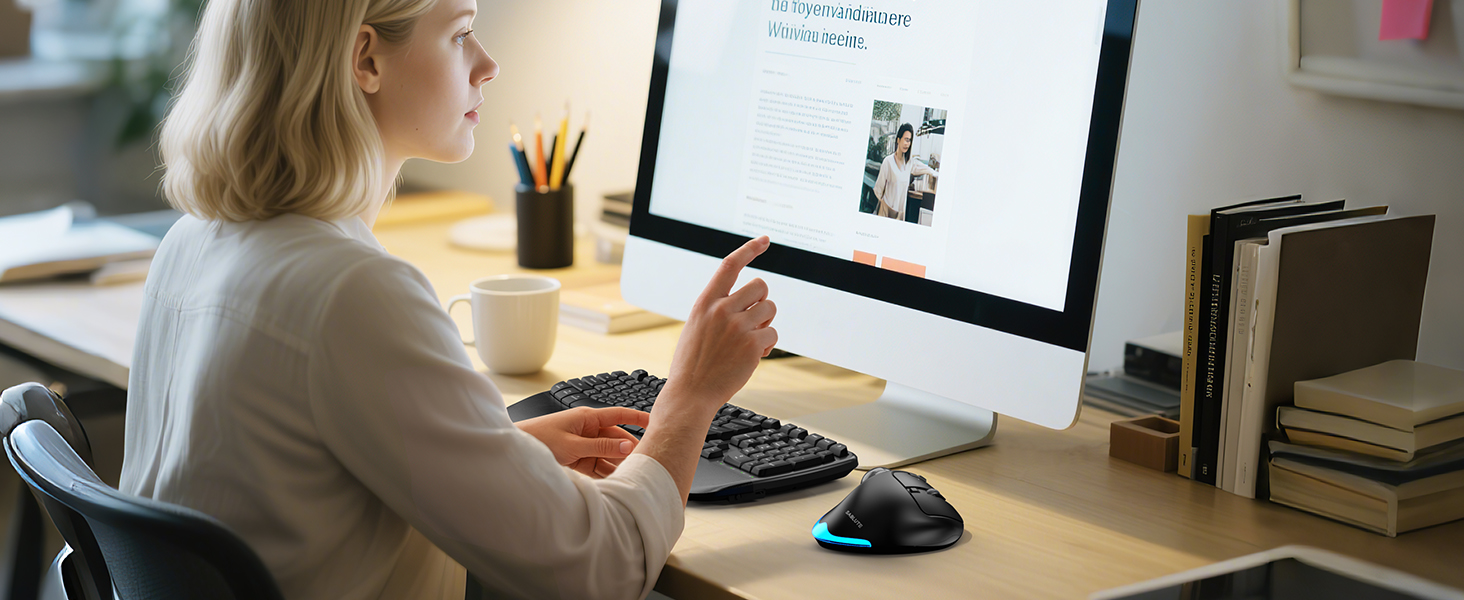
Image: A woman using the SABLUTE Wireless Trackball Mouse at a computer desk, demonstrating its use in a typical work environment.
Важная заўвага: If you are new to using a trackball mouse, an adaptation period of 1-2 weeks is recommended to become accustomed to its operation and fully benefit from its ergonomic design.
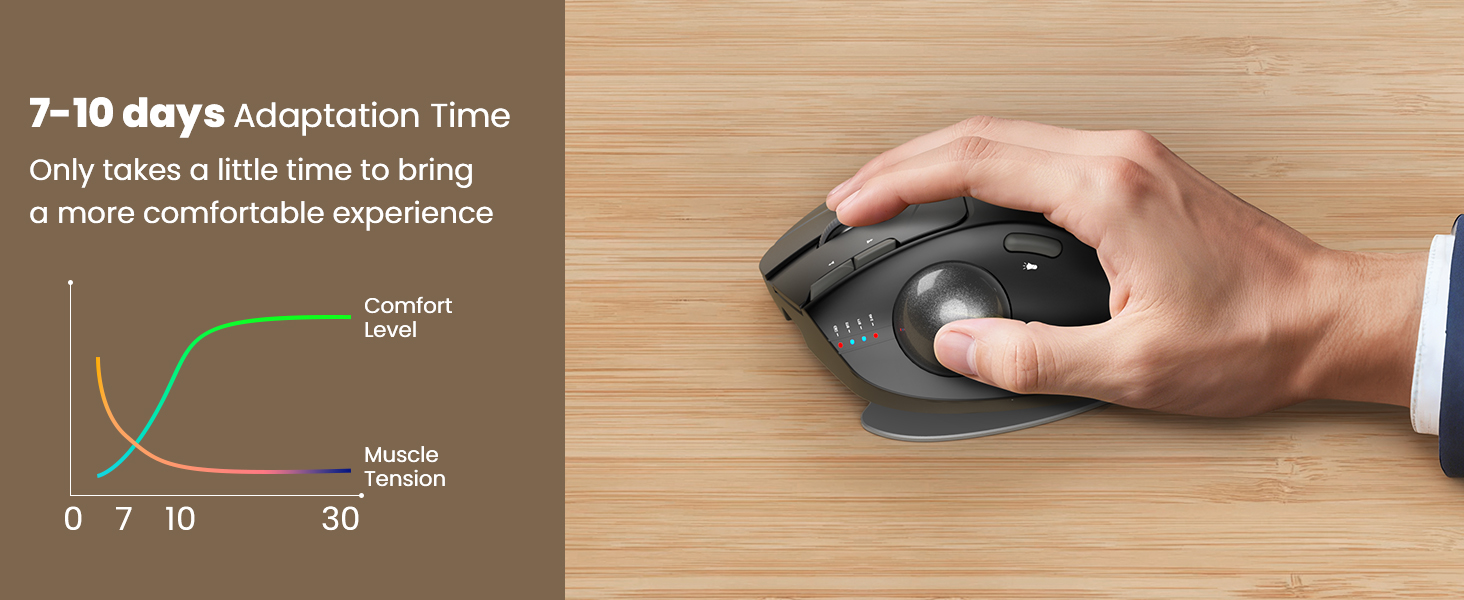
Image: A graph illustrating the adaptation period for a trackball mouse, showing increasing comfort and decreasing muscle tension over 7-10 days.
2. Што ў скрынцы
Праверце наяўнасць усіх прадметаў у камплекце:
- SABLUTE Wireless Trackball Mouse
- Цвёрды дарожны чахол
- USB-прыёмнік
- Зарадны кабель USB-C
- Кіраўніцтва карыстальніка (гэты дакумент)

Image: The SABLUTE Wireless Trackball Mouse securely stored within its hard travel case, positioned next to a laptop bag.

Image: A diagram illustrating the protective features of the hard travel case, including a nylon outer layer, EVA hard shell middle layer, and soft velvet lining, offering fall protection, scratch resistance, and water resistance.
3. Прадукт скончыўсяview
Familiarize yourself with the components and controls of your SABLUTE Wireless Trackball Mouse:

Image: A detailed diagram of the SABLUTE Wireless Trackball Mouse, highlighting its various buttons and features with numbered labels for easy identification.
- Левая кнопка: Стандартная функцыя левага кліку.
- Правая кнопка: Стандартная функцыя правай кнопкі мышы.
- Кола пракруткі: For vertical scrolling. Can also be clicked for middle-click functionality.
- Low Battery/Bluetooth/2.4G Indicator: Паказвае стан падключэння і ўзровень зарада батарэі.
- Кнопка DPI: Цыклічнае пераключэнне ўзроўняў адчувальнасці DPI.
- Кнопка "Наперад": Перамяшчаецца наперад web браўзэры або file даследчыкі.
- Кнопка "Назад": Пераходзіць назад у web браўзэры або file даследчыкі.
- Кнопка харчавання: Уключае або выключае мыш.
- USB-прыёмнік: Stores the 2.4GHz USB dongle.
- Пераключыць светлавы рэжым: Changes or turns off the ambient backlight.
- трэкбол: Для перамяшчэння курсора.
- Light Area: Emits ambient backlight.
- Рэжым пераключэння: Button on the bottom to switch between connected devices (BT1, BT2, 2.4G).
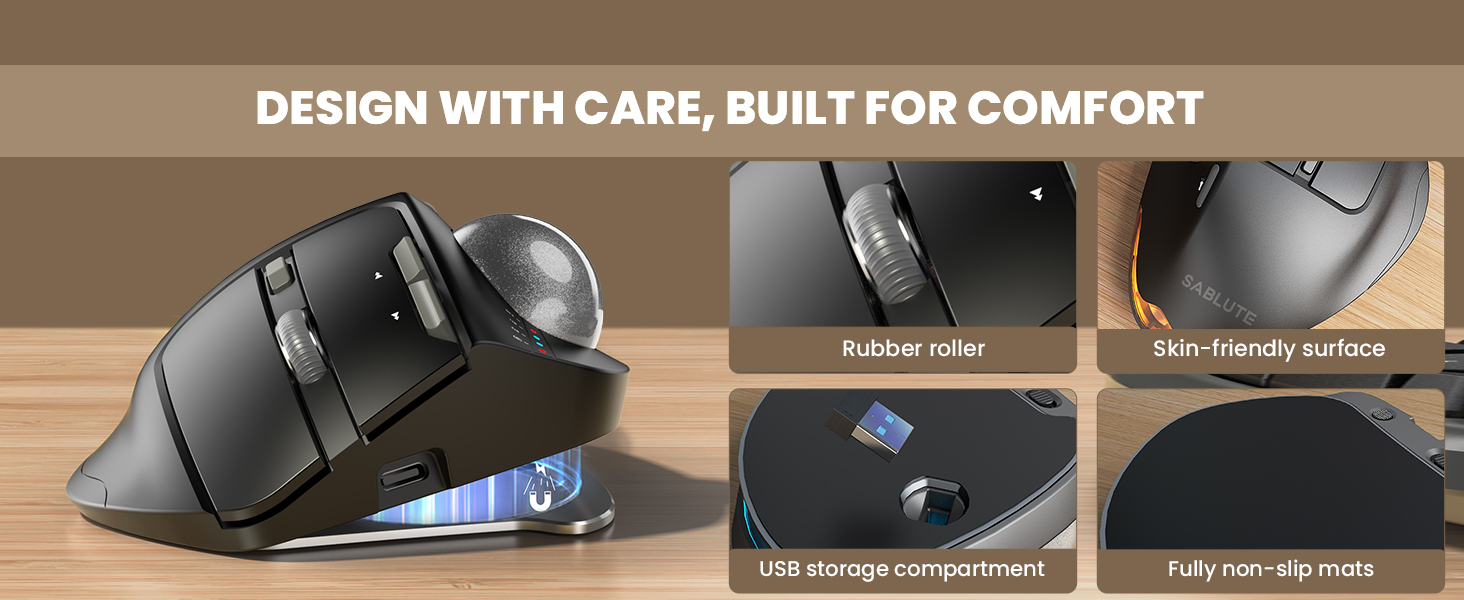
Выява: Крупны план views highlighting key design elements of the mouse, including the rubber scroll wheel, skin-friendly surface, USB receiver storage, and fully non-slip mats.
4. Настройка
4.1 Зарадка мышы
Before first use, fully charge the mouse using the provided USB-C cable.
- Connect the USB-C cable to the charging port on the front of the mouse.
- Падключыце другі канец кабеля да крыніцы харчавання USB (напрыклад, USB-порт кампутара, насценны адаптар USB).
- Індыкатар будзе паказваць стан зарадкі. Поўная зарадка звычайна займае 3-4 гадзіны.
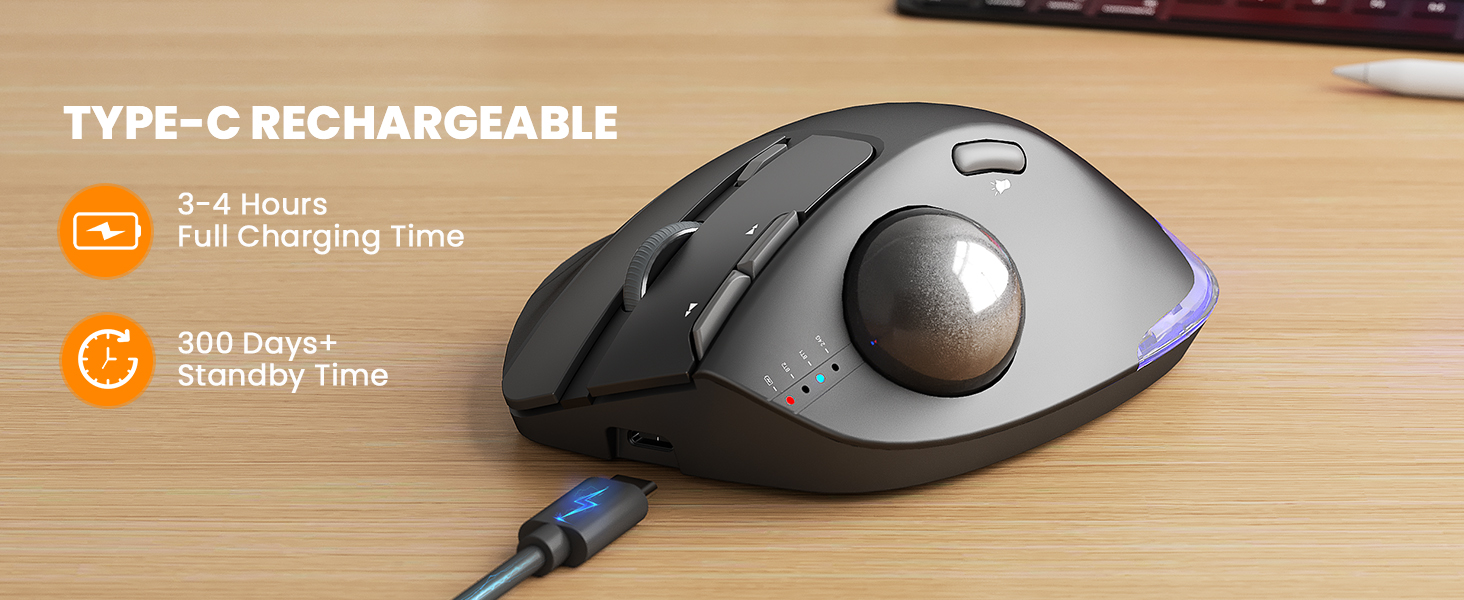
Image: The SABLUTE Wireless Trackball Mouse being charged via its USB-C port, with an indication of 3-4 hours for full charging and over 300 days of standby time.
4.2 Падключэнне да прылад
The mouse supports connection to up to three devices via Bluetooth (BT1, BT2) and a 2.4GHz USB receiver.

Image: The SABLUTE Wireless Trackball Mouse demonstrating multi-device connectivity, showing connections to a laptop (Bluetooth 1), an iPad (Bluetooth 2), and a desktop computer (2.4GHz USB receiver).
Падключэнне прыёмніка USB 2.4 ГГц:
- Remove the USB receiver from its storage slot on the bottom of the mouse.
- Падключыце USB-прыёмнік да вольнага порта USB на вашым кампутары.
- Turn on the mouse using the Power Button (8).
- Press the Mode Switch button (13) on the bottom of the mouse until the 2.4G indicator light (4) illuminates. The mouse should connect automatically.
Падключэнне Bluetooth (BT1/BT2):
- Turn on the mouse using the Power Button (8).
- Press the Mode Switch button (13) on the bottom of the mouse to select either BT1 or BT2. The corresponding indicator light (4) will flash.
- On your device (PC, Mac, iPad), go to Bluetooth settings and search for new devices.
- Select "SABLUTE Trackball Mouse" from the list of available devices to pair. The indicator light will become solid once connected.
4.3 Adjusting Ergonomic Angle
The mouse features an adjustable base for 0° or 18° tilt to optimize wrist comfort.
- The base can be adjusted to provide a flat (0°) or tilted (18°) position.
- Choose the angle that feels most natural and reduces strain on your wrist and forearm. The 18° tilt is designed to match the natural drop of the wrist when seated.
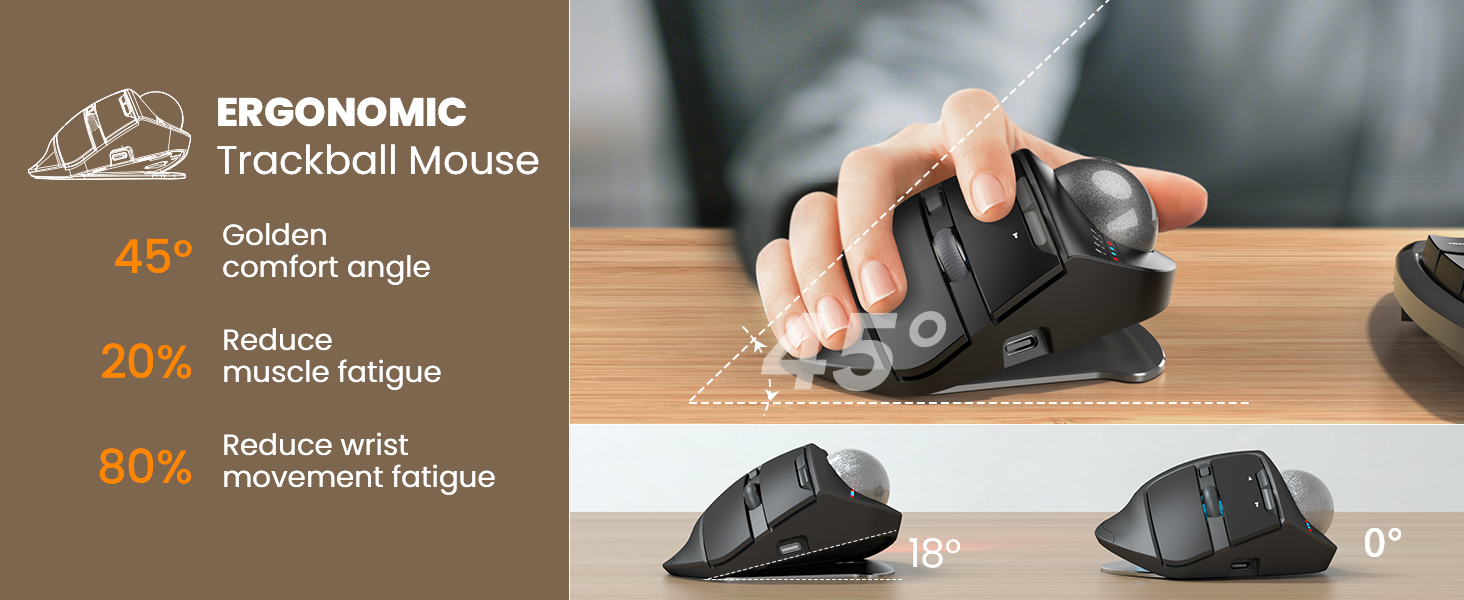
Image: The SABLUTE Wireless Trackball Mouse demonstrating its adjustable ergonomic angles, showing both the 0-degree flat position and the 18-degree tilted position for improved wrist comfort.
5. Кіраванне мышшу
5.1 Cursor Control with Trackball
Move the cursor by rolling the trackball with your thumb. This eliminates the need to move your entire arm, reducing fatigue and saving desk space.
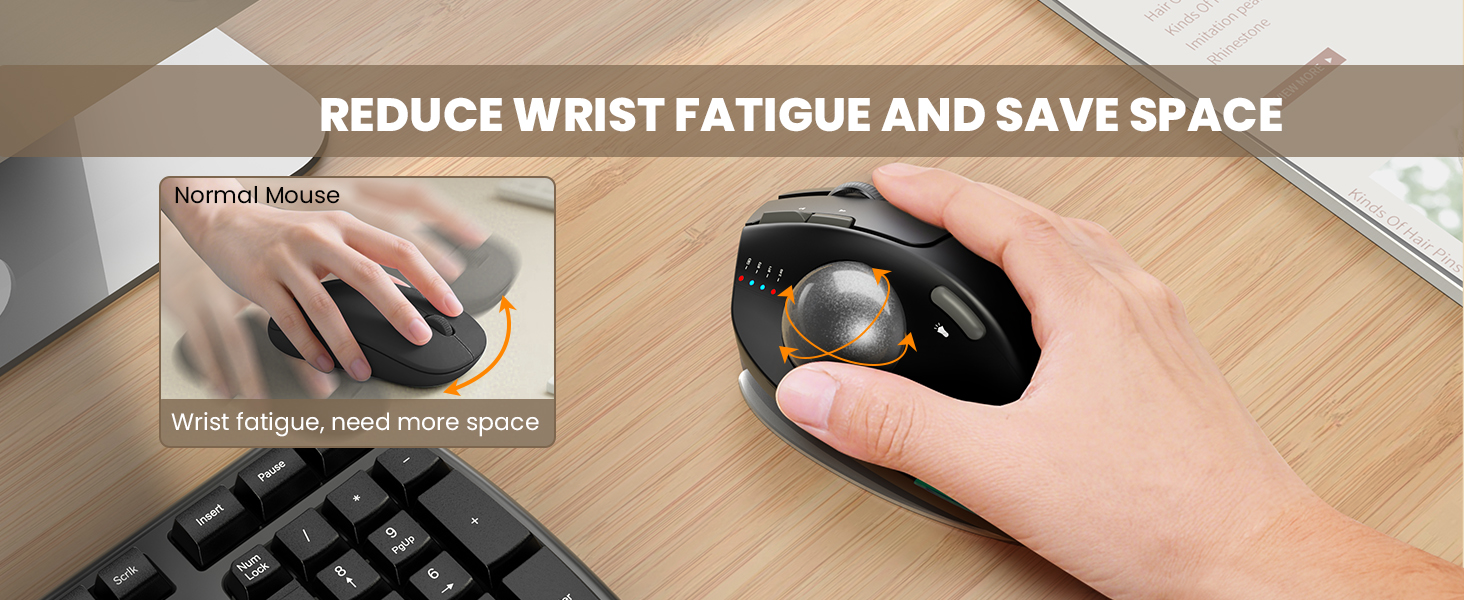
Image: A visual comparison showing how a traditional mouse requires arm movement and desk space, while the trackball mouse allows for stationary use, reducing wrist fatigue and saving space.
5.2 Пераключэнне паміж прыладамі
To switch between connected devices (BT1, BT2, 2.4G), press the Mode Switch button (13) on the bottom of the mouse. The corresponding indicator light (4) will illuminate to show the active connection.
5.3 Рэгуляванне адчувальнасці DPI
The mouse offers 5 adjustable DPI levels (800-1200-1600-2400-4800) for precise control.
- Press the DPI Button (5) to cycle through the available sensitivity settings.
- Choose a DPI level that suits your task and screen size for optimal cursor speed and precision.
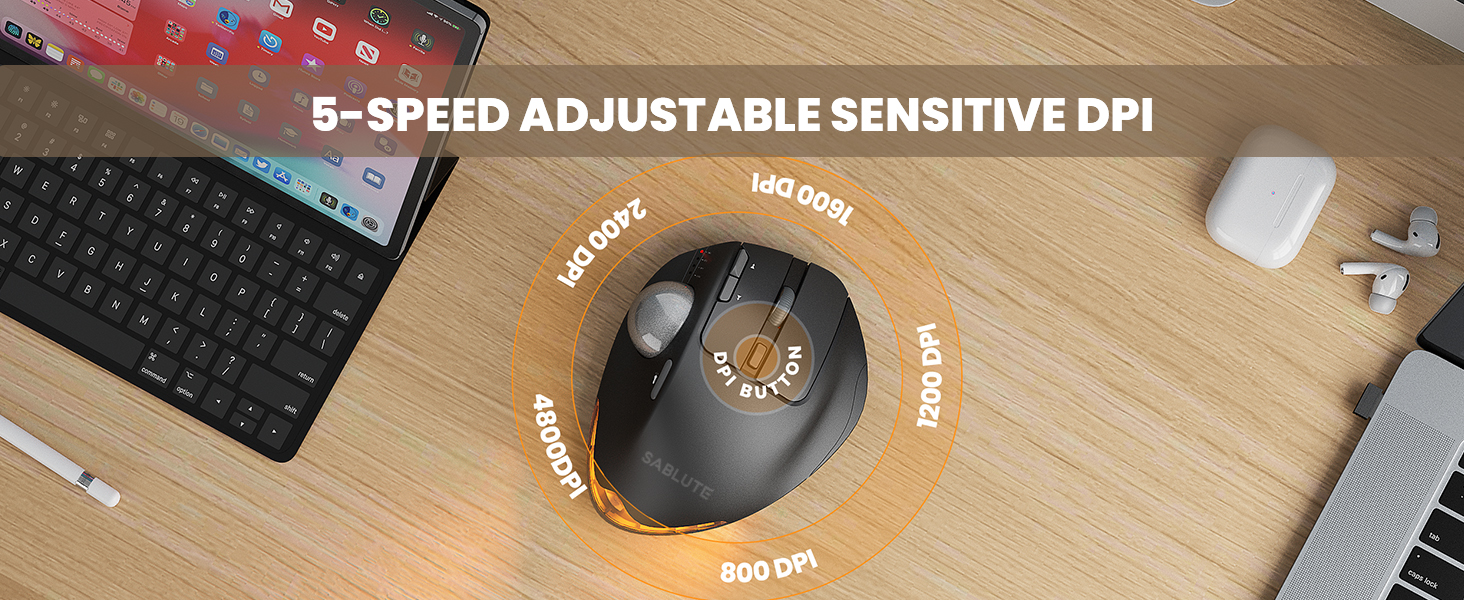
Image: A visual representation of the 5 adjustable DPI levels (800, 1200, 1600, 2400, 4800) available on the SABLUTE Wireless Trackball Mouse, indicating how to change sensitivity.
5.4 Кантроль падсветкі
The mouse features an ambient backlight with multiple breathing light modes.
- Press the Switch Light Mode button (10) to cycle through different light modes or to turn the backlight off.
- The backlight can be turned off to avoid distraction during focused work.

Image: The SABLUTE Wireless Trackball Mouse showcasing its quiet click and breathing light features, with various light colors displayed. A sleeping cat nearby emphasizes the quiet operation.
5.5 Driver Customization (Windows Only)
A driver is available for Windows users to customize mouse settings and fine-tune preferences. This driver is not compatible with Mac OS.
- Refer to the official SABLUTE website or contact customer support for driver download instructions.
- Install the driver and follow the on-screen prompts to customize button functions, DPI settings, and other features.
6. Тэхнічнае абслугоўванне
6.1 Чыстка трэкбола
Regular cleaning of the trackball and its socket ensures smooth and accurate cursor movement.
- Turn off the mouse using the Power Button (8).
- Gently push the trackball from the underside opening to remove it from its socket.
- Use a clean, soft, lint-free cloth to wipe the trackball and the inside of the trackball socket, removing any dust or debris.
- Асцярожна ўстаўце трэкбол назад у гняздо, пакуль ён не зафіксуецца на месцы.
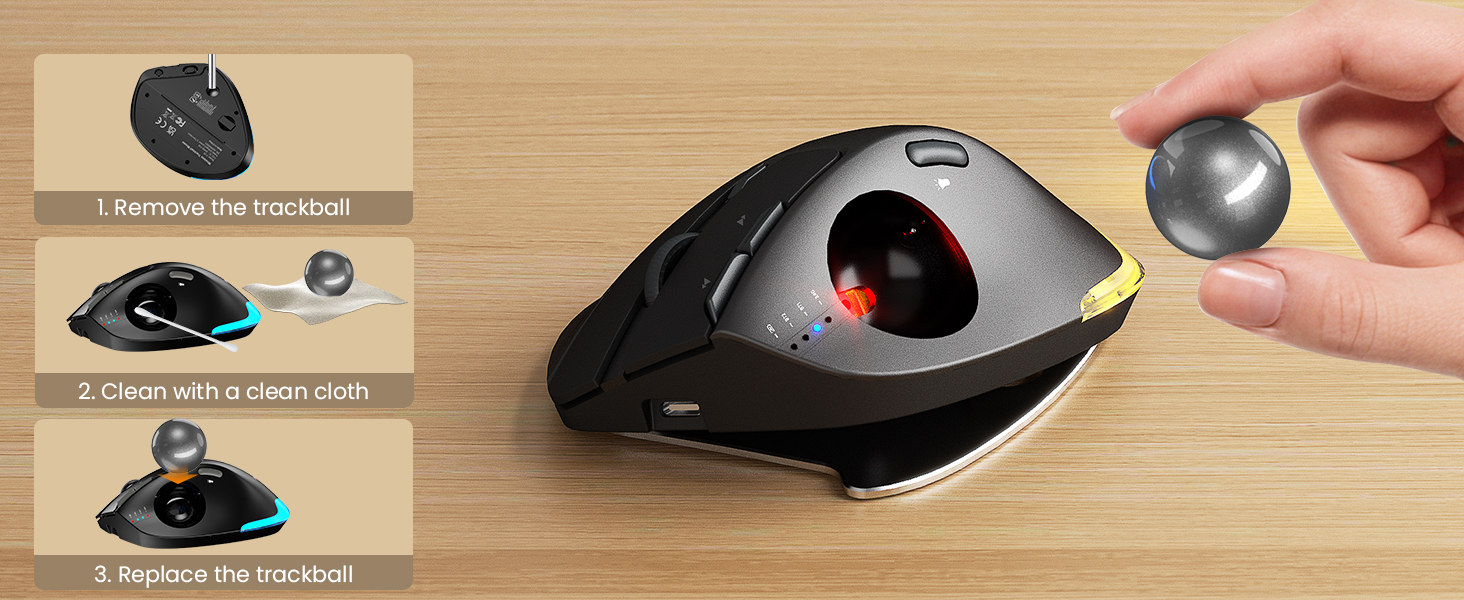
Image: A step-by-step visual guide on how to clean the trackball: 1. Remove the trackball, 2. Clean with a clean cloth, 3. Replace the trackball.
6.2 Агульны догляд
- Avoid exposing the mouse to extreme temperatures, direct sunlight, or liquids.
- Use the provided hard travel case for protection when transporting the mouse.
- Clean the exterior of the mouse with a soft, damp тканіна па меры неабходнасці.
7. Выпраўленне непаладак
If you encounter issues with your SABLUTE Wireless Trackball Mouse, refer to the following common solutions:
| праблема | Магчымая прычына | Рашэнне |
|---|---|---|
| Мышка не рэагуе | Low battery; Mouse is off; Incorrect connection mode; USB receiver not connected; Bluetooth not paired. | Charge the mouse; Turn on the mouse; Select the correct connection mode (BT1/BT2/2.4G); Ensure USB receiver is securely plugged in; Re-pair Bluetooth. |
| Cursor movement is erratic or sticky | Trackball or socket is dirty. | Clean the trackball and its socket as described in the Maintenance section. |
| Немагчыма падключыцца праз Bluetooth | Мыш не ў рэжыме спалучэння; Bluetooth прылады выключаны; Перашкоды. | Ensure mouse is in BT1/BT2 mode and indicator is flashing; Turn on Bluetooth on your device; Move closer to the device; Try re-pairing. |
| DPI setting not changing | DPI button not pressed correctly. | Press the DPI button firmly to cycle through settings. Observe the indicator lights for changes. |
| Падсвятленне не працуе | Backlight is off; Low battery. | Press the Switch Light Mode button (10) to turn on or change modes; Charge the mouse. |
8. Тэхнічныя характарыстыкі
| Асаблівасць | Дэталь |
|---|---|
| мадэль | Бесправадная мыш з трэкболам |
| Тэхналогія падлучэння | Bluetooth (BT1, BT2), 2.4GHz USB Receiver |
| Выяўленне руху | Трэкбол |
| Ўзроўні DPI | 800 / 1200 / 1600 / 2400 / 4800 |
| Ergonomic Angle | 0° / 18° Adjustable |
| Тып батарэі | Убудаваны акумулятар |
| Порт для зарадкі | USB-C |
| Час поўнай зарадкі | 3-4 гадзін |
| Час чакання | 300+ дзён |
| Вага прадмета | 1 фунт (прыблізна) |
| Памеры ўпакоўкі | 6.73 х 5.24 х 2.8 цалі |
| Сумяшчальнасць | PC, Mac, Windows (Driver for Windows only) |
| Асаблівасці | Ergonomic Design, Portable, Soundless Clicks, Water Resistant (case), Wireless, Ambient Backlight |
9. Гарантыя і падтрымка
9.1 Інфармацыя аб гарантыі
SABLUTE products are designed and manufactured to the highest quality standards. For specific warranty details regarding your Wireless Trackball Mouse, please refer to the warranty card included in your product packaging or visit the official SABLUTE webсайт.
9.2 Падтрымка кліентаў
If you require further assistance, have questions, or encounter issues not covered in this manual, please contact SABLUTE customer support:
- Інтэрнэт-падтрымка: Visit the official SABLUTE website for FAQs, driver downloads, and contact forms.
- Падтрымка па электроннай пошце: Refer to your product packaging or the SABLUTE webсайт для адраса электроннай пошты службы падтрымкі кліентаў.
Пры звароце ў службу падтрымкі, калі ласка, падрыхтуйце нумар мадэлі вашага прадукту і дату пакупкі.