
Уводзіны
This user manual provides comprehensive instructions for the installation, operation, and maintenance of your eRapta AWTCM501 Magnetic Solar Wireless Backup Camera System. Please read this manual thoroughly before using the product to ensure proper function and safety. Keep this manual for future reference.
Змест пакета
Праверце, ці ёсць усе прадметы ў вашай упакоўцы:
- eRapta AWTCM501 Wireless Backup Camera (with integrated solar panel and magnetic base)
- 5-inch HD1080P Touchscreen Monitor
- Car Charger for Monitor
- USB Type-C Charging Cable for Camera
- 32GB SD Card (pre-installed in monitor)
- Кіраўніцтва карыстальніка (гэты дакумент)
Асаблівасці прадукту
- Magnetic, Wireless, and Solar-Powered Camera: Offers quick, drill-free installation on any metal surface with a strong magnetic base. Integrated solar panel provides continuous charging.
- HD1080P 5-inch Touchscreen Monitor: Забяспечвае выразную выяву высокай выразнасці view with intuitive touch controls for settings and functions.
- Digital Video Recorder (DVR) Functionality: Automatically records video footage to the included 32GB SD card, supporting loop recording for continuous coverage.
- Blind Spot Detection (BSD): An AI system that provides visual and audio warnings for obstacles or people near parking lines, enhancing driving safety.
- Інфрачырвонае (ІЧ) начное бачанне: Забяспечвае выразную бачнасць ва ўмовах нізкай асветленасці.
- Падвойныя метады зарадкі: Camera features a built-in Li-ion battery rechargeable via solar power or Type-C USB.
- IP69K Waterproof Camera: Распрацаваны, каб вытрымліваць суровыя ўмовы надвор'я.
- Stable 2.4GHz Wireless Signal: Provides reliable video transmission.
Кіраўніцтва па ўстаноўцы
1. Усталёўка камеры
The eRapta AWTCM501 camera features a magnetic base for easy, tool-free attachment to any metal surface on your vehicle. Ensure the camera is securely attached and has a clear line of sight for optimal performance.

Image: Step 1 shows attaching the magnetic camera to a metal surface. Step 2 shows plugging the monitor into the car charger.
- Identify a suitable metal surface at the rear of your vehicle (e.g., bumper, trailer hitch area) where the camera can be securely mounted and provide the desired viewкут нахілу.
- Attach the camera firmly to the chosen metal surface using its strong magnetic base.
- Adjust the camera angle as needed to capture the desired view.
2. Monitor Power Connection
The 5-inch touchscreen monitor is powered via your vehicle's 12V accessory outlet (cigarette lighter socket).
- Plug the provided car charger into your vehicle's 12V accessory outlet.
- Connect the other end of the car charger cable to the monitor's power input.
- Mount the monitor on your dashboard or windshield using the included suction cup mount, ensuring it does not obstruct your view.
3. Першапачатковае ўключэнне і спалучэнне
Once both the camera and monitor are powered, the system should automatically establish a wireless connection.

Image: Illustration of the stable 2.4GHz wireless signal transmission between the camera and monitor, showing effective range.
- Turn on your vehicle's ignition to provide power to the 12V accessory outlet.
- The monitor will power on automatically and display the camera's view.
- If no image appears, ensure both the camera and monitor are powered and within range. Refer to the Troubleshooting section if issues persist.
4. Зарадка камеры
The camera's built-in battery is charged via its integrated solar panel or a Type-C USB cable.
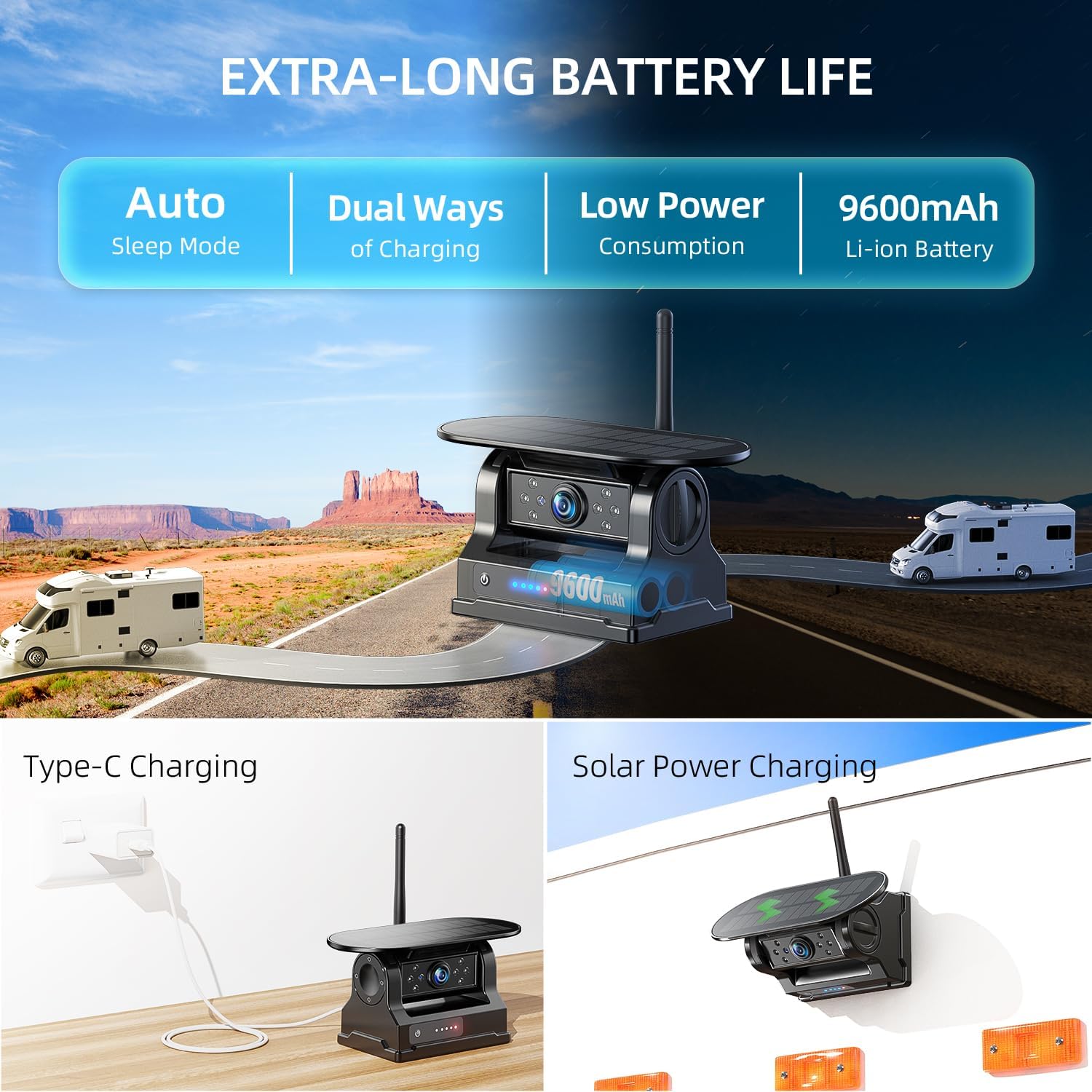
Image: Depicts the camera's dual charging methods: solar power and Type-C USB, highlighting its long battery life and auto-sleep mode.
- Сонечная зарадка: Position the camera where its solar panel receives direct sunlight for optimal charging.
- Зарадка USB Type-C: For faster charging or when solar power is insufficient, connect the camera to a 5V/2A USB power source using the provided Type-C cable.
- The camera enters an auto-sleep mode when the monitor is off to conserve battery. The battery level is visible on the monitor.
Інструкцыя па эксплуатацыі
1. Сэнсарны экран
The 5-inch monitor features a full touchscreen interface for easy control and settings adjustment.
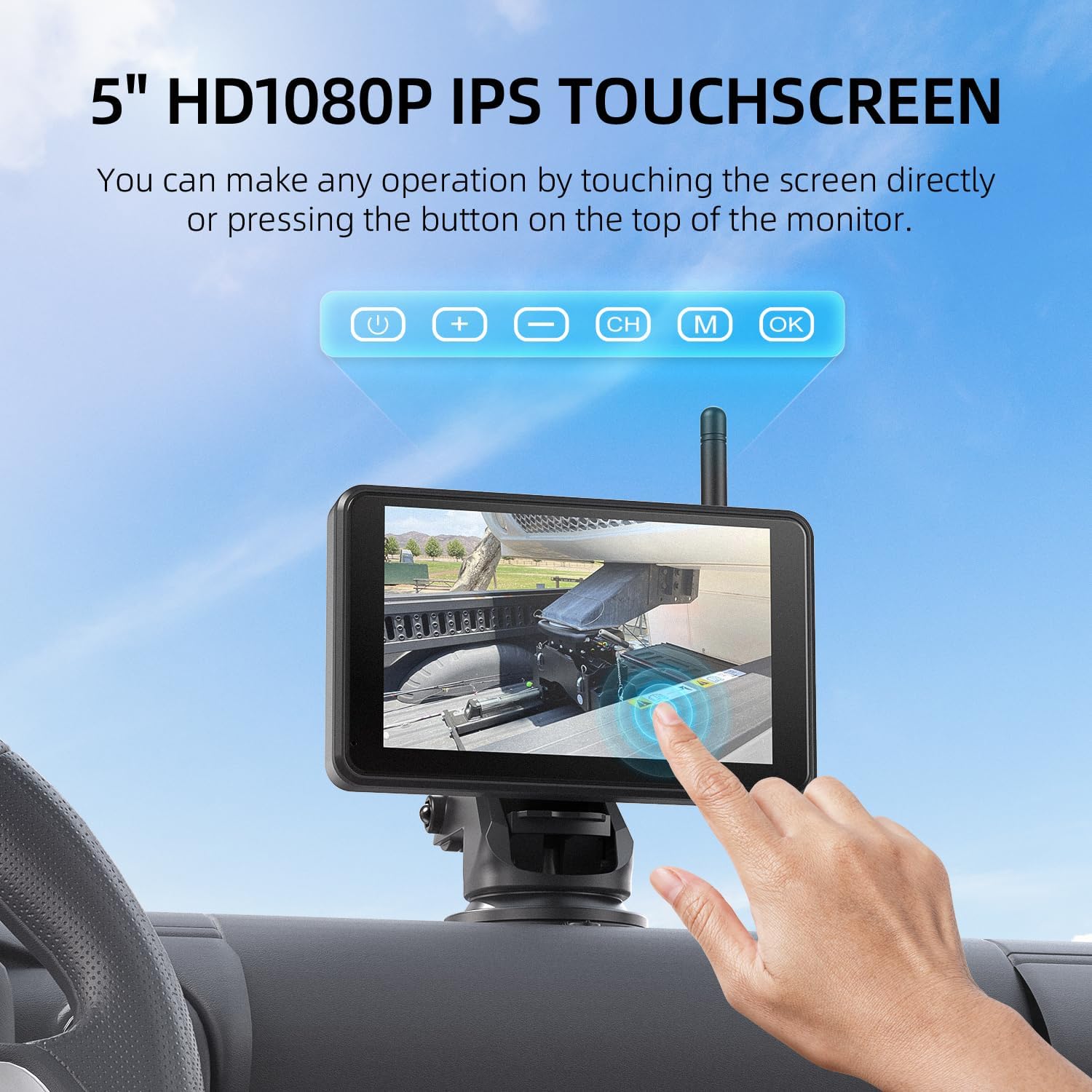
Image: A user interacting with the touchscreen monitor, demonstrating its intuitive touch-based controls.
- Tap on the screen to access menus and settings.
- Swipe to navigate through options or adjust parameters.
- Common functions like parking line adjustments, video playback, and DVR controls are accessible directly via the touchscreen.
2. Digital Video Recorder (DVR) Function
The system includes a DVR function that automatically records video footage to the pre-installed 32GB SD card.

Image: Visual representation of the loop recording feature, indicating automatic video retention and storage on the included 32GB SD card.
- Recording starts automatically when the monitor is powered on.
- The system supports loop recording, meaning older files are overwritten when the SD card is full.
- You can access recorded videos, play them back, or delete them directly from the monitor's touchscreen interface.
3. Blind Spot Detection (BSD)
The BSD feature enhances safety by detecting obstacles in your blind spots and providing warnings.
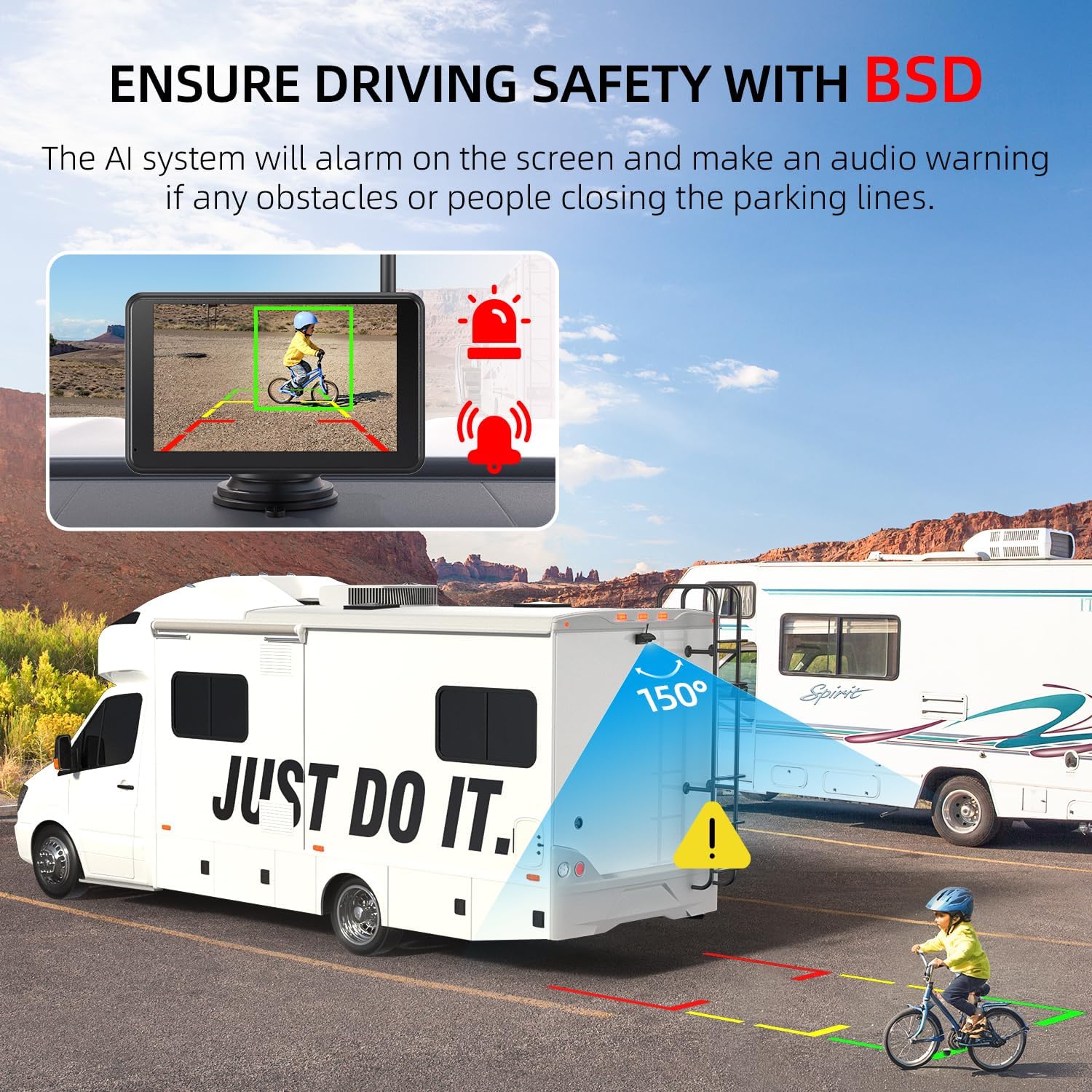
Image: The monitor displaying a Blind Spot Detection (BSD) warning, indicating an obstacle (child on bike) near the vehicle's parking lines.
- Customize BSD settings via the touchscreen menu.
- When an obstacle or person is detected near the configured parking lines, the AI system will trigger an alarm on the screen and emit an audio warning.
4. Начное бачанне
The camera is equipped with Infrared (IR) night vision capabilities to provide clear images in low-light or dark conditions.
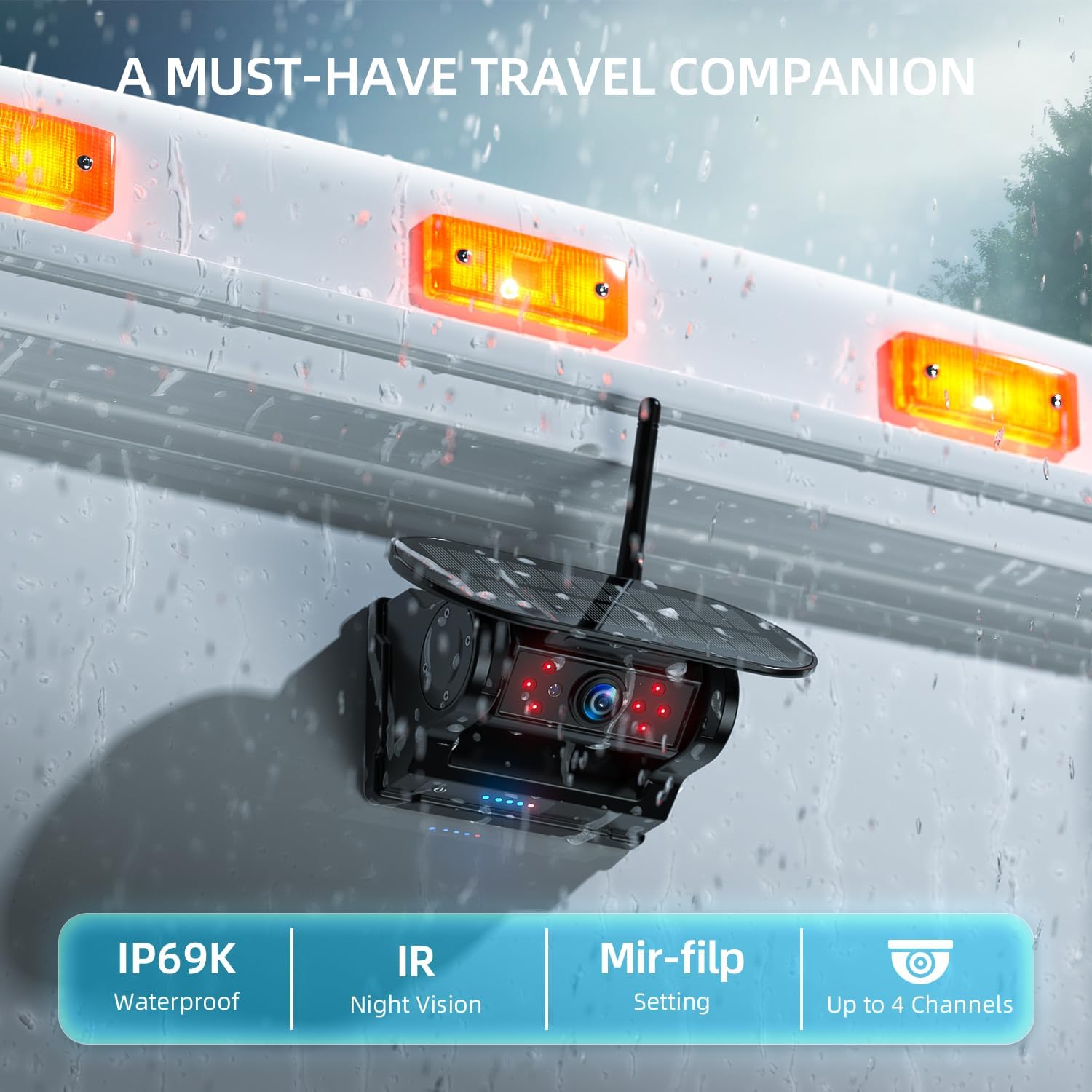
Image: The camera unit, emphasizing its IP69K waterproof rating and integrated IR night vision for enhanced visibility.
- IR night vision activates automatically in low-light environments.
- This feature ensures visibility when backing up or monitoring in the dark.
Тэхнічнае абслугоўванне
- Уборка: Выкарыстоўвайце мяккі, damp тканінай для чысткі аб'ектыва камеры і экрана манітора. Пазбягайце выкарыстання абразіўных ачышчальнікаў або растваральнікаў.
- Размяшчэнне камеры: Periodically check the camera's magnetic attachment to ensure it remains secure, especially after driving on rough terrain.
- Панэль сонечных батарэй: Keep the solar panel clean and free of dirt or obstructions to maximize charging efficiency.
- Кіраванне SD-картай: Рэгулярна рабіце рэзервовыя копіі важных відэа files from the SD card. Format the SD card periodically (e.g., monthly) via the monitor's settings to maintain optimal recording performance and prevent data corruption.
- Сыход за батарэяй: For prolonged storage, ensure the camera's battery is partially charged (around 50-70%) to extend its lifespan.
Ліквідацыю непаладак
| праблема | Магчымая прычына | Рашэнне |
|---|---|---|
| Няма малюнка на маніторы | Monitor not powered; Camera not powered; Wireless signal interference; Camera out of range. |
|
| Мігценне або нестабільнасць выявы | Weak wireless signal; Interference from other devices. |
|
| Відэарэгістратар не запісвае | SD card full; SD card error; SD card not inserted correctly. |
|
| BSD not working | BSD feature disabled; Incorrect sensitivity settings; Obstruction of camera view. |
|
Тэхнічныя характарыстыкі
| Асаблівасць | Дэталь |
|---|---|
| мадэль | AWTCM501 |
| Памер дысплея | 5-цалевы |
| Дазвол відэа | HD1080P |
| Сувязь | Бесправадная сувязь (2.4 ГГц) |
| Крыніца харчавання камеры | Built-in Li-ion Battery (9600mAh), Solar Panel, Type-C USB |
| Крыніца харчавання манітора | 12V аўтамабільнае зарадная прылада |
| Захоўванне | 32GB SD Card (included), Loop Recording |
| Асаблівасці | Touchscreen, DVR, BSD (Blind Spot Detection), IR Night Vision, Magnetic Mount, IP69K Waterproof Camera |
| Дата першай даступнасці | 26 жніўня 2025 г |
Гарантыя і падтрымка
eRapta products are designed for reliability and performance. For warranty information, technical support, or assistance with your AWTCM501 system, please contact eRapta customer service directly. Refer to the product packaging or the official eRapta webсайт для атрымання найбольш актуальнай кантактнай інфармацыі.
Калі ласка, захавайце доказы пакупкі для прэтэнзій па гарантыі.