
1. Уводзіны
Thank you for choosing the MOFII Wireless Keyboard and Mouse Combo. This full-size 2.4G plug-and-play set features a typewriter retro round key design, enhancing both aesthetics and functionality for your Windows PC, desktop, laptop, or notebook. This manual provides detailed instructions for setup, operation, maintenance, and troubleshooting to ensure optimal performance and longevity of your device.
2. Змесціва ўпакоўкі
- MOFII Wireless Keyboard
- MOFII Wireless Mouse
- USB Nano Receiver (stored inside the mouse)
- Кіраўніцтва карыстальніка
3. Інструкцыі па ўсталёўцы
3.1. Устаноўка батарэі
Both the keyboard and mouse require 1 AA battery each (not included). To install:
- Знайдзіце адсек для батарэек на ніжняй частцы клавіятуры і мышы.
- Адкрыйце крышку адсека.
- Insert one AA battery into each device, ensuring correct polarity (+/-).
- Надзейна зачыніце крышку батарэйнага адсека.
3.2. Connecting the Wireless Combo
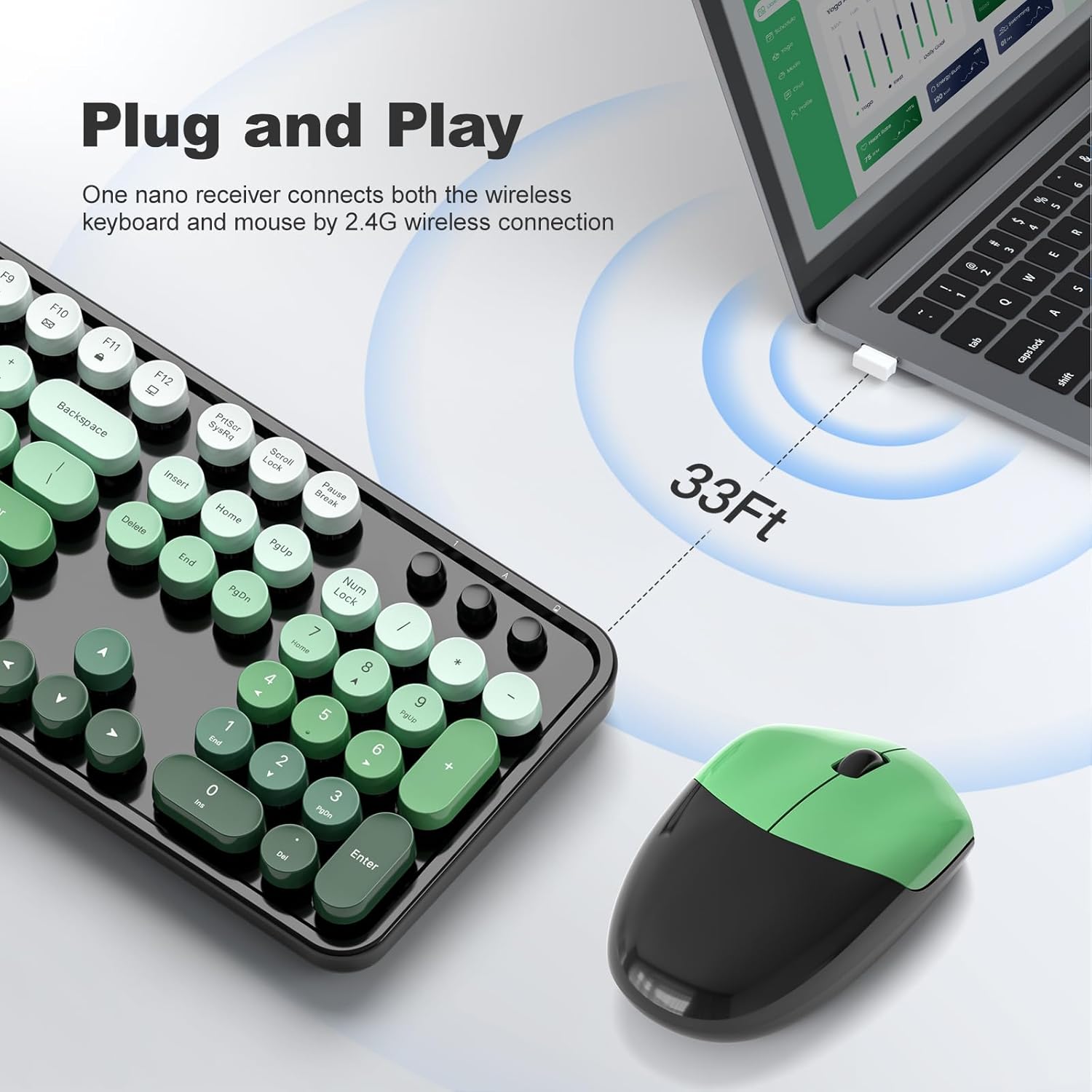
The keyboard and mouse connect via a single 2.4G USB nano receiver.
- Locate the USB nano receiver, which is typically stored in a small slot on the underside of the mouse.
- Plug the USB nano receiver into an available USB port on your computer (PC, desktop, laptop, or notebook).
- The system should automatically detect and install the necessary drivers. This is a plug-and-play device, so no additional software installation is usually required.
- Turn on the keyboard and mouse (if they have a power switch). The mouse may activate by clicking its buttons.
4. Інструкцыя па эксплуатацыі
4.1. Выкарыстанне клавіятуры
The full-size keyboard features a standard QWERTY layout with a dedicated number pad. The retro round keycaps provide a comfortable typing experience.
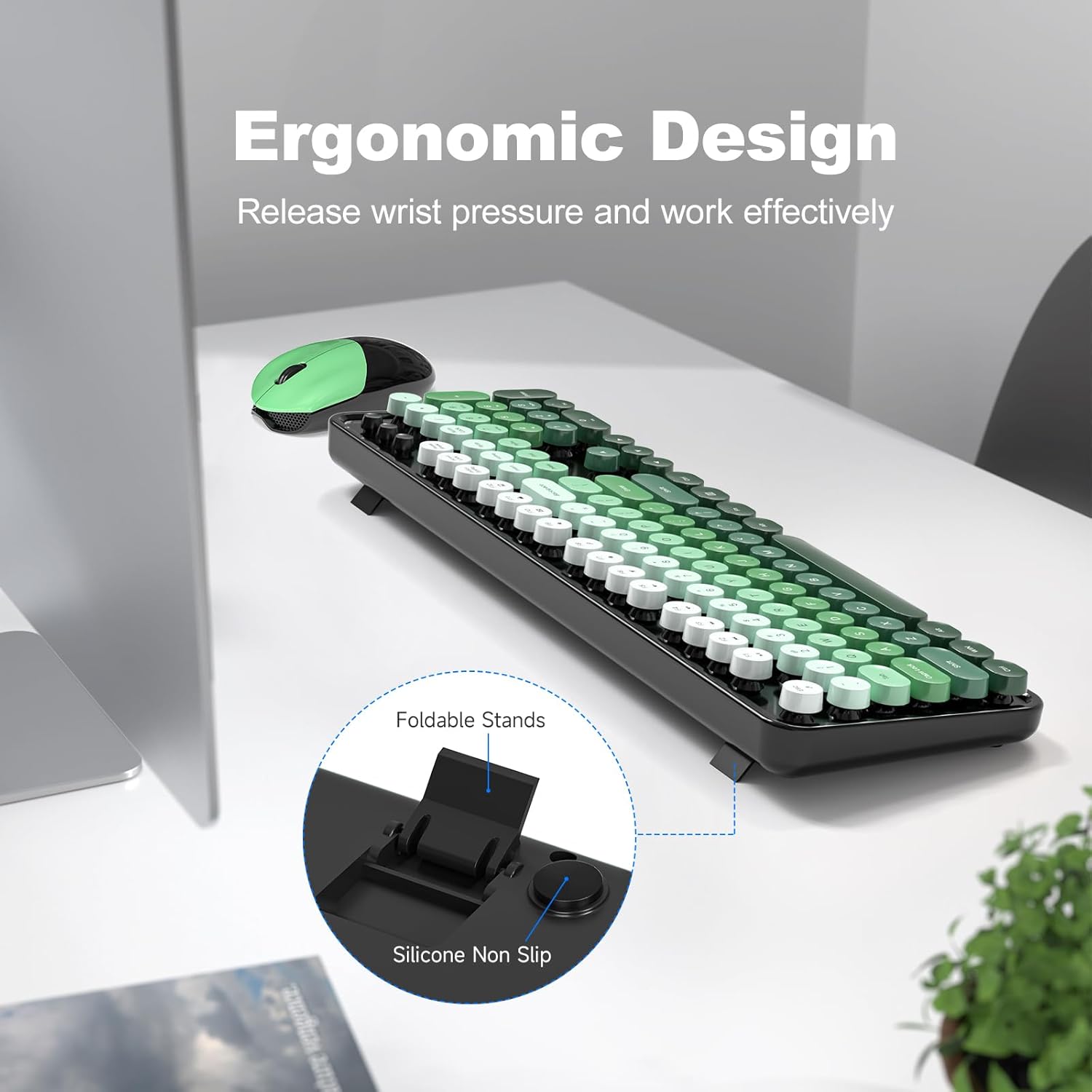
- Эрганамічны дызайн: The keyboard includes a folding holder and anti-slide pads on the underside. Adjust these stands to achieve an optimal typing angle, which helps reduce wrist strain during extended use.
- Мультымедыйныя ключы: Utilize the function keys (F1-F12) in combination with the 'Fn' key for quick access to multimedia controls and other system functions.
4.2. Выкарыстанне мышы
The contoured mouse is designed for comfortable use over long periods. It features standard left/right click buttons and a scroll wheel.
4.3. Auto-Sleep Feature
To conserve battery life, both the keyboard and mouse are equipped with an intelligent auto-sleep function. After 8-10 minutes of inactivity, the devices will automatically enter sleep mode. To wake them up, simply press any key on the keyboard or click a mouse button.

5. Тэхнічнае абслугоўванне
5.1. Уборка
The keyboard features detachable keycaps, making cleaning convenient.
- Gently remove the keycaps. A keycap puller (if included) or a small tool can assist.
- Use a soft brush (a cleaning brush may be included) or compressed air to remove dust and debris from beneath the keycaps and from the keyboard surface.
- Wipe the keycaps and the keyboard surface with a soft, damp тканінай. Сачыце за тым, каб вільгаць не трапляла ўнутраныя кампаненты.
- Allow all parts to dry completely before reattaching the keycaps.

5.2. Замена батарэі
When the devices stop responding or exhibit intermittent connectivity, it may be time to replace the batteries. The estimated battery life is up to 18 months, but this can vary based on usage.
- Open the battery compartment on the underside of the keyboard and mouse.
- Выміце старую батарэйку тыпу АА.
- Insert a new AA battery, observing correct polarity.
- Зачыніце вечка адсека.
6. Выпраўленне непаладак
- Няма адказу: Ensure batteries are correctly installed and charged. Check that the USB nano receiver is securely plugged into your computer.
- Перарывістае злучэнне: Move the keyboard and mouse closer to the USB receiver. Ensure there are no large metal objects or other wireless devices interfering with the 2.4G signal. Replace batteries if they are low.
- Ключы не працуюць: If specific keys are not responding, try removing and re-inserting the keycap to ensure it is properly seated. Clean any debris around the key switch.
- Курсор мышы скача або працуе нераўнамерна: Ensure the mouse sensor is clean and free of obstructions. Use the mouse on a suitable surface (a mouse pad is recommended).
7. Тэхнічныя характарыстыкі
| Асаблівасць | Дэталь |
|---|---|
| Марка | МОФІІ |
| мадэль | B0G3PL9CJS |
| Колер | Black Green Gradient |
| Тэхналогія падлучэння | 2.4G USB Wireless |
| Асаблівасць | Round Key, Ergonomic Design, Auto-Sleep |
| Сумяшчальныя прылады | Personal Computer (PC, Desktop, Laptop, Notebook) |
| Патрабаванне да батарэі | 1 AA battery for keyboard, 1 AA battery for mouse |
| Апісанне клавіятуры | Multimedia, Full-Size with Number Pad |
| Вытворца | МОФІІ |

8. Гарантыя і падтрымка
MOFII offers a 12-month warranty for this product. For any issues or support needs, please contact MOFII Direct, the seller, through your purchase platform. Additionally, a 30-day money-back guarantee is provided.