
1. Уводзіны
This manual provides detailed instructions for the cudinham X6 Print Pod Mini Thermal Printer. This compact, inkless printer is designed for various uses, including creating stickers, notes, and labels directly from your smartphone or tablet. Please read this manual thoroughly before use to ensure proper operation and longevity of your device.
2. Што ў скрынцы
Праверце наяўнасць усіх прадметаў у камплекце:
- cudinham X6 Mini Thermal Printer
- 10 Rolls Printing Paper (Thermal Paper & Sticker Paper)
- Шнур харчавання Type-C
- Кіраўніцтва карыстальніка

Малюнак 2.1: Змест пакета
3. Прадукт скончыўсяview
The cudinham X6 Mini Thermal Printer features a simple and intuitive design. Key components include:
- Выхад паперы: Where printed paper exits.
- Кнопка харчавання: Used to turn the printer on/off and initiate feeding.
- Індыкатар харчавання: Shows the device's power status.
- Порт USB: Для зарадкі прылады.
- Cover Opening Button: Releases the top cover for paper loading.
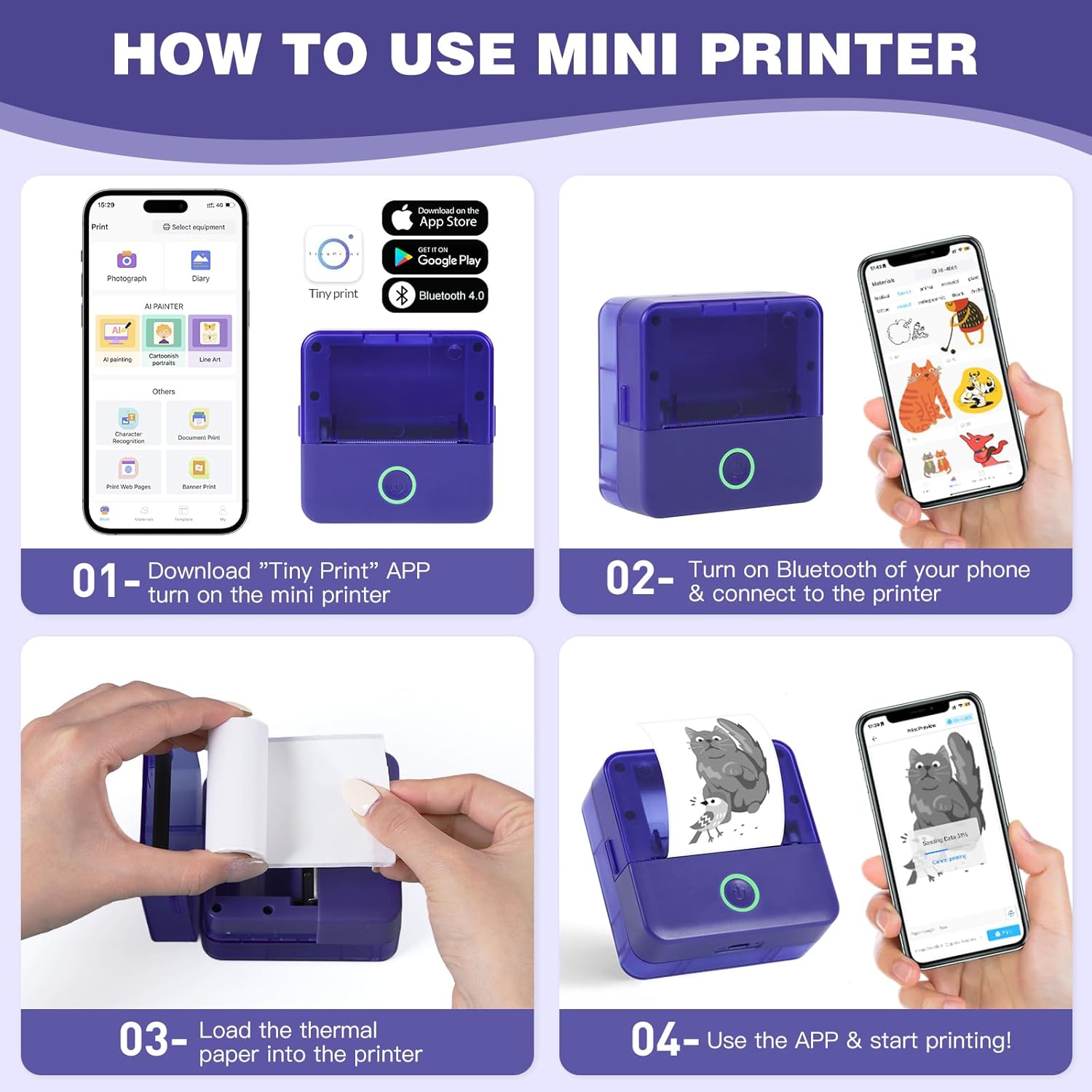
Figure 3.1: Printer Components and How to Use
4. Настройка
4.1 Зарадка прынтара
Before first use, ensure the printer is fully charged. Connect the provided Type-C power cord to the printer's USB port and a suitable power adapter (not included). The power indicator light will show charging status.
4.2 Усталёўка тэрмапаперы
- Press the cover opening button to open the top cover of the printer.
- Remove any existing paper roll or the adjuster from the right side if present.
- Load a new thermal paper roll into the paper compartment. Ensure the printing side (smooth side) is facing up and aligned with the print head.
Tip: To distinguish the printing side, gently scratch the paper surface with your nail; the side that leaves a mark is the printing side. - If removed, install the adjuster on the right side to secure the paper roll.
- Pull out a small portion of the paper (approximately 1cm) beyond the paper outlet.
- Шчыльна зачыніце верхнюю крышку, пакуль яна не зафіксуецца на месцы.

Figure 4.1: Opening the Paper Compartment

Figure 4.2: Loading the Paper Roll

Figure 4.3: Closing the Cover after Paper Loading
4.3 Загрузка праграмы і падключэнне праз Bluetooth
- Download the "Tiny Print" app from the App Store (iOS) or Google Play Store (Android).
- Turn on the mini printer by pressing and holding the power button until the indicator light illuminates.
- Уключыце Bluetooth на смартфоне або планшэце.
- Open the "Tiny Print" app and follow the in-app instructions to connect to your printer via Bluetooth. Look for a device named "X6H-XXXX" or similar.
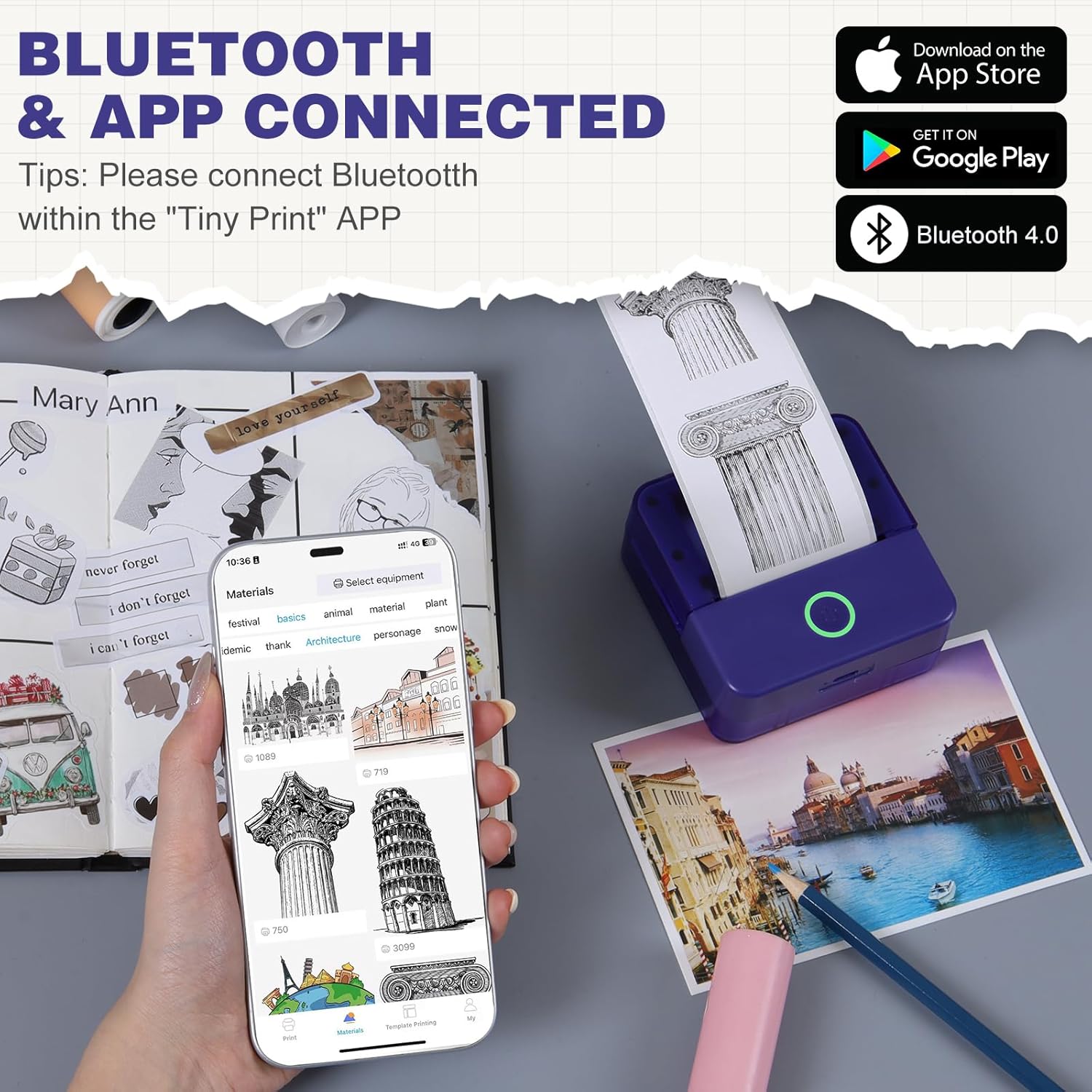
Figure 4.4: App Interface and Bluetooth Connection
Video 4.1: Demonstrating the setup and connection process for the cudinham X6 Mini Thermal Printer.
5. Інструкцыя па эксплуатацыі
The "Tiny Print" app offers various functions for printing. Ensure your printer is connected via Bluetooth before proceeding.
5.1 Базавы друк
- Фотадрук: Select "Photo Printing" in the app, choose an image from your gallery, adjust as needed, and tap "Print."
- Друк тэксту: Select "Text Printing" or a template, input your text, customize fonts and sizes, and tap "Print."
- Шаблоны: The app provides multiple free templates for notes, to-do lists, labels, and more. Select a template, customize it, and print.

Figure 5.1: Multi-functionality of the Tiny Print App

Figure 5.2: Image Printing Settings

Figure 5.3: Text Printing Settings
5.2 Налада параметраў друку
Within the app, you can adjust the print depth for both images and text. For optimal results, especially with images, it is recommended to use the high-definition printing mode and set the print depth between 4 and 7. Experiment with settings to achieve your desired print quality.
Відэа 5.1: Скончанаview of the cudinham X6 Print Pod Mini Printer's features and printing capabilities.
6. Тэхнічнае абслугоўванне
6.1 Ачыстка друкавальнай галоўкі
Каб падтрымліваць якасць друку, рэгулярна чысціце друкавальную галоўку. Выкарыстоўвайце мяккую тканіну без ворса, злёгку прамакнуўшы яе.ampened with alcohol. Gently wipe the print head to remove any dust or paper residue. Ensure the printer is turned off and disconnected from power before cleaning.
6.2 Захоўванне паперы
Store thermal paper in a cool, dry place away from direct sunlight and heat to prevent premature fading or damage. Avoid touching the printing surface of the paper with bare hands as oils can affect print quality.

Figure 6.1: Different Types of Thermal Paper
7. Выпраўленне непаладак
| праблема | Магчымая прычына | Рашэнне |
|---|---|---|
| Прынтар не ўключаецца | Нізкі ўзровень зарада батарэі; кнопка харчавання націснута няправільна. | Зарадзіце прынтар; націсніце і ўтрымлівайце кнопку харчавання на працягу 3 секунд. |
| Дрэнная якасць друку (бляклы/размыты) | Print head dirty; Incorrect print depth setting; Low battery. | Clean the print head; Adjust print depth in the app (recommended 4-7); Charge the printer. |
| Прынтар не падключаецца праз Bluetooth | Bluetooth off on phone/printer; App not recognizing printer. | Ensure Bluetooth is enabled on both devices; Restart the app and printer; Re-pair the device in the app. |
| Замяцце паперы | Папера загружана няправільна; старонні прадмет у шляху праходжання паперы. | Open the cover, remove jammed paper, re-load correctly; Check for obstructions. |
8. Тэхнічныя характарыстыкі
| Асаблівасць | Дэталь |
|---|---|
| Назва мадэлі | X6 |
| Марка | Кудзінхам |
| Тэхналогія друку | Цеплавы |
| Тэхналогія падлучэння | Bluetooth |
| Вывад на прынтэр | Thermal (Monochrome) |
| Максімальная хуткасць друку (монахромны) | 20 праміле |
| Друкаваныя СМІ | Тэрмапапера |
| Памер ліста | 57x22 Millimeters |
| Максімальны памер носьбіта | 52х350 мм |
| Памеры прадукту | 3.35 х 1.77 х 3.35 цалі |
| Вага прадмета | 13.2 унцыі |
| Батарэі | 1 нестандартная батарэя (у камплекце) |
| Абсталяванне інтэрфейсу | USB |
9. Гарантыя і падтрымка
For warranty information and customer support, please refer to the warranty card included in your package or contact cudinham customer service directly. Keep your purchase receipt for warranty claims.
Кантактная інфармацыя:
- вытворца: Cudinham
- Прадавец: Cudinham Home
- Please refer to the product packaging or official webсайт, каб знайсці найбольш актуальную кантактную інфармацыю службы падтрымкі.