
1. Уводзіны і большview
This manual provides essential information for the proper setup, operation, and maintenance of your AOC Q27G4ZDF QD-OLED Gaming Monitor. The AOC Q27G4ZDF is a 27-inch QHD (2560 x 1440) display featuring QD-OLED panel technology, a 240Hz refresh rate, and an ultra-fast 0.03ms pixel response time. It supports Adaptive Sync for tear-free gaming and HDR10 for enhanced picture quality. Please read this manual thoroughly before using your monitor.
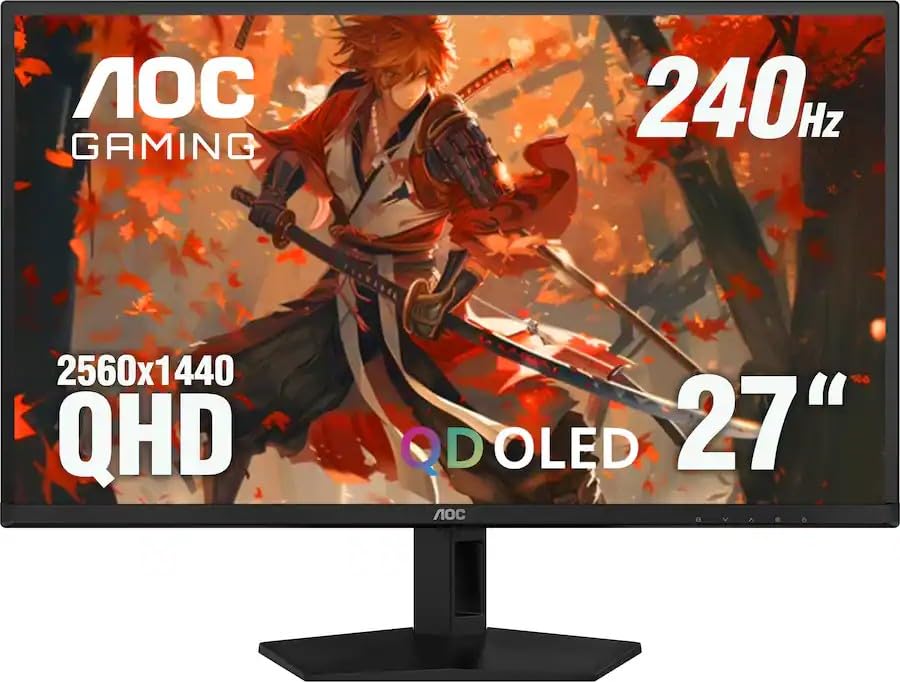
Малюнак 1.1: Спераду view of the AOC Q27G4ZDF QD-OLED Gaming Monitor.
2. Што ў скрынцы
Праверце наяўнасць усіх кампанентаў ва ўпакоўцы:
- AOC Q27G4ZDF Monitor Display
- Падстаўка для манітора (аснова і шыя)
- Кабель HDMI
- Шнур харчавання
- Кіраўніцтва карыстальніка (гэты дакумент)
3. Інструкцыі па ўсталёўцы
3.1. Мантаж стэнда
- Асцярожна выміце кампаненты манітора і падстаўкі з упакоўкі.
- Прымацуйце падстаўку да панэлі манітора. Пераканайцеся, што яна надзейна зашчапілася або замацавана шрубамі, як паказана ў кіраўніцтве па хуткім запуску.
- Attach the stand base to the stand neck. Tighten the thumb screw or screws from the bottom of the base to secure it.
- Змесціце сабраны манітор на ўстойлівую, роўную паверхню.
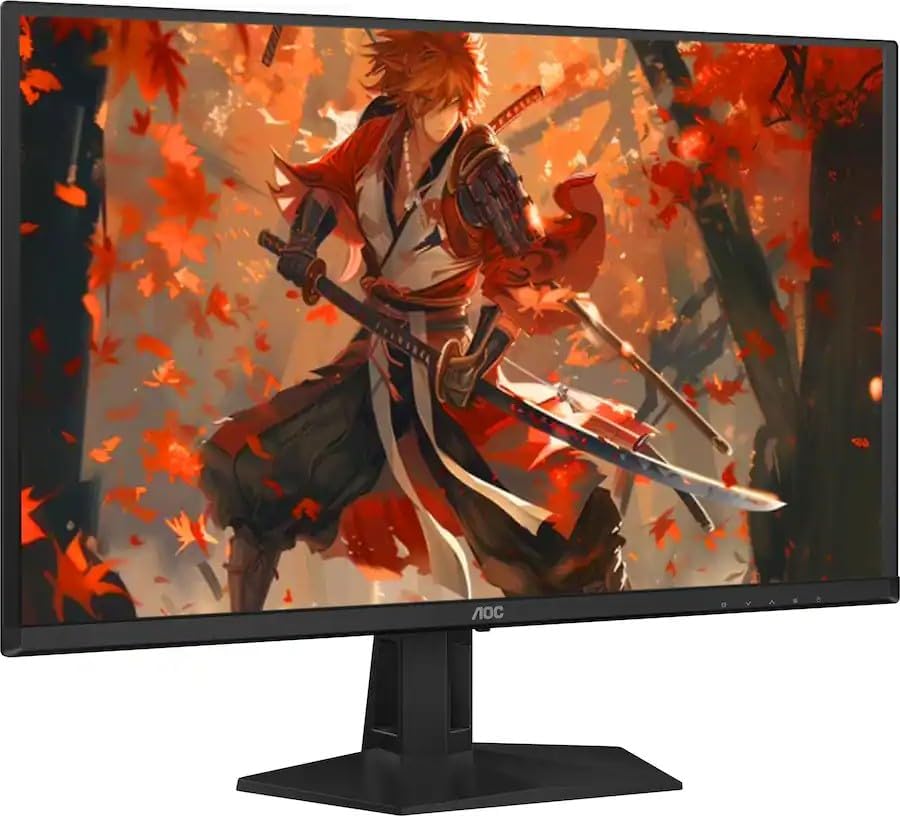
Малюнак 3.1: Задняя частка view of the monitor with the stand assembled.
3.2. Падключэнне да кампутара
- Пераканайцеся, што і манітор, і камп'ютар выключаны.
- Connect one end of the provided HDMI cable to the HDMI port on your computer's graphics card.
- Connect the other end of the HDMI cable to an available HDMI input port on the monitor. Alternatively, use a DisplayPort cable for DisplayPort connections.
- Падключыце шнур харчавання да ўваходу сілкавання манітора, а затым падключыце другі канец да заземленай электрычнай разеткі.
- Уключыце камп'ютар, а затым уключыце манітор.
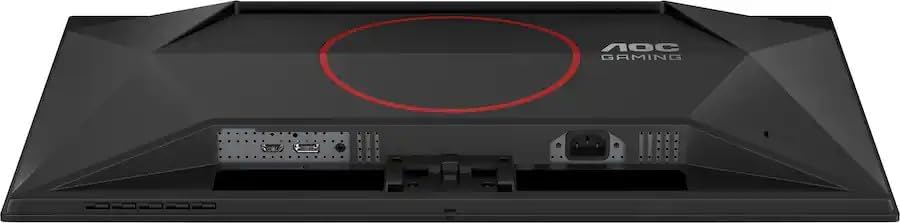
Малюнак 3.2: Задняя частка view showing the monitor's input ports (HDMI, DisplayPort, Power).
4. Інструкцыя па эксплуатацыі
4.1. Уключэнне/выключэнне харчавання
- To power on the monitor, press the power button located on the bottom right side of the monitor.
- To power off the monitor, press the power button again.
4.2. Навігацыя па экранным меню (OSD)
The OSD menu allows you to adjust various monitor settings. Use the navigation buttons (usually located on the bottom right of the monitor) to access and navigate the OSD.
- Націсніце кнопку меню, каб адкрыць экраннае меню.
- Use the directional buttons (Up/Down/Left/Right) to navigate through menu options.
- Націсніце кнопку Выбраць/ОК, каб пацвердзіць выбар або ўвайсці ў падменю.
- Press the Exit button to go back to the previous menu or exit the OSD.
4.3. Выбар уводу
If you have multiple devices connected to the monitor, you can switch between input sources:
- Доступ да экраннага меню.
- Navigate to the 'Input' or 'Source' section.
- Select the desired input (e.g., HDMI1, DisplayPort).
4.4. Налады выявы
Adjust display characteristics such as brightness, contrast, color temperature, and gamma through the OSD menu's 'Picture' or 'Color' settings.
4.5. Гульнявыя функцыі
The monitor includes features optimized for gaming:
- Адаптыўная сінхранізацыя: Ensures smooth, tear-free gameplay by synchronizing the monitor's refresh rate with your GPU's frame rate. Enable this feature in your graphics card control panel.
- Рэжым гульні: Preset display modes (e.g., FPS, RTS) can be selected via the OSD to optimize visual settings for different game genres.
- Нізкая затрымка ўводу: The monitor is designed for minimal input lag, enhancing responsiveness in fast-paced games.
5. Тэхнічнае абслугоўванне
5.1. Ачыстка манітора
- Заўсёды выключайце манітор і адключайце шнур сілкавання ад сеткі перад чысткай.
- Выкарыстоўвайце мяккую тканіну без ворса. dampвадой або мяккім неабразіўным ачышчальнікам для экранаў.
- Не распыляйце ачышчальнік непасрэдна на экран.
- Пазбягайце выкарыстання бензолу, разбаўляльніка, ачышчальнікаў на аснове аміяку або абразіўных матэрыялаў, бо яны могуць пашкодзіць экран або камп'ютар.asing.
5.2. Захоўванне
- If storing the monitor for an extended period, disconnect all cables and pack it in its original packaging to protect it from dust and physical damage.
- Захоўвайце ў прахалодным, сухім месцы, удалечыні ад прамых сонечных прамянёў і экстрэмальных тэмператур.
6. Выпраўленне непаладак
Звярніцеся да табліцы ніжэй, каб азнаёміцца з распаўсюджанымі праблемамі і іх рашэннямі.
| праблема | Магчымая прычына | Рашэнне |
|---|---|---|
| Няма сілы | Power cord not connected; Power outlet faulty; Monitor power button off. | Пераканайцеся, што шнур харчавання надзейна падключаны да манітора і разеткі. Праверце разетку з іншай прыладай. Націсніце кнопку харчавання манітора. |
| Няма сігналу | Відэакабель не падключаны; выбрана няправільная крыніца ўваходнага сігналу; камп'ютар не ўключаны. | Check video cable connections (HDMI/DisplayPort). Select correct input source via OSD. Ensure computer is powered on and outputting video. |
| Image Flickering | Няшчыльны відэакабель; праблема з драйверам відэакарты; неадпаведнасць частаты абнаўлення. | Secure video cable connections. Update graphics card drivers. Ensure monitor refresh rate is set correctly in display settings. |
| Дрэнная якасць малюнка | Incorrect resolution; OSD settings not optimized. | Set display resolution to native QHD (2560x1440). Adjust brightness, contrast, and color settings in the OSD. |
7. Тэхнічныя характарыстыкі
| Асаблівасць | Спецыфікацыя |
|---|---|
| Марка | AOC |
| Назва мадэлі | Q27G4ZDF |
| Памер экрана | 27 цалі |
| Тып дысплея | QD-OLED |
| дазвол | QHD (2560 x 1440 пікселяў) |
| Частата абнаўлення | 240 Гц |
| Час водгуку | 0.03 мс (GtG) |
| Каэфіцыент кантраснасці выявы | 1,500,000:1 |
| Тэхналогія падлучэння | DisplayPort, HDMI |
| Дадатковыя магчымасці | Adaptive Sync, Eye Care, Frameless Design |
| Тып мацавання | Настольнае мацаванне |
| Вага прадмета | 11.4 фунта |
| UPC / GTIN | 604467590038 |
8. Гарантыя і падтрымка
This AOC Q27G4ZDF monitor comes with a 90-дзённая абмежаваная гарантыяГэтая гарантыя распаўсюджваецца на дэфекты матэрыялаў і вырабу пры нармальным выкарыстанні на працягу гарантыйнага тэрміну.
For technical support, warranty claims, or further assistance, please visit the official AOC support website or contact their customer service. Keep your purchase receipt as proof of purchase for warranty services.
Інтэрнэт-падтрымка: www.aoc.com/support