
1. Прадукт скончыўсяview
The MEETION K2000 is a wired ergonomic keyboard designed for comfort and enhanced typing experience. It features a translucent shell, split and curved key layout, integrated wrist rest, and customizable RGB backlighting. It offers broad compatibility with various operating systems via USB-A or USB-C connection.

Малюнак 1.1: The MEETION K2000 Ergonomic Wired RGB Keyboard, showcasinдзякуючы падзеленай канструкцыі і інтэграванай падстаўцы для запясцяў.
Відэа 1.1: Надview of the MEETION K2000 Ergonomic Wired RGB Keyboard, highlighting its features and design.
2. Настройка
2.1 Змест пакета
- MEETION K2000 Ergonomic Wired RGB Keyboard
- Адаптар USB-A да USB-C
- Кіраўніцтва карыстальніка
2.2 Падключэнне клавіятуры
- Locate an available USB port on your computer (PC, Laptop, Mac).
- Connect the keyboard's USB-A cable directly to a USB-A port on your computer.
- If your computer only has USB-C ports, attach the provided USB-A to USB-C adapter to the keyboard's USB-A cable, then plug the adapter into a USB-C port on your computer.
- The keyboard is plug-and-play; no additional drivers are required for most operating systems.

Малюнак 2.1: The keyboard's USB-A cable and the included USB-A to USB-C adapter for versatile connectivity.
2.3 Рэгуляванне вугла нахілу клавіятуры
The keyboard features adjustable flip-out feet at the bottom to customize your typing angle for optimal comfort. You can choose between 2°, 4.07°, or 4.3° incline settings.

Малюнак 2.2: The adjustable feet on the underside of the keyboard allow for different typing angles.
3. Інструкцыя па эксплуатацыі
3.1 Ergonomic Design and Wrist Rest
The keyboard's split, curved layout and integrated padded wrist rest are designed to promote a natural hand and wrist posture, reducing strain during extended use. The scissor-switch key design offers a quiet and comfortable typing experience.
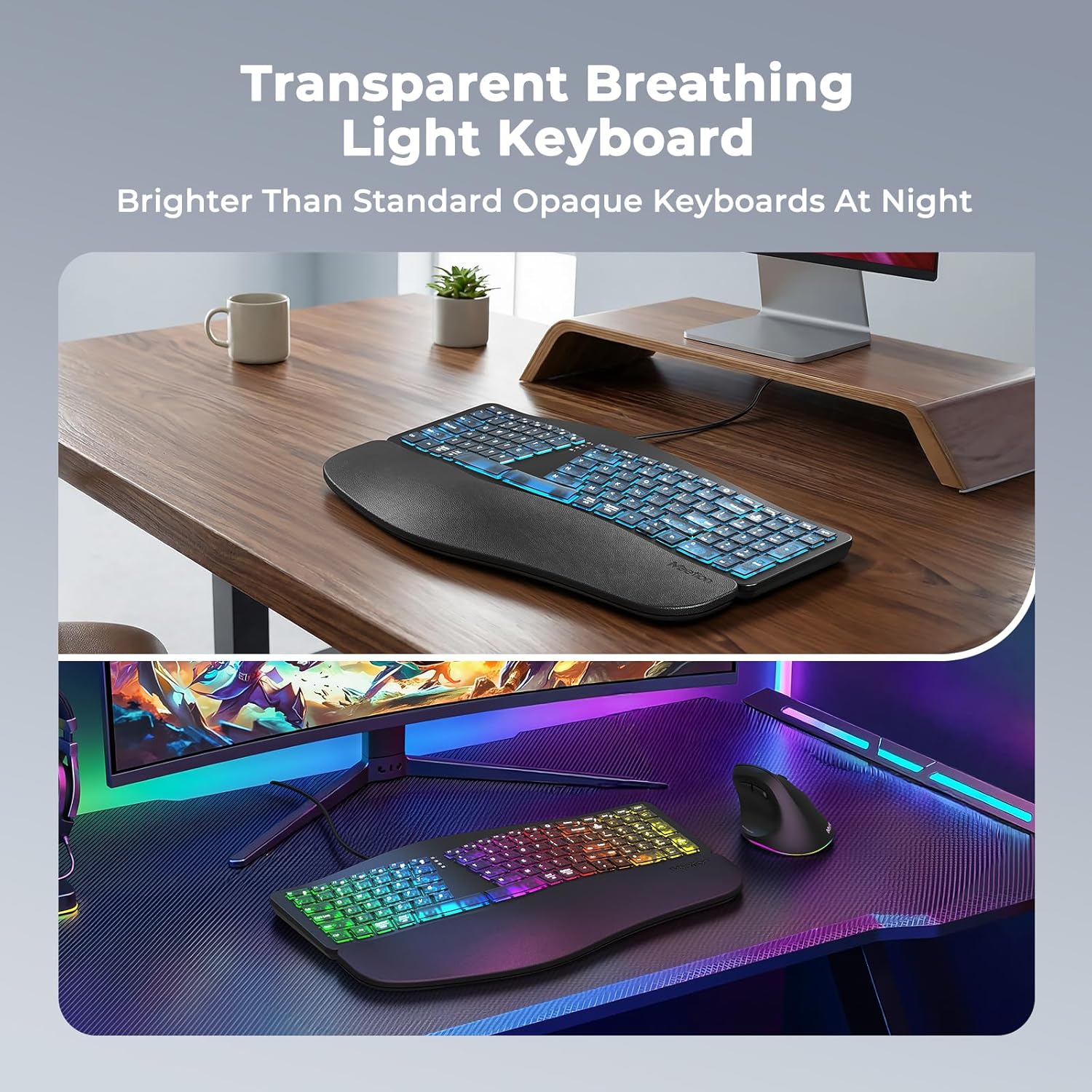
Малюнак 3.1: The split ergonomic design of the keyboard helps maintain a comfortable typing posture.
3.2 Кантроль падсветкі
The translucent keycaps allow for vibrant backlighting. You can customize the lighting effects and brightness levels:
- Наладзіць яркасць: Прэса Fn + правы Shift repeatedly to cycle through 25%, 50%, 75%, 100% brightness, or turn the backlight off.
- Змяніць рэжым/колер падсветкі: Прэса Fn + Right Enter repeatedly to switch between different modes:
- RGB Breathing (dynamic color cycling)
- 7 Static Colors: Red, Green, Blue, White, Purple, Cyan, Yellow
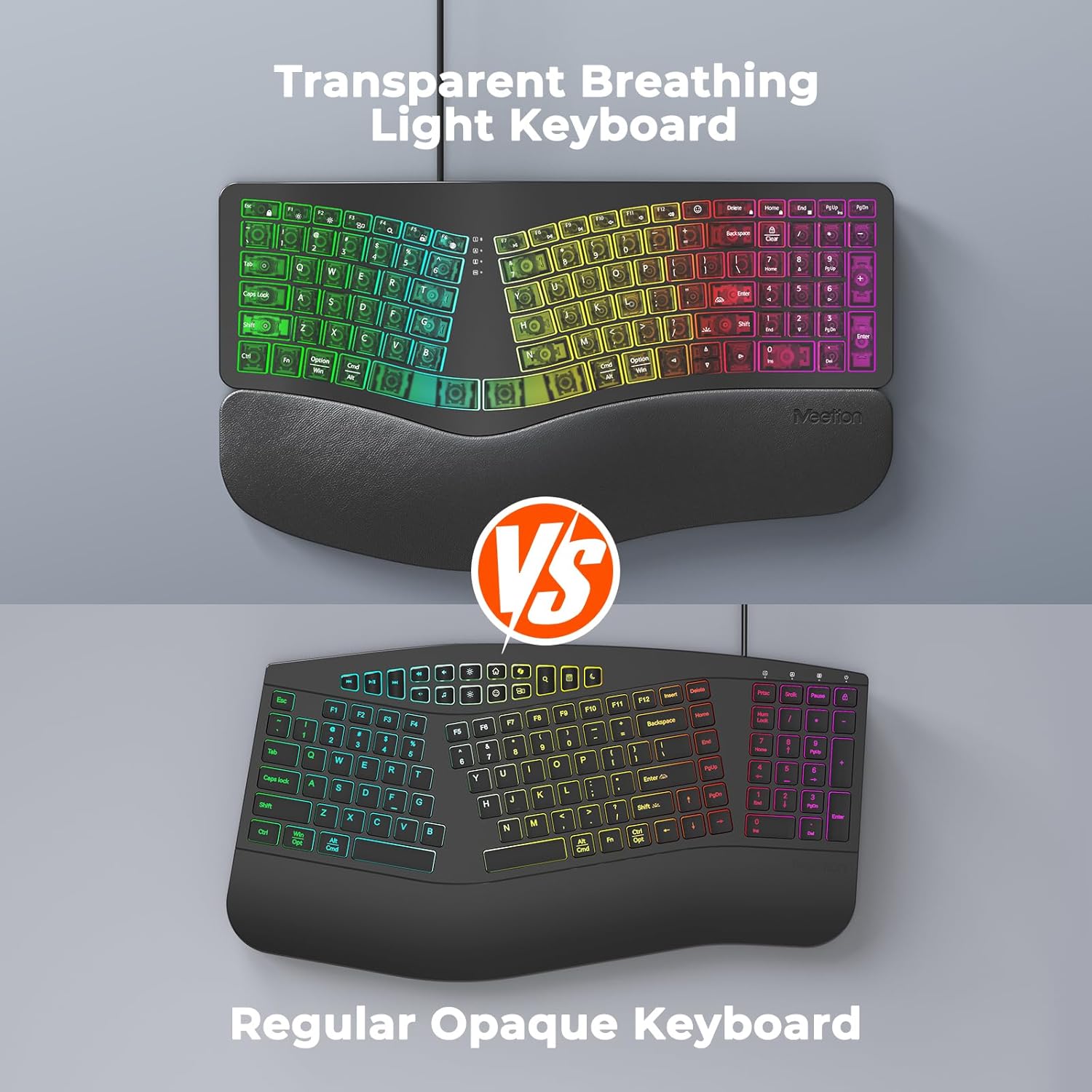
Малюнак 3.2: Instructions for adjusting backlight brightness and cycling through various color modes.
Відэа 3.1: Demonstration of the K2000 keyboard's backlit features and color options.
3.3 System Layout Switching
The keyboard supports both Windows and Mac layouts. To switch between systems:
- Для вокны systems: Press Fn + Q
- Для Mac systems: Press Fn + W

Малюнак 3.3: The keyboard supports both Windows and Mac operating systems, with dedicated function keys for switching layouts.
3.4 Emoji Shortcuts
Access emoji shortcuts by pressing the dedicated Emoji key. This feature is compatible with Windows, MacOS, iPad (iPadOS), and Android Samsung devices. Please note that it does not support iPhone (iOS).

Малюнак 3.4: The dedicated emoji shortcut key for quick access to emojis on compatible devices.
4. Тэхнічнае абслугоўванне
4.1 Ачыстка
- Каб ачысціць клавіятуру, акуратна працярыце паверхню мяккай, сухой або злёгку змочанай тканінайamp тканіна.
- Avoid using harsh chemicals, abrasive cleaners, or solvents, as these may damage the keyboard's finish or keycaps.
- Для ачысткі паміж клавішамі выкарыстоўвайце сціснутае паветра, каб выдаліць пыл і смецце.
4.2 Сыход за клавішамі
- Ensure keycaps are firmly seated. If a keycap feels loose, gently press it down until it clicks into place.
- Avoid excessive force when pressing keys to prevent damage.
5. Выпраўленне непаладак
5.1 Клавіятура не рэагуе
- Ensure the USB cable is securely plugged into your computer's USB port.
- Паспрабуйце падключыць клавіятуру да іншага USB-порта на вашым кампутары.
- If using the USB-C adapter, ensure it is firmly connected to both the keyboard cable and the computer's USB-C port.
- Test the keyboard on another computer to determine if the issue is with the keyboard or your computer's port/drivers.
5.2 Праблемы з падсветкай
- If the backlight is off, press Fn + правы Shift каб павялічыць яркасць.
- If the color is not desired, press Fn + Right Enter to cycle through different color modes.
- Ensure the keyboard is properly connected, as power issues can affect backlighting.
5.3 Ключы не рэгіструюцца
- Gently press down on the affected keycap to ensure it is properly seated.
- Clean any debris or dust from under the keycap using compressed air.
- If the issue persists, try the troubleshooting steps for "Keyboard Not Responding".
6. Тэхнічныя характарыстыкі
| Марка | СУСТРЭЧА |
| Нумар мадэлі | К2000 |
| Тэхналогія падлучэння | USB-A, USB-C |
| Апісанне клавіятуры | Multimedia, Ergonomic, Backlit |
| Асаблівасці | Backlit, Ergonomic, Wired, Wrist Rest |
| Колер | Чорны |
| Падтрымка колеру падсвятлення клавіятуры | RGB (7 static colors + breathing mode) |
| Матэрыял | Acrylonitrile Butadiene Styrene, Thermoplastic Polyurethane (TPU) |
| Раскладка клавіятуры | QWERTY |
| Сумяшчальныя прылады | Laptop, PC (Windows, Mac) |
7. Гарантыя і падтрымка
7.1 Гарантыя вытворцы
The MEETION K2000 Ergonomic Wired RGB Keyboard comes with a 1-гадовая гарантыя вытворцы. Гэтая гарантыя распаўсюджваецца на дэфекты матэрыялаў і вырабу пры звычайным выкарыстанні.
7.2 Тэхнічная падтрымка
For technical assistance, troubleshooting, or warranty claims, please contact MEETION customer support. Refer to the product packaging or the official MEETION webсайт для атрымання самай актуальнай кантактнай інфармацыі.