
1. Уводзіны
Thank you for choosing the AULA G7 Pro Wireless Gaming Headset. This manual provides detailed instructions for setting up, operating, and maintaining your headset to ensure optimal performance and an immersive audio experience. Please read this manual thoroughly before using the product.
2. Прадукт скончыўсяview
2.1 Змест пакета
The AULA G7 Pro package includes the following items:
- AULA G7 Pro Wireless Gaming Headset
- Здымны мікрафон на штанзе
- Кабель для зарадкі USB-C да USB-A
- Аўдыёкабель 3.5 мм
- 2.4G Wireless USB-A Receiver
- Адаптар USB-C да USB-A
- Кіраўніцтва карыстальніка
2.2 Кампаненты і элементы кіравання гарнітуры
Familiarize yourself with the various parts and controls of your AULA G7 Pro headset.
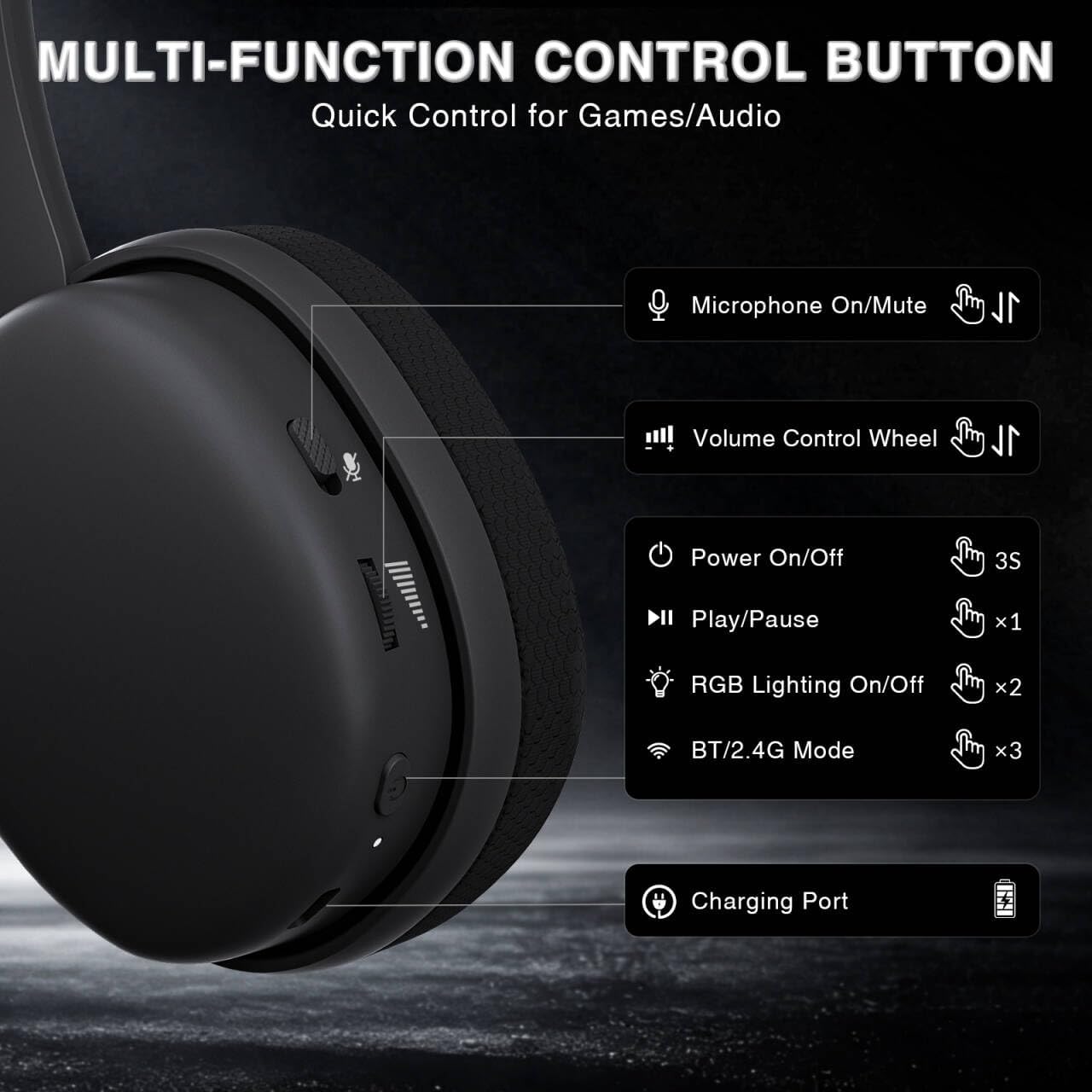
Image: Multi-function control buttons on the AULA G7 Pro headset, showing the microphone on/off toggle, volume control wheel, power switch, play/pause button, RGB lighting on/off button, BT/2.4G mode switch, and charging port.
- Microphone On/Off Toggle: Перасуньце, каб выключыць ці ўключыць мікрафон.
- Кола рэгулявання гучнасці: Рэгулюе гучнасць выхаднога гуку.
- Выключальнік сілкавання: Націсніце і ўтрымлівайце на працягу 3 секунд, каб уключыць/выключыць харчаванне.
- Кнопка прайгравання/паўзы: Націсніце адзін раз, каб прайграць або прыпыніць гук.
- Уключэнне/выключэнне RGB-асвятлення: Press twice to toggle RGB lighting.
- BT/2.4G Mode Switch: Press three times to switch between Bluetooth and 2.4G wireless modes.
- Порт для зарадкі: Порт USB-C для зарадкі гарнітуры.
- 3.5 мм аўдыяраз'ём: Для праваднога падключэння.
- Порт мікрафона: Для мацавання здымнага мікрафона на штанге.
Відэа: Оверview of the AULA G7 Pro Wireless Gaming Headset, showcasing its design, features, and different color options (black and pink).
3. Налада і падключэнне
3.1 2.4G Wireless Connection (PC, PS5, PS4, Switch)
For low-latency gaming, use the 2.4G wireless connection.
- Insert the 2.4G USB-A receiver into an available USB port on your PC, PS5, PS4, or Nintendo Switch dock. If your device only has USB-C ports, use the provided USB-C to USB-A adapter.
- Power on the AULA G7 Pro headset by pressing and holding the power button for 3 seconds.
- The headset will automatically attempt to connect to the receiver. The indicator light on the headset will show a stable color once connected.
- On your device, ensure the audio output is set to the AULA G7 Pro headset.

Image: The AULA G7 Pro headset demonstrating its tri-mode connectivity options: 3.5mm wired, Bluetooth 5.3, and 2.4G wireless with USB-C and USB-A receivers, compatible with various devices including PC, PS5, PS4, Switch, and smartphones.
3.2 Bluetooth 5.3 Connection (PC, Smartphones, Tablets)
Connect your headset via Bluetooth for general use with compatible devices.
- Power on the AULA G7 Pro headset.
- Press the BT/2.4G mode switch three times to enter Bluetooth pairing mode. The indicator light will flash.
- On your device (PC, smartphone, tablet), go to Bluetooth settings and search for available devices.
- Select "AULA G7 Pro" from the list to pair. The indicator light on the headset will become stable once connected.
3.3 3.5mm Wired Connection (Xbox, PC, PS5, PS4, Switch, Smartphones)
Use the 3.5mm audio cable for a universal wired connection, especially for Xbox consoles.
- Connect one end of the 3.5mm audio cable to the 3.5mm audio jack on the headset.
- Connect the other end of the 3.5mm audio cable to the audio output port of your device (e.g., Xbox controller, PC audio jack).
- The headset will operate in wired mode. Note that some advanced features like virtual 7.1 surround sound may not be available in wired mode, depending on the device.
4. Інструкцыя па эксплуатацыі
4.1 Выкарыстанне мікрафона
The AULA G7 Pro features a detachable noise-canceling microphone.
- Падключэнне мікрафона: Align the 3.5mm plug of the boom microphone with the microphone port on the headset and insert it firmly.
- Адключэнне/уключэнне гуку: Use the microphone on/off toggle switch on the headset to quickly mute or unmute your microphone.
- Падаўленне шуму: The 360° omnidirectional microphone filters out approximately 80% of background noise. For enhanced noise cancellation and voice clarity, install the driver software (Windows 2.4G mode only).
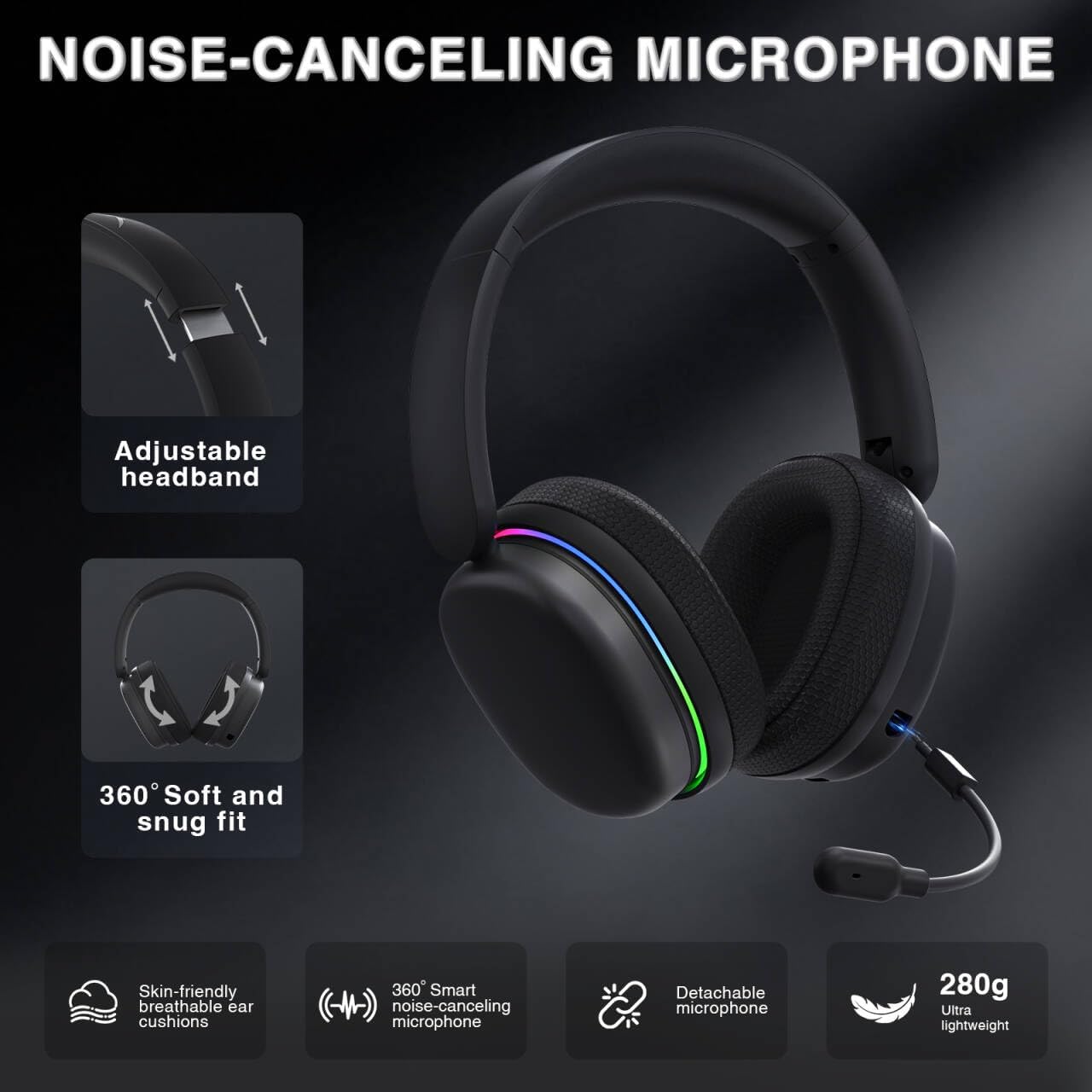
Image: The AULA G7 Pro headset highlighting its adjustable headband, soft and snug fit, skin-friendly breathable ear cushions, 360° smart noise-canceling microphone, detachable microphone, and ultra-lightweight 280g design.
4.2 Virtual 7.1 Surround Sound and EQ Software
Experience immersive audio with virtual 7.1 surround sound and customize your sound profile.
- Віртуальны аб'ёмны гук 7.1: Available in Windows 2.4G mode, this feature provides precise audio positioning for gaming.
- EQ Software: Спампаваць і ўсталяваць драйвер з soaidriver.com (Windows 2.4G mode only). The software allows for customizable EQ settings, dynamic bass boost, vocal enhancement, and voice morphing.
- Заўвага па ўсталёўцы: First, insert the 2.4G receiver into your computer, then install the driver. After entering the driver interface, right-click the icon on the left side of the screen to access the audio settings menu.
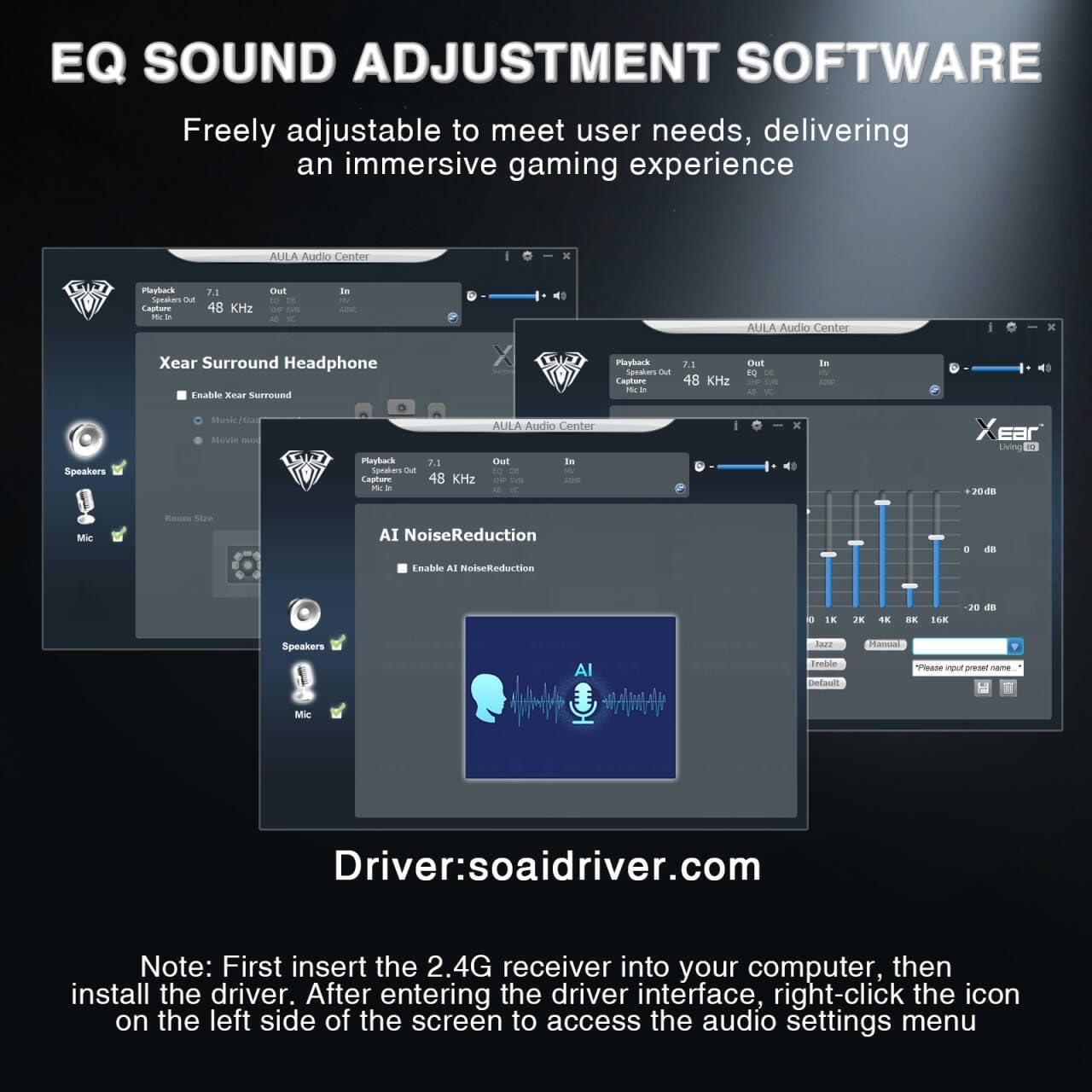
Image: Screenshots of the AULA Audio Center software interface, showing options for Xear Surround Headphone, AI Noise Reduction, and Equalizer settings for sound customization.
4.3 RGB-асвятленне
The headset features 16 million-color RGB lighting.
- Пераключыць RGB: Press the RGB Lighting On/Off button twice to activate or deactivate the lighting.
- Сінхранізацыя: RGB lighting can synchronize with gaming peripherals for an immersive atmosphere.
5. Зарадка і тэрмін службы батарэі
The AULA G7 Pro is equipped with a 1000mAh rechargeable battery.
- Зарадка: Connect the USB-C charging cable to the headset's charging port and the other end to a USB power source (e.g., computer, wall adapter). The indicator light will show charging status.
- Тэрмін службы батарэі: Up to 65 hours of playback with RGB lighting off, and approximately 20 hours with RGB lighting activated.
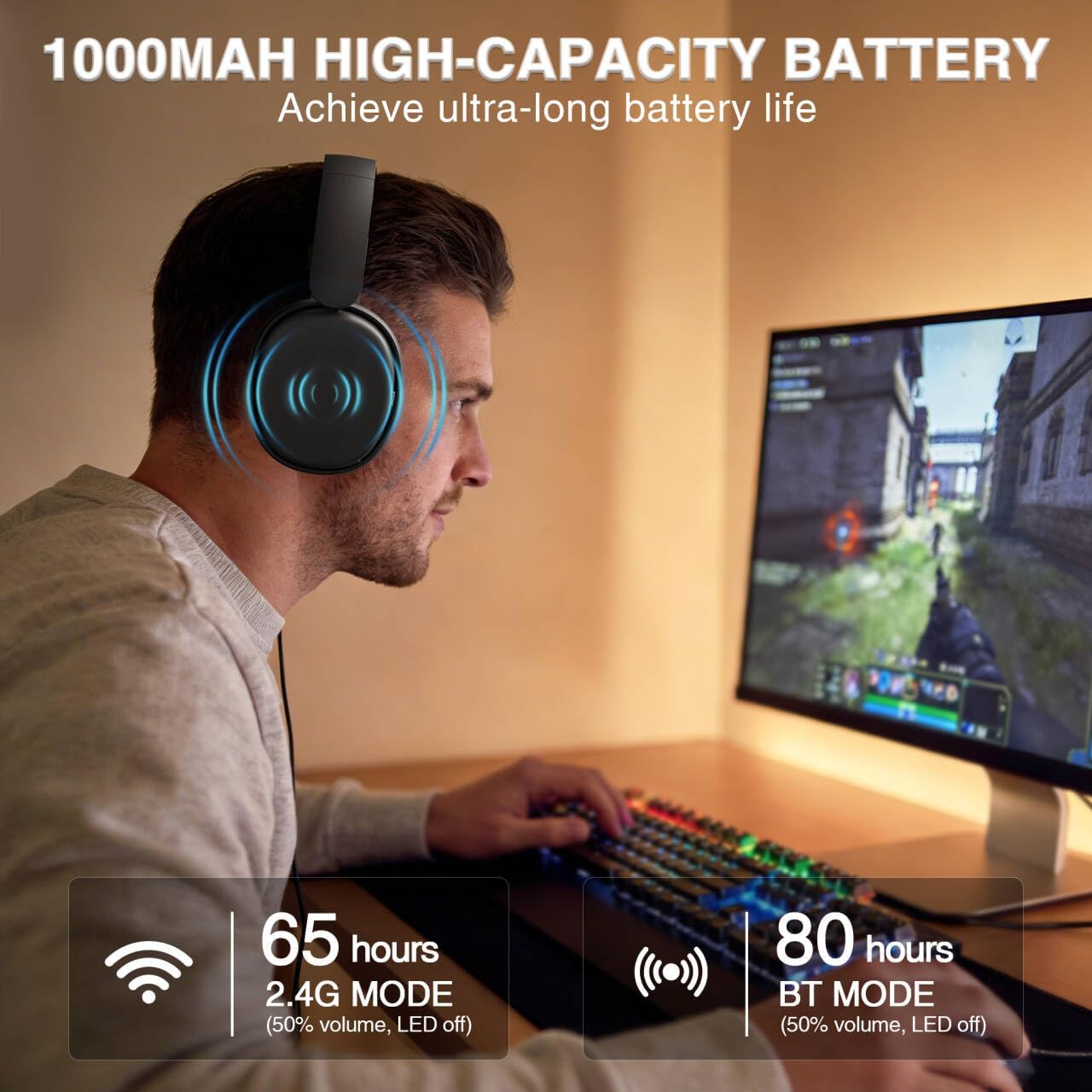
Image: A user wearing the AULA G7 Pro headset while gaming, illustrating the 65 hours of battery life in 2.4G mode (50% volume, LED off) and 80 hours in BT mode (50% volume, LED off).
6. Камфорт і дызайн
The headset is designed for extended wear comfort.
- Лёгкі: Weighing 280g, the headset is designed to minimize pressure during long gaming sessions.
- Эрганамічная пасадка: Features an ergonomic headband with protein leather padding and breathable mesh ear cushions.
- Рэгуляваны: An 8-position adjustable steel frame and 360° acoustic chamber conform to facial contours, with micro-adjustable horizontal angles for a personalized fit.
7. Тэхнічныя характарыстыкі
| Асаблівасць | Дэталь |
|---|---|
| Марка | АЎЛА |
| Назва мадэлі | G7Pro |
| Тэхналогія падлучэння | 2.4G Wireless, BT5.3, Wired (3.5mm Jack) |
| Версія Bluetooth | 5.3 |
| Памер аўдыё драйвера | 40 міліметра |
| Імпеданс | 32 Ом |
| Кантроль шуму | Актыўнае шумапрыглушэнне (мікрафон) |
| Ёмістасць батарэі | 1000 мАг |
| Battery Life (RGB Off) | Up to 65 Hours (2.4G Mode), Up to 80 Hours (BT Mode) |
| Вага | 280 г |
| Сумяшчальныя прылады | PC, PS5, PS4, Switch, Smartphones, Xbox (wired mode only) |
8. Выпраўленне непаладак
If you encounter issues with your AULA G7 Pro headset, refer to the following common solutions:
- Няма гуку:
- Пераканайцеся, што гарнітура ўключана і зараджана.
- Check that the correct audio output device is selected in your system settings.
- Verify the volume control wheel on the headset is not at minimum.
- For 2.4G/BT modes, ensure the headset is properly paired/connected. Try re-pairing if necessary.
- For wired mode, ensure the 3.5mm cable is fully inserted into both the headset and the device.
- Мікрафон не працуе:
- Ensure the detachable microphone is securely attached.
- Check the microphone on/off toggle switch on the headset is in the 'on' position.
- Праверце, ці правільная прылада ўводу мікрафона выбрана ў наладах сістэмы.
- Ensure the microphone is not muted in your operating system or communication software.
- Connectivity Issues (2.4G/Bluetooth):
- Ensure the headset is within range of the receiver/device.
- Пазбягайце моцных электрамагнітных перашкод ад іншых бесправадных прылад.
- Паспрабуйце перазагрузіць і гарнітуру, і падключаную прыладу.
- For 2.4G, try plugging the receiver into a different USB port.
- 7.1 Surround Sound Not Working:
- Ensure you are in 2.4G wireless mode on a Windows PC.
- Verify that the AULA driver software is installed and configured correctly.
9. Тэхнічнае абслугоўванне
Каб забяспечыць даўгавечнасць і аптымальную працу вашай гарнітуры, выконвайце наступныя рэкамендацыі па абслугоўванні:
- Уборка: Для чысткі гарнітуры выкарыстоўвайце мяккую сухую тканіну. Не выкарыстоўвайце абразіўныя ачышчальнікі або растваральнікі.
- захоўванне: Захоўвайце гарнітуру ў прахалодным, сухім месцы, удалечыні ад прамых сонечных прамянёў і экстрэмальных тэмператур.
- Сыход за кабелем: Пазбягайце рэзкіх выгібаў або празмернага нацягвання кабеляў, каб пазбегнуць пашкоджанняў.
- Сыход за батарэяй: For optimal battery life, avoid fully discharging the battery frequently. Charge the headset regularly, even if not in use for extended periods.
10. Гарантыя і падтрымка
10.1 Інфармацыя аб гарантыі
The AULA G7 Pro Wireless Gaming Headset comes with a Гарантыя 1 год з даты пакупкі. Гэтая гарантыя распаўсюджваецца на вытворчыя дэфекты і дэфекты вырабу пры нармальным выкарыстанні. Яна не распаўсюджваецца на пашкоджанні, выкліканыя няправільным выкарыстаннем, аварыямі, несанкцыянаванымі мадыфікацыямі або звычайным зносам.
10.2 Падтрымка кліентаў
For technical assistance, warranty claims, or any questions regarding your AULA G7 Pro headset, please contact AULA customer support through the retailer where you purchased the product or visit the official AULA webсайт для кантактнай інфармацыі.
Please have your purchase receipt and product model number (G7 Pro) ready when contacting support.