
1. Уводзіны
This manual provides essential information for the safe and efficient use of your Xiaomi X Pro Series QLED 4K UHD Smart Google TV (Model: L75MB-APIN). Please read this manual thoroughly before operating the device and retain it for future reference.

Малюнак 1: Спераду view of the Xiaomi X Pro Series QLED 4K UHD Smart Google TV.
2. Інфармацыя па бяспецы
Observe the following safety precautions to prevent damage to the TV and ensure personal safety:
- крыніца харчавання: Падключайце тэлевізар толькі да крыніцы пераменнага току ў межах указанай магутнасціtagдыяпазон (240 вольт).
- Вентыляцыя: Забяспечце належную вентыляцыю вакол тэлевізара. Не блакуйце вентыляцыйныя адтуліны.
- Вада і вільгаць: Do not expose the TV to rain, moisture, or excessive humidity.
- Уборка: Disconnect the power cord before cleaning. Use a soft, dry cloth. Avoid liquid cleaners.
- Размяшчэнне: Place the TV on a stable, level surface or mount it securely to a wall. Keep it away from heat sources and direct sunlight.
- Абслугоўванне: Не спрабуйце абслугоўваць тэлевізар самастойна. Звяртайцеся да кваліфікаванага персаналу па любыя паслугі па абслугоўванні.
3. Што ў скрынцы
Праверце наяўнасць усіх кампанентаў ва ўпакоўцы:
- 1 x LED TV Unit
- 1 х пульт дыстанцыйнага кіравання
- 1 х Кіраўніцтва карыстальніка (гэты дакумент)
- 2 x Stand Units
- 4 x Screws for stand installation
- 2 батарэйкі тыпу AAA (для пульта дыстанцыйнага кіравання)
- 1 х Шнур харчавання

Малюнак 2: Камплектуючыя.
4. Настройка
4.1 Устаноўка падстаўкі
Каб усталяваць падстаўкі пад тэлевізар:
- Асцярожна пакладзеце тэлевізар экранам уніз на мяккую, роўную паверхню, каб пазбегнуць пашкоджанняў.
- Align each stand unit with the corresponding slots on the bottom of the TV.
- Замацуйце кожную стойку з дапамогай прадастаўленых шруб. Пераканайцеся, што яны надзейна зацягнуты.
4.2 Насценны мантаж
The TV supports wall mounting. A compatible VESA wall mount kit (not included) is required. For safe installation, it is recommended to consult a professional installer.
4.3 Падключэнне знешніх прылад
Connect your devices to the TV's ports as shown below:
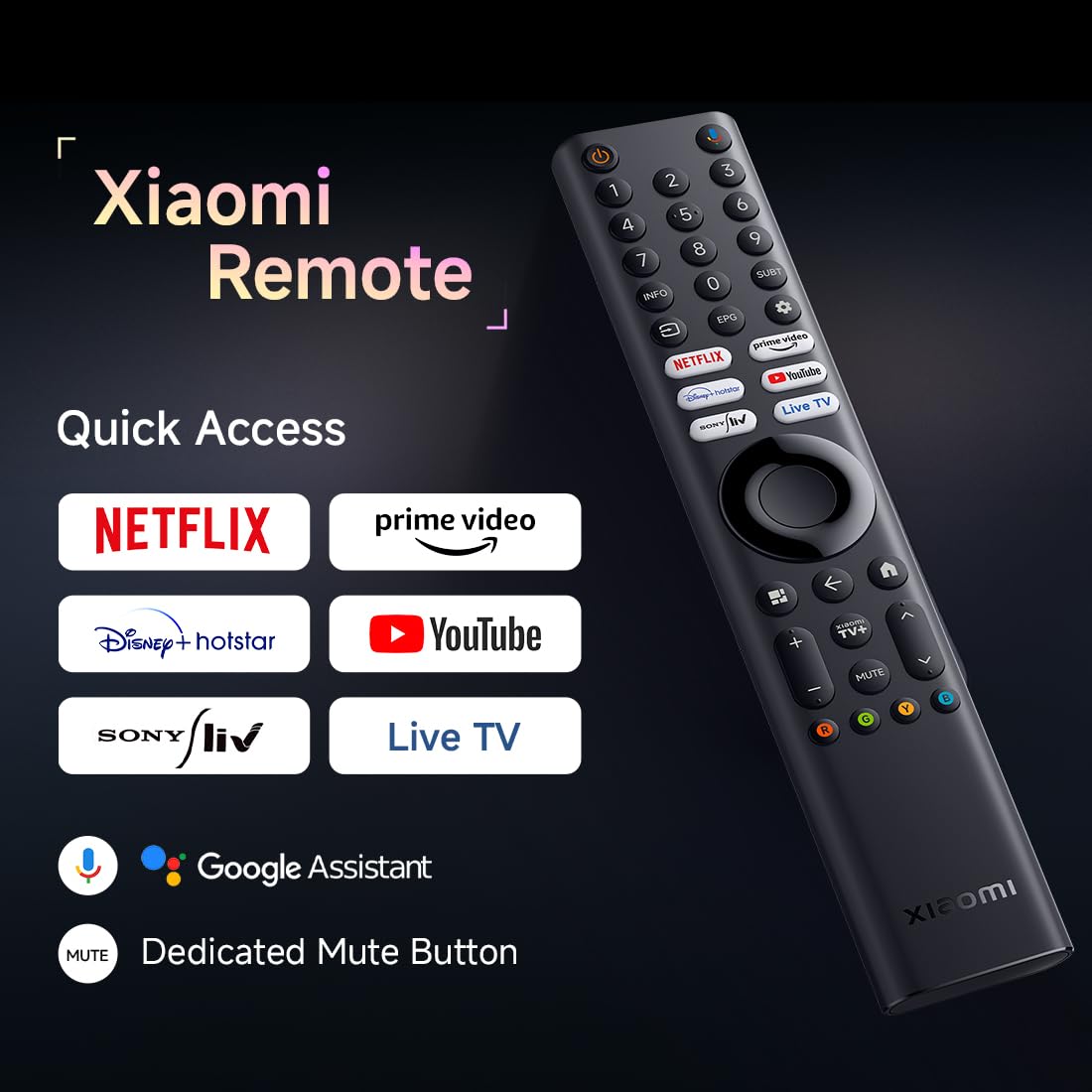
Figure 3: TV Connectivity Ports.
- HDMI (x3): Падключыце гульнявыя кансолі, прайгравальнікі Blu-ray, тэлепрыстаўкі або іншыя прылады з падтрымкай HDMI. Адзін порт падтрымлівае eARC для палепшанай аддачы гуку.
- USB (x2): Падключыце USB-назапашвальнікі для прайгравання медыяфайлаў.
- Сетка (Ethernet): Падключыце кабель Ethernet для праваднога падключэння да Інтэрнэту.
- Аптычны: Падключэнне да знешніх аўдыёсістэм або саўндбараў.
- AV-уваход: Падключыце старыя прылады з дапамогай кампазітных відэа- і стэрэаўдыёкабеляў.
- Антэна: Connect an antenna for receiving broadcast TV signals.
4.4 Пачатковае ўключэнне і налада Google TV
Пасля падключэння ўсіх неабходных кабеляў і шнура харчавання:
- Націсніце кнопку харчавання на пульце дыстанцыйнага кіравання або на тэлевізары.
- Выконвайце інструкцыі на экране, каб завяршыць пачатковую наладу, у тым ліку выбраць мову, падключэнне да сеткі (Wi-Fi або Ethernet) і ўвайсці ў ўліковы запіс Google.
- The Google TV interface will guide you through setting up your preferred apps and content.
5. Кіраванне тэлевізарам
5.1 Функцыі дыстанцыйнага кіравання
Пульт дыстанцыйнага кіравання дазваляе карыстацца функцыямі тэлевізара. Устаўце дзве батарэйкі тыпу AAA ў пульт дыстанцыйнага кіравання, сачыце за правільнай палярнасцю.

Figure 4: Xiaomi Remote Control.
- Кнопка харчавання: Уключае або выключае тэлевізар.
- Навігацыйная панэль: Use the directional buttons to move through menus and the OK button to confirm selections.
- Кнопка "Назад": Вяртае да папярэдняга экрана.
- Кнопка дадому: Доступ да галоўнага экрана Google TV.
- Кнопкі гучнасці: Рэгулюе ўзровень гучнасці.
- Кнопкі канала: Змяняе тэлеканалы (калі ёсць).
- Кнопкі хуткага доступу да праграм: Прамы доступ да папулярных струменевых сэрвісаў, такіх як Netflix, Prime Video, YouTube.
- Кнопка Памочніка Google: Актывуе галасавыя каманды для пошуку і кіравання.
5.2 Інтэрфейс Google TV
Your TV runs on Google TV (Android 14 OS), providing a personalized content experience. The home screen displays recommended content, installed apps, and your watchlist.

Figure 5: Google TV Home Screen.
- Доступ да праграмы: Navigate to the 'Apps' section to browse and launch installed applications like Netflix, Prime Video, YouTube, Zee5, etc.
- Памочнік Google: Use voice commands via the remote to search for content, control smart home devices, or get information.
- Google Cast Built-in: Wirelessly stream content from compatible mobile devices or computers to your TV.
- Apple AirPlay 2: Трансліруйце кантэнт з прылад Apple непасрэдна на тэлевізар.
5.3 Налады выявы
Access the TV settings menu to adjust picture quality:
- 4K Ultra HD: The TV supports 3840 x 2160 resolution for detailed images.
- HDR (HDR10+, HLG, Dolby Vision): These technologies enhance contrast and color for a more dynamic viewвопыту.
- Рэжым рэжысёра: This mode disables post-processing effects to display content as intended by the director.
- Рэжым догляду за вачыма: Reduces blue light emission and flicker for comfortable viewінж.

Figure 6: Filmmaker Mode.

Figure 7: Eye Care Mode.
5.4 Налады гуку
Adjust audio output and select sound modes:
- Выхадная магутнасць 34 Вт: The TV features powerful integrated speakers.
- Dolby Audio, DTS-X, DTS Virtual X: These technologies provide immersive audio experiences.
- Гук Xiaomi: Аптымізаваны аўдыёпрафесіяналfiles for various content types.

Figure 8: 34W Boom Box Sound.
5.5 Гульнявыя функцыі
- Узмацняльнік гульні 120 Гц: Automatically boosts the refresh rate to 120Hz for smoother and more responsive gaming.

Figure 9: 120Hz Game Booster.
6. Тэхнічнае абслугоўванне
6.1 Ачыстка
- экран: Акуратна працярыце экран мяккай тканінай без ворса. Для ўстойлівых плям злёгку працярыцеampen the cloth with water or a screen-specific cleaner (do not spray directly on the screen).
- Цела: Wipe the TV body with a soft, dry cloth. Avoid abrasive cleaners or solvents.
6.2 Абнаўленне праграмнага забеспячэння
Your TV may receive software updates to improve performance and add new features. Ensure your TV is connected to the internet to receive these updates. You can check for updates manually in the TV's settings menu.
7. Выпраўленне непаладак
Калі ў вас узнікнуць праблемы, звярніцеся да наступных распаўсюджаных рашэнняў:
| праблема | Магчымае рашэнне |
|---|---|
| Тэлевізар не ўключаецца | Check if the power cord is securely connected to both the TV and the power outlet. Ensure the power outlet is active. Try a different power outlet. |
| Няма выявы, але гук ёсць | Пераканайцеся, што выбрана правільная крыніца ўваходнага сігналу. Праверце падключэнне кабеля HDMI/AV. Паспрабуйце перазагрузіць тэлевізар. |
| Няма гуку, але выява ёсць | Check the volume level and ensure the TV is not muted. Verify audio cable connections. Check TV audio output settings. |
| Пульт дыстанцыйнага кіравання не працуе | Replace the AAA batteries in the remote control. Ensure there are no obstructions between the remote and the TV. Re-pair the Bluetooth remote if necessary (refer to TV settings). |
| Немагчыма падключыцца да Wi-Fi | Ensure your Wi-Fi router is on and within range. Re-enter the Wi-Fi password. Try restarting your router and the TV. |
8. Тэхнічныя характарыстыкі
Detailed technical specifications for the Xiaomi X Pro Series QLED 4K UHD Smart Google TV (L75MB-APIN):

Figure 10: TV Dimensions and Weight.
| Асаблівасць | Дэталь |
|---|---|
| Марка | XIAOMI |
| мадэль | L75MB-APIN |
| Памер экрана | 75 цалі (189 см) |
| Тэхналогія адлюстравання | QLED |
| дазвол | 4K Ultra HD (3840 x 2160) |
| Частата абнаўлення | 60 Hz / 120Hz DLG |
| Аперацыйная сістэма | Google TV (аперацыйная сістэма Android 14) |
| АЗП | 2 ГБ |
| Унутраная памяць | 32 ГБ |
| Сувязь | Dual Band Wi-Fi, Bluetooth, 3 x HDMI (1 eARC), 2 x USB, Optical, Ethernet |
| Аўдыёвыхад | 34 ват |
| Аўдыётэхналогіі | Dolby Audio, DTS-X, DTS Virtual X, Xiaomi Sound |
| Відэатэхналогіі | 4K HDR, HDR10+, HLG, 4K Dolby Vision, Reality Flow MEMC, Vivid Picture Engine 2, DCI-P3 94%, Filmmaker Mode |
| Асаблівасці | Google TV, Google Assistant, Google Cast, Apple AirPlay 2, Eye Comfort Mode, 120Hz Game Booster |
| Памеры прадукту (Д х Ш х У) | 39.1 х 39.1 х 102.7 см (без падстаўкі) |
| Вага прадмета | 19.1 кг |
| Тып мацавання | Насценнае і настольнае мацаванне |
9. Інфармацыя аб гарантыі
This product comes with a standard manufacturer's warranty. For pre-book customers, a 4-year comprehensive warranty on the product is provided by the brand from the date of purchase. To avail warranty services, please retain your purchase invoice. The user manual can also be accessed from the brand's official webсайт для атрымання дадатковай інфармацыі.
10. Падтрымка
For technical assistance, service requests, or further inquiries, please contact Xiaomi customer support. Refer to the official Xiaomi webна сайце або ў дакументацыі па куплі, каб атрымаць кантактную інфармацыю, якая адпавядае вашаму рэгіёну.