
MIKUSO KB-C026 Wireless Keyboard and Mouse Combo User Manual
1. Уводзіны
This manual provides instructions for the setup, operation, and maintenance of your MIKUSO KB-C026 Wireless Keyboard and Mouse Combo. This combo set offers a reliable 2.4G wireless connection, providing a full-size keyboard with a numeric keypad and an ergonomic mouse for efficient computing tasks. It is designed for ease of use and a clutter-free workspace.
2. Інфармацыя па бяспецы
- Do not expose the devices to liquids or excessive moisture.
- Пазбягайце экстрэмальных тэмператур.
- Do not attempt to disassemble or repair the devices yourself. Refer to qualified service personnel.
- Захоўваць у месцах, недаступных дзецям.
- Утылізуйце батарэі ў адпаведнасці з мясцовымі правіламі.
3. Змесціва ўпакоўкі
Калі ласка, праверце ўпакоўку на наяўнасць наступных прадметаў:
- MIKUSO Full-Size Wireless Keyboard
- MIKUSO Ergonomic Wireless Mouse
- USB 2.4G Wireless Receiver
- Кіраўніцтва карыстальніка (гэты дакумент)
4. Настройка
Follow these steps to set up your MIKUSO Wireless Keyboard and Mouse Combo:
- Устаўце батарэі: Open the battery compartments on the underside of both the keyboard and the mouse. Insert the required batteries (typically AA or AAA, not included) according to the polarity indicators.
- Падключыце USB-рэсівер: Locate an available USB port on your computer. Plug the USB 2.4G wireless receiver into the USB port.
- Уключэнне: Turn on the keyboard and mouse using their respective power switches, usually located on the underside of each device.
- Аўтаматычнае падключэнне: The keyboard and mouse should automatically connect to your computer. No additional software installation is required. Your computer will recognize the devices and install necessary drivers.
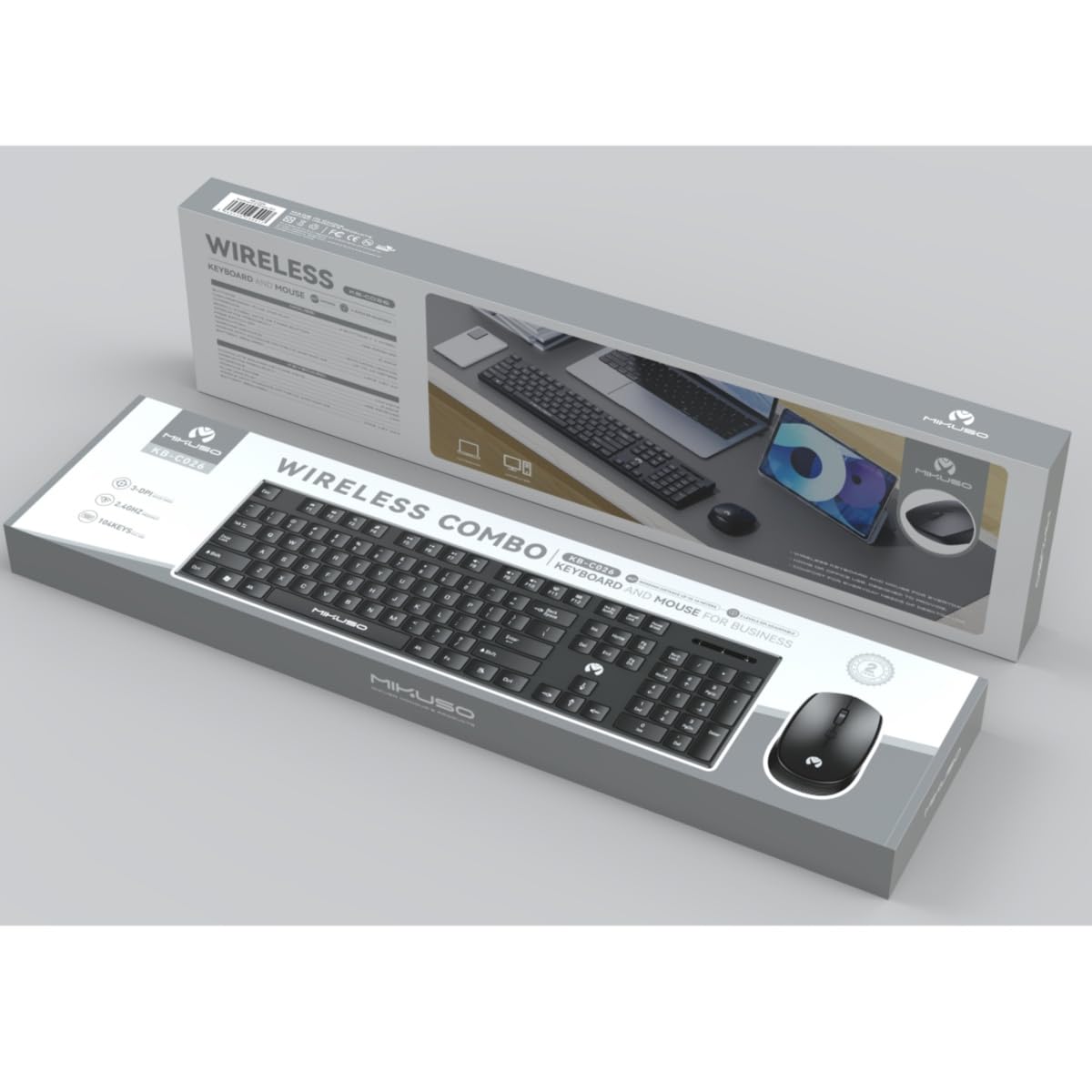
Image 1: MIKUSO KB-C026 Wireless Keyboard and Mouse Combo. This image displays the full-size keyboard, ergonomic mouse, and the compact USB receiver, illustrating the components included in the set.
5. Інструкцыя па эксплуатацыі
5.1. Выкарыстанне клавіятуры
- Увод: Use the full QWERTY layout for standard typing.
- Лічбавая клавіятура: The dedicated numeric keypad on the right side is ideal for data entry and calculations. Ensure the 'Num Lock' key is active if numbers are not registering.
- Функцыянальныя клавішы (F1-F12): These keys perform various functions, often in combination with the 'Fn' key, depending on your operating system and software.
5.2. Выкарыстанне мышы
- Пстрычка левай кнопкай мышы: Першаснае дзеянне, выбар.
- Пстрыкніце правай кнопкай мышы: Адкрывае кантэкстныя меню.
- Кола пракруткі: Прагартайце дакументы і web pages. The scroll wheel may also function as a middle click.
- Рух: Move the mouse on a flat surface to control the cursor on your screen.
6. Тэхнічнае абслугоўванне
- Уборка: Выкарыстоўвайце мяккую, сухую тканіну для чысткі паверхняў клавіятуры і мышы. Для выдалення ўстойлівага бруду злёгкуamp можна выкарыстоўваць тканіну з мяккім мылам, сачыце за тым, каб вадкасць не трапляла ўнутр прылад.
- Замена батарэі: When the devices become unresponsive or exhibit delayed input, replace the batteries. Ensure correct polarity.
- захоўванне: When not in use for extended periods, turn off the devices to conserve battery life. Store in a cool, dry place.
7. Выпраўленне непаладак
| праблема | Рашэнне |
|---|---|
| Клавіятура/мыш не рэагуе |
|
| Затрымка або перарывістае падключэнне |
|
| Лічбавая клавіятура не працуе |
|
8. Тэхнічныя характарыстыкі
- мадэль: KB-C026
- Падключэнне: Бесправадная сетка 2.4G
- Бесправадны дыяпазон: Да 10 метраў (33 футаў)
- Раскладка клавіятуры: Full-size QWERTY with Numeric Keypad
- Тып мышы: Ergonomic, Optical
- Прыёмнік: USB нана прыёмнік
- Сумяшчальнасць: Windows 7, Windows 8, Windows 10, Windows 11 (Desktop and Laptop Computers)
- Крыніца харчавання: Batteries (not included, typically AA/AAA for devices)
9. Гарантыя і падтрымка
This product is covered by a standard manufacturer's warranty. For specific warranty terms and conditions, please refer to the documentation provided at the time of purchase or contact your retailer. If you encounter any issues or require technical assistance, please contact the seller or manufacturer's customer support through the details provided on your purchase receipt or the product packaging.