
FUNYET NY-01
FUNYET 2026 14.1-inch Laptop User Manual
Мадэль: NY-01
Уводзіны
This manual provides essential information for setting up, operating, maintaining, and troubleshooting your FUNYET 2026 14.1-inch Laptop. Please read this manual thoroughly before using your device to ensure proper function and longevity.
Што ў скрынцы
Праверце наяўнасць усіх прадметаў у камплекце:
- FUNYET 2026 14.1-inch Laptop
- Power Adapter (12V2A DC)
- Інструкцыя па эксплуатацыі (гэты дакумент)
- Гарантыйны талон
Прадукт скончаныview
The FUNYET 2026 laptop is designed for productivity and entertainment, featuring a powerful processor and versatile connectivity.
Асноўныя характарыстыкі
- Аперацыйная сістэма: Pre-installed Windows 11 Pro for enhanced multitasking and security.
- Працэсар: Intel Celeron N5095 (4 cores, 4 threads, up to 2.9 GHz) for smooth performance.
- Памяць і захоўванне: 16GB LPDDR4 RAM and 512GB M.2 SSD, with support for up to 1TB TF Card expansion.
- Дысплей: 14.1-inch IPS Full HD (1920x1080) screen, offering clear and vibrant visuals, with a 180° foldable hinge for flexible viewінж.
- Падключэнне: Dual-band 5G Wi-Fi and Bluetooth 5.0 for fast and stable wireless connections.
- парты: Includes 2x USB 3.0, 1x 3.5mm Headphone Jack, 1x 3.5mm DC Adapter port, 1x Mini-HDMI, and 1x TF Card slot.
- акумулятар: Integrated 5000mAh battery providing 4-5 hours of normal use and over 50 hours of standby time.
- Камера і аўдыё: Built-in 0.3-megapixel front camera and dual microphones for video calls and online meetings.
Ідэнтыфікацыя кампанентаў
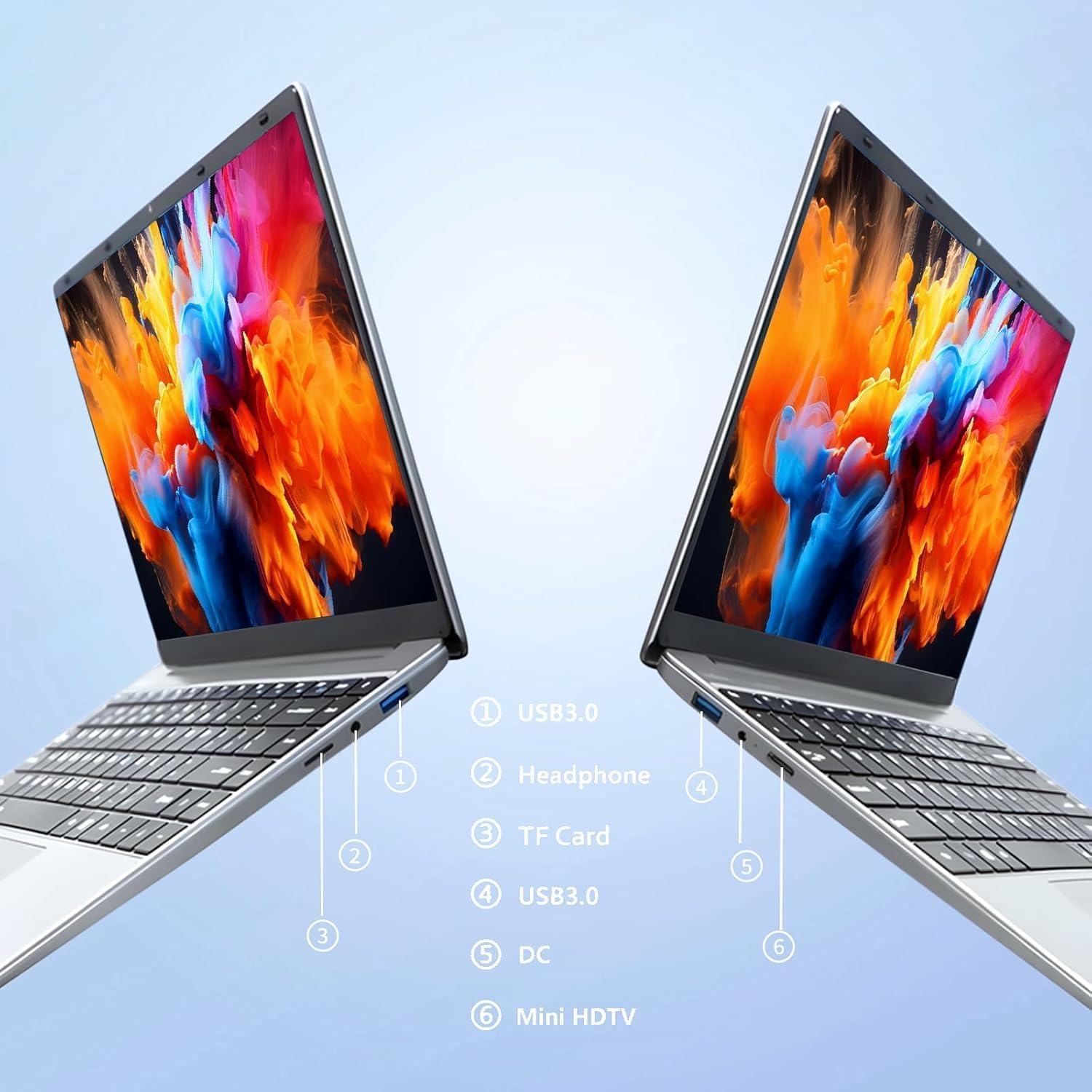
выява: Збоку view of the laptop highlighting port locations.
This image illustrates the various ports available on the FUNYET 2026 laptop. On one side, you will find a USB 3.0 port, a 3.5mm headphone jack, and a TF Card slot. On the opposite side, there is another USB 3.0 port, the DC power input, and a Mini-HDMI port.

выява: Laptop screen displaying its 14-inch Full HD IPS features.
The laptop features a 14-inch Full HD (1920x1080) IPS display with a 16:9 aspect ratio and ultra-narrow bezels, providing a wide perspective and vivid images.

выява: Laptop demonstrating its 180-degree foldable hinge.
The laptop's hinge allows the screen to fold back 180 degrees, offering versatile viewing angles and usage modes.
Кіраўніцтва па ўстаноўцы
1. Пачатковая зарадка
- Дастаньце ноўтбук і адаптар харчавання з скрынкі.
- Connect the power adapter to the DC input port on the side of the laptop.
- Падключыце адаптар сілкавання да насценнай разеткі.
- Перад першым выкарыстаннем дайце ноўтбуку зарадзіцца не менш за 30 хвілін або пакуль індыкатар батарэі не пакажа дастатковы зарад.
2. Першае ўключэнне
- Адкрыйце крышку ноўтбука.
- Press the power button, usually located on the keyboard deck or side.
- Выконвайце інструкцыі на экране, каб завяршыць працэс усталёўкі Windows 11 Pro, у тым ліку выбар мовы, падключэнне да сеткі і стварэнне ўліковага запісу карыстальніка.
3. Падключэнне да Wi-Fi
- During the initial Windows setup, you will be prompted to connect to a Wi-Fi network. Select your network from the list and enter the password.
- Калі вы будзеце наладжваць сетку пазней, націсніце значок Wi-Fi на панэлі задач, выберыце сваю сетку і націсніце «Падключыцца».
Інструкцыя па эксплуатацыі
Кіраванне харчаваннем
- Уключэнне: Націсніце кнопку харчавання.
- Рэжым сну: Зачыніце вечка або коратка націсніце кнопку харчавання.
- Выключыць: Націсніце кнопку «Пуск», затым «Харчаванне», а затым «Выключыць сістэму».
- Перазапуск: Click the Start button, then Power, then Restart.
Using the Touchpad and Touchscreen
- Сэнсарная панэль: Use gestures for navigation. Single tap for left-click, two-finger tap for right-click, two-finger scroll for scrolling.
- Сэнсарны экран: Tap to select, pinch to zoom, swipe to scroll.
Падключэнне вонкавага дысплея
To connect an external monitor or projector:
- Connect a Mini-HDMI cable from the laptop's Mini-HDMI port to the external display's HDMI input.
- If necessary, use a Mini-HDMI to HDMI adapter (not included).
- Прэса Клавіша Windows + P to open the Project menu and select your desired display mode (Duplicate, Extend, Second screen only).
Using TF Card Expansion
Insert a TF card into the designated slot for additional storage. The laptop supports up to 1TB TF card expansion.
Догляд і абслугоўванне
- Уборка: Для чысткі экрана і корпуса выкарыстоўвайце мяккую тканіну без ворса. Для выдалення ўстойлівых плям злёгкуampпрацярыце тканіну вадой або сродкам для чысткі экранаў. Пазбягайце агрэсіўных хімічных рэчываў.
- Сыход за батарэяй: Каб падоўжыць тэрмін службы батарэі, пазбягайце частай поўнай разрадкі батарэі. Захоўвайце ноўтбук у прахалодным, сухім месцы, калі ён не выкарыстоўваецца працяглы час.
- тэмпература: Operate the laptop within a temperature range of 5°C to 35°C (41°F to 95°F). Avoid direct sunlight or extreme heat/cold.
- Вентыляцыя: Ensure the ventilation openings are not blocked to prevent overheating. Do not place the laptop on soft surfaces like beds or sofas during operation.
- Абнаўленні праграмнага забеспячэння: Рэгулярна абнаўляйце Windows і драйверы, каб забяспечыць аптымальную прадукцыйнасць і бяспеку.
Ліквідацыю непаладак
Агульныя праблемы і рашэнні
| праблема | Магчымае рашэнне |
|---|---|
| Ноўтбук не ўключаецца. | Ensure the power adapter is securely connected and plugged into a working outlet. Check if the battery is charged. Try holding the power button for 10-15 seconds for a hard reset. |
| Праблемы з падключэннем да Wi-Fi. | Check if Wi-Fi is enabled in Windows settings. Restart your router and the laptop. Ensure you are within range of the Wi-Fi signal. Verify the Wi-Fi password. |
| Павольная прадукцыйнасць. | Close unnecessary applications. Check for background processes in Task Manager. Ensure Windows is updated. Consider running a disk cleanup. |
| Знешні дысплей не выяўлены. | Ensure the Mini-HDMI cable is connected correctly. Check the input source on your external display. Press Клавіша Windows + P каб пераключацца паміж рэжымамі адлюстравання. |
| Акумулятар хутка разраджаецца. | Adjust screen brightness. Close power-intensive applications. Check power settings in Windows and select a power-saving plan. Disconnect external peripherals when not in use. |
Тэхнічныя характарыстыкі
| Марка | ФУНЬЕТ |
| Назва мадэлі | NY-01 |
| Памер экрана | 14.1 цалі |
| дазвол | 1920 x 1080 (Full HD) |
| Тэхналогія экрана | IPS LCD |
| Працэсар | Intel Celeron N5095 (да 2.9 ГГц) |
| АЗП | 16 ГБ LPDDR4 (2400 МГц) |
| Захоўванне | 512 GB M.2 SSD (expandable via TF Card up to 1TB) |
| Аперацыйная сістэма | Windows 11 Pro |
| Графіка | Убудаваная графіка Intel |
| Бесправоднае падключэнне | 5G Wi-Fi (2.4 GHz, 5.8 GHz), Bluetooth 5.0 |
| Парты | 2x USB 3.0, 1x 3.5mm Headphone, 1x 3.5mm DC Adapter, 1x Mini-HDMI, 1x TF Card Slot |
| Webкамера | 0.3 Megapixel Front Camera |
| Ёмістасць батарэі | 5000 мАг / 38.5 Втч |
| Памеры (Д х Ш х У) | 32.2 х 21 х 2.1 см (12.68 х 8.27 х 0.83 цалі) |
| Вага | 1.4 кг (3.09 фунтаў) |
| Асаблівасць | 180° Foldable Hinge |
Гарантыя і падтрымка
Інфармацыя аб гарантыі
Your FUNYET 2026 laptop comes with a Гарантыя 2 год from the date of purchase. Please retain your proof of purchase for warranty claims. The warranty covers manufacturing defects and malfunctions under normal use. It does not cover damage caused by misuse, accidents, unauthorized repairs, or normal wear and tear.
Акрамя таго, а 6-month free exchange/return policy may apply, subject to the terms and conditions of your purchase platform.
Падтрымка кліентаў
For any issues, questions, or technical assistance, please contact FUNYET customer support:
- Інтэрнэт-падтрымка: Available 24/7. You can typically find support by logging into your Amazon account, navigating to "Your Account" -> "Your orders", and selecting "Ask Product Question" for your FUNYET laptop.
- электронная пошта: funyestore@outlook.com
- тэлефон: +49 800-000-7147 (Please note operating hours may vary)

выява: Customer service contact details and warranty information.
This image provides a visual summary of the support options, including the 2-year warranty, 6-month exchange/return policy, and contact information for phone and email support.
Звязаныя дакументы - NY-01
 |
Ноўтбук Auusda: характарыстыкі, тэхнічныя характарыстыкі і важныя заўвагі Комплексная надview ноўтбука Auusda, у тым ліку запчасткі, асноўныя характарыстыкі, важныя рэкамендацыі па выкарыстанні і гарантыйная інфармацыя. Ён мае працэсар Intel Celeron N5095, 15.6-цалевы дысплей FHD IPS, 16 ГБ аператыўнай памяці, SSD-назапашвальнік на 512 ГБ і аперацыйную сістэму Windows 11 Pro. |
 |
Beelink MINI S12 Mini PC User Guide and Specifications Explore the features, specifications, and connectivity options of the Beelink MINI S12 mini PC. This guide provides detailed information on its Intel Celeron N5095 processor, dual display support, and various ports. |
 |
Кіраўніцтва карыстальніка для 24-цалевага шматфункцыянальнага камп'ютара Core Innovations CC2400 Кіраўніцтва карыстальніка для 24-цалевага шматфункцыянальнага камп'ютара Core Innovations CC2400 з Windows 11, якое ахоплівае ўстаноўку, прыладу і іншыя параметры.view, падключэнне, уліковыя запісы карыстальнікаў, кіраванне сістэмай, спецыфікацыі, падтрымка і гарантыя. |
 |
GOLE F10 10.1 Inch Industrial PC - User Manual and Specifications Detailed specifications, features, and regulatory information for the GOLE F10 10.1-inch industrial PC, including panel descriptions and FCC compliance statements. |
 |
Кіраўніцтва карыстальніка Firebat Mini PC - Налада, функцыі і ліквідацыя непаладак Падрабязнае кіраўніцтва карыстальніка для мадэляў Firebat Mini PC (напрыклад, AK2, MN56, AM02, T8). Ахоплівае змесціва камплекта, наладу, падключэнне абсталявання, мацаванне VESA, налады BIOS, часта задаваныя пытанні і ліквідацыю непаладак для аптымальнай прадукцыйнасці. |
 |
Чорныview Кіраўніцтва карыстальніка і кіраўніцтва па ўсталёўцы міні-ПК серыі MP60 Падрабязнае кіраўніцтва па наладзе і выкарыстанні Blackview Міні-ПК серыі MP60. У гэтым кіраўніцтве апісана хуткая ўстаноўка, спіс упакоўкі, мацаванне VESA, парады, часта задаваныя пытанні і важныя меры засцярогі для аптымальнай прадукцыйнасці і бяспекі. |
Ask a question about this manual
Ask about setup, troubleshooting, compatibility, parts, safety, or missing instructions. Manuals+ will review the question and use this page’s manual context to help answer it.