
1. Уводзіны
Thank you for choosing the THOMSON TDF-1001P Digital Photo Frame. This device allows you to display your favorite photos and videos, play music, and utilize features like a calendar, clock, and alarm. With Wi-Fi connectivity, you can easily share media and receive weather updates. Please read this manual thoroughly before operating the device to ensure proper use and maintenance.
2. Інфармацыя па бяспецы
- Не падвяргайце прыладу ўздзеянню вільгаці, дажджу або экстрэмальных тэмператур.
- Пазбягайце размяшчэння прылады побач з крыніцамі цяпла або пад прамымі сонечнымі прамянямі.
- Выкарыстоўвайце толькі прадастаўлены адаптар сілкавання. Выкарыстанне несанкцыянаваных адаптараў можа пашкодзіць прыладу і ануляваць гарантыю.
- Не спрабуйце разбіраць або рамантаваць прыладу самастойна. Звяртайцеся да кваліфікаванага персаналу па любыя паслугі па абслугоўванні.
- Трымайце прыладу далей ад моцных магнітных палёў.
- Clean the screen with a soft, dry cloth. Do not use liquid cleaners or sprays directly on the screen.
3. Змесціва ўпакоўкі
Калі ласка, праверце ўпакоўку на наяўнасць наступных прадметаў:
- THOMSON TDF-1001P Digital Photo Frame
- Адаптар сілкавання
- Кіраўніцтва карыстальніка (гэты дакумент)
- Stand (if applicable)
4. Прадукт скончыўсяview
Азнаёмцеся з кампанентамі вашай лічбавай фотарамкі.
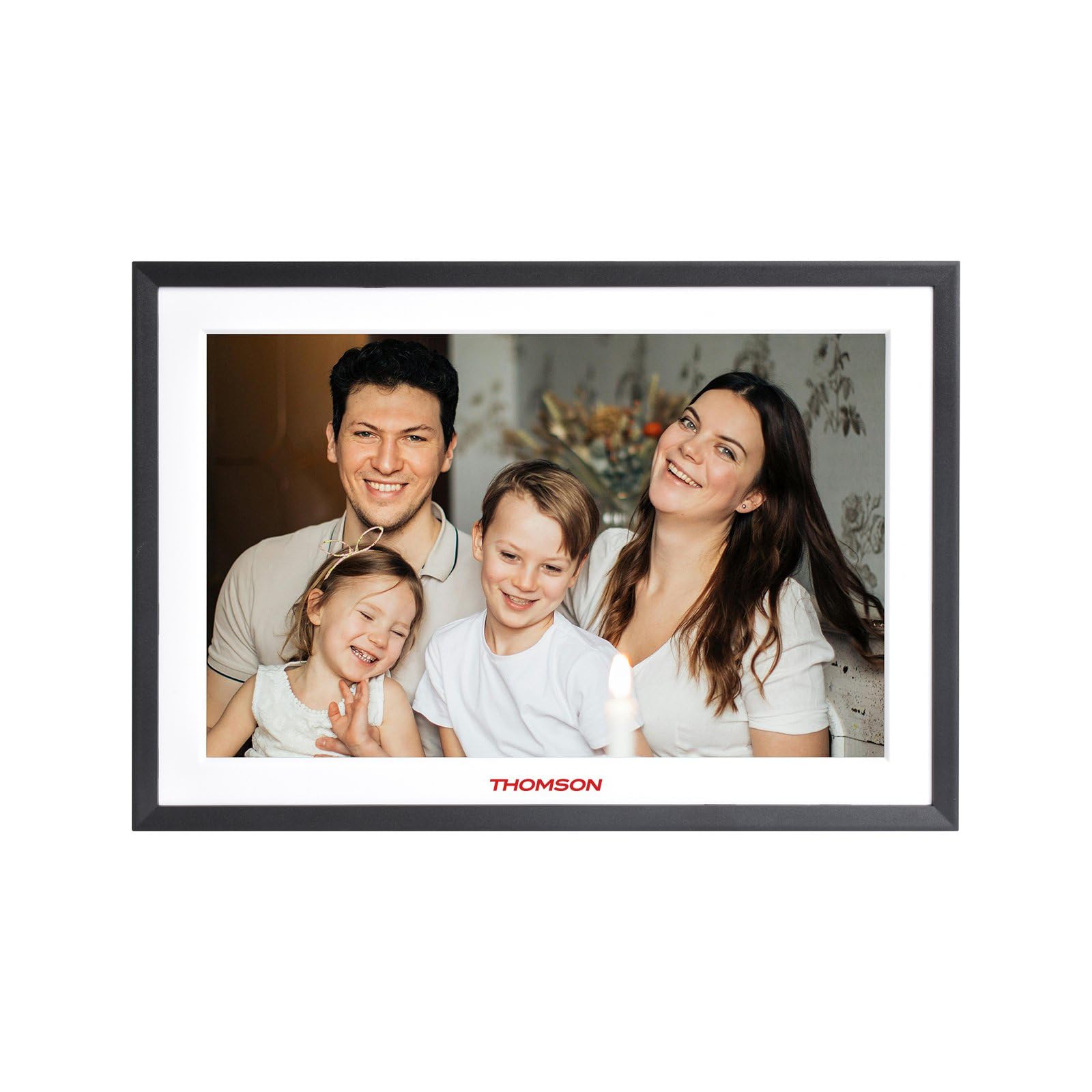
Малюнак 4.1: Фронт view of the THOMSON TDF-1001P Digital Photo Frame. This image shows the 10.1-inch IPS display with a black frame, designed for clear photo and video playback.
4.1. Пярэдняя панэль
- 10.1-цалевы сэнсарны IPS-экран: The main display for viewing content and interacting with the device.
4.2. Задняя панэль і парты
The rear panel typically includes various ports for connectivity and power.
- Спажываная магутнасць: Падключаецца да прадастаўленага адаптара харчавання.
- Порт USB: For connecting USB drives to transfer media.
- Слот для SD-карты: For inserting SD cards to expand storage or transfer media.
- Кнопка скіду: A small pinhole button to reset the device if necessary.
5. Настройка
5.1. Пачатковае ўключэнне
- Unpack the digital photo frame and its accessories.
- Attach the stand to the back of the frame, ensuring it is securely fastened.
- Connect the power adapter to the power input port on the frame.
- Plug the power adapter into a wall outlet. The frame will automatically power on.
- Выконвайце інструкцыі на экране, каб выбраць мову і рэгіён.
5.2. Злучэнне Wi-Fi
Connecting to Wi-Fi enables online features like photo sharing and weather updates.
- У галоўным меню націсніце «Налады».
- Select 'Wi-Fi' or 'Network Settings'.
- Toggle Wi-Fi to 'On'. The frame will scan for available networks.
- Выберыце патрэбную сетку Wi-Fi са спісу.
- Увядзіце пароль Wi-Fi з дапамогай экраннай клавіятуры і націсніце «Падключыцца».
- Пасля падключэння ў радку стану з'явіцца значок Wi-Fi.
5.3. App Setup for Sharing
To share photos and videos via Wi-Fi, you will need to install the dedicated app on your smartphone.
- Locate the app name or QR code in the frame's settings under 'Cloud Services' or 'App Connection'.
- Download and install the app on your smartphone from your device's app store.
- Адкрыйце праграму і стварыце ўліковы запіс або ўвайдзіце ў сістэму.
- Follow the app's instructions to pair your smartphone with the digital photo frame, typically by scanning a QR code displayed on the frame or entering a unique device ID.
- Once paired, you can send photos and videos directly from your smartphone to the frame.
6. Operating the Digital Photo Frame
6.1. Навігацыя па інтэрфейсе
The frame features a touch screen for easy navigation. Tap icons to open applications and swipe to browse content or menus.
6.2. Photo and Video Playback
- From the main menu, tap the 'Photos' or 'Gallery' icon.
- Select the source of your media (Internal Storage, SD Card, USB Drive, or Cloud/App).
- Browse through your albums or individual files. Tap on a photo or video to view гэта.
- During playback, you can typically swipe left/right to navigate between files, or tap the screen to reveal playback controls (play/pause, next, previous, rotate, delete).
6.3. Прайграванне музыкі
- Tap the 'Music' icon from the main menu.
- Select the source of your music files.
- Browse and tap on a song to begin playback.
- Use the on-screen controls for play/pause, skip, volume adjustment, and repeat modes.
6.4. Calendar, Clock, and Alarm
- Каляндар: Tap the 'Calendar' icon to view the current date and month. Some models may allow adding events.
- гадзіннік: The current time is usually displayed on the home screen. Time settings can be adjusted in the 'Settings' menu.
- Будзільнік: Access the 'Alarm' function via the main menu or 'Settings'. You can set multiple alarms with custom times and sounds.
6.5. Weather Updates
If connected to Wi-Fi, the frame can display local weather information.
- Ensure the frame is connected to Wi-Fi.
- Go to 'Settings' and find 'Weather' or 'Location Services'.
- Enable weather updates and set your location (either automatically or manually).
- The weather forecast will then be displayed on the home screen or a dedicated weather widget.
7. Тэхнічнае абслугоўванне
7.1. Ачыстка прылады
- Заўсёды выключайце прыладу з сеткі перад чысткай.
- Выкарыстоўвайце мяккую тканіну без ворса, каб акуратна працерці экран і рамку.
- Для выдалення ўстойлівых плям на экране злёгку працярыцеampen the cloth with water or a screen-safe cleaning solution, then wipe gently. Do not spray liquids directly onto the screen.
- Пазбягайце абразіўных ачышчальнікаў або растваральнікаў.
7.2. Захоўванне
When not in use for extended periods, store the digital photo frame in a cool, dry place, away from direct sunlight and extreme temperatures. It is recommended to keep the original packaging for storage.
8. Выпраўленне непаладак
У гэтым раздзеле разглядаюцца распаўсюджаныя праблемы, з якімі вы можаце сутыкнуцца.
| праблема | Магчымая прычына | Рашэнне |
|---|---|---|
| Рамка не ўключаецца. | Адаптар харчавання не падключаны або няспраўны. | Пераканайцеся, што адаптар сілкавання надзейна падключаны да рамы і спраўнай разеткі. Паспрабуйце іншую разетку. |
| Немагчыма падключыцца да Wi-Fi. | Няправільны пароль, па-за зонай дзеяння або праблема з маршрутызатарам. | Verify the Wi-Fi password. Move the frame closer to the router. Restart your Wi-Fi router. |
| Photos/videos not displaying. | Не падтрымліваецца file фармат, пашкоджаны files, or incorrect source selected. | Забяспечыць files are in supported formats (e.g., JPEG for photos, MP4 for videos). Check if the files are corrupted. Select the correct storage source (SD card, USB, internal). |
| Сэнсарны экран не рэагуе. | Часовы збой праграмнага забеспячэння. | Restart the frame by unplugging and replugging the power adapter. If the issue persists, use a pin to press the reset button on the back. |
9. Тэхнічныя характарыстыкі
| Асаблівасць | Спецыфікацыя |
|---|---|
| мадэль | TDF-1001P |
| Памер дысплея | 10.1 цаляў |
| дазвол | 800 * 1280 IPS |
| Суадносіны бакоў | 16:10 |
| Internal Flash Storage | 32 ГБ |
| Сэнсарны экран | G+P Type |
| Сувязь | Wi-Fi |
| Функцыі | Photo, Music, Video, Calendar, Clock, Alarm, Weather, Wi-Fi Sharing |
| Матэрыял | Plastic black frame and white middle frame |
| Памеры прадмета (Д х Ш) | 7.25"Д х 10.44"Ш |
| Крыніца харчавання | Правадная электрычная |
10. Інфармацыя аб гарантыі
The THOMSON TDF-1001P Digital Photo Frame comes with a 1-гадовая абмежаваная гарантыя from the date of purchase. This warranty covers manufacturing defects in materials and workmanship under normal use. It does not cover damage caused by misuse, accidents, unauthorized modifications, or external causes such as power surges.
Please retain your proof of purchase for warranty claims. For detailed warranty terms and conditions, refer to the warranty card included in your package or contact customer support.
11. Падтрымка кліентаў
If you have any questions, require technical assistance, or need to make a warranty claim, please contact THOMSON customer support. Refer to the contact information provided on the product packaging or the official THOMSON webсайт.
When contacting support, please have your product model number (TDF-1001P) and proof of purchase readily available.