
1. Уводзіны
This manual provides detailed instructions for setting up, operating, and maintaining your SOLAKAKA E9 Vertical MMO Gaming Mouse. Please read this manual thoroughly to ensure proper use and to maximize your gaming and productivity experience.
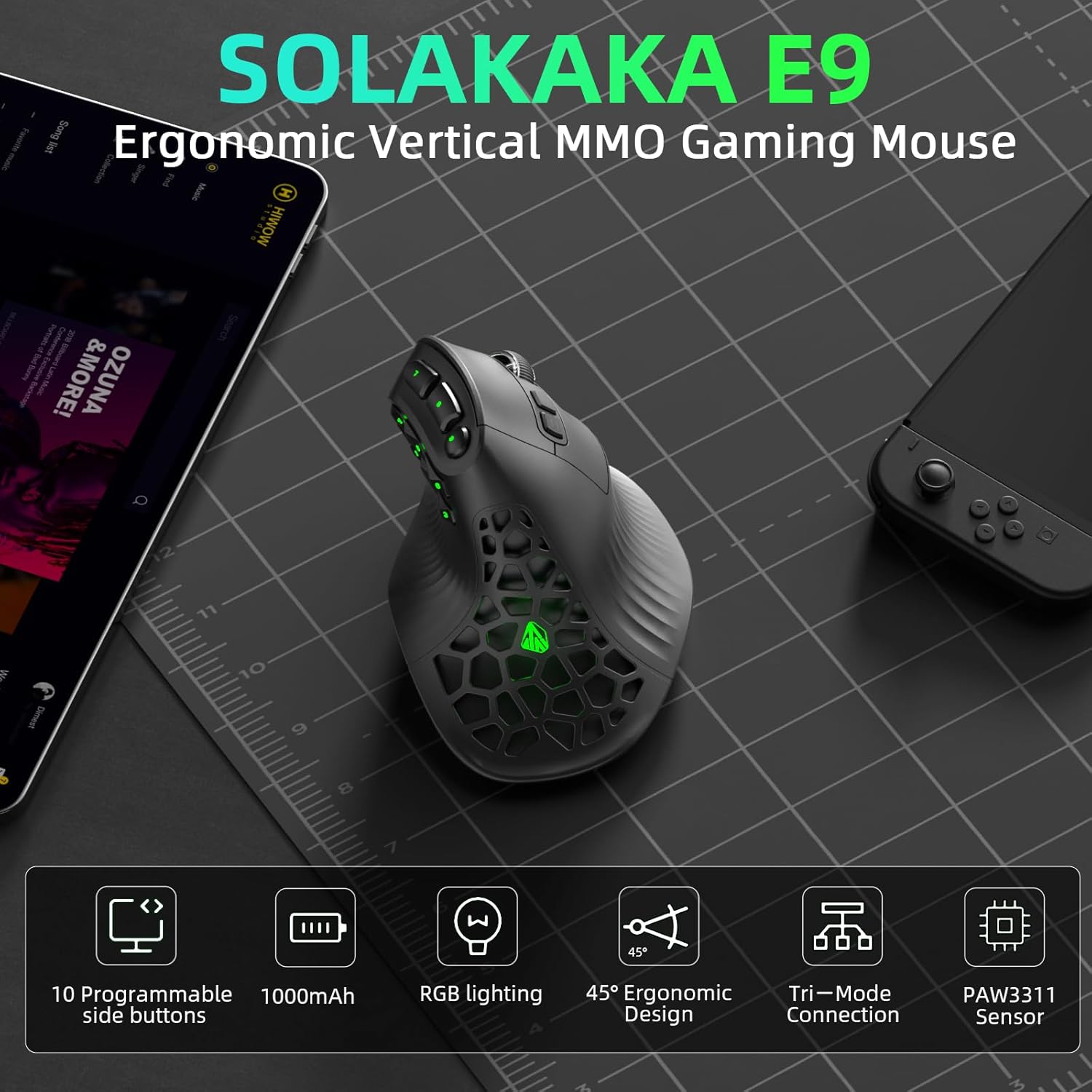
Image: The SOLAKAKA E9 Vertical MMO Gaming Mouse showcasing its 10 programmable side buttons, 1000mAh battery, RGB lighting, 45-degree ergonomic design, tri-mode connection, and PAW3311 sensor.
2. Асаблівасці прадукту
- 45° Vertical Ergonomic Design: Positions the hand in a natural handshake posture to reduce wrist pressure and discomfort during extended use.
- 10 Programmable Side Buttons: Customizable buttons for macros and various functions, suitable for MMO gaming and complex workflows.
- Аптычны датчык PAW3311: Features six onboard DPI presets (800/1200/1600/2400/3200/6400), software-extendable up to 24800 DPI, with a 1000Hz polling rate, 300 IPS tracking speed, and 35G acceleration.
- Browser-Based Configuration with Onboard Memory: Configure settings via solakakadriver.com (Windows only). Settings are saved directly to the mouse hardware for cross-platform use.
- Трохрэжымнае падключэнне: Supports ultra-low-latency 2.4GHz wireless, BT 5.0 for multi-device productivity, and USB-C wired connection.
- Наладжвальнае RGB асвятленне: Configurable RGB zones on side buttons and logo for visual indicators and personalized aesthetics.
- Акумулятар высокай ёмістасці 1000 мАг: Provides up to 270 hours of wireless runtime on a single charge. Supports use while charging via USB-C.
3. Настройка
3.1 Ўстаноўка драйвера
To unlock the full customization potential of your E9 mouse, driver installation is recommended. The configuration tool is Windows-only. Mac users should configure settings on a Windows PC first, as settings are saved to the mouse's onboard memory.
- Наведайце чыноўніка webсайт: solakakadriver.com.
- Download the E9 PRO Driver.
- Усталюйце драйвер, выконваючы інструкцыі на экране.
Alternatively, a browser-based online driver is available:
- Спосаб 1: Press and hold the DPI+ button for 3 to 5 seconds to automatically open the webpage. Follow the instructions to navigate to the link.
- Спосаб 2: Click the E9 PRO Web Driver to open your browser, connect your mouse, and use it.

Image: Visual guide for software driver and browser-based online driver installation methods.
3.2 Рэжымы падключэння
The E9 mouse supports three connection modes: 2.4GHz wireless, Bluetooth 5.0, and USB-C wired. Use the switch located at the bottom of the mouse to select your desired mode.
- Бесправадная сувязь 2.4 ГГц: For ultra-low-latency connection, ideal for competitive gaming. Insert the USB receiver into your computer.
- Bluetooth 5.0: For multi-device productivity. Switch the mouse to Bluetooth mode, then turn on Bluetooth on your device and select "E9 PRO" from the device list to connect.
- Правадны USB-C: For zero-lag performance and charging. Connect the mouse directly to your computer using the provided USB-C cable.

Image: The SOLAKAKA E9 mouse illustrating its tri-mode connectivity (Bluetooth, 2.4GHz Wireless, Type-C Wired).
Video: A guide demonstrating the driver setup and connection modes for the SOLAKAKA E9 PRO mouse.
4. Інструкцыя па эксплуатацыі
4.1 Button Customization
The E9 mouse features 10 programmable side buttons and additional buttons that can be customized using the driver software or web-based configuration tool. You can assign various functions, macros, or key combinations to each button to suit your gaming or work needs.

Image: The SOLAKAKA E9 mouse highlighting its 10-key tactical thumb zone and the driver interface for button customization.
4.2 Функцыя макра
The macro editor allows you to record sequences of keyboard and mouse actions and assign them to a single button. This feature is useful for executing complex combos in games or simplifying repetitive tasks. Settings are saved to the mouse's onboard memory, ensuring they are available across different devices.

Image: Screenshot of the SOLAKAKA E9 mouse driver software, illustrating the macro recording and assignment interface.
4.3 Performance Settings (DPI & Polling Rate)
Adjust the DPI (Dots Per Inch) and polling rate parameters to match your preferences and different usage scenarios. The PAW3311 sensor offers six onboard DPI presets (800/1200/1600/2400/3200/6400) and is software-extendable up to 24800 DPI. The polling rate can be set to 1000Hz for precise tracking.
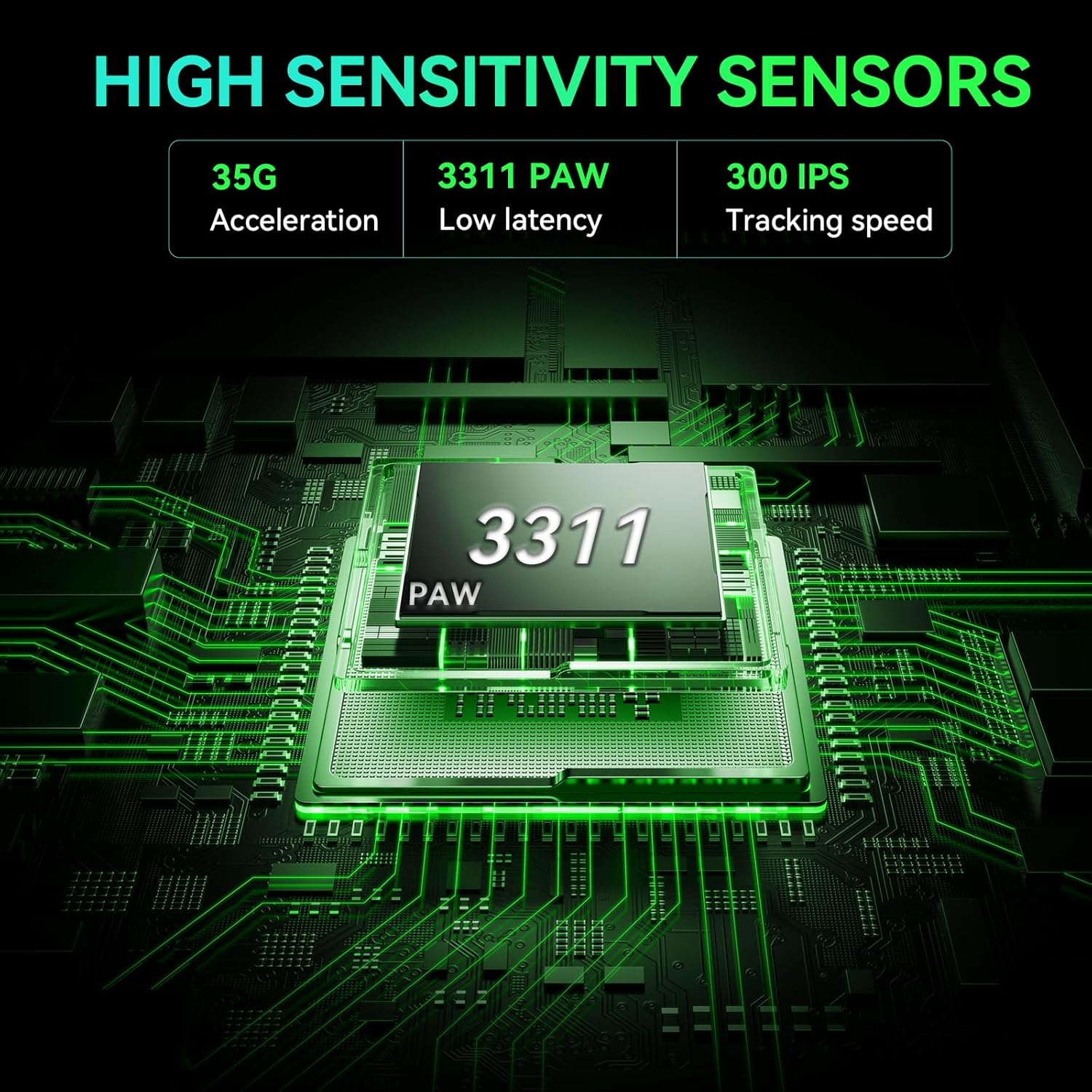
Image: Diagram illustrating the PAW3311 optical sensor with its specifications for tracking speed and acceleration.
4.4 RGB-асвятленне
Customize the RGB lighting effects through the software or web driver. Choose from various effects like Spectral Gradient, Breathing, Wave, and more to personalize your mouse and match your setup's aesthetic.
5. Тэхнічнае абслугоўванне
To ensure the longevity and optimal performance of your SOLAKAKA E9 mouse, follow these maintenance guidelines:
- Уборка: Выкарыстоўвайце мяккую сухую тканіну для працірання паверхні мышы. Для ўстойлівага бруду злёгкуampпрацярыце тканіну вадой або мяккім ачышчальным растворам. Пазбягайце агрэсіўных хімічных рэчываў.
- захоўванне: Захоўвайце мыш у прахалодным, сухім месцы, удалечыні ад прамых сонечных прамянёў і экстрэмальных тэмператур.
- Сыход за батарэяй: The built-in 1000mAh lithium-polymer battery provides long usage. Recharge when the battery indicator shows low power. Avoid fully draining the battery frequently to prolong its lifespan.
- Кабельнае кіраванне: When using the wired connection, ensure the USB-C cable is not excessively bent or tangled to prevent damage.

Image: Close-up of the honeycomb shell design of the SOLAKAKA E9 mouse, which aids in heat dissipation and reduces weight.
6. Выпраўленне непаладак
Q1: The software shows "Device not connected"
- Switch to 2.4G wireless or wired mode (Bluetooth does not support advanced configuration).
- Allow browser permissions – the web driver requires HID device access (accept the pop-up in Chrome/Edge).
- Close other mouse software (e.g., Logitech G HUB, Razer Synapse) to avoid conflicts.
- Unplug and re-plug the USB receiver, then refresh the page.
Q2: Settings don't work or high latency over Bluetooth?
- Protocol limitation: Bluetooth only supports basic functions. Configure complex macros in 2.4G/wired mode first, then switch back to Bluetooth.
- Reduce latency: Stay within 1 meter of your computer and away from Wi-Fi routers or other 2.4GHz interference.
Q3: How do I restore factory settings?
- Via Software: Driver → "Restore Factory Defaults" → Save to device.
- Праз апаратнае забеспячэнне: Press and hold the DPI+ and Mode buttons for 5 seconds while plugging in the USB cable (or use the software method above).

Image: Visual troubleshooting guide addressing common issues like device not connected, Bluetooth latency, and restoring factory settings.
Q4: Can the E9 be used on a Mac?
Yes. The E9 is plug-and-play on Mac with all basic functions (click, scroll, side buttons). However, button customization requires Windows software for the initial setup. Once configured, settings are saved to the mouse's onboard memory and remain fully functional on Mac without any additional software.
Q5: How do I configure the side buttons if I only have a Mac?
- Borrow a Windows PC temporarily: Configure on any Windows computer; settings are permanently saved to the mouse and work across all devices.
- Use the default configuration: Side buttons function as forward/back out of the box – no setup required.
- Run Windows on your Mac: Use Boot Camp (Intel Macs) or virtualization software like Parallels (Apple Silicon) to run the configuration tool.
Q6: Will my settings be preserved when switching from Windows to Mac?
Yes. Settings are stored in the mouse's onboard memory, not on your computer. Your custom button functions remain unchanged regardless of which device or operating system you use.

Image: Guide addressing Mac compatibility, configuration options for side buttons, and preservation of settings when switching operating systems.
7. Тэхнічныя характарыстыкі
| Асаблівасць | Дэталь |
|---|---|
| Марка | САЛАКАКА |
| Назва мадэлі | E9 |
| Колер | e9-black |
| Тэхналогія падлучэння | 2.4GHz wireless, BT5.0, Type-C wired |
| Асаблівасць | 45° Vertical mouse, Ergonomic mouse, Programmable Side Buttons, Rechargeable mouse, Wireless |
| Тэхналогія выяўлення руху | Аптычны (датчык PAW3311) |
| Колькасць кнопак | 16 |
| Рука арыентацыі | правільна |
| Сумяшчальныя прылады | Гульнявая прыстаўка, персанальны камп'ютар, смартфон, планшэт |
| Аперацыйная сістэма | Linux, Windows, Mac |
| Сярэдні тэрмін службы батарэі | 270 гадзін |
| Колькасць батарэек | 1 нестандартная батарэя (у камплекце) |
| Крыніца харчавання | Харчаванне ад батарэі |
| Mouse Maximum Sensitivity | 24800 Dots per Inch |
| Матэрыял корпуса | Пластыкавыя |
7.1 Size Guide & Fit Recommendations
The E9 mouse is ergonomically designed for hands measuring 16-20 cm (6.9-7.5 inches) in length. Refer to the table below for fit recommendations:
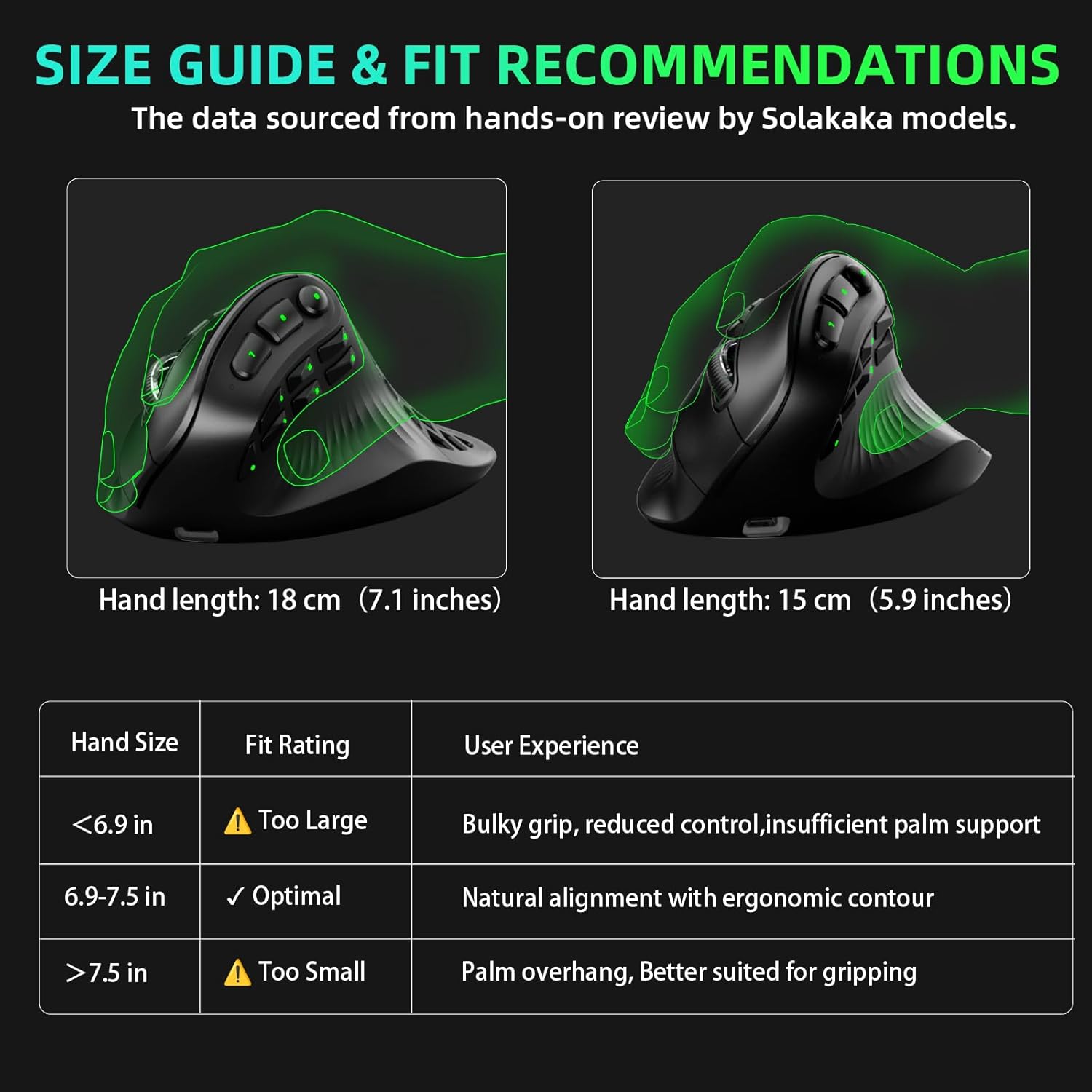
Image: Visual size guide and fit recommendations table for the SOLAKAKA E9 mouse, indicating optimal hand lengths.
8. Гарантыя і падтрымка
The SOLAKAKA E9 Vertical MMO Gaming Mouse comes with a 2 гады гарантыі якасці covering hardware. Software receives ongoing updates with new features and compatibility improvements. Technical support is available through official channels for setup assistance or troubleshooting.
Для атрымання дадатковай дапамогі, калі ласка, наведайце the SOLAKAKA Store on Amazon or the official driver webсайт solakakadriver.com.