
Уводзіны
This manual provides comprehensive instructions for the HP 14-inch Laptop, Model 2026 Essential. It covers initial setup, daily operation, maintenance tips, and troubleshooting common issues. Please read this manual thoroughly to ensure proper use and longevity of your device.

Малюнак 1: HP 14-inch Essential Laptop highlighting key features like Intel Processor N150, 4GB LPDDR5 RAM, 628GB storage, Windows 11 Pro, HD anti-glare display, Intel Graphics, Wi-Fi 6, Microsoft Copilot Key, HD camera, integrated digital mics, and stereo speakers.
1. Настройка
1.1 Распакоўка і змесціва ўпакоўкі
Carefully unpack your HP 14-inch Laptop and verify all components are present.
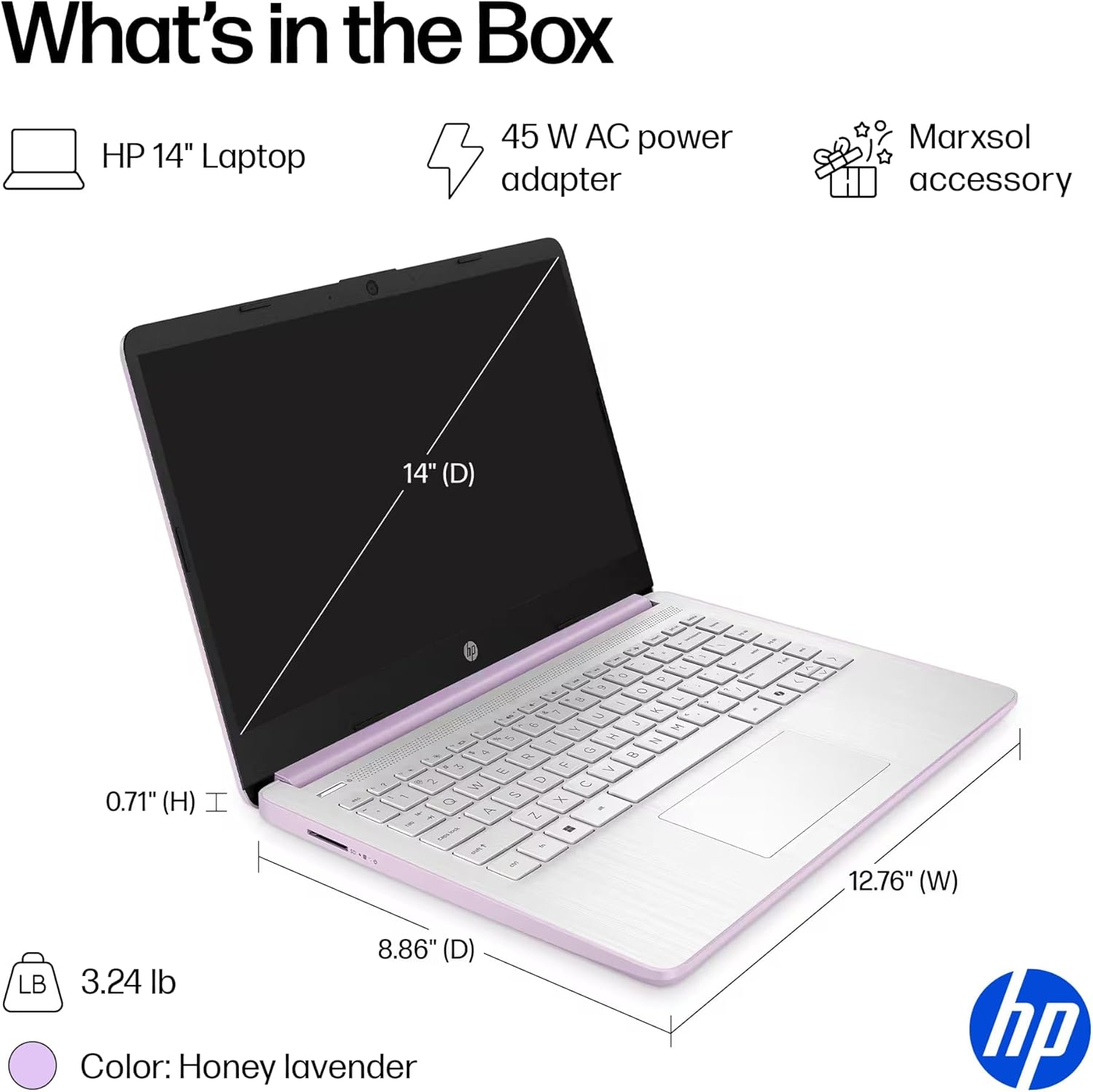
Малюнак 2: The package includes the HP 14-inch Laptop, a 45W AC power adapter, and the Marxsol accessory bundle. The laptop dimensions are 12.76" (W) x 8.86" (D) x 0.71" (H) and it weighs 3.24 lbs.
Ваш пакет павінен змяшчаць:
- 14-цалевы ноўтбук HP
- Адаптар сілкавання 45 Вт
- Marxsol Accessory Bundle:
- 6-in-1 USB-C Docking Station Hub
- 500GB External Drive
- USB Extension Cord
- Кабель HDMI
- Дыванок для мышы
- Бесправадная мыш

Малюнак 3: The Marxsol accessory bundle includes a 6-in-1 USB-C Docking Station, Wireless Mouse, Mouse Pad, USB Extension Cable, HDMI Cable, and a 500GB External Drive.
1.2 Падключэнне сілкавання
Connect the AC power adapter to the laptop's AC Smart pin port and then plug the adapter into a power outlet. The battery will begin charging automatically. It is recommended to fully charge the battery before first use.
1.3 Пачатковая загрузка і ўстаноўка Windows 11 Pro
Press the power button to turn on the laptop. Follow the on-screen instructions to complete the initial setup of Windows 11 Pro. This process typically involves selecting your region, language, connecting to a Wi-Fi network, and creating a user account.

Малюнак 4: The laptop comes pre-installed with Windows 11 Pro and includes Microsoft Office 2024.
2. Кіраванне ноўтбукам
2.1 Уключэнне/выключэнне харчавання і рэжым сну
- Уключэнне: Націсніце кнопку харчавання, размешчаную на клавіятуры.
- Выключэнне: Націсніце кнопку «Пуск», затым «Харчаванне» і абярыце «Выключыць сістэму».
- Рэжым сну: Зачыніце вечка або націсніце кнопку «Пуск», затым «Харчаванне» і абярыце «Спячы рэжым».
2.2 Клавіятура і сэнсарная панэль
The laptop features a full-size English keyboard and a multi-touch touchpad.
- Жэсты сэнсарнай панэлі: Refer to Windows 11 settings for customizable touchpad gestures (e.g., two-finger scroll, pinch-to-zoom).
- Функцыянальныя клавішы: Выкарыстоўвайце Fn key in combination with the function keys (F1-F12) for quick access to features like volume control, screen brightness, and Wi-Fi toggle.
2.3 Connecting Peripherals (Ports)
Your laptop is equipped with various ports for connecting external devices.
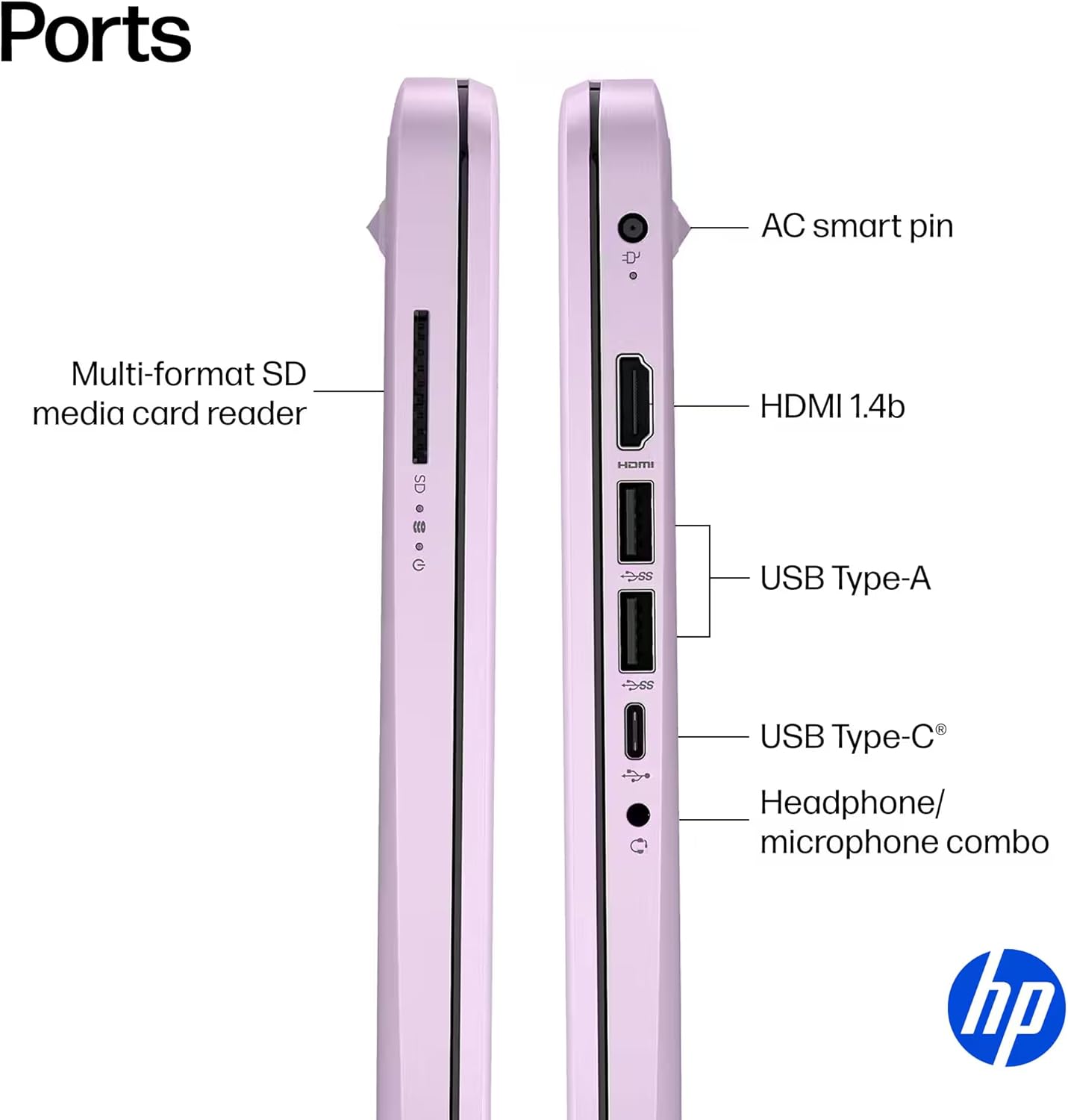
Малюнак 5: Збоку view of the HP 14-inch laptop showing available ports.
- USB тыпу C (хуткасць перадачы дадзеных 5 Гбіт/с): Толькі для перадачы дадзеных.
- USB тыпу A (хуткасць перадачы дадзеных 5 Гбіт/с): For connecting USB devices like external drives, keyboards, and mice.
- HDMI 1.4b: Для падлучэння да знешніх дысплеяў або праектараў.
- Камбінаваны раз'ём для навушнікаў/мікрафона: Для падключэння навушнікаў або гарнітуры з мікрафонам.
- Прылада для чытання SD-карт розных фарматаў: Для чытання SD-карт.
- Разумны PIN-код AC: Для падлучэння адаптара сілкавання.
2.4 Бесправадное падключэнне
The laptop supports Wi-Fi 6 (802.11ax) and Bluetooth 5.4 for high-speed wireless connections.
- Wi-Fi: Каб падключыцца да бесправадной сеткі, націсніце значок Wi-Fi на панэлі задач, выберыце сваю сетку і ўвядзіце пароль, калі патрабуецца.
- Bluetooth: To pair Bluetooth devices, go to Windows Settings > Bluetooth & devices, and follow the pairing instructions.
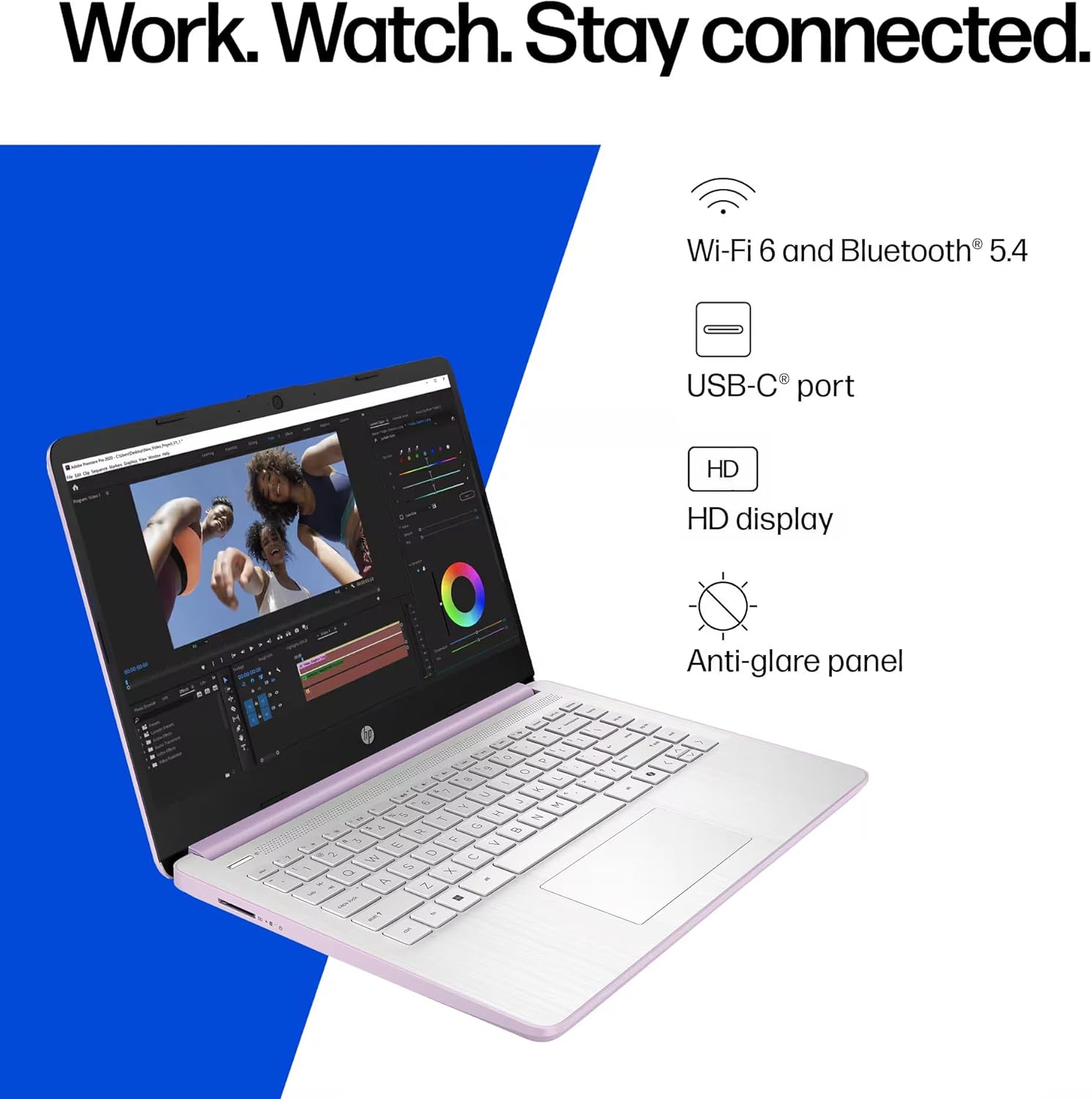
Малюнак 6: The laptop offers Wi-Fi 6 and Bluetooth 5.4 for robust wireless connectivity, alongside a USB-C port, HD display, and anti-glare panel.
2.5 Ключ Microsoft Copilot
The dedicated Microsoft Copilot key provides instant access to AI assistance. Press this key to launch Copilot and interact with it for various tasks, information, and creative assistance.

Малюнак 7: The Microsoft Copilot key on the keyboard provides quick access to AI features.
3. Тэхнічнае абслугоўванне
3.1 Сыход за акумулятарам
- To maximize battery lifespan, avoid frequently discharging the battery completely.
- Захоўвайце ноўтбук у прахалодным, сухім месцы, калі ён не выкарыстоўваецца працяглы час.
- The laptop features a 3-cell, 41 Wh Li-ion battery, providing up to 9 hours of usage.
3.2 Чыстка ноўтбука
- экран: Выкарыстоўвайце мяккую тканіну без ворса. dampвадой або сродкам для чысткі экранаў. Не распыляйце вадкасць непасрэдна на экран.
- Клавіятура і корпус: Выкарыстоўвайце мяккую, сухую тканіну. Для ўстойлівага бруду злёгкуamp можна выкарыстоўваць тканіну, сачыце за тым, каб вадкасць не трапляла ў адтуліны.
- парты: Трымайце парты чысцінёй ад пылу і смецця. Пры неабходнасці выкарыстоўвайце сціснутае паветра, трымаючы балон вертыкальна.
3.3 Абнаўленне праграмнага забеспячэння
Regularly update your Windows 11 Pro operating system and drivers to ensure optimal performance, security, and compatibility.
- Перайсці да Налады > Цэнтр абнаўлення Windows каб праверыць і ўсталяваць абнаўленні.
- Ensure your antivirus software is up-to-date.
4. Выпраўленне непаладак
This section addresses common issues you might encounter with your HP 14-inch Laptop.
4.1 Праблемы з харчаваннем
- Ноўтбук не ўключаецца:
- Пераканайцеся, што адаптар пераменнага току надзейна падключаны як да ноўтбука, так і да спраўнай разеткі.
- Праверце працаздольнасць разеткі, падключыўшы да яе іншую прыладу.
- Калі акумулятар цалкам разрадзіўся, дайце яму зарадзіцца не менш за 30 хвілін, перш чым спрабаваць уключыць прыладу.
- Акумулятар не зараджаецца:
- Праверце адаптар харчавання і кабель на наяўнасць пашкоджанняў.
- Ensure the AC adapter is correctly seated in the laptop's charging port.
- Паспрабуйце перазагрузіць ноўтбук.
4.2 Праблемы з адлюстраваннем
- Экран пусты або чорны:
- Пераканайцеся, што ноўтбук уключаны і не знаходзіцца ў рэжыме сну.
- Connect an external monitor via HDMI to check if the issue is with the laptop's display or graphics output.
- Адрэгулюйце яркасць экрана з дапамогай функцыянальных клавіш.
- Мігценне экрана:
- Абнавіце свае графічныя драйверы.
- Check display settings in Windows for refresh rate compatibility.
4.3 Праблемы з падключэннем (Wi-Fi/Bluetooth)
- Не магу падключыцца да Wi-Fi:
- Пераканайцеся, што Wi-Fi уключаны (праверце функцыянальныя клавішы або налады Windows).
- Перазагрузіце маршрутызатар і мадэм.
- Forget the network in Windows settings and try reconnecting.
- Абнавіць сеткавыя драйверы.
- Прылада Bluetooth не спалучаецца:
- Ensure Bluetooth is enabled on both the laptop and the device.
- Place the Bluetooth device in pairing mode.
- Remove previously paired instances of the device from Windows settings and try pairing again.
Каб атрымаць дадатковую дапамогу, звярніцеся ў службу падтрымкі HP webсайт або звярніцеся ў службу падтрымкі.
5. Тэхнічныя характарыстыкі
Detailed technical specifications for the HP 14-inch Laptop (Model 2026 Essential).
| Асаблівасць | Апісанне |
|---|---|
| Назва мадэлі | 2026 Essential HP 14 Laptop |
| Працэсар | Quad-Core Intel Processor N150 (Up to 3.6 GHz Max Turbo Frequency, 6 MB Intel Smart Cache, 4 cores, 4 threads) |
| Графіка | Убудаваная графіка Intel |
| Аперацыйная сістэма | Windows 11 Pro |
| Праграмнае забеспячэнне ў камплекце | Microsoft Office 2024 |
| Памяць (RAM) | 4 ГБ аператыўнай памяці LPDDR5 |
| Захоўванне | 128GB UFS (Universal Flash Storage) + 500GB External Drive |
| Дысплей | 14-inch diagonal, HD (1366 x 768), micro-edge, anti-glare, 250 nits, LED |
| Сувязь | Камбінаваны Wi-Fi 6 (802.11ax) і Bluetooth 5.4 |
| Аўдыё | HD-аўдыё са стэрэадынамікамі |
| Webкамера | HD-камера HP True Vision 720p з часовым падаўленнем шуму і ўбудаванымі лічбавымі мікрафонамі з двума матрыцамі |
| Парты |
|
| акумулятар | 3-cell, 41 Wh Li-ion battery, Up to 9 hours usage |
| Памеры (Ш х Г х У) | 12.76 х 8.86 х 0.71 цалі |
| Вага | 3.24 фунта |
| Колер | Honey Lavender |

Малюнак 8: Intel Processor N150 specifications, highlighting its 4 cores, 4 threads, 6 MB cache, and up to 3.6 GHz Turbo Boost frequency.
6. Гарантыя і падтрымка
Каб атрымаць інфармацыю аб гарантыі, звярніцеся да дакументацыі, якая пастаўляецца з вашым прадуктам, або наведайце афіцыйную службу падтрымкі HP. webсайт. HP прадастаўляе розныя рэсурсы падтрымкі, у тым ліку драйверы, абнаўленні праграмнага забеспячэння і кіраўніцтвы па ліквідацыі непаладак.
If you encounter issues that cannot be resolved using the troubleshooting steps in this manual, please contact HP Customer Support for assistance. Have your product model number (2026 Essential HP 14 Laptop) and serial number ready when contacting support.
Інтэрнэт-падтрымка: Наведайце support.hp.com