
1. Уводзіны
The SABLUTE K21Pro is a large print, backlit, wired USB keyboard designed for enhanced readability and ergonomic comfort. It features oversized characters, 7-color adjustable backlighting, an integrated wrist rest, and a convenient phone/tablet holder. This manual provides instructions for setup, operation, maintenance, and troubleshooting to ensure optimal use of your keyboard.
2. Змесціва ўпакоўкі
- SABLUTE K21Pro Large Print Backlit Wired USB Keyboard
- Integrated Wrist Rest
- Інтэграваная падстаўка для рук
3. Настройка
To set up your SABLUTE K21Pro keyboard, follow these simple steps:
- Дастаньце клавіятуру з упакоўкі.
- Locate an available USB-A port on your computer (desktop, laptop, or Mac).
- Plug the USB connector of the keyboard into the USB-A port.
- Your operating system (Windows, macOS, etc.) should automatically detect and install the necessary drivers. No additional software installation is typically required.
- The keyboard is ready for use once detected.

Заўвага: For optimal performance, ensure the USB cable is securely connected.
4. Асноўныя характарыстыкі і прынцып працы
4.1 Клавішы вялікага шрыфта
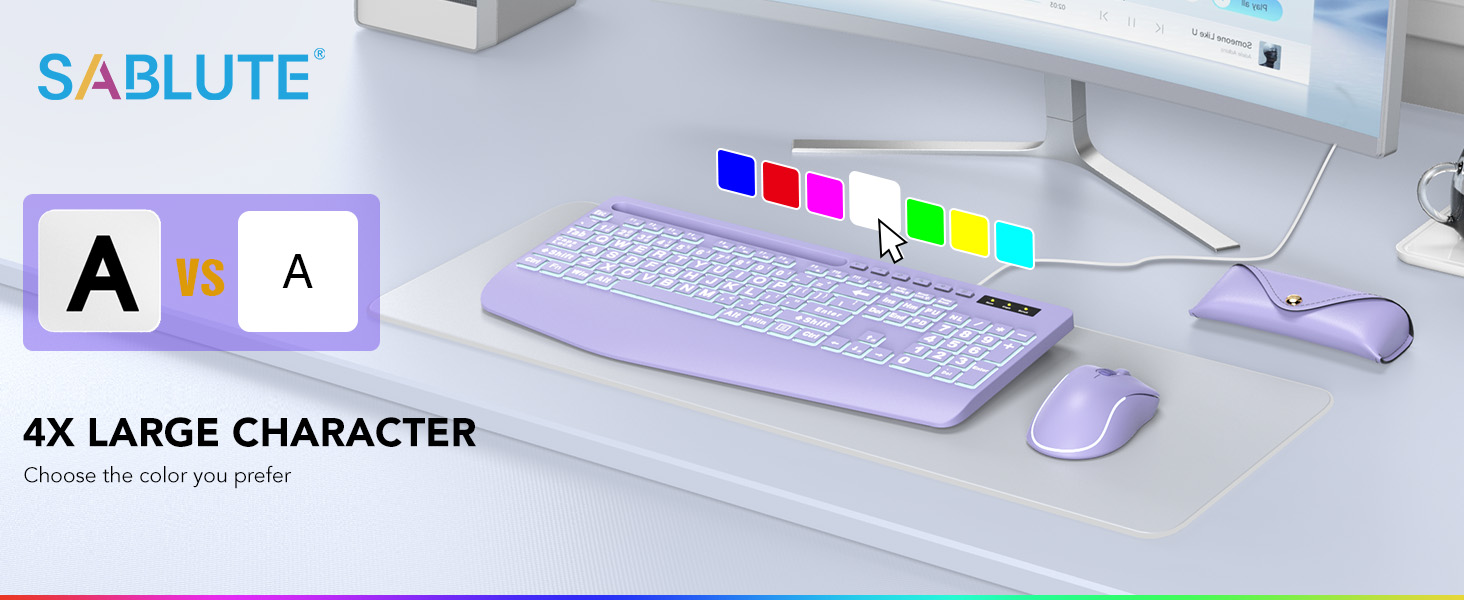
The SABLUTE K21Pro features oversized characters on each key, making them significantly easier to read compared to standard keyboards. This design helps reduce eye strain and improves typing accuracy, especially for users with visual impairments, seniors, or those working in low-light conditions.
4.2 7-каляровая падсветка
The keyboard includes a vibrant 7-color backlight system with adjustable brightness and multiple modes. Use the Function (Fn) key in combination with other keys to control the backlighting:
- Пераключыць колер падсветкі: Прэса fn+1 to cycle through the 7 available backlight colors.
- Keep One Backlight Color: Прэса fn+2 repeatedly until your desired single color is displayed. The backlight will remain this color.
- Backlighting While Typing: Прэса fn+3 to activate a mode where keys light up as you type.
- Backlight Color Changes Back and Forth: Прэса fn+4 to enable a dynamic mode where backlight colors transition.
- Наладзіць яркасць: Прэса Fn + ↑ (стрэлка ўверх) to increase backlight brightness and Fn + ↓ (стрэлка ўніз) to decrease brightness. There are 8 levels of brightness.


4.3 Ergonomic Design with Wrist Rest
The keyboard is designed with an integrated palm and wrist rest to provide support and reduce strain during extended typing sessions. This ergonomic feature helps maintain a neutral wrist position, contributing to comfort and potentially preventing discomfort.

4.4 Integrated Phone/Tablet Holder
A dedicated slot at the top of the keyboard serves as a convenient holder for your smartphone or tablet. This allows you to keep your device upright and visible while working, facilitating multitasking such as watching videos, video conferencing, or reading documents.

4.5 мультымедыйных клавіш
The keyboard includes standard function keys (F1-F12) which, when combined with the Fn key, can activate various multimedia and system controls. Refer to your operating system's documentation for specific functions associated with these keys.
5. Тэхнічнае абслугоўванне
Proper care and maintenance will extend the lifespan of your keyboard:
- Уборка: Use a soft, dry, lint-free cloth to wipe the surface of the keyboard. For deeper cleaning, a slightly damp можна выкарыстоўваць тканіну з мяккім мылам, сачыце за тым, каб вадкасць не патрапіла на клавішы або ўнутраныя кампаненты.
- Выдаленне пылу: Выкарыстоўвайце сціснутае паветра, каб выдаліць пыл і смецце паміж клавішамі.
- Пазбягайце вадкасці: Не разлівайце вадкасці на клавіятуру. У выпадку разліву неадкладна адключыце клавіятуру ад камп'ютара і дайце ёй цалкам высахнуць перад паўторным падключэннем.
- захоўванне: Store the keyboard in a clean, dry environment away from extreme temperatures.
6. Выпраўленне непаладак
If you encounter issues with your SABLUTE K21Pro keyboard, try the following troubleshooting steps:
- Клавіятура не адказвае:
- Пераканайцеся, што USB-кабель надзейна падключаны як да клавіятуры, так і да USB-порта кампутара.
- Паспрабуйце падключыць клавіятуру да іншага USB-порта на вашым кампутары.
- Перазагрузіце кампутар.
- Праверце клавіятуру на іншым кампутары, каб вызначыць, ці праблема ў клавіятуры, ці ў вашай сістэме.
- Backlight Not Working or Not Changing:
- Ensure the backlight is turned on. Use Fn + ↑ (стрэлка ўверх) каб павялічыць яркасць.
- Пераключайцеся паміж рэжымамі падсветкі з дапамогай fn+1, fn+2, fn+3, і fn+4 to see if a different mode activates the lights.
- Verify that the keyboard is receiving power (e.g., if other keys are functioning).
- Specific Keys Not Working or Registering Incorrectly:
- Check for any physical obstructions or debris under the affected key. Use compressed air to clear.
- If multiple keys are affected, try the general troubleshooting steps for
Ask a question about this manual
Ask about setup, troubleshooting, compatibility, parts, safety, or missing instructions. Manuals+ will review the question and use this page’s manual context to help answer it.