Уводзіны
The Behringer X Air XR12 is a 12-input digital mixer designed for tablet control, offering professional audio processing and a built-in Wi-Fi module for wireless operation. This manual provides essential information for setting up, operating, and maintaining your XR12 mixer, ensuring optimal performance and longevity.
The XR12 integrates advanced features such as a revolutionary Dugan-style Auto-Mixing system, which automatically manages microphone gain sharing, and a tri-mode Wi-Fi router for flexible control options. Its compact design and robust construction make it suitable for various applications, from live sound reinforcement to studio recording.
Настройка
1. Распакаванне і праверка
Carefully unpack the Behringer X Air XR12 mixer and inspect it for any signs of damage during transit. Retain all packaging materials for future transport or service needs.
2. Фізічныя злучэнні
The XR12 offers a variety of input and output connections. Refer to the image below for a visual guide to the rear panel connections.
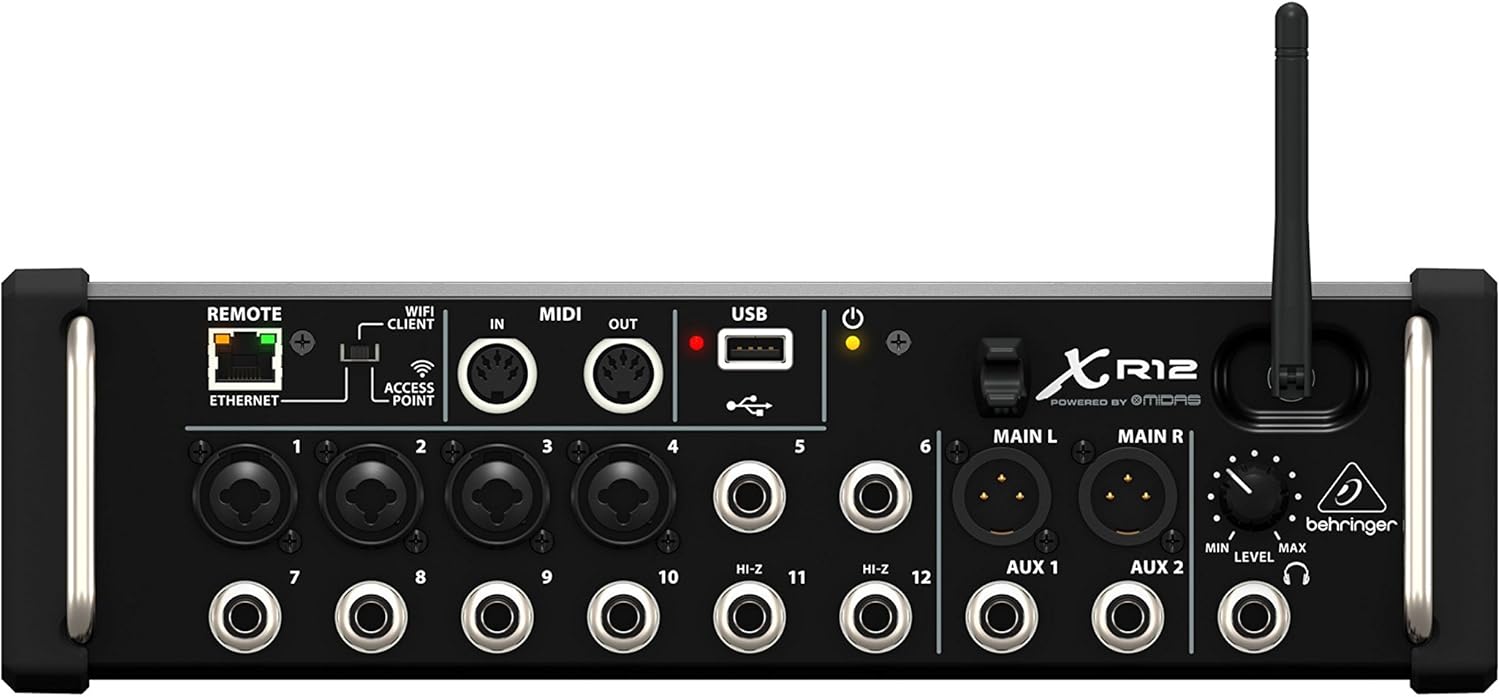
выява: Rear panel of the Behringer X Air XR12, showing all input and output connections, including XLR/TRS combo jacks, RCA inputs, MIDI I/O, USB, Ethernet, and Wi-Fi antenna.
- Уваходы 1-4: XLR/TRS combo jacks for microphones or line-level sources.
- Уваходы 5-12: TRS jacks for line-level sources. Inputs 5 and 6 also feature Hi-Z inputs for direct instrument connection.
- Main L/R Outputs: XLR outputs for connecting to a PA system or studio monitors.
- Aux 1/2 Outputs: TRS outputs for monitor mixes or effects sends.
- Уваход/выхад MIDI: Standard 5-pin DIN connectors for MIDI control.
- USB: Type-A port for connecting a USB drive for recording/playback or a USB Wi-Fi adapter.
- Ethernet: RJ45 port for wired network connection to a computer or external router.
- Пульт: Switch to select between Wi-Fi Client, Access Point, or Ethernet modes.
- Навушнікі: TRS jack with dedicated level control.
3. Падключэнне сілкавання
Connect the included power cable to the AC/POWER inlet on the rear panel of the XR12 and then to a suitable power outlet. Ensure the power switch is in the OFF position before connecting power.

выява: Тыл view of the Behringer X Air XR12, highlighting the AC/POWER inlet and power switch.
4. Network Setup for Control
The XR12 features a built-in tri-mode Wi-Fi router for flexible control via a tablet or computer. Use the 'REMOTE' switch to select your preferred connection mode:
- Access Point (AP): The XR12 creates its own Wi-Fi network. Connect your tablet/computer directly to this network. This is ideal for standalone operation.
- Wi-Fi Client: The XR12 connects to an existing Wi-Fi network. This allows your control device to access the mixer while also maintaining internet access.
- Ethernet: For a wired connection to a computer or an external router. This provides the most stable connection.
For initial setup, the Access Point mode is often the easiest. The default Wi-Fi network name (SSID) and password can be found on a label on the unit or in the full technical manual.
5. Control Application Installation
Download and install the appropriate X AIR control application for your device (iOS, Android, PC, Mac, or Linux). This application is essential for controlling all functions of the XR12 mixer.
Інструкцыя па эксплуатацыі
1. Уключэнне і падключэнне
- Ensure all audio connections are made and the master volume of your PA system is turned down.
- Flip the power switch on the XR12 to the ON position. The power LED will illuminate.
- On your tablet or computer, open the X AIR control application and connect to the XR12 mixer via your chosen network method (Wi-Fi or Ethernet).
2. Асноўнае змешванне
- Уваходнае ўзмацненне: Adjust the input gain for each channel within the app to achieve a healthy signal level without clipping.
- Фейдэры каналаў: Use the virtual faders to control the volume of individual channels in the main mix.
- Асноўны мікс: Control the overall output volume using the Main L/R fader. Gradually increase the PA system's master volume after setting initial levels.
- EQ and Dynamics: Each channel features a 4-band parametric EQ and dynamics processing (gate/compressor) accessible through the control app.
3. Пашыраныя магчымасці
- Effects Processors: The XR12 includes four stereo effects engines. Assign effects to channels or aux sends as needed.
- Дапаможныя пасылы: Create independent monitor mixes or send signals to external effects processors using the Aux 1/2 outputs.
- Dugan Auto-Mixing: Activate the Dugan-style Auto-Mixing feature for automatic gain sharing across multiple microphones, ideal for panel discussions or theatrical productions.
- Аўдыёінтэрфейс USB: The USB port allows for 2-track stereo recording and playback directly to/from a USB flash drive.
Тэхнічнае абслугоўванне
1. Уборка
Regularly clean the exterior of the XR12 with a soft, dry cloth. Avoid using abrasive cleaners or solvents, as these can damage the finish. Ensure no liquids enter the unit.
2. Абнаўленне прашыўкі
Перыядычна правярайце Behringer website for firmware updates for your XR12. Firmware updates can provide new features, performance improvements, and bug fixes. Follow the instructions provided with the firmware update carefully.
3. Захоўванне
When not in use, store the XR12 in a cool, dry environment, away from direct sunlight and extreme temperatures. If transporting, use appropriate protective casing.
Ліквідацыю непаладак
Няма вываду гуку
- Check all audio cable connections to and from the mixer.
- Verify that the XR12 is powered on and connected to your control device.
- Ensure channel faders and the Main L/R fader in the control app are not muted or set to minimum.
- Check the gain settings for individual input channels.
- Confirm that your PA system or monitors are powered on and their volume is adequately set.
Control Device Cannot Connect to XR12
- Ensure the 'REMOTE' switch on the XR12 is set to the correct mode (Access Point, Wi-Fi Client, or Ethernet).
- If using Access Point mode, confirm your device is connected to the XR12's Wi-Fi network.
- If using Wi-Fi Client mode, ensure the XR12 is successfully connected to your external router's Wi-Fi network.
- Restart both the XR12 and your control device.
- Праверце наяўнасць налад брандмаўэра на вашым кампутары, якія могуць блакаваць падключэнне.
Intermittent Wi-Fi Connection
- Ensure the Wi-Fi antenna is securely attached to the XR12.
- Minimize physical obstructions between the XR12 and your control device.
- Avoid placing the XR12 near other wireless devices that may cause interference.
- Consider using an external 5 GHz Wi-Fi router for more stable connections in crowded 2.4 GHz environments.
Тэхнічныя характарыстыкі
| Нумар мадэлі | X AIR XR12 |
| Колькасць каналаў | 12 (4 XLR/TRS Combo, 8 TRS) |
| Тэхналогія падлучэння | USB, Ethernet, Wi-Fi |
| Крыніца харчавання | Corded Electric (100-240V~, 50/60Hz) |
| Вага прадмета | 5.94 фунта (2.7 кілаграма) |
| Памеры прадукту | 15.25 х 8.7 х 5.8 цалі |
| Тып матэрыялу | Нержавеючая сталь |
Гарантыя і падтрымка
For detailed warranty information, technical support, driver downloads, and additional resources, please visit the official Behringer website. Product registration is recommended to ensure you receive the latest updates and support information.
Always refer to the manufacturer's official documentation for the most current and comprehensive information regarding your Behringer X Air XR12 mixer.


