1. паview
The MoKo Bluetooth Wireless Keyboard is designed to enhance your Microsoft Surface Pro experience, offering a comfortable typing solution with advanced features. This keyboard provides a seamless wireless connection, a practical trackpad, and customizable 7-color backlighting, making it suitable for various environments and tasks.

Image: MoKo Bluetooth Wireless Keyboard attached to a Microsoft Surface Pro tablet, showcasing its sleek design and integration.
2. Змесціва ўпакоўкі
Калі ласка, праверце ўпакоўку на наяўнасць наступных прадметаў:
- MoKo Bluetooth Wireless Keyboard
- USB-кабель для зарадкі
- Кіраўніцтва карыстальніка (гэты дакумент)

Image: A USB Type-C charging cable, included for recharging the keyboard's internal battery.
3. Сумяшчальнасць
This keyboard is designed for specific Microsoft Surface Pro models. Please verify your device model before use.
- Microsoft Surface Pro 7 Plus (2021)
- Microsoft Surface Pro 7 (2019)
- Microsoft Surface Pro 6
- Microsoft Surface Pro 5 (Pro 2017)
- Microsoft Surface Pro 4
- Microsoft Surface Pro 3
Note: This keyboard is NOT compatible with Surface Go (2018) or Surface Go 2.
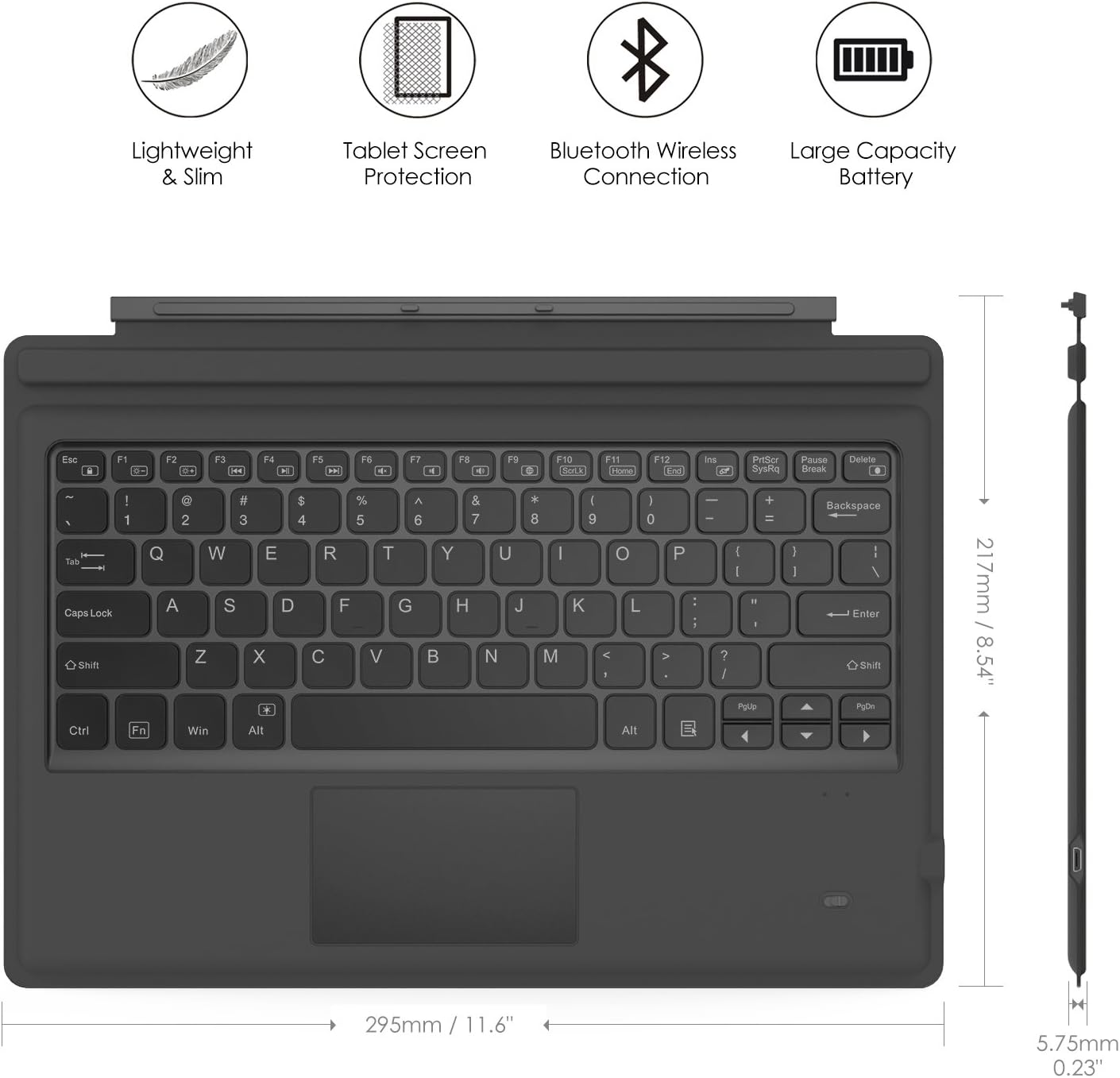
Image: A visual guide indicating compatible Microsoft Surface Pro models (Pro 7 Plus, Pro 7, Pro 6, Pro 5, Pro 4, Pro 3, Pro LTE) and incompatible models (Surface Go, Surface Go 2).
4. Настройка
4.1. Зарадка клавіятуры
Before initial use, fully charge the keyboard. Connect the provided USB charging cable to the keyboard's charging port and a USB power source. The charging indicator light will show the charging status.
- Battery Capacity: 750mAh (rechargeable lithium battery)
- Час зарадкі: прыкладна 2-3 гадзін
- Working Time (backlight off): Up to 180 hours
- Working Time (backlight on): Up to 5 hours
- Час чакання: да 180 дзён

Image: An illustration depicting the keyboard's battery and charging specifications, including charge time and standby duration.
4.2. Спарванне Bluetooth
Follow these steps to pair your keyboard with your Microsoft Surface Pro:
- Turn on the keyboard by sliding the power switch to the 'ON' position. The indicator light will flash.
- Націсніце Fn + C keys simultaneously to activate Bluetooth pairing mode. The Bluetooth indicator light will start blinking rapidly.
- На вашым Microsoft Surface Pro перайдзіце па спасылцы Налады > прылады > Bluetooth і іншыя прылады.
- Ensure Bluetooth is enabled and select Дадайце Bluetooth або іншую прыладу.
- Выбірай Bluetooth з варыянтаў.
- Select the keyboard (usually named "Bluetooth Keyboard" or similar) from the list of available devices.
- Follow any on-screen prompts to complete the pairing process. Once paired, the Bluetooth indicator light on the keyboard will stop blinking.

Image: A diagram illustrating the Bluetooth wireless connection process, showing the keyboard both attached and detached from the tablet, with a note on connection distance.
5. Інструкцыя па эксплуатацыі
5.1. Кіраванне падсветкай
The keyboard features a 7-color LED backlight with adjustable brightness levels.
- To turn the backlight ON/OFF: Press the Электрычная лямпачка ключ.
- Каб змяніць колер падсветкі: націсніце Alt + Light Bulb key. Cycle through 7 different colors.
- To adjust backlight brightness: Press fn+alt keys. This will cycle through different brightness modes.

Image: Instructions on how to change the backlight color by pressing Alt + Light Bulb key.

Image: Instructions on how to adjust backlight brightness by pressing Fn + Alt keys.
5.2. Using the Trackpad
The integrated trackpad provides precise cursor control, similar to a mouse. It supports multi-touch gestures for enhanced navigation.
- To activate/deactivate the trackpad: Press Fn + Trackpad icon ключ.
- Left Click: Press the left side of the trackpad or tap once.
- Right Click: Press the right side of the trackpad or tap with two fingers.
- Scrolling: Use two fingers to scroll up or down.

Image: An illustration highlighting the responsive trackpad with left and right click areas, and the scissor switch mechanism of the keys for comfortable typing.
5.3. Dual-Angle Adjustment
The keyboard features a magnetic attachment stripe that allows for two different typing angles, providing ergonomic comfort for various uses.
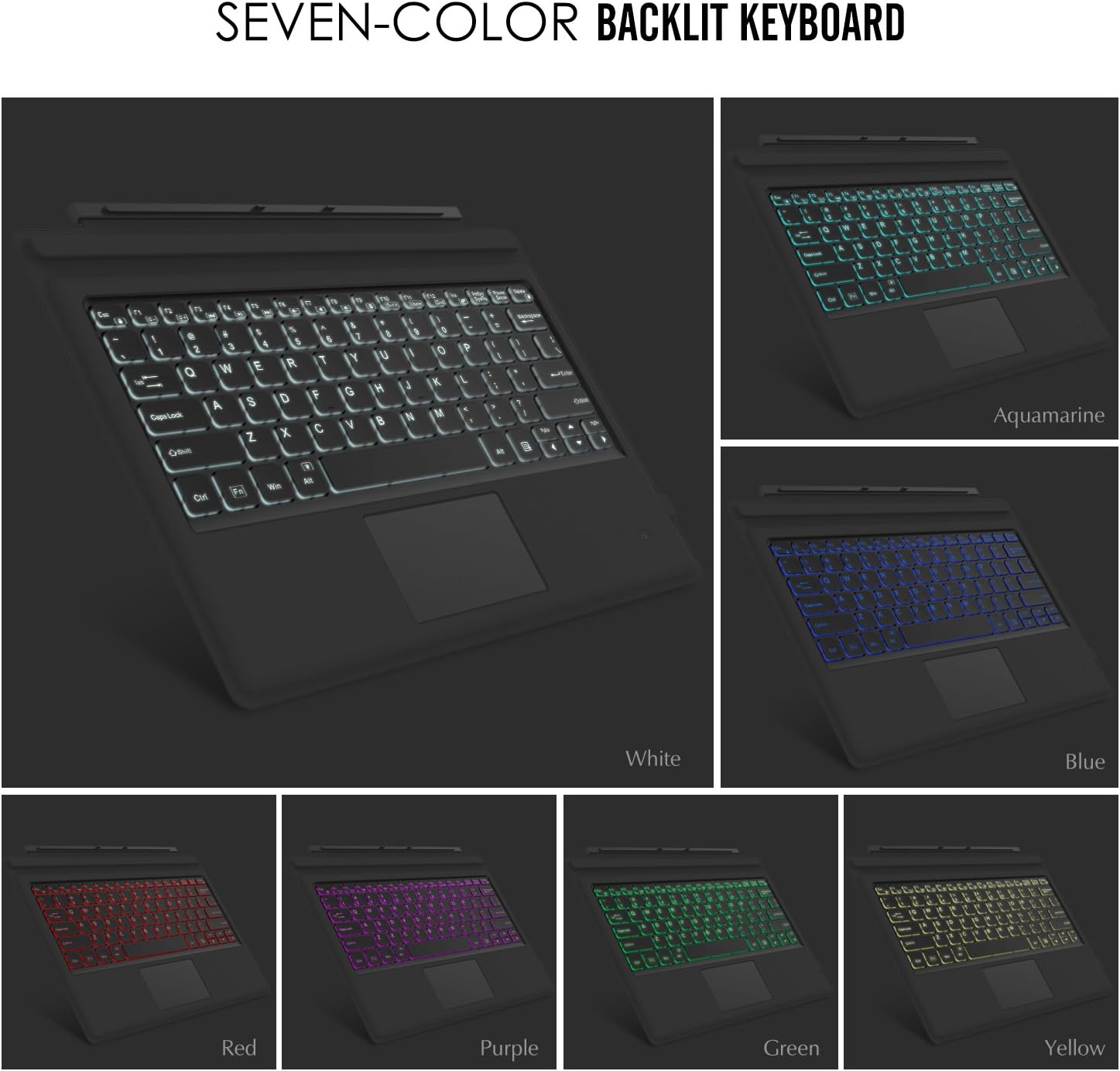
Image: A visual representation of the keyboard's dual-angle adjustment, showing two distinct positions for typing comfort.
6. Тэхнічнае абслугоўванне
- Трымайце клавіятуру далей ад вадкасцей і экстрэмальных тэмператур.
- Clean the keyboard with a soft, damp тканіна. Пазбягайце рэзкіх хімікатаў.
- Не спрабуйце разбіраць клавіятуру, бо гэта можа прывесці да анулявання гарантыі.
- Захоўвайце ў сухім месцы, калі не выкарыстоўваецца працяглы час.
7. Выпраўленне непаладак
7.1. Клавіятура не падключаецца праз Bluetooth
- Пераканайцеся, што клавіятура цалкам зараджана.
- Make sure the keyboard's power switch is ON.
- Verify that Bluetooth is enabled on your Surface Pro.
- Re-enter pairing mode on the keyboard (Fn + C) and attempt to pair again from your Surface Pro's Bluetooth settings.
- If previously paired, try 'forgetting' the device on your Surface Pro and then re-pairing.
7.2. Не працуе падсвятленне
- Пераканайцеся, што клавіятура дастаткова зараджана.
- Press the Light Bulb key to toggle the backlight.
- Adjust brightness using Fn + Alt keys.
7.3. Trackpad Not Responding
- Ensure the trackpad is activated by pressing Fn + Trackpad icon key.
- Clean the trackpad surface to remove any dirt or debris.
- Перазагрузіце клавіятуру і Surface Pro.
8. Тэхнічныя характарыстыкі
| Асаблівасць | Дэталь |
|---|---|
| Марка | MoKo |
| Нумар мадэлі | LYSB01AJOX7LU-ELECTRNCS |
| Колер | Шэры |
| Тэхналогія падлучэння | Bluetooth |
| Апісанне клавіятуры | Ergonomic, QWERTY US International |
| Асаблівасці | Wireless, Magnetic, Backlit (7 Colors), Trackpad |
| Крыніца харчавання | Battery (Rechargeable Lithium) |
| Ёмістасць батарэі | 750 мАг |
| Акумулятар Voltage | 3 вольт |
| Памеры прадукту | 29.49 х 21.69 х 0.58 см (11.6 х 8.54 х 0.23 цалі) |
| Вага прадукту | 500 г |
| Сумяшчальныя прылады | Microsoft Surface Pro 7 Plus (2021) / Pro 7 (2019) / Pro 6 / Surface Pro 5 (Pro 2017) / Pro 4 / Pro 3 |
| Аперацыйная сістэма | вокны |

Image: A diagram illustrating the precise dimensions of the MoKo Bluetooth Wireless Keyboard.
9. Гарантыя і падтрымка
For warranty information and technical support, please refer to the product packaging or contact MoKo customer service directly. Keep your purchase receipt for warranty claims.