1. паview
The Apple iMac 21.5-inch (Late 2015) is an all-in-one desktop computer designed for various computing tasks. This model features a 4K Retina Display, an Intel Core i5 processor, 8GB of RAM, and a 1TB hard drive. It includes essential connectivity options for peripherals and external devices.
Асноўныя характарыстыкі:
- 21.5-inch 4K Retina Display for sharp visuals.
- 3.1GHz quad-core Intel Core i5 processor with Turbo Boost up to 3.6GHz.
- 8GB Onboard Memory (DDR3 SDRAM at 1867 MHz).
- 1TB (5400-rpm) Hard Drive for storage.
- Intel Iris Pro Graphics 6200.
- Убудаваны мікрафон.
- Multiple high-speed I/O ports including two Thunderbolt ports and four USB 3.0 ports.
- Wireless connectivity: Wi-Fi (802.11a, 802.11abg) and Bluetooth.
2. Прадукт Views

Спераду і збоку view of the Apple iMac 21.5-inch (Late 2015) showing its slim profile і дысплей.
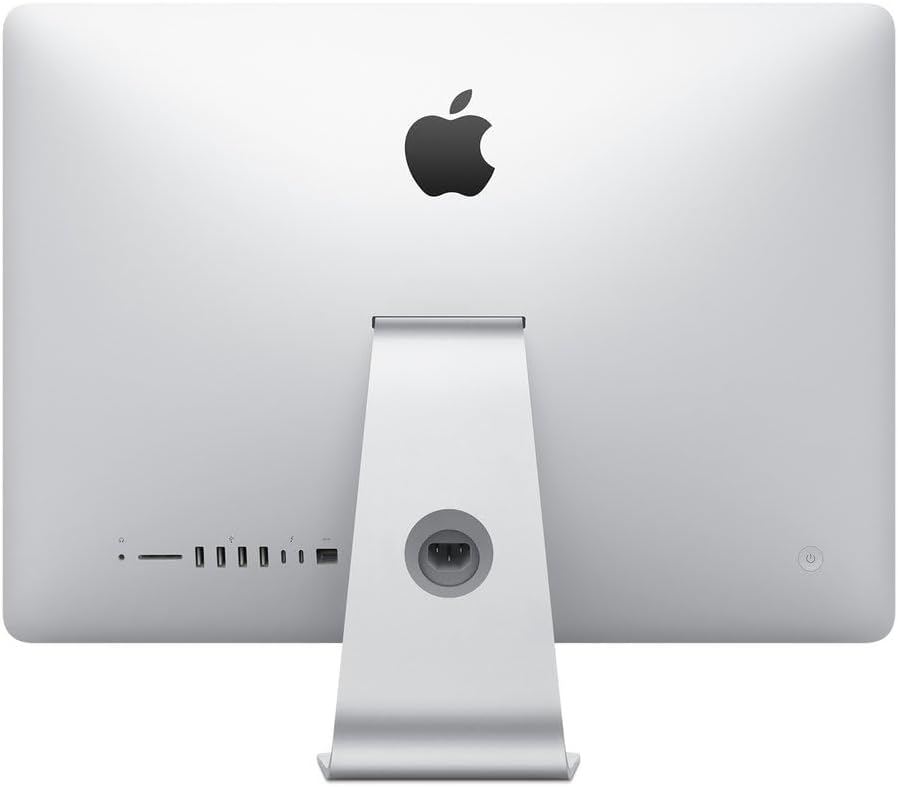
Тыл view of the Apple iMac 21.5-inch (Late 2015) highlighting the various input/output ports and power connection.
3. Настройка
3.1 Распакаванне
Carefully remove the iMac from its packaging. Ensure all components, including the power cord, keyboard, and mouse, are present. Place the iMac on a stable, flat surface.
3.2 Падключэнне перыферыйных прылад
- Клавіятура і мыш: Connect the provided generic wired keyboard and mouse to any of the four USB 3.0 ports located on the back of the iMac.
- Магутнасць: Connect the power cord to the power port on the back of the iMac, then plug it into a grounded electrical outlet.
- Сетка (неабавязкова): For a wired internet connection, connect an Ethernet cable from your router or modem to the Ethernet port on the back of the iMac. For Wi-Fi, setup will be completed during initial software configuration.
- External Devices (Optional): Use the Thunderbolt ports or additional USB 3.0 ports for external hard drives, printers, or other accessories.
3.3 Уключэнне
Press the power button located on the lower-left rear side of the iMac. The screen will illuminate, and the macOS setup assistant will guide you through the initial configuration process, including language selection, network connection, and user account creation.
4. Operating System Basics
The iMac comes pre-installed with macOS (OS X El Capitan or later). This section provides a general overview of basic macOS operation.
4.1 macOS Interface
- Desktop: The main workspace where you can see your files, folders, and application icons.
- Док: Located at the bottom of the screen, the Dock provides quick access to frequently used applications, documents, and folders.
- Радок меню: At the top of the screen, the Menu Bar contains menus for the active application, system status icons, and the Apple menu.
- Шукальнік: The file management system for macOS, allowing you to browse, organize, and access your files.
4.2 Essential Applications
Your iMac includes a suite of pre-installed applications for productivity, creativity, and communication, such as Safari (web browser), Mail, Pages, Numbers, Keynote, Photos, Music, and Messages.
5. Тэхнічнае абслугоўванне
5.1 Cleaning the iMac
- экран: Выкарыстоўвайце мяккую безворсовую тканіну, злёгку dampened with water to clean the display. Avoid harsh chemicals.
- Укладанне: Працярыце алюмініевы корпус мяккай сухой тканінай.
- Перыферыйныя прылады: Clean the keyboard and mouse regularly to prevent dust and debris buildup.
5.2 Абнаўленне праграмнага забеспячэння
Regularly check for and install macOS updates to ensure optimal performance, security, and access to the latest features. Go to System Settings (or System Preferences) > Software Update.
5.3 Internal Dust Management
Over time, dust can accumulate inside the iMac, potentially affecting performance and cooling. While internal cleaning should ideally be performed by a qualified technician, users can use compressed air to gently clear dust from external vents. Ensure the iMac is powered off and unplugged before attempting any cleaning.
6. Выпраўленне непаладак
6.1 Павольная праца
- Перазапуск: Просты перазапуск часта можа вырашыць часовыя праблемы з прадукцыйнасцю.
- Месца на дыску: Ensure you have sufficient free space on your 1TB hard drive. Delete unnecessary fileабо перанесці іх на знешні назапашвальнік.
- Манітор актыўнасці: Use Activity Monitor (found in Applications/Utilities) to identify applications or processes consuming excessive CPU, memory, or disk resources.
- Абнаўленні праграмнага забеспячэння: Ensure macOS and all applications are up to date.
- Назапашванне пылу: Excessive internal dust can lead to overheating and slow performance. Refer to the Maintenance section for cleaning advice.
6.2 Peripheral Connectivity
- USB прылады: If a USB device is not recognized, try connecting it to a different USB port or restarting the iMac.
- Wireless Keyboard/Mouse: If using wireless peripherals (not included with this renewed model but commonly used), ensure they are charged and properly paired via Bluetooth. Check battery levels.
- Wi-Fi: If experiencing Wi-Fi issues, restart your router and modem. Check Wi-Fi settings in macOS to ensure you are connected to the correct network.
6.3 Праблемы з адлюстраваннем
- Няма дысплея: Ensure the iMac is powered on and the power cable is securely connected.
- Мігценне/скажэнне дысплея: Try restarting the iMac. If the issue persists, it may indicate a hardware problem requiring professional service.
7. Тэхнічныя характарыстыкі
| Марка | яблык |
| Нумар мадэлі | MK452LL/A |
| Назва мадэлі | iMac |
| Мадэльны год | 2015 |
| Памер экрана | 21.5 цалі |
| Максімальнае дазвол дысплея | 4096 х 3204 |
| Роднае дазвол | 4K (3840 x 2160) |
| Мадэль працэсара | Intel Core i5 |
| Хуткасць працэсара | 3.1 GHz (Turbo Boost up to 3.6GHz) |
| RAM Memory Installed | 8 ГБ аператыўнай памяці DDR3 SDRAM (1867 МГц) |
| Ёмістасць жорсткага дыска | 1 TB (5400-rpm) |
| Апісанне відэакарты | Intel Iris Pro Graphics 6200 |
| Аперацыйная сістэма | OS X El Capitan (or later) |
| Парты USB | 4 х USB 3.0 |
| Парты Thunderbolt | 2 |
| Тэхналогія падлучэння | Ethernet, Wi-Fi, Bluetooth |
| Памеры прадмета (ДxШxВ) | 20.79 х 6.89 х 17.72 цалі |
| Вага прадмета | 12.5 фунта |
8. Гарантыя і падтрымка
This renewed Apple iMac comes with a 90-дзённая абмежаваная гарантыя. For technical assistance or warranty claims, please refer to the documentation provided by the seller or contact their customer support. Additional support resources for macOS and Apple products can be found on the official Apple Support webсайт.


