1. Уводзіны і большview
The eSSL KartString Biometric Time Attendance Machine is designed to provide efficient and secure time management and access control for organizations. This device utilizes fingerprint recognition technology to accurately record employee attendance, ensuring only authorized individuals are tracked. It features a clear display, a user-friendly keypad, and robust data storage capabilities, making it an essential tool for modern workforce management.
This manual provides detailed instructions for the setup, operation, and maintenance of your eSSL KartString Biometric Time Attendance Machine.
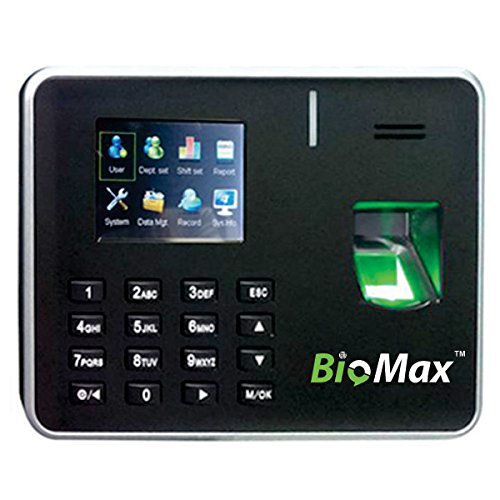
Малюнак 1: Фронт view of the eSSL KartString Biometric Time Attendance Machine, showing the display, keypad, and fingerprint sensor.
2. Асаблівасці прадукту
- Распазнаванне адбіткаў пальцаў: Secure and accurate biometric identification for attendance.
- High Transaction Storage: Capable of storing up to 100,000 attendance records.
- Color TFT Display: A 2.8-inch color display for clear user interface and information display.
- Multiple Communication Methods: Supports TCP/IP for network connectivity and USB-host for data transfer.
- Integrated Keypad: Soft buttons for password entry and menu navigation.
- Кампактны дызайн: Measures approximately 183 x 45 x 138 mm, suitable for various installation environments.
- Cloud-Based Software: Includes 6 months of cloud-based attendance management software by KartString for enhanced data management and reporting.
3. Інструкцыі па ўсталёўцы
Follow these steps to set up your eSSL KartString Biometric Time Attendance Machine:
- Распакаванне: Carefully remove the device from its packaging and ensure all components are present.
- Мантаж (дадаткова): Choose a suitable location for installation, typically near an entrance or exit. Secure the device to a wall using appropriate mounting hardware (not included, consult a professional if unsure).
- Падключэнне сілкавання: Connect the provided power adapter to the device's power input port and then plug it into a standard electrical outlet. The device will power on automatically.
- Сеткавае падключэнне (TCP/IP): For network-based data management, connect an Ethernet cable from your network router or switch to the device's LAN port.
- Першапачатковая канфігурацыя: Upon first power-on, the device may prompt for initial setup, such as date, time, and administrator registration. Follow the on-screen instructions.
4. Інструкцыя па эксплуатацыі
4.1 Administrator Registration
Before employees can use the system, an administrator must be registered to manage settings and user data.
- Націсніце М/ОК кнопка для доступу да галоўнага меню.
- Перайсці да Кіраванне карыстальнікамі or Зарэгістраваць карыстальніка з дапамогай клавіш са стрэлкамі.
- Выберыце Register Admin or similar option.
- Follow the on-screen prompts to scan the administrator's fingerprint multiple times for accurate registration.
- Assign administrator privileges as required.
4.2 Employee Fingerprint Enrollment
Each employee needs to register their fingerprint(s) to use the attendance system.
- Access the main menu as an administrator.
- Перайсці да Кіраванне карыстальнікамі or Зарэгістраваць карыстальніка.
- Выберыце Новы карыстальнік or Зарэгістраваць адбітак пальца.
- Enter the employee ID (if prompted) and then instruct the employee to place their finger on the sensor.
- The device will prompt the employee to lift and place their finger several times for a complete scan.
- Confirm successful enrollment.
4.3 Улік наведвальнасці
Employees can record their attendance by simply placing their registered finger on the sensor.
- Пераканайцеся, што прылада ўключана і знаходзіцца ў рэжыме чакання.
- The employee places their registered finger firmly on the fingerprint sensor.
- Upon successful recognition, the device will display a confirmation message (e.g., "Thank You" or "Punch In/Out Successful") and an audible prompt.
4.4 Кіраванне дадзенымі
Attendance data can be retrieved via TCP/IP network or USB-host.
- Via TCP/IP: Connect the device to your network. Use the provided cloud-based attendance management software or compatible third-party software to connect to the device and download attendance logs. Refer to the software's documentation for specific instructions.
- Via USB-Host: Insert a USB flash drive into the device's USB-host port. Navigate to Кіраванне дадзенымі or Спампаваць даныя in the menu. Select the desired data (e.g., attendance logs, user data) and initiate the transfer to the USB drive.
5. Тэхнічнае абслугоўванне
Рэгулярнае тэхнічнае абслугоўванне забяспечвае аптымальную прадукцыйнасць і даўгавечнасць вашай прылады.
- Ачыстка датчыка: Gently wipe the fingerprint sensor with a soft, dry, lint-free cloth. Avoid using abrasive materials or liquid cleaners directly on the sensor.
- Ачыстка прылады: Выкарыстоўвайце мяккую, злёгку damp cloth to clean the exterior of the device. Do not allow water or cleaning solutions to enter the device.
- Рэзервовае капіраванне даных: Regularly back up attendance data to an external storage device (USB) or through the network software to prevent data loss.
- Абнаўленні праграмнага забеспячэння: Check the eSSL website or contact support for any available firmware or software updates to ensure your device operates with the latest features and security enhancements.
6. Выпраўленне непаладак
У гэтым раздзеле разглядаюцца распаўсюджаныя праблемы, з якімі вы можаце сутыкнуцца.
- Прылада не ўключаецца:
- Пераканайцеся, што адаптар сілкавання надзейна падключаны як да прылады, так і да спраўнай электрычнай разеткі.
- Праверце працаздольнасць разеткі, падключыўшы да яе іншую прыладу.
- Адбітак пальца не распазнаны:
- Пераканайцеся, што палец чысты і сухі.
- Place the entire pad of the registered finger firmly on the sensor.
- Try re-enrolling the fingerprint if recognition issues persist.
- Clean the fingerprint sensor as described in the Maintenance section.
- Cannot Connect to Network (TCP/IP):
- Verify the Ethernet cable is properly connected to both the device and the network router/switch.
- Check network settings on the device to ensure correct IP address, subnet mask, and gateway.
- Ensure your network router is functioning correctly.
- USB Data Transfer Failure:
- Ensure the USB flash drive is properly inserted and formatted to a compatible file сістэма (напрыклад, FAT32).
- Try a different USB flash drive.
- Verify there is sufficient space on the USB drive.
If you encounter issues not covered here, please refer to the support section.
7. Тэхнічныя характарыстыкі
| мадэль | KartString Biomax K 21 |
| Марка | eSSL |
| Датчык адбіткаў пальцаў | Аптычны датчык |
| Ёмістасць транзакцый | 100,000 Запісы |
| Дысплей | 2.8 Inch Color TFT |
| Сувязь | TCP/IP, USB-host |
| Памеры (Д х Ш х У) | 183 x 45 x 138 мм (прыблізна) |
| Вага прадмета | 650 г |
| Колер | Чорны |
8. Гарантыя і падтрымка
The eSSL KartString Biometric Time Attendance Machine comes with standard manufacturer warranty. Please refer to your purchase documentation for specific warranty terms and conditions.
For technical assistance, troubleshooting, or inquiries regarding the included 6-month cloud-based attendance management software by KartString, please contact eSSL customer support or your authorized dealer. Contact information can typically be found on the eSSL official webсайце або на ўпакоўцы вашага прадукту.
When contacting support, please have your product model (KartString Biomax K 21) and any relevant purchase details ready.


