1. Настройка
1.1 Распакаванне манітора
Асцярожна выміце ўсе кампаненты з упакоўкі. Пераканайцеся, што ўсе пералічаныя ніжэй элементы наяўныя:
- BenQ EX3501R Monitor
- Падстаўка для манітора (аснова і шыя)
- Адаптар сілкавання
- Шнур харчавання
- Кабель HDMI
- Кабель DisplayPort
- USB-кабель C
- Кіраўніцтва карыстальніка (гэты дакумент)
1.2 Зборка падстаўкі
Каб прымацаваць падстаўку да манітора, выканайце наступныя дзеянні:
- Пакладзеце манітор экранам уніз на мяккую чыстую тканіну, каб пазбегнуць драпін.
- Прымацуйце падстаўку да задняй панэлі манітора. Пераканайцеся, што яна надзейна зашчапілася.
- Connect the stand base to the neck, tightening any screws as indicated in the quick start guide.

Малюнак 1: Спераду view of the BenQ EX3501R monitor with its stand.
1.3 Злучальныя кабелі
Connect the necessary cables to the monitor and your computer. The monitor supports various input options:
- Магутнасць: Падключыце адаптар сілкавання да манітора, а затым да разеткі.
- Відэа ўваход: Use either the HDMI, DisplayPort, or USB-C cable to connect your computer to the monitor.
- USB-C: The USB-C port supports video, data transfer, and power delivery, allowing for a single-cable connection with compatible devices.
- Порты USB 3.0: Utilize the integrated USB 3.0 ports for connecting peripherals.
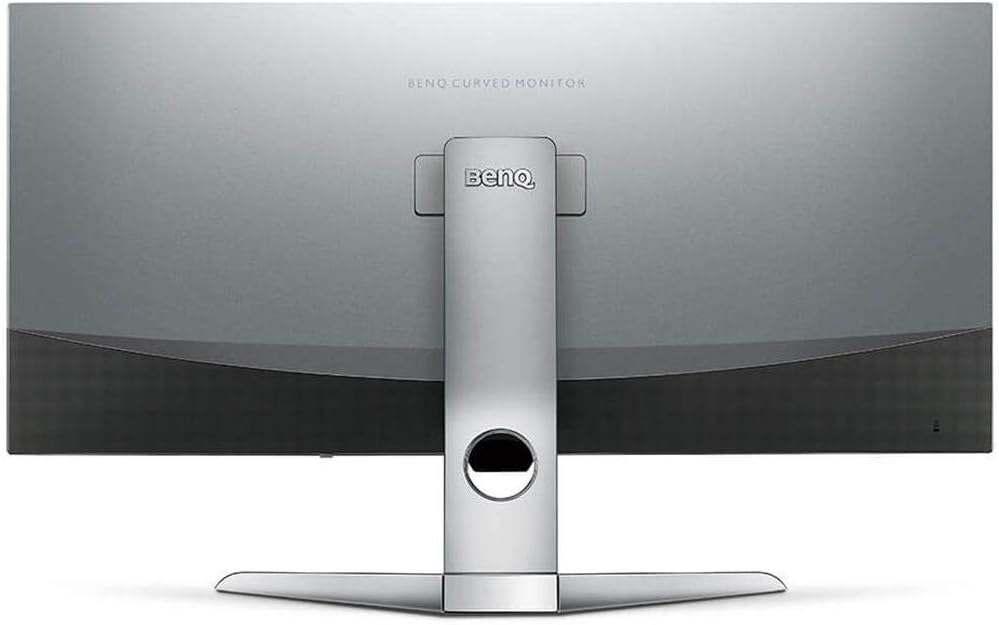
Малюнак 2: Задняя частка view of the monitor displaying the connectivity ports.
2. Кіраванне маніторам
2.1 Уключэнне/выключэнне сілкавання
Press the power button, usually located on the bottom right side of the monitor, to turn it on or off. The power indicator light will illuminate when the monitor is active.
2.2 Навігацыя па экранным меню (OSD)
Use the joystick or buttons located on the monitor's underside to navigate the On-Screen Display (OSD) menu. This menu allows you to adjust various settings such as brightness, contrast, color modes, and input sources.
2.3 Display Features and Eye-Care Technology
The BenQ EX3501R incorporates several technologies designed to enhance viewing experience and reduce eye strain:
- Інтэлект яркасці плюс (BI+): This patented technology automatically senses ambient lighting conditions and adjusts the screen's brightness and color temperature to provide optimal viewing comfort and protect your eyes during extended use.
- Слабае сіняе святло: Filters out harmful blue light emissions to reduce eye fatigue. Multiple levels of blue light reduction are available.
- ZeroFlicker™: Eliminates screen flickering at all brightness levels, further reducing eye strain and discomfort.
- HDR (шырокі дынамічны дыяпазон): Offers enhanced brightness and contrast, bringing greater detail and vibrancy to HDR video content.
Відэа 1: Оверview of BenQ's Eye-Care technology, including Low Blue Light, ZeroFlicker, and Brightness Intelligence Plus, demonstrating how these features work to reduce eye strain and adjust screen settings automatically based on ambient light.
2.4 Разрозненне і частата абнаўлення
The monitor features a QHD (3440x1440) resolution and a 100Hz refresh rate, providing a smooth and detailed visual experience. The 21:9 ultrawide aspect ratio offers ample screen space for multitasking, such as viewing multiple documents side-by-side without needing a second monitor.
2.5 AMD FreeSync
For a fluid gaming experience, the monitor supports AMD FreeSync technology, which synchronizes the monitor's refresh rate with your graphics card's frame rate to eliminate screen tearing and stuttering.
3. Тэхнічнае абслугоўванне
3.1 Чыстка манітора
To maintain optimal performance and appearance, regularly clean your monitor:
- экран: Акуратна працярыце экран мяккай тканінай без ворса. Для выдалення ўстойлівых плям выкарыстоўвайце спецыяльны ачышчальны раствор для манітораў, нанесены на тканіну, а не непасрэдна на экран.
- Знешні выгляд: Use a soft, dry cloth to wipe dust and debris from the monitor casing and stand.
Avoid using abrasive cleaners, waxes, or solvents as they can damage the monitor's surface.
3.2 Агульныя парады па догляду
- Не блакуйце вентыляцыйныя адтуліны на маніторы.
- Пазбягайце размяшчэння манітора пад прамымі сонечнымі прамянямі або побач з крыніцамі цяпла.
- Звяртайцеся з маніторам асцярожна, каб прадухіліць фізічныя пашкоджанні.
4. Выпраўленне непаладак
If you encounter issues with your BenQ EX3501R monitor, refer to the following common troubleshooting steps:
4.1 Няма дысплея або чорны экран
- Пераканайцеся, што кабель харчавання надзейна падключаны як да манітора, так і да разеткі.
- Verify that the video cable (HDMI, DisplayPort, or USB-C) is firmly connected to both the monitor and your computer.
- Праверце, ці выбрана правільная крыніца ўваходнага сігналу ў экранным меню манітора.
- Перазагрузіце кампутар.
4.2 Flickering or Unstable Image
- Ensure the ZeroFlicker™ feature is enabled in the OSD menu.
- Праверце наяўнасць няшчыльных злучэнняў відэакабеля.
- Абнавіце драйверы відэакарты да апошняй версіі.
- If using AMD FreeSync, ensure it is properly configured in your graphics card settings.
4.3 Color or Brightness Issues
- Адрэгулюйце параметры яркасці, кантраснасці і колеру праз экраннае меню.
- Enable or disable Brightness Intelligence Plus (B.I.+) to see if it resolves the issue.
- Perform a factory reset through the OSD menu.
5. Тэхнічныя характарыстыкі
Key technical specifications for the BenQ EX3501R monitor:
| Асаблівасць | Спецыфікацыя |
|---|---|
| Памер экрана | 35 цалі |
| Максімальны дазвол экрана | 3440 x 1440 Pixels (QHD Ultrawide) |
| Суадносіны бакоў | 21:9 |
| Частата абнаўлення | 100 Гц |
| Скрыўленне | 1800р |
| Тып панэлі | VA (Вертыкальнае выраўноўванне) |
| Сувязь | USB-C, HDMI, DisplayPort |
| Асаблівасці | AMD FreeSync, Brightness Intelligence Plus, Low Blue Light, ZeroFlicker |
| Вага прадмета | 21.3 фунта |
| Памеры прадукту | 6.88 х 3.47 х 12.93 цалі |
6. Гарантыя і падтрымка
6.1 Гарантыя на выраб
The BenQ EX3501R monitor typically comes with a 3-year manufacturer's warranty. Please refer to the warranty card included in your product packaging for specific terms and conditions, or visit the official BenQ webпадрабязную інфармацыю аб гарантыях.
6.2 Падтрымка кліентаў
For further assistance, technical support, or warranty claims, please contact BenQ customer service. You can find contact information and support resources on the official BenQ webсайт: www.benq.com/en-us/support.html