Уводзіны
This manual provides essential information for the proper setup, operation, and maintenance of your MikroTik RB2011UiAS-2HnD-IN Router. Please read through these instructions carefully to ensure optimal performance and longevity of your device. This router is designed for versatile networking applications, featuring a combination of Gigabit and Fast Ethernet ports, an SFP port, and integrated wireless capabilities.
Прадукт скончаныview
The MikroTik RB2011UiAS-2HnD-IN is a versatile router designed for various networking environments. It combines robust routing capabilities with integrated wireless functionality. Key features include:
- Парты Ethernet: 5x Gigabit Ethernet ports (Eth1-Eth5) and 5x Fast Ethernet ports (Eth6-Eth10).
- Порт SFP: One SFP port for fiber connectivity.
- Бесправадная сувязь: Integrated 802.11b/g/n wireless with two external antennas.
- Порт USB: One USB port for additional storage or 3G/4G modem connectivity.
- Харчаванне праз Ethernet (PoE): PoE output on Eth10, allowing power to be supplied to another PoE-compatible device.
- Аперацыйная сістэма: RouterOS, offering extensive configuration options.

Малюнак 1: Спераду view of the MikroTik RB2011UiAS-2HnD-IN Router. It features five Gigabit Ethernet ports (Eth1-Eth5), five Fast Ethernet ports (Eth6-Eth10), one SFP port, one USB port, and two external antennas for wireless connectivity. LED indicators for port activity are also visible.
Настройка
1. Пачатковае падключэнне
- Падключэнне сілкавання: Connect the provided power adapter to the DC jack on the router and plug it into a power outlet.
- Інтэрнэт-злучэнне: Connect your internet service provider's modem or main network cable to the WAN port (typically Eth1 or a designated WAN port).
- Local Network Devices: Connect your computers or other network devices to any of the available Ethernet ports (Eth1-Eth10).
- Бесправадныя антэны: Ensure the two external antennas are securely attached and positioned for optimal signal coverage.
2. First-Time Configuration
- Доступ да аперацыйнай сістэмы маршрутызатара: Адкрыйце a web browser on a computer connected to the router and navigate to the default IP address (usually http://192.168.88.1).
- Лагін: The default username is 'admin' with no password. It is highly recommended to set a strong password immediately after logging in.
- Хуткі набор: Use the "Quick Set" interface for basic configuration, including setting up your internet connection, wireless network name (SSID), and password.
- Пашыраная канфігурацыя: For advanced settings, refer to the RouterOS documentation available on the MikroTik webсайт.

Малюнак 2: Вуглавы view of the MikroTik RB2011UiAS-2HnD-IN Router, highlighting its compact design and the placement of its various ports and antennas.
Інструкцыя па эксплуатацыі
1. Wireless Network Usage
- Падключэнне прылад: Пошук your configured wireless network (SSID) on your devices and connect using the password you set during setup.
- Аптымізацыя сігналу: Position the router in a central location, away from obstructions and interference sources, for the best wireless signal.
2. Ethernet Port Functionality
- Gigabit Ports (Eth1-Eth5): Use these ports for devices requiring high-speed connections, such as servers, network-attached storage (NAS), or high-performance workstations.
- Fast Ethernet Ports (Eth6-Eth10): Suitable for general network devices like printers, older computers, or devices that do not require Gigabit speeds.
- PoE Out (Eth10): Eth10 can provide power to another PoE-compatible device. Ensure the connected device supports passive PoE and the power requirements are met.
- Порт SFP: The SFP port allows for fiber optic connections, providing high-speed and long-distance network links. Insert a compatible SFP module as needed.
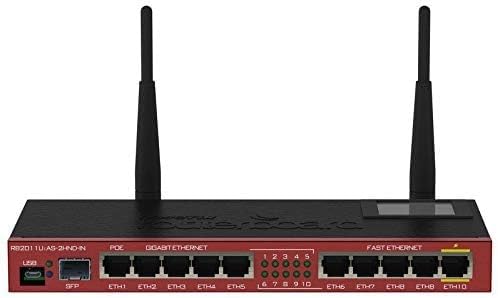
Figure 3: A top-down perspective of the router, providing a clear view of the port numbering, LED indicators, and the overall layout of the device's front panel.
Тэхнічнае абслугоўванне
- Абнаўленні прашыўкі: Рэгулярна правярайце MikroTik website for RouterOS updates. Keeping your firmware up-to-date ensures security and performance improvements. Follow the official update procedures carefully.
- Уборка: Keep the router clean and free from dust. Use a soft, dry cloth for cleaning. Do not use liquid cleaners or aerosols. Ensure ventilation slots are unobstructed.
- Умовы навакольнага асяроддзя: Operate the router within its specified temperature and humidity ranges to prevent damage and ensure stable operation.
Ліквідацыю непаладак
- Няма харчавання: Check the power adapter connection and the power outlet. Ensure the power LED on the router is illuminated.
- Няма падключэння да Інтэрнэту: Verify that your modem is working correctly. Check the WAN port connection on the router. Ensure your internet service provider is not experiencing outagэс.
- Wireless Issues: Confirm your wireless network is enabled and broadcasting. Check the wireless password. Try restarting the router. Ensure no strong interference sources are nearby.
- Павольная хуткасць сеткі: Check cable connections for damage. Ensure devices are connected to appropriate speed ports (Gigabit for high-speed). Monitor network traffic for congestion.
- Скід да заводскіх налад: If you encounter persistent issues or forget your password, you can perform a factory reset. Locate the reset button (usually a small pinhole) and press it for 5-10 seconds while the device is powered on. This will revert all settings to default.
Тэхнічныя характарыстыкі
| Асаблівасць | Дэталь |
|---|---|
| Назва мадэлі | RB2011UiAS-2HnD-IN |
| Памеры прадукту | 3.54 х 9.06 х 0.98 цалі |
| Вага прадмета | 8.1 унцыі |
| Парты Ethernet | 5x Gigabit, 5x Fast Ethernet |
| Порт SFP | 1x SFP |
| бесправадной стандарт | 802.11b/g/n |
| Клас дыяпазону частот | Аднадыяпазонны (2.4 ГГц) |
| Тып антэны | Internal (with external connectors for included antennas) |
| Порт USB | 1x USB |
| Выхад PoE | Yes, on Eth10 |
| Вытворца | Мікротык |
| Дата першай даступнасці | 20 студзеня 2020 г |
Гарантыя і падтрымка
Каб атрымаць інфармацыю аб гарантыі і тэхнічнай падтрымцы, звярніцеся да афіцыйнага сайта MikroTik. webсайт або звярніцеся да аўтарызаванага прадаўца. Захоўвайце чэк аб куплі як пацверджанне пакупкі для гарантыйных прэтэнзій.


