1. Прадукт скончыўсяview
The Dell Latitude 5350 is a high-performance business laptop designed for productivity and reliability. It features a 13.3-inch IPS touchscreen, powered by an Intel Core Ultra 7-165U vPro processor, 32GB of RAM, and a 512GB NVMe SSD. This manual provides essential information for setting up, operating, maintaining, and troubleshooting your device.
Асноўныя характарыстыкі:
- 13.3-inch FHD (1920x1080) IPS Touchscreen with Anti-Glare
- Intel Core Ultra 7 165U vPro Processor
- 32GB LPDDR5x RAM
- 512GB M.2 NVMe SSD
- Integrated Intel ARC Graphics
- Аперацыйная сістэма Windows 11 Pro
- Connectivity: 2x Thunderbolt 4, 2x USB-A 3.2 Gen 1, HDMI 2.1, 3.5mm Audio Jack, Wi-Fi 6E, Bluetooth 5.3
- Fingerprint Reader and FHD HDR + IR Camera for enhanced security
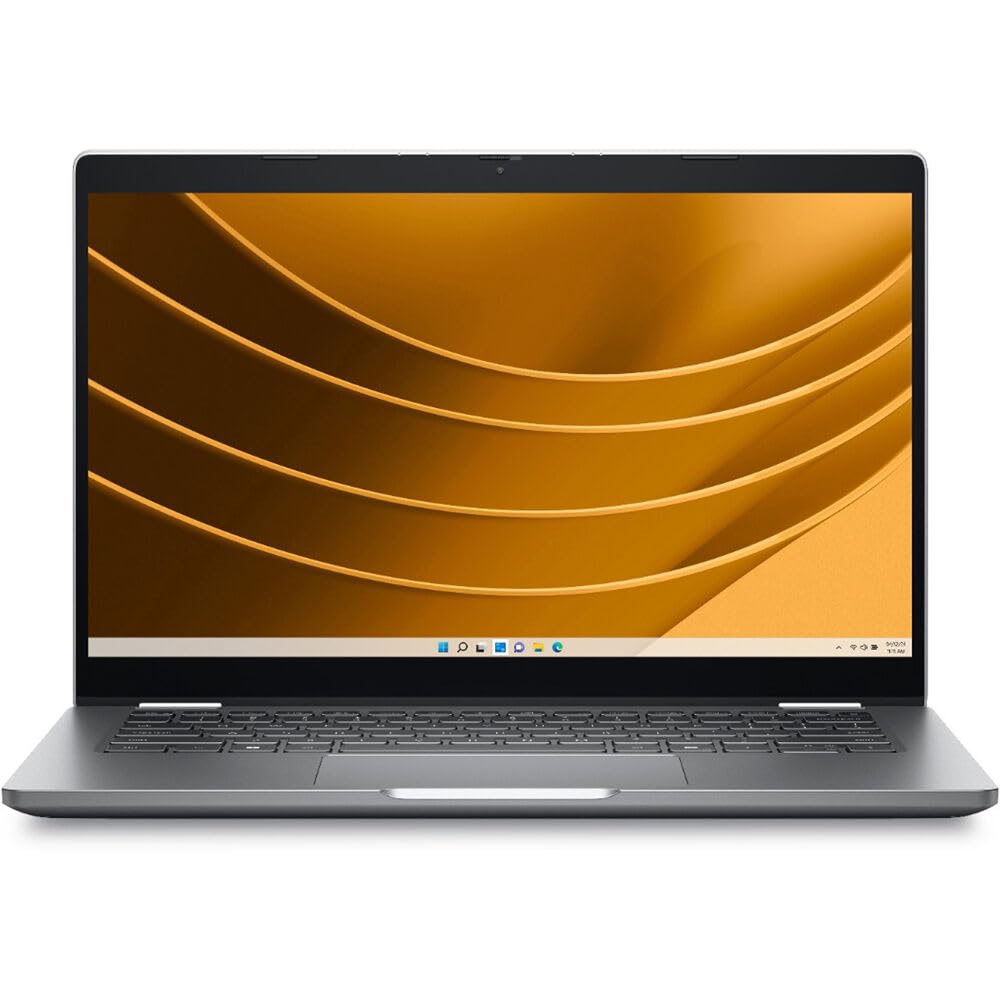
Figure 1: Dell Latitude 5350 Laptop (Overall View)
2. Інструкцыі па ўсталёўцы
2.1 Распакоўка і першапачатковы агляд
Асцярожна выміце ўсе кампаненты з упакоўкі. Пераканайцеся, што ў наяўнасці наступныя прадметы:
- Dell Latitude 5350 Laptop
- Адаптар пераменнага току
- Акумулятар (можа быць усталяваны загадзя)
- Дакументацыя (Кіраўніцтва па хуткім запуску, Інфармацыя аб бяспецы)
Inspect the laptop and accessories for any signs of damage. If any components are missing or damaged, contact Dell support immediately.
2.2 Падключэнне адаптара сілкавання
- Connect the AC adapter cable to the power port on the laptop.
- Plug the AC adapter into a wall outlet. The battery indicator light will illuminate, indicating that the laptop is charging.
2.3 Пачатковае ўключэнне і налада Windows
- Адкрыйце крышку ноўтбука.
- Націсніце кнопку харчавання, якая звычайна знаходзіцца ў правым верхнім куце клавіятуры.
- Follow the on-screen instructions to complete the Windows 11 Pro setup process. This includes selecting your region, language, connecting to a network, and creating a user account.
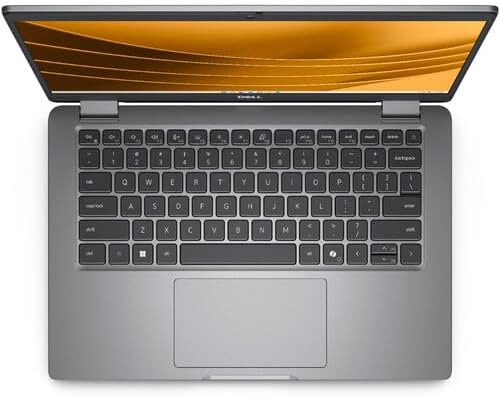
Figure 2: Dell Latitude 5350 Laptop Keyboard and Touchpad
3. Інструкцыя па эксплуатацыі
3.1 Выкарыстанне клавіятуры і сэнсарнай панэлі
- The laptop features a US English backlit keyboard. Use the Fn key in combination with function keys (F1-F12) for special functions like adjusting brightness, volume, or toggling the keyboard backlight.
- Сэнсарная панэль падтрымлівае жэсты мультытач для навігацыі, пракруткі і маштабавання. Глядзіце налады Windows для налад.
3.2 Праца з сэнсарным экранам
The 13.3-inch IPS touchscreen allows for direct interaction with the operating system and applications. Use gestures such as tapping, swiping, pinching, and stretching for navigation and control.
3.3 Падключэнне да сетак
- Wi-Fi: Click the Wi-Fi icon in the taskbar, select your desired network, enter the password if prompted, and click Connect. The laptop supports Wi-Fi 6E for fast wireless connectivity.
- Bluetooth: To connect Bluetooth devices, go to Налады > Bluetooth і прылады, turn on Bluetooth, and select 'Add device'.
3.4 Выкарыстанне партоў і раздымаў
The Dell Latitude 5350 offers various ports for connecting external devices:
- Thunderbolt 4 (x2): Для хуткаснай перадачы дадзеных, відэавыхаду і падачы харчавання.
- USB-A 3.2 Gen 1 (x2): Для падлучэння стандартных USB-прылад.
- HDMI 2.1: Для падлучэння да знешніх дысплеяў або праектараў.
- 3.5 мм аўдыяраз'ём: Для навушнікаў або знешніх дынамікаў.

Figure 3: Dell Latitude 5350 Laptop Side View з партамі
4. Тэхнічнае абслугоўванне
4.1 Чыстка ноўтбука
- Выкарыстоўвайце мяккую тканіну без ворса dampПрамыйце дысплей вадой або сродкам для чысткі экрана. Пазбягайце выкарыстання агрэсіўных хімічных рэчываў.
- For the keyboard and chassis, use a soft cloth. A can of compressed air can help remove dust from between keys and vents.
- Перад чысткай пераканайцеся, што ноўтбук выключаны і адключаны ад сеткі.
4.2 Сыход за акумулятарам
- Пазбягайце экстрэмальных тэмператур, якія могуць пагоршыць тэрмін службы батарэі.
- Для аптымальнага тэрміну службы батарэі не варта пастаянна трымаць ноўтбук зараджаным на 100% або часта цалкам разраджаць яго.
- Dell Power Manager software can help optimize battery settings.
4.3 Абнаўленне праграмнага забеспячэння
Regularly update your Windows operating system and Dell drivers. This ensures optimal performance, security, and compatibility. You can check for updates via Windows Update and Dell SupportAssist.
5. Выпраўленне непаладак
This section addresses common issues you might encounter with your Dell Latitude 5350 laptop.
5.1 Ноўтбук не ўключаецца
- Пераканайцеся, што адаптар пераменнага току надзейна падключаны як да ноўтбука, так і да спраўнай разеткі.
- Check the battery charge level. If the battery is completely drained, it may take a few minutes of charging before the laptop can power on.
- Паспрабуйце ўтрымліваць кнопку харчавання 15-20 секунд, каб выканаць жорсткі скід.
5.2 Праблемы з падключэннем да Wi-Fi
- Праверце, ці ўключаны Wi-Fi у наладах Windows.
- Перазагрузіце маршрутызатар і мадэм.
- Запусціце сродак ліквідацыі непаладак сеткі Windows (Налады > Сетка і інтэрнэт > Пашыраныя налады сеткі > Сродак ліквідацыі непаладак сеткі).
- Ensure your Wi-Fi drivers are up to date.
5.3 Сэнсарны экран не рэагуе
- Перазагрузіце ноўтбук.
- Check Device Manager for any issues with the touchscreen driver. Update or reinstall the driver if necessary.
- Пераканайцеся, што экран чысты і без смецця.
For more complex issues, refer to the Dell support webсайт або звярніцеся ў службу тэхнічнай падтрымкі.
6. Тэхнічныя характарыстыкі
Detailed technical specifications for the Dell Latitude 5350 Laptop.
| Асаблівасць | Спецыфікацыя |
|---|---|
| Марка | Dell |
| Назва мадэлі | Шырата 5350 |
| Памер экрана | 13.3 цалі |
| Дазвол дысплея | 1920 x 1080 (FHD) IPS Touchscreen |
| Частата абнаўлення | 60 Гц |
| Максімальная яркасць | 300 ніт |
| Працэсар | Intel Core Ultra 7 165U vPro (12 cores, 14 threads, up to 4.9 GHz Turbo) |
| Аператыўная памяць | 32 ГБ LPDDR5x |
| Захоўванне | 512 GB M.2 NVMe SSD |
| Графіка | Integrated Intel ARC Graphics |
| Аперацыйная сістэма | Windows 11 Pro |
| Бесправоднае падключэнне | Wi-Fi 6E (802.11ax), Bluetooth 5.3 |
| Парты | 2x Thunderbolt 4, 2x USB-A 3.2 Gen 1, 1x HDMI 2.1, 1x 3.5mm Audio Jack |
| Функцыі бяспекі | Fingerprint Reader, FHD HDR + IR Camera (Facial Recognition) |
| Клавіятура | US English backlit keyboard with Copilot key |
| Dimensions (L x W x Thickness) | 8.27"Д х 12"Ш х 0.59"Т |
| Вага | 2.07 кілаграма |
| Тып батарэі | Lithium Ion (3 cells, 650 Watt Hours) |
7. Гарантыя і падтрымка
7.1 Інфармацыя аб гарантыі
Your Dell Latitude 5350 Laptop includes Dell ProSupport, offering advanced hardware and software support. The product also has a 3-year EU Spare Part Availability duration, indicating long-term support for components.
For specific warranty terms and conditions, please refer to the documentation included with your product or visit the official Dell support webсайт.
7.2 Тэхнічная падтрымка
For technical assistance, driver downloads, or further troubleshooting, please visit the official Dell Support webсайт:
You will need your laptop's Service Tag, which can typically be found on a sticker on the bottom of the laptop or accessed through the BIOS/UEFI settings.


