1. Прадукт скончыўсяview
The UNV NVR302-16E2 is a high-performance Network Video Recorder (NVR) designed for advanced surveillance systems. It supports 4K resolution recording and playback, offering robust video management capabilities for up to 32 channels. This NVR is compatible with various camera protocols, including ONVIF, and features Ultra H.265 compression for efficient storage.
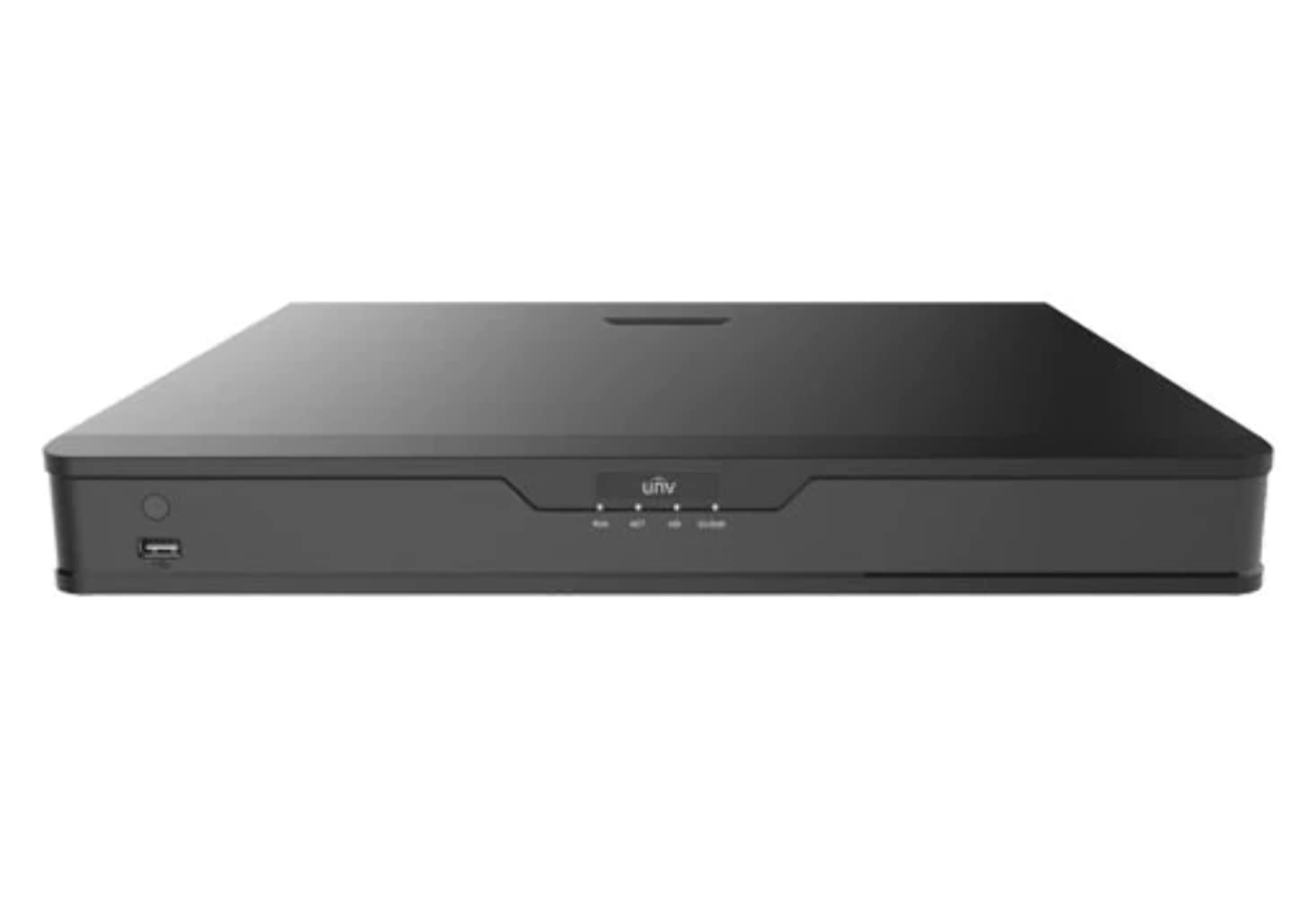
Малюнак 1: Спераду view of the UNV NVR302-16E2 4K NVR. The front panel includes a power button, a USB port, and indicator lights for power, HDD activity, network status, and alarm.
2. Асноўныя магчымасці
- Supports Ultra H.265/H.265/H.264 video formats for efficient compression.
- 8/16-channel input with Plug & Play functionality via independent PoE network interfaces.
- Compatibility with mainstream cameras supporting ONVIF conformance (Profile S, Profile G, Profile T) and RTSP protocols.
- Equipped with 1-channel HDMI and 1-channel VGA outputs, with HDMI supporting up to 4K (3840x2160) resolution.
- Independent HDMI and VGA outputs for flexible display options.
- Supports recording resolutions up to 12 Megapixels.
- Accommodates 2 SATA HDDs, with support for up to 10TB per HDD.
- Features various fisheye dewarping modes for live view and playback, accessible via both web interface and GUI.
- Incorporates ANR (Automatic Network Replenishment) technology to enhance storage reliability during network disconnections.
- Supports cloud upgrade for convenient firmware updates.
3. Змесціва ўпакоўкі
Калі ласка, праверце змесціва ўпакоўкі пасля распакавання. Калі якія-небудзь прадметы адсутнічаюць або пашкоджаныя, неадкладна звярніцеся да прадаўца.
- UNV NVR302-16E2 NVR Unit
- Адаптар сілкавання
- USB мыш
- SATA Data Cables (for HDD installation)
- Шрубы мацавання жорсткага дыска
- Кароткае кіраўніцтва
4. Настройка
4.1 Фізічная ўстаноўка
- Ўстаноўка HDD:
Unscrew and remove the NVR cover. Securely mount the SATA hard disk drives (HDDs) into the designated bays using the provided screws. Connect the SATA data and power cables from the NVR motherboard to the HDDs. Replace the NVR cover and secure it with screws.
- Падключэнне дысплея:
Падключыце манітор да выхаднога порта HDMI або VGA відэарэгістратара з дапамогай сумяшчальнага кабеля.
- Падключыце мыш:
Plug the USB mouse into one of the NVR's USB ports.
- Падключыць сетку:
Падключыце кабель Ethernet ад порта LAN відэарэгістратара да сеткавага маршрутызатара або камутатара.
- Падключэнне камер:
For PoE cameras, connect them directly to the NVR's independent PoE ports. For non-PoE cameras, ensure they are connected to the same network as the NVR and powered separately.
- Падключыце харчаванне:
Падключыце адаптар сілкавання да ўваходу сілкавання відэарэгістратара, а затым падключыце яго да разеткі. Відэарэгістратар уключыцца аўтаматычна.
4.2 Пачатковая канфігурацыя
Upon the first boot, the NVR will guide you through an initial setup wizard. Follow the on-screen prompts to configure essential settings.
- Устанавіць пароль адміністратара: Create a strong password for the 'admin' user. This is crucial for security.
- Налады сеткі: Configure the NVR's IP address (DHCP or Static IP). Ensure it is on the same network as your cameras for proper communication.
- Дата і час: Усталюйце правільную дату, час і гадзінны пояс.
- Ініцыялізацыя жорсткага дыска: The NVR will prompt you to initialize (format) the newly installed HDDs. This step is necessary before recording can begin.
- Пошук і даданне камеры: The NVR will automatically search for connected cameras. Select and add the cameras you wish to manage.
5. Кіраванне відэарэгістратарам
5.1 У прамым эфіры View
After setup, the NVR will display the live view падлучаных камер. Вы можаце пераключацца паміж адной камерай view, шматкамерная сетка view, and customize the display layout.
- Выбар канала: Click on a channel window to select it.
- Кантроль PTZ: If using PTZ cameras, use the on-screen controls or joystick (if connected) to pan, tilt, and zoom.
- Імгненнае прайграванне: Right-click on a channel and select "Instant Playback" to view recent recordings.
5.2 Кіраванне запісам
The NVR supports various recording modes.
- Запланаваны запіс: Configure recording schedules based on time, day, and event (e.g., motion detection).
- Запіс выяўлення руху: Set up motion detection zones and sensitivity for each camera to trigger recording only when movement is detected.
- Ручная запіс: Start or stop recording manually from the live view інтэрфейс.
5.3 Прайграванне
Доступ да запісанага footagе для паўторнагаview.
- Перайдзіце ў меню «Прайграванне».
- Select the camera(s) and date/time range for playback.
- Выкарыстоўвайце часовую шкалу для навігацыі па запісах.
- Options include fast forward, rewind, pause, and frame-by-frame playback.
5.4 Рэзервовае капіраванне
Export recorded video clips to an external USB drive.
- Insert a USB flash drive into the NVR's USB port.
- Go to the "Backup" menu.
- Select the camera, time range, and desired video format for export.
- Start the backup process.
5.5 Аддалены доступ
Access your NVR remotely via a web browser or mobile application.
- Web Браўзэр: Enter the NVR's IP address into a web browser on a computer connected to the same network. Log in with your credentials.
- Мабільнае прыкладанне: Download the official Uniview mobile application (e.g., EZView). Register an account, add your NVR by scanning the QR code or entering its serial number, and view live feeds or playback remotely.
6. Тэхнічнае абслугоўванне
6.1 Абнаўленне прашыўкі
Regularly check for and install firmware updates to ensure optimal performance, security, and access to new features. Updates can typically be performed via the NVR's web interface or local GUI, often with cloud upgrade support.
6.2 Кіраванне жорсткімі дыскамі
Monitor the health and status of your hard drives. The NVR provides tools to check HDD status, format drives, and configure overwrite settings when storage is full.
6.3 Сістэмныя журналы
Review system logs for any errors, warnings, or important events. This can assist in troubleshooting and system monitoring.
7. Выпраўленне непаладак
| праблема | Магчымая прычына | Рашэнне |
|---|---|---|
| Няма відэавыхаду на манітор. | Loose cable connection; incorrect display resolution; NVR not powered on. | Check HDMI/VGA cable connections. Ensure NVR is powered. Try a different monitor or cable. Adjust NVR output resolution if possible. |
| Камеры не адлюстроўваюць выяву. | Network issue; incorrect camera IP; camera not powered; camera not added to NVR. | Verify network connectivity. Ensure cameras are powered. Check camera IP addresses and add them to the NVR if not already done. |
| Немагчыма атрымаць доступ да відэарэгістратара дыстанцыйна. | Network configuration issue (port forwarding, DDNS); NVR offline; incorrect credentials. | Verify NVR's network settings. Ensure necessary ports are forwarded on your router. Check internet connection. Confirm login credentials. |
| Няма запісу. | HDD not initialized or full; recording schedule not set; camera not recording. | Initialize the HDD. Check recording schedules and ensure they are active. Verify camera status and ensure it's configured to record. |
8. Тэхнічныя характарыстыкі
| Асаблівасць | Дэталь |
|---|---|
| Нумар мадэлі | NVR302-16E2 |
| Падтрымліваюцца фарматы відэа | Ultra H.265 / H.265 / H.264 |
| Увод канала | 8/16-channel (with independent PoE interfaces) |
| Выхад HDMI | 1-channel, up to 4K (3840x2160) resolution |
| Выхад VGA | 1-канальны |
| Максімальная раздзяляльнасць запісу | Да 12 мегапікселяў |
| Падтрымка жорсткіх дыскаў | 2 SATA HDDs, up to 10TB each (20TB total) |
| Тэхналогія падлучэння | HDMI, VGA, Ethernet, USB |
| Сумяшчальныя прылады | IP Cameras (ONVIF Profile S, G, T; RTSP) |
| Памеры прадукту | 18 х 14 х 4 цалі (45.72 х 35.56 х 10.16 см) |
| Вага прадмета | 3.97 фунта (1.8 кг) |
| Вытворца | універview |
9. Гарантыя і падтрымка
універview products typically come with a limited manufacturer's warranty. For specific warranty terms and conditions, please refer to the warranty card included with your product or visit the official Uniview webсайт.
For technical support, troubleshooting assistance, or service inquiries, please contact Uniview customer support through their official channels. You can usually find contact information, FAQs, and support resources on the Uniview webсайт (www.uniview.com).
Звязаныя дакументы - NVR302-16E2
 |
Troubleshoot Uniview NVR Two-Way Audio Issues | Uniview Падтрымка Comprehensive guide to troubleshoot and resolve two-way audio problems on Uniview NVRs and cameras. Includes steps for web interface, mobile app, and NVR GUI. |
 |
універview Network Video Recorder Quick Guide Кароткі дапаможнік для ўніверсітэтаview Network Video Recorders (NVRs), covering device indicators, interface ports, disk installation for various HDD configurations (1, 2, 4, 8, 9, 16-bay), startup and shutdown procedures, local operations like adding IP devices and playback, UNV-Link mobile app usage, web login, and essential safety warnings, disclaimers, and regulatory compliance information. |
 |
Як змяніць універсітэтview Налады часу відэарэгістратара Падрабязная інструкцыя па наладзе часу і даты для ўніверсітэтаview Сеткавыя відэарэгістратары (NVR) з выкарыстаннем розных метадаў, у тым ліку web інтэрфейс, прамы доступ да манітора, праграмнае забеспячэнне EZTools і мабільныя праграмы, такія як EZView і UNV-Link. |
 |
універview Лічбавы відэарэгістратар серыі XVR301-G3: сумяшчальнасць з NDAA Падрабязны табліца дадзеных для ўніверсітэтаview Лічбавы відэарэгістратар серыі XVR301-G3, у тым ліку мадэлі XVR301-04G3, XVR301-08G3 і XVR301-16G3. Падрабязная інфармацыя пра функцыі, характарыстыкі, падключэнне і адпаведнасць. |
 |
універview 2021 Product Guide: Network Cameras, NVRs, VMS & Security Solutions Discover the comprehensive Uniview 2021 Product Guide, detailing a wide array of professional video surveillance solutions. This guide covers Network Cameras, NVRs, VMS, Professional Storage, Display & Control systems, and Accessories, featuring advanced technologies like LightHunter and PixelSense. Find detailed specifications and model information for Easy, Prime, and Pro series products, suitable for various applications from residential security to large-scale enterprise deployments. |
 |
NVR-B3601.33.45.221212 Заўвагі да выпуску - Чжэцзян Уні.view Тэхналогіі Афіцыйныя нататкі да выпуску для Zhejiang Universityview Праграмнае забеспячэнне для сеткавага відэарэгістратара NVR-B3601.33.45.221212 ад Technologies, падрабязная інфармацыя пра версію, новыя функцыі, змены і працэдуры абнаўлення. |