1. Прадукт скончыўсяview
The Logitech MK955 Signature Slim Wireless Keyboard and Mouse Combo provides a versatile and efficient input solution for multiple devices. This combo includes the K950 Signature Slim Keyboard and the M750L Signature Plus Mouse, designed for comfortable and quiet operation across various operating systems.

Image: The Logitech MK955 Signature Slim Wireless Keyboard and Mouse Combo, featuring a graphite-colored keyboard with a full numeric keypad and a matching ergonomic mouse, alongside a Logi Bolt USB receiver.
Што ў скрынцы
- Logitech K950 Signature Slim Wireless Keyboard
- Logitech M750L Signature Plus Wireless Mouse
- USB-прыёмнік Logi Bolt
- AAA Batteries (pre-installed or included)

Выява: Над галавой view showing the contents of the product packaging, including the keyboard, mouse, Logi Bolt USB receiver, and AAA batteries.
2. Інструкцыі па ўсталёўцы
2.1 Устаноўка батарэі
The keyboard and mouse are battery-powered. Ensure batteries are correctly installed before first use. The Logi Bolt USB receiver is typically found inside the mouse's battery compartment or within the product packaging.
2.2 Падключэнне прылад
The MK955 combo offers two primary connection methods: Bluetooth and the Logi Bolt USB receiver.
- Выкарыстанне USB-прыёмніка Logi Bolt:
- Locate the Logi Bolt USB receiver.
- Падключыце прыёмнік да вольнага порта USB на вашым кампутары.
- Уключыце клавіятуру і мыш. Яны павінны аўтаматычна падключыцца да прымача.
- З дапамогай Bluetooth:
- Уключыце клавіятуру і мыш.
- On the keyboard, press and hold one of the Easy-Switch keys (1, 2, or 3) until the LED indicator blinks rapidly, indicating pairing mode.
- On your computer or device, navigate to Bluetooth settings and select "Logitech K950" or "Logitech M750L" from the list of available devices to pair.
- Repeat for the other device if necessary.

Выява: буйны план view of the Logitech K950 keyboard's Easy-Switch buttons labeled 1, 2, and 3, used for switching between paired devices.
2.3 Installing Logi Options+ App
For enhanced customization and productivity features, download and install the Logi Options+ App from the official Logitech website. This application allows you to personalize keys, buttons, and shortcuts for both the keyboard and mouse.

Image: A computer screen displaying the Logi Options+ application interface, showing options for customizing Logitech devices.
3. Інструкцыя па эксплуатацыі
3.1 Пераключэнне некалькіх прылад
The K950 keyboard and M750L mouse can be paired with up to three different devices. Use the Easy-Switch buttons (1, 2, 3) on the keyboard and the corresponding button on the mouse to seamlessly switch between connected computers, tablets, or smartphones.

Image: A user efficiently working across a desktop computer and a laptop using the Logitech MK955 combo, demonstrating multi-device capability.
3.2 Функцыі клавіятуры
- Ціхі ўвод: The keyboard is designed for a quiet typing experience, minimizing noise in shared workspaces.
- Наладжвальныя клавішы: Utilize the Logi Options+ App to assign custom functions and shortcuts to various keys.
- Макет для некалькіх АС: The keyboard supports Mac, Windows, and Chrome OS layouts, with dedicated keys for each.
- Нахільныя ногі: Adjust the keyboard angle for ergonomic comfort using the integrated tilt legs (+4°).

Image: A close-up of hands typing on the Logitech K950 keyboard, highlighting its slim profile and quiet keys.
3.3 Функцыі мышы
- Бясшумнае пстрыканне: The M750L mouse features SilentTouch technology for significantly reduced click noise.
- Разумнае кола: The scroll wheel allows for precise line-by-line scrolling or rapid, free-spinning scrolling for long documents.
- Contoured Shape: Designed for larger hands, the ergonomic shape provides comfortable use over extended periods.
- Наладжвальныя кнопкі: Program side buttons and other controls using the Logi Options+ App.

Image: A hand operating the Logitech M750L mouse, focusing on the SmartWheel and ergonomic design.
4. Тэхнічнае абслугоўванне
4.1 Тэрмін службы батарэі і яе замена
The K950 keyboard offers up to 36 months of battery life, while the M750L mouse provides up to 24 months, depending on usage. When batteries are low, replace them with new AAA batteries for the keyboard and AA batteries for the mouse (check device for specific battery type if different from included).
4.2 Інструкцыі па ачыстцы
- Адключыце прылады ад кампутара перад чысткай.
- Выкарыстоўвайце мяккую тканіну без ворса. dampened with water or an approved electronics cleaner.
- Пазбягайце агрэсіўных хімічных рэчываў, абразіўных матэрыялаў або празмернай вільгаці.
- For the keyboard, use compressed air to remove debris from between keys.
5. Выпраўленне непаладак
5.1 Праблемы з падключэннем
- Няма сувязі: Ensure batteries are charged and correctly installed. Verify the Logi Bolt USB receiver is securely plugged in, or that Bluetooth is enabled on your device and the keyboard/mouse are in pairing mode.
- Перарывістае злучэнне: Move the keyboard and mouse closer to the receiver or Bluetooth-enabled device. Avoid placing large metal objects between the devices and the receiver/computer.
- Bluetooth Wake-up: When connected via Bluetooth, the keyboard and mouse may not wake your computer from sleep. You might need to use your computer's power button or an existing wired input device to wake it.
- Доступ да BIOS: Bluetooth connections typically do not function during system boot-up. If you need to access BIOS/UEFI settings, a wired keyboard is usually required. The Logi Bolt receiver may offer better compatibility for pre-OS functions.
5.2 Logi Options+ App Functionality
- Custom Keys Not Working: After waking your computer from sleep, custom key assignments from the Logi Options+ App may take a few moments to become active. If they remain unresponsive, try manually launching the Logi Options+ App.
- App Not Detecting Devices: Ensure the Logi Options+ App is up to date. Re-pair your devices if they are not detected by the software.
6. Тэхнічныя характарыстыкі
| Асаблівасць | Дэталь |
|---|---|
| Марка | Logitech |
| Назва мадэлі | MK955 Signature Slim Combo (K950 Keyboard, M750L Mouse) |
| Нумар мадэлі тавару | 920-012469 |
| Тэхналогія падлучэння | Bluetooth, USB-прыёмнік Logi Bolt |
| Сумяшчальныя прылады | PC, Laptop, Linux, Mac, iPadOS, iOS, Android, Chrome OS |
| Аперацыйная сістэма | Windows 10/11, macOS, Chrome OS, Linux, iPadOS, iOS, Android |
| Крыніца харчавання | Battery Powered (AAA for keyboard, AA for mouse - check device for specifics) |
| Тэрмін службы батарэі клавіятуры | Да 36 месяцаў |
| Тэрмін службы батарэі мышы | Да 24 месяцаў |
| Матэрыял | Made with certified post-consumer recycled plastic (minimum 48% for keyboard; 25% for mouse) |
| Колер | Графіт |
| Вага прадмета | Прыблізна 2.42 фунта (камбінацыя) |
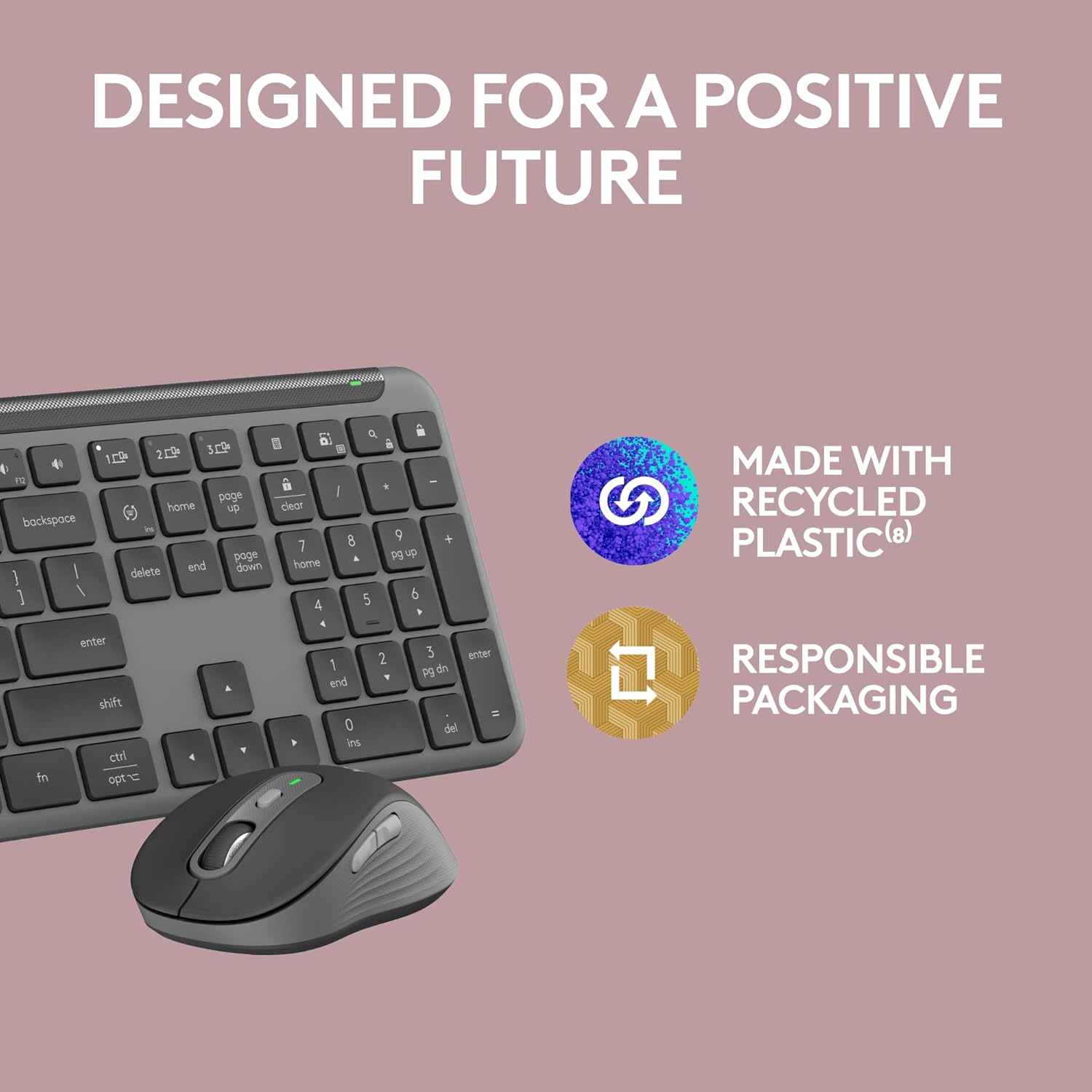
Image: An annotated diagram highlighting key features of the Logitech K950 keyboard, including tilt legs, shortcuts, media keys, multi-device connectivity, and multi-OS layouts.
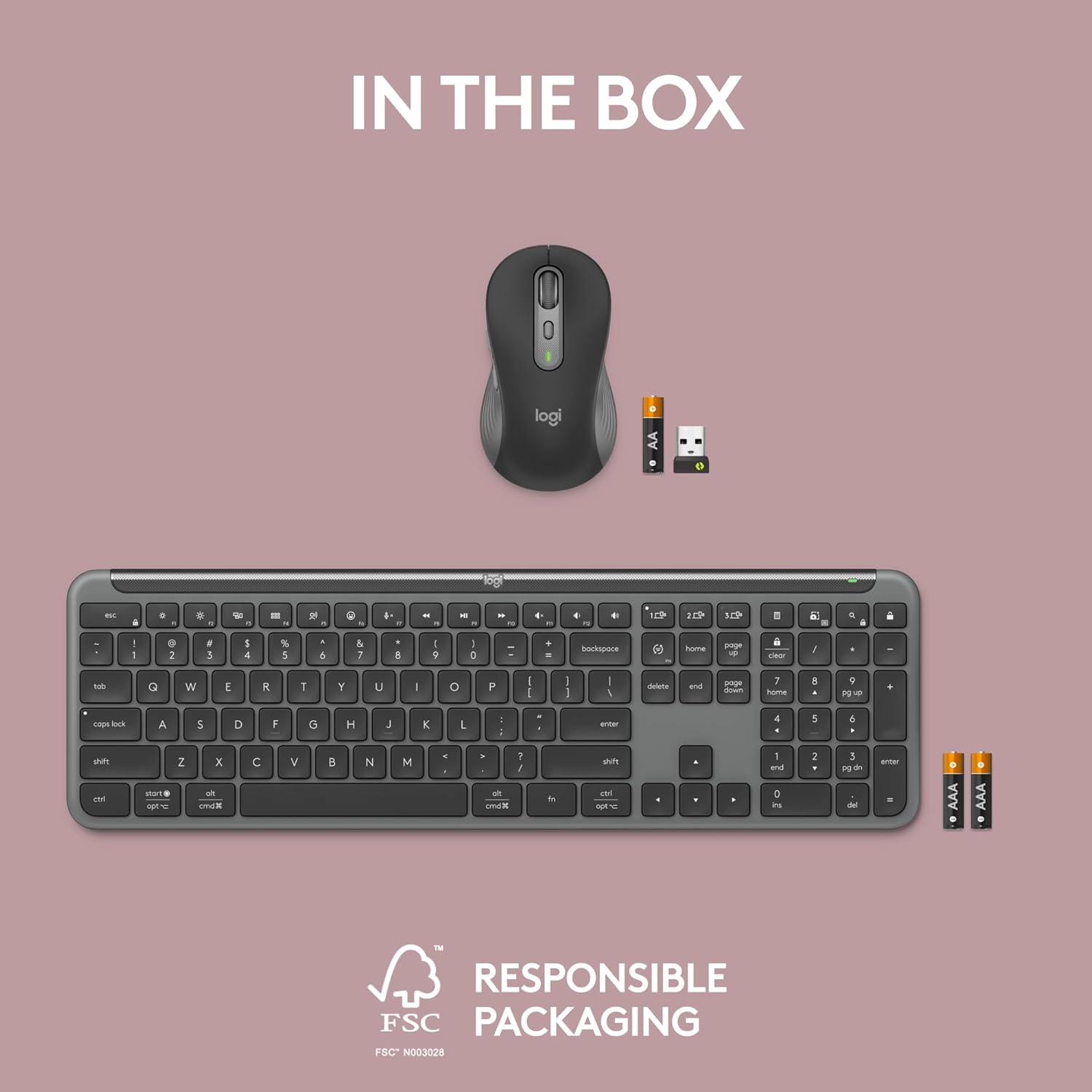
Image: An annotated diagram highlighting key features of the Logitech M750L mouse, including silent click, SmartWheel, DPI button, customizable buttons, contoured shape, and multi-OS connectivity.

Image: An illustration emphasizing the use of recycled plastic in the product and responsible packaging, reflecting Logitech's commitment to sustainability.
7. Гарантыя і падтрымка
7.1 Гарантыя на выраб
Logitech products typically come with a limited hardware warranty. Please refer to the warranty information included with your product packaging or visit the official Logitech website for specific terms and conditions applicable to your region and product model.
7.2 Падтрымка кліентаў
For further assistance, technical support, or to download the latest version of the Logi Options+ App, please visit the official Logitech support webсайт. Там вы можаце знайсці часта задаваныя пытанні, інструкцыі па ліквідацыі непаладак і кантактную інфармацыю службы падтрымкі кліентаў.
Служба падтрымкі Logitech Webсайт: www.logitech.com/support


