Уводзіны
This manual provides comprehensive instructions for the LAFVIN 10.1 inch IPS LCD Touch Screen Display. It covers product features, setup procedures, operating guidelines, maintenance tips, troubleshooting, and technical specifications. Please read this manual thoroughly before using the product to ensure proper operation and longevity.
Асаблівасці прадукту
- 1024x600 HD IPS Full View экран: Прапануе шырокі viewing angle of up to 178 degrees for clear visuals.
- Шырокая сумяшчальнасць: Supports mainstream development boards including Raspberry Pi, Banana Pi, EAIDK, Jetson Nano, BB Black, and other popular development boards.
- Plug and Play Touch Functionality: When used with Raspberry Pi (Raspbian, Kali Linux, Ubuntu) and other mainstream systems, touch support is plug and play, requiring no additional drivers.
- Рэгуляваная падсветка: Features an integrated backlight adjustment button for customizable brightness levels.
- Убудаваныя падвойныя дынамікі: Equipped with a dual speaker system and an integrated audio cavity, offering adjustable volume.
Інтэрфейсы і элементы кіравання
Familiarize yourself with the various interfaces and controls on your LAFVIN 10.1 inch display.
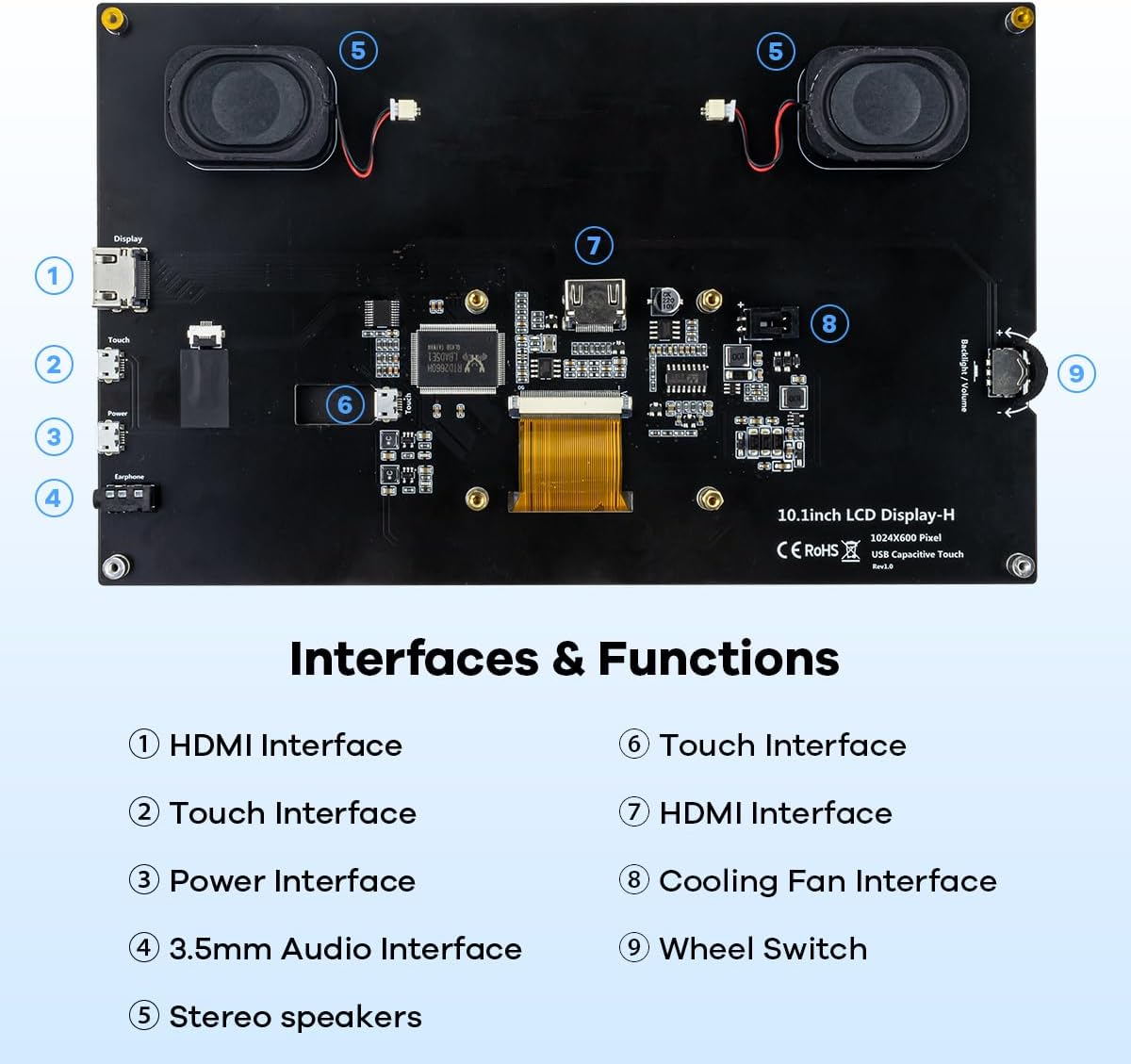
выява: Detailed diagram illustrating the various ports and controls on the back of the LAFVIN 10.1 inch display. Numbered labels indicate: (1) HDMI Interface, (2) Touch Interface, (3) Power Interface, (4) 3.5mm Audio Interface, (5) Stereo speakers, (6) Touch Interface (internal connection), (7) HDMI Interface (internal connection), (8) Cooling Fan Interface, (9) Wheel Switch for adjustments.
- Інтэрфейс HDMI: For video input.
- Touch Interface (USB): For touch data transmission.
- Power Interface (Micro USB): For power supply to the display.
- 3.5-мм аўдыёінтэрфейс: For external audio output.
- Стэрэадынамікі: Інтэграваны для вываду гуку.
- Інтэрфейс вентылятара астуджэння: For connecting an optional cooling fan.
- Перамыкач кола: Used to adjust backlight brightness and speaker volume.
Кіраўніцтва па ўстаноўцы
Змест пакета
Калі ласка, пераканайцеся, што ўсе прадметы прысутнічаюць у камплекце:
- LAFVIN 10.1 inch IPS LCD Touch Screen Display
- Кабель HDMI
- Micro USB Cable (for power and touch)
- Mounting hardware/stand (may vary)
- HDMI Adapter for Raspberry Pi 3B/4B (as shown in images)
Падключэнне да прылад
The display is compatible with various devices, including Raspberry Pi, PCs, TV boxes, and game consoles.

выява: Visual guide demonstrating how to connect the display to a Computer, TV Box, Raspberry Pi, and a Games Player, highlighting the HDMI and USB connections.
- Відэазлучэнне: Connect the display to your device (e.g., Raspberry Pi, PC) using the provided HDMI cable. Ensure the HDMI cable is securely connected to the HDMI input on the display and the HDMI output on your device.
- Touch Connection: For touch functionality, connect the Micro USB cable from the display's Touch Interface to a USB port on your device.
- Падключэнне сілкавання: Connect the Micro USB power cable from the display's Power Interface to a 5V/2A power adapter (not always included) or a powered USB port on your device.
- Аўдыявыхад: If using external speakers or headphones, connect them to the 3.5mm Audio Interface. The integrated speakers will function automatically if no external audio device is connected.
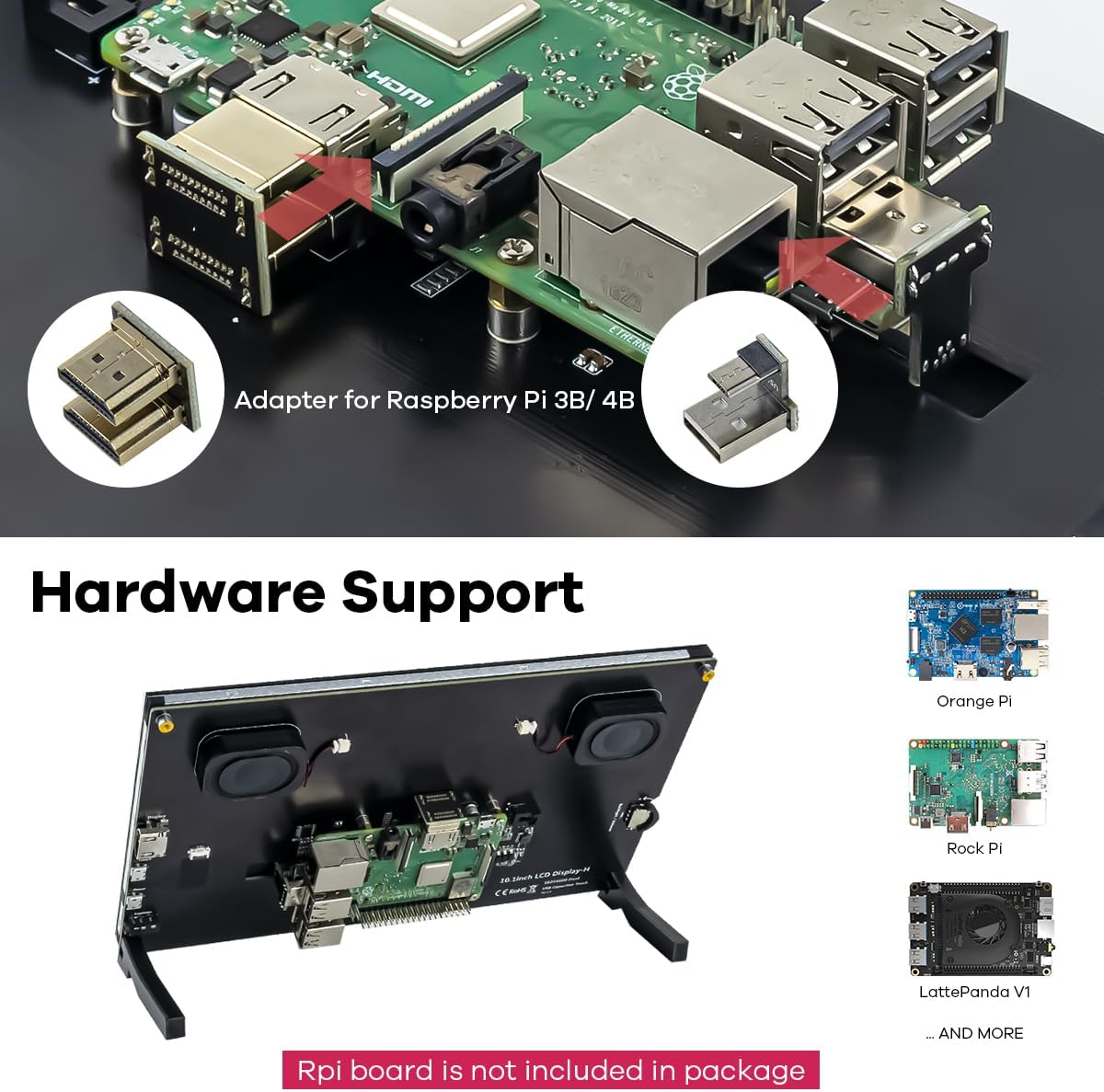
выява: The back of the LAFVIN 10.1 inch display, illustrating how a Raspberry Pi board can be mounted directly. Also shown are adapters for Raspberry Pi 3B/4B and examples of other supported development boards like Orange Pi, Rock Pi, and LattePanda V1.
Заўвага: For Raspberry Pi 3B/4B, use the included HDMI adapter for proper connection. The Raspberry Pi board is not included with the display.
Інструкцыя па эксплуатацыі
Уключэнне/выключэнне харчавання
Once all connections are made and power is supplied, the display should automatically power on. There is no dedicated power button; power is controlled by the Micro USB power input.
Дакраніцеся да функцыянальнасці
The display supports 5-point capacitive touch. For most compatible operating systems (e.g., Raspbian, Windows), touch is plug and play.

выява: A visual guide illustrating common 5-point touch gestures supported by the display, including Tap, Press, Zoom Out (pinch), Zoom In (spread), and Mouse Click (long press or single tap depending on context). Note: Mac OS only supports display, not touch.
- Націсніце: Single touch for selection.
- Націсніце: Hold touch for context menus or drag actions.
- Павелічэнне/памяншэнне: Use two fingers to pinch or spread for zooming.
- Mouse Click: Functions similarly to a mouse click in supported operating systems.
Важна: Mac OS only supports display output, not touch input, with this device.
Adjusting Brightness and Volume
The wheel switch located on the back of the display (item 9 in the Interfaces and Controls diagram) controls both backlight brightness and speaker volume.
- Rotate the wheel to adjust the backlight brightness.
- Press the wheel to switch between brightness and volume control modes.
- Rotate the wheel again to adjust the volume when in volume control mode.

выява: Буйны план view of the integrated tiny dual-speakers located on the back of the LAFVIN 10.1 inch display, designed to deliver clear sound.
Сумяшчальнасць
The LAFVIN 10.1 inch display is designed for broad compatibility with various systems and devices:
- Development Boards: Raspberry Pi (all models), Banana Pi, EAIDK, Jetson Nano, BB Black.
- Operating Systems (with touch support): Raspbian, Kali Linux, Ubuntu, Windows 10/8/7.
- Operating Systems (display only): Mac OS.
- Іншыя прылады: PCs, Laptops, Game Consoles (e.g., XBOX, PS4), TV Boxes, Cameras.
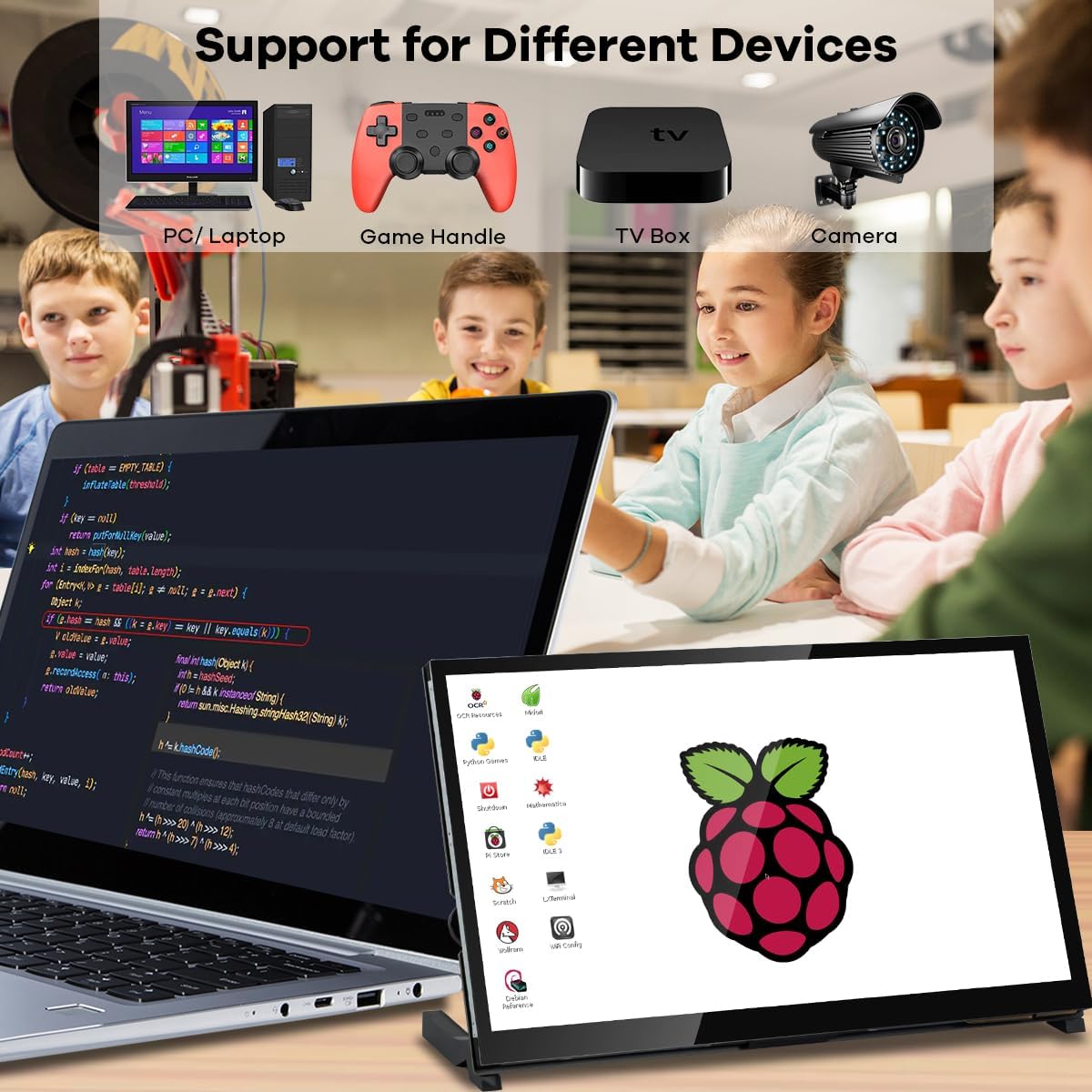
выява: The LAFVIN 10.1 inch display in use with a variety of devices, including a PC/Laptop, a game controller, a TV box, and a camera, demonstrating its versatile compatibility.
Тэхнічнае абслугоўванне
Каб забяспечыць даўгавечнасць і аптымальную працу вашага дысплея, выконвайце наступныя рэкамендацыі па тэхнічным абслугоўванні:
- Уборка: Выкарыстоўвайце мяккую тканіну без ворса, каб акуратна працерці экран. Для выдалення ўстойлівых плям злёгку працярыцеampen the cloth with water or a screen-safe cleaning solution. Avoid harsh chemicals, abrasive materials, or direct spraying onto the screen.
- захоўванне: Store the display in a cool, dry place away from direct sunlight and extreme temperatures.
- Апрацоўка: Avoid dropping or subjecting the display to strong impacts. Do not apply excessive pressure to the screen.
- Вентыляцыя: Ensure proper airflow around the display, especially if a Raspberry Pi or other development board is mounted on the back, to prevent overheating.
Ліквідацыю непаладак
Калі ў вас узніклі праблемы з дысплеем, звярніцеся да наступных распаўсюджаных праблем і рашэнняў:
- Няма дысплея/чорны экран:
- Ensure the HDMI cable is securely connected to both the display and the source device.
- Verify that the display is receiving power via the Micro USB power input.
- Check if the source device (e.g., Raspberry Pi, PC) is powered on and outputting video.
- Try a different HDMI cable or port if available.
- Touch Functionality Not Working:
- Ensure the Micro USB cable for touch is securely connected from the display to a USB port on your source device.
- Verify that your operating system supports touch input for this display (e.g., Mac OS does not support touch).
- For Raspberry Pi, ensure your OS (e.g., Raspbian) is up-to-date and configured for touch.
- Try connecting the touch USB cable to a different USB port on your device.
- Няма гуку з дынамікаў:
- Check the volume level using the wheel switch on the back of the display.
- Ensure no external audio device is connected to the 3.5mm audio jack, which would disable the internal speakers.
- Verify audio output settings on your source device.
- Screen Flickering/Unstable Image:
- Ensure the display is receiving sufficient power. Use a reliable 5V/2A power adapter.
- Праверце кабель HDMI на наяўнасць пашкоджанняў або няшчыльных злучэнняў.
- Reduce the resolution or refresh rate on your source device if it's set too high.
- Марка: ЛАФВІН
- Нумар мадэлі: 9e70fb53-1aab-49f2-879f-c185915f12d9
- Тып экрана: IPS LCD
- Памер экрана: 10.1 цалі
- дазвол: 1024 х 600
- Hardware Interface: HDMI
- Колькасць партоў HDMI: 1
- Тып раздыма: HDMI
- Сумяшчальнасць прылад: Raspberry Pi, Banana Pi, EAIDK, Jetson Nano, BB Black, Windows, etc.
- Памеры прадмета (Д х Ш х У): 23.5 х 14.5 х 1.6 см
- Асаблівасці: Touch screen, integrated speakers
- Суадносіны бакоў: 1.63:1
- Апісанне паверхні экрана: Матавы
- Каэфіцыент кантраснасці выявы: 2000:1
- Частата абнаўлення: 60 Гц
- колер: Чорны
Тэхнічныя характарыстыкі
Гарантыя і падтрымка
LAFVIN products are designed for reliability and performance. For specific warranty information, please refer to the documentation provided at the time of purchase or contact your retailer. For technical support, please reach out to the LAFVIN customer service team through the contact information provided on the official LAFVIN webсайт або ваша платформа для пакупак.