1. Уводзіны
Thank you for choosing the arVin Mobile Gaming Controller D6. This manual provides detailed instructions for setting up, operating, and maintaining your controller to ensure an optimal gaming experience across various platforms. Please read this manual thoroughly before first use.

Image 1: arVin Mobile Gaming Controller D6 with a smartphone.
2. Прадукт скончыўсяview
2.1 Асноўныя магчымасці
- Сумяшчальнасць некалькіх прылад: Supports iOS 13.0+, Android 6.0+, Windows 7.0+, Switch, PS3, PS4. (PS5 compatibility limited to PS4/PS3 games).
- Wide Game Support: Compatible with most cloud gaming services (Nvidia GeForce Now, Xbox Cloud, Amazon Luna, Google Stadia, Rainway, Moonlight), Apple Arcade, and MFi games.
- Remote Play Functionality: Supports streaming PC games via Steam Link, and console games via PS Remote Play and Xbox Remote Play.
- Дадатковыя элементы кіравання: Features Hall Effect joysticks for high precision and durability, and 256-level analog triggers for precise input.
- Enhanced Feedback: Dual vibration motors and 6-axis gyroscope for immersive gameplay (features not supported on iOS/Android).
- Функцыя турба: 3-level Turbo mode for customizable rapid-fire actions.
- Ergonomic & Stretchable Design: Accommodates phones from 5-7.1 inches, with a recessed design for phone lenses and bezel-less access to volume.
- Доўгі тэрмін службы батарэі: Built-in 600mAh rechargeable battery provides up to 15 hours of gaming.
2.2 Кампаненты кантролера

Image 2: Key Description of the arVin Mobile Gaming Controller D6.
Refer to Image 2 for the location of the following components:
- L3 Left Joystick: Левы аналагавы джойсцік з кнопкай націскання.
- Direction Keys (D-Pad): Up, Down, Left, Right directional input.
- Switch Mode Button: For changing connection modes.
- V3 Mode Button: Specific mode button.
- Bluetooth Mode Button: For initiating Bluetooth pairing.
- Кнопка ВЫБАР: Выберыце функцыю.
- Кнопка ПУСК: Start function.
- Кнопка TURBO: Activates and sets Turbo function.
- R3 Right Joystick: Правы аналагавы джойсцік з кнопкай націскання.
- A/B/X/Y Keys: Стандартныя кнопкі дзеянняў.
- LB/RB: Left and Right Bumper buttons.
- LT / RT: Left and Right Trigger buttons.
- Кнопка скіду: Small button for resetting the controller (located near the charging port).
- Порт для зарадкі Type-C: Для зарадкі кантролера.
- Светлавы індыкатар: Displays connection status and charging status.
3. Настройка
3.1 Зарадка кантролера
Before first use, fully charge the controller. Connect the provided Type-C charging cable to the controller's charging port and a suitable USB power source. The indicator light will show charging status and turn off when fully charged.

Image 3: Charging port and indicator light location.
3.2 Inserting Your Device
The controller features a stretchable design to accommodate mobile devices from 5 to 7.1 inches in length. Gently pull the two sides of the controller apart and carefully place your smartphone or tablet into the central slot. Ensure your device is securely seated.

Image 4: Stretchable design and phone case compatibility.
3.3 Спалучэнне па Bluetooth
Каб падключыць кантролер да прылады:
- Пераканайцеся, што кантролер зараджаны.
- Націсніце і ўтрымлівайце Кнопка рэжыму Bluetooth (refer to Image 2) until the indicator light flashes rapidly, indicating it is in pairing mode.
- On your device (iOS/Android phone/tablet, PC, Switch), go to Bluetooth settings and search for available devices.
- Select "arVin Controller D6" (or similar name) from the list to pair. The indicator light will become solid when successfully connected.
- For Switch, PS3/PS4, or Xbox connections, specific mode buttons (V3 Mode, Switch Mode) may need to be pressed in combination with the Bluetooth button. Refer to the quick start guide included in the product packaging for specific platform pairing instructions.
4. Інструкцыя па эксплуатацыі
4.1 Мультыплатформенная сумяшчальнасць
The arVin D6 controller is designed for broad compatibility:
- iOS/Android/PC: Падключэнне праз Bluetooth.
- Пераключальнік Nintendo: Connect via Bluetooth using the Switch Mode.
- PS3/PS4: Connect via Bluetooth. Note: For PS5, only PS4/PS3 games are supported.
- Xbox: Падключэнне праз Bluetooth.

Image 5: Multi-platform compatibility overview.
4.2 Game Support and Remote Play
This controller supports a wide range of gaming options:
- Controller Supported App Games: Play popular titles like Call of Duty Mobile (CODM), Genshin Impact, Minecraft, Diablo Immortal, Asphalt 9: Legends, and Asphalt 8: Airborne.
- Воблачныя гульні: Enjoy games on services such as Nvidia GeForce Now, Xbox Cloud, Amazon Luna, Google Stadia, Rainway, and Moonlight.
- Apple Arcade & MFi Games: Fully compatible with games designed for Apple Arcade and MFi standards.
- Аддаленае прайграванне: Transform your mobile device into a portable console by using Steam Link for PC games, PS Remote Play for PlayStation games, and Xbox Remote Play for Xbox games. Ensure your phone and game console are connected to the same local area network (LAN) for remote play.

Image 6: Remote Play options.

Image 7: Supported app games and cloud gaming services.
4.3 Hall Effect Joysticks and Analog Triggers
The controller is equipped with advanced input mechanisms:
- Джойстыкі з эфектам Хола: Provide 360° precise control with high accuracy and extended lifespan (up to 5 million uses), minimizing drift issues.
- Analog Triggers: Offer 256 levels of pressure sensitivity for fine control in racing and shooting games, ensuring low latency and fast feedback.

Image 8: Hall Effect Joysticks and Analog Triggers.
4.4 Функцыя Турба
The 3-level Turbo function allows for rapid, repeated input of a button press:
- To Set Turbo: Націсніце і ўтрымлівайце ТУРБА button, then press the desired function button (e.g., A button). The setting is complete.
- To Activate Auto Turbo: Націсніце ТУРБА button and the function button again. The controller will automatically repeat the button press without continuous holding.
- To Cancel Turbo: Націсніце ТУРБА button and the function button a third time to disable the auto-repeat function.

Image 9: Turbo Combo Function setup.
4.5 Dual Vibration and 6-Axis Gyroscope
For supported platforms (Switch, PS3/PS4, PC), the controller offers enhanced sensory feedback:
- Двайныя вібрацыйныя рухавікі: Provide haptic feedback, immersing you further into the game.
- 6-восевы гіраскоп: Enables high-precision directional control, allowing for quick reactions and an improved gaming experience.
Заўвага: These features (Dual Vibration and 6-Axis Gyroscope) are не падтрымліваецца on iOS and Android devices.
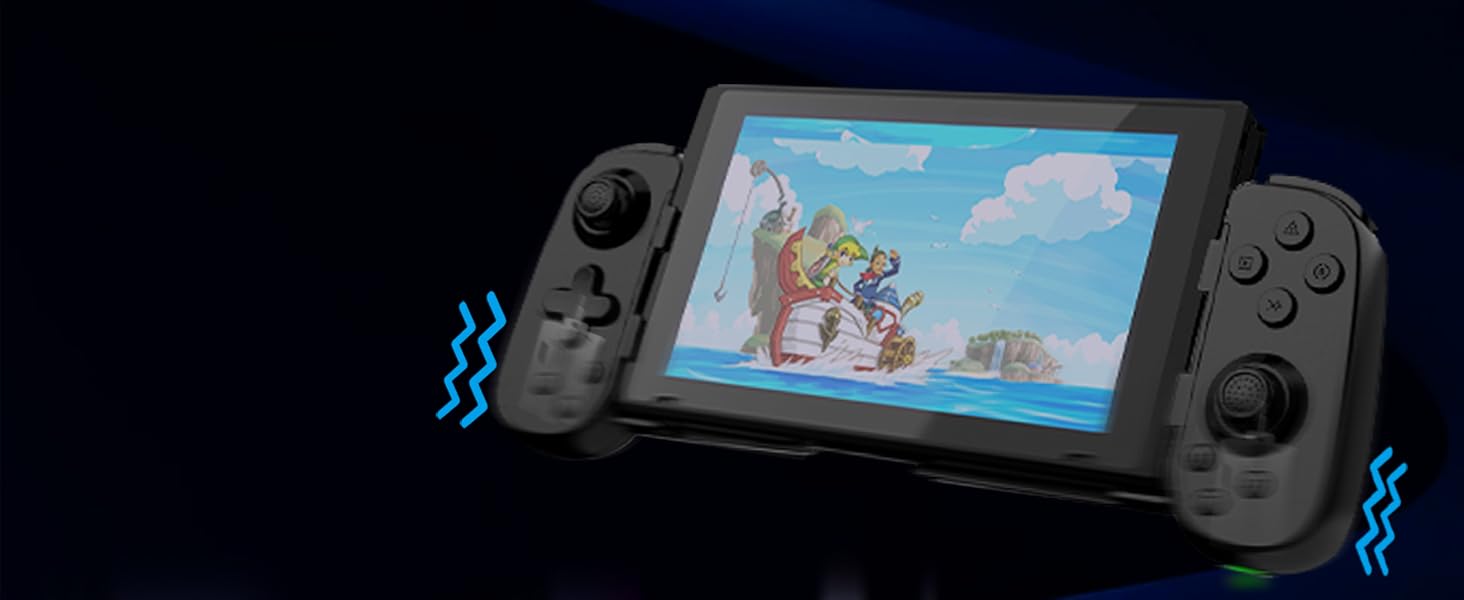
Image 10: Dual Vibration and 6-Axis Gyroscope features.
5. Тэхнічнае абслугоўванне
Правільны догляд падоўжыць тэрмін службы вашага кантролера:
- Уборка: Для чысткі кантролера выкарыстоўвайце мяккую сухую тканіну. Пазбягайце выкарыстання агрэсіўных хімічных рэчываў або абразіўных матэрыялаў.
- захоўванне: Захоўвайце кантролер у прахалодным, сухім месцы, удалечыні ад прамых сонечных прамянёў і экстрэмальных тэмператур.
- Сыход за батарэяй: To preserve battery health, avoid fully discharging the controller frequently. Charge it regularly, even if not in use for extended periods.
- Пазбягайце ўздзеяння: Не кідайце і не падвяргайце кантролер моцным ударам, бо гэта можа пашкодзіць унутраныя кампаненты.
6. Выпраўленне непаладак
If you encounter issues with your arVin Mobile Gaming Controller D6, please refer to the following common solutions:
- Controller Not Connecting/Pairing:
- Пераканайцеся, што кантролер цалкам зараджаны.
- Пераканайцеся, што Bluetooth уключаны на вашай прыладзе.
- Make sure the controller is in pairing mode (indicator light flashing rapidly).
- Try unpairing and re-pairing the controller from your device's Bluetooth settings.
- Restart both your device and the controller.
- Buttons/Joysticks Not Responding:
- Check if the controller is properly connected to your device.
- Ensure the game you are playing supports controller input.
- If experiencing 'joystick drift' (unintended movement), try resetting the controller using the small reset button (refer to Image 3). If the issue persists, it may indicate a hardware fault.
- Turbo Function Not Working:
- Review the Turbo function setup steps in Section 4.4.
- Ensure you are pressing the correct combination of buttons.
- Vibration/Gyroscope Not Working on iOS/Android:
- These features are not supported on iOS and Android devices. This is normal operation.
- Remote Play Issues:
- Confirm that your mobile device and the console/PC are connected to the same local area network (LAN).
- Check your network connection stability.
Калі гэтыя дзеянні не вырашаць вашу праблему, звярніцеся ў службу падтрымкі кліентаў.
7. Тэхнічныя характарыстыкі
| мадэль | D6 (Standard Version) |
| Памеры | 8.66 х 3.98 х 1.93 цалі (220 х 101 х 49 мм) |
| Вага прадмета | 8.5 унцыі (241 грам) |
| Ёмістасць батарэі | 600 мАг |
| Тэрмін службы батарэі | Да 15 гадзін (пры поўнай зарадцы) |
| Сувязь | Bluetooth 5.0 |
| Supported Device Length | 5 - 7.1 цалі (127 - 180 мм) |
| Supported Phone Case Thickness | Да 1.57 цаляў (40 мм) |
| Вытворца | ShenZhen ShanWan Technology Co., Ltd. |
8. Гарантыя і падтрымка
For warranty information, please refer to the documentation included with your product packaging or contact your retailer. If you require technical assistance or have questions not covered in this manual, please contact arVin customer support through the retailer's platform or the official arVin webсайт.


