1. Уводзіны
Thank you for choosing the ZEBRONICS K4000MW Wireless Keyboard. This manual provides essential information for setting up, operating, maintaining, and troubleshooting your new keyboard. The K4000MW offers versatile connectivity options, including 2.4 GHz wireless and dual Bluetooth, making it compatible with a wide range of devices such as laptops, desktops, tablets, and smartphones. Its compact design and integrated multimedia keys enhance productivity and user convenience.

Малюнак 1: Зверху ўніз view of the ZEBRONICS K4000MW Wireless Keyboard, showcasing its compact layout and black finish.
2. Настройка
2.1 Змест пакета
- ZEBRONICS K4000MW Wireless Keyboard
- USB Nano Receiver (for 2.4 GHz connection)
- Кіраўніцтва карыстальніка
2.2 Устаноўка батарэі
- Знайдзіце адсек для батарэек на ніжняй панэлі клавіятуры.
- Адкрыйце крышку батарэйнага адсека.
- Insert the required batteries (not specified in JSON, typically AA or AAA) according to the polarity markings.
- Надзейна зачыніце крышку батарэйнага адсека.
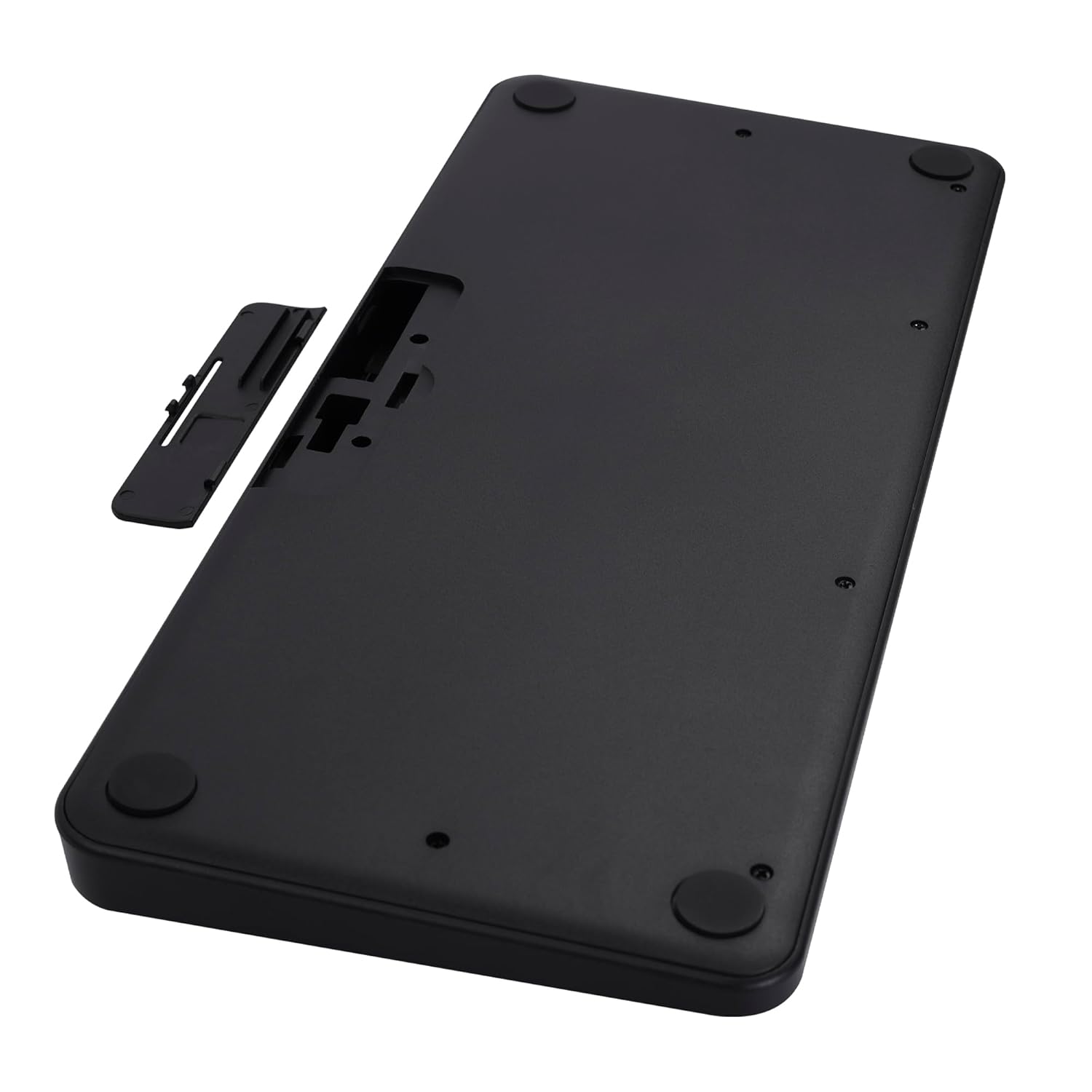
Image 2: The underside of the keyboard, showing the battery compartment and the slot for the USB nano receiver.
2.3 Connecting via 2.4 GHz Wireless
- Remove the USB nano receiver from its storage slot in the battery compartment.
- Plug the nano receiver into an available USB port on your computer or compatible device.
- The keyboard should automatically connect. The 2.4G LED indicator on the keyboard will illuminate briefly to confirm connection.
2.4 Падключэнне праз Bluetooth
The keyboard supports up to two Bluetooth connections (BT1 and BT2).
- Pairing for BT1:
а. Націсніце і ўтрымлівайце Fn + BT1 keys simultaneously for 3-5 seconds until the BT1 LED indicator starts blinking rapidly.
b. On your device (laptop, tablet, smartphone), enable Bluetooth and search for available devices.
c. Select "ZEB-K4000MW" from the list of devices to pair.
d. Once paired, the BT1 LED indicator will stop blinking and remain solid for a few seconds. - Pairing for BT2:
a. Follow the same steps as for BT1, but press and hold Fn + BT2 ключы.
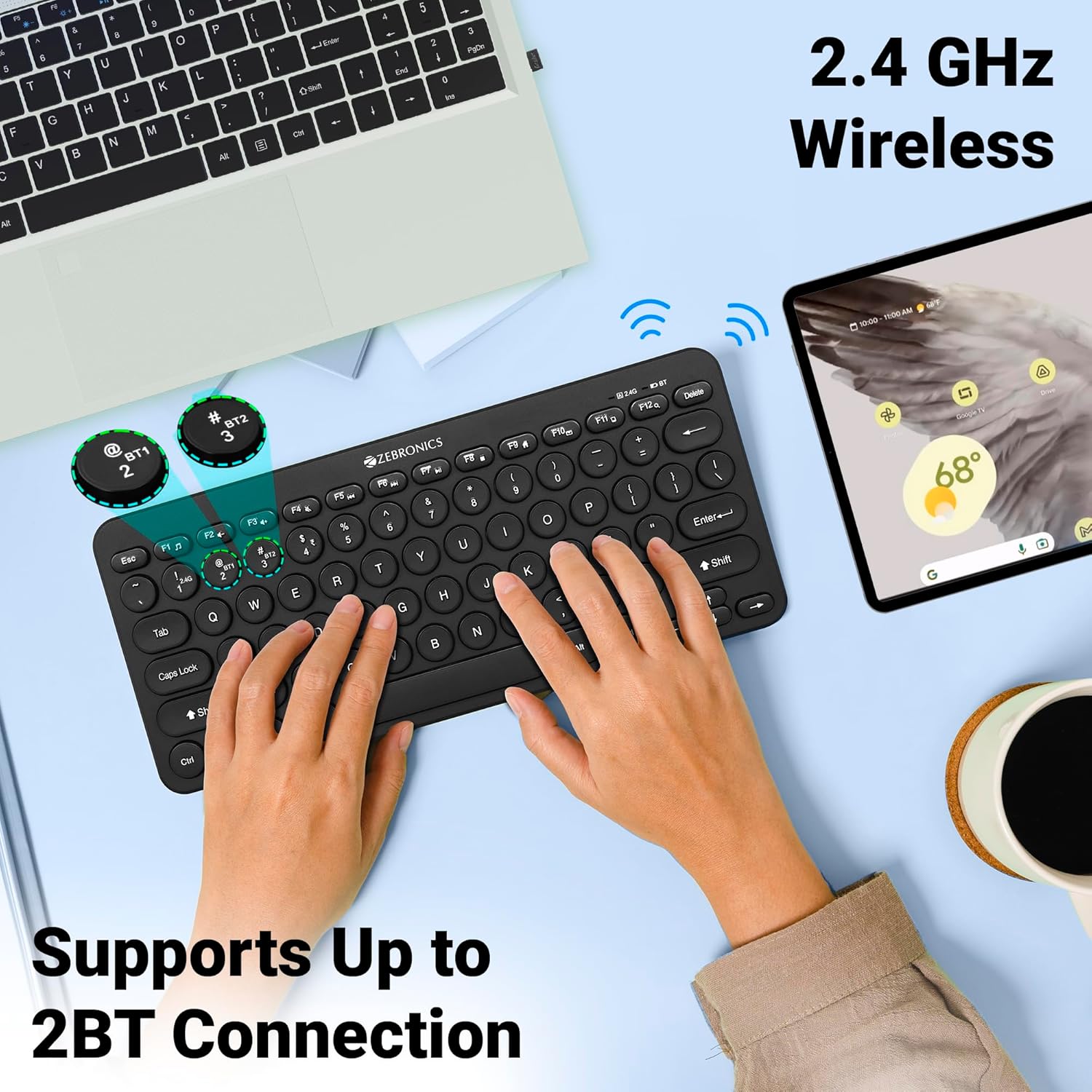
Image 3: The keyboard in use, highlighting the 2.4 GHz wireless and dual Bluetooth connection capabilities with LED indicators.
2.5 Пераключэнне паміж прыладамі
Каб пераключацца паміж падлучанымі прыладамі:
- Прэса Fn + 2.4G to switch to the device connected via the 2.4 GHz nano receiver.
- Прэса Fn + BT1 to switch to the device paired with Bluetooth 1.
- Прэса Fn + BT2 to switch to the device paired with Bluetooth 2.
3. Кіраванне клавіятурай
3.1 Асноўны набор тэксту
The keyboard features 78 UV-coated keys designed for comfortable and efficient typing. The layout includes standard alphanumeric keys, function keys, and navigation keys.
3.2 мультымедыйных клавіш
The keyboard integrates 12 multimedia keys (F1-F12) for quick access to media controls and other functions. To use these functions, press the Fn адначасова з патрэбнай функцыянальнай клавішай.
- Fn+F1: Медыяплэер
- Fn+F2: Памяншэнне гучнасці
- Fn+F3: Павялічыць гучнасць
- Fn+F4: Адключыць гук
- Fn+F5: Папярэдні трэк
- Fn+F6: Прайграванне/Паўза
- Fn+F7: Наступны трэк
- Fn+F8: Стоп
- Fn+F9: Web Браўзэр
- Fn+F10: Электронная пошта
- Fn+F11: Мой кампутар
- Fn+F12: Калькулятар
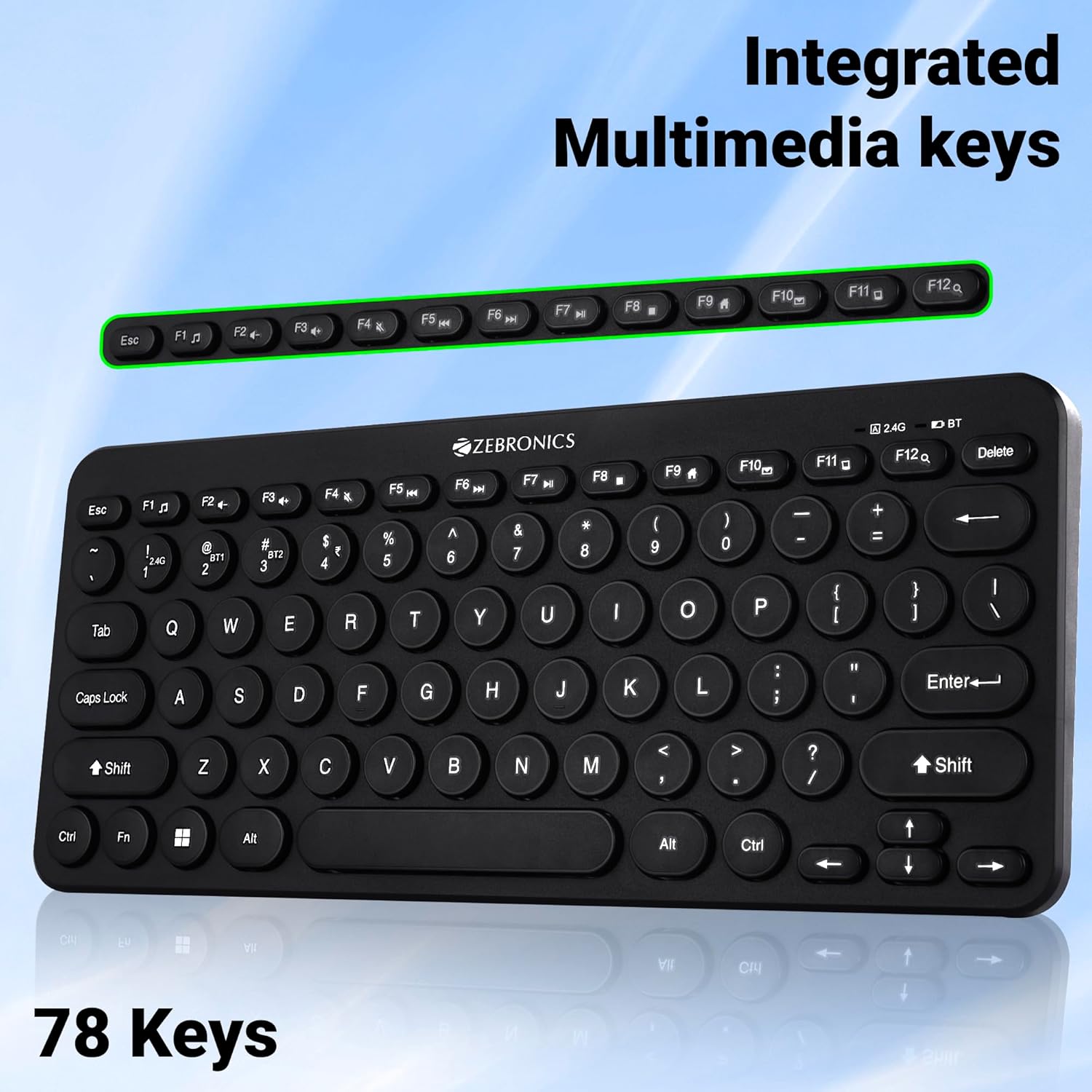
Image 4: The keyboard with the row of function keys (F1-F12) highlighted, indicating their integrated multimedia capabilities.
3.3 Rupee Key
The keyboard includes a dedicated Rupee key, indicating regional inclusivity for users.
3.4 Святлодыёдныя індыкатары
The keyboard features LED indicators to provide status information:
- Святлодыёд 2.4G: Indicates 2.4 GHz wireless connection status.
- BT1/BT2 LED: Indicates Bluetooth connection status for BT1 or BT2.
- Святлодыёд Caps Lock: Загараецца, калі ўключаны Caps Lock.
- Святлодыёд разрадкі Flashes or changes color to indicate low battery power.
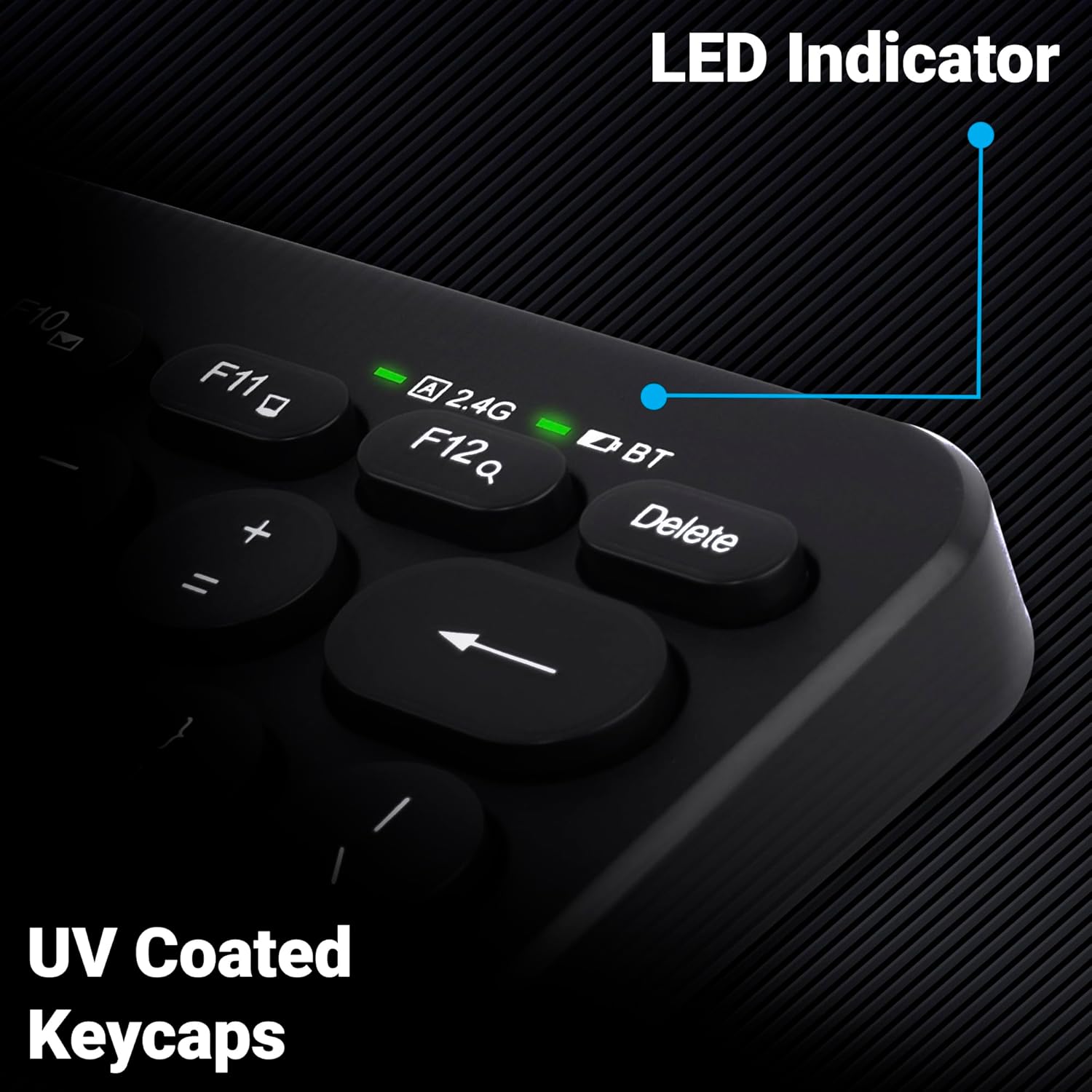
Малюнак 5: Крупны план view of the keyboard's top right corner, showing the LED indicators for 2.4G, BT, and Caps Lock, along with the UV-coated keycaps.
3.5 Сумяшчальнасць прылад
The K4000MW keyboard is designed for broad compatibility, integrating seamlessly with:
- Ноўтбукі
- Настольныя кампутары
- Таблеткі
- Смартфоны
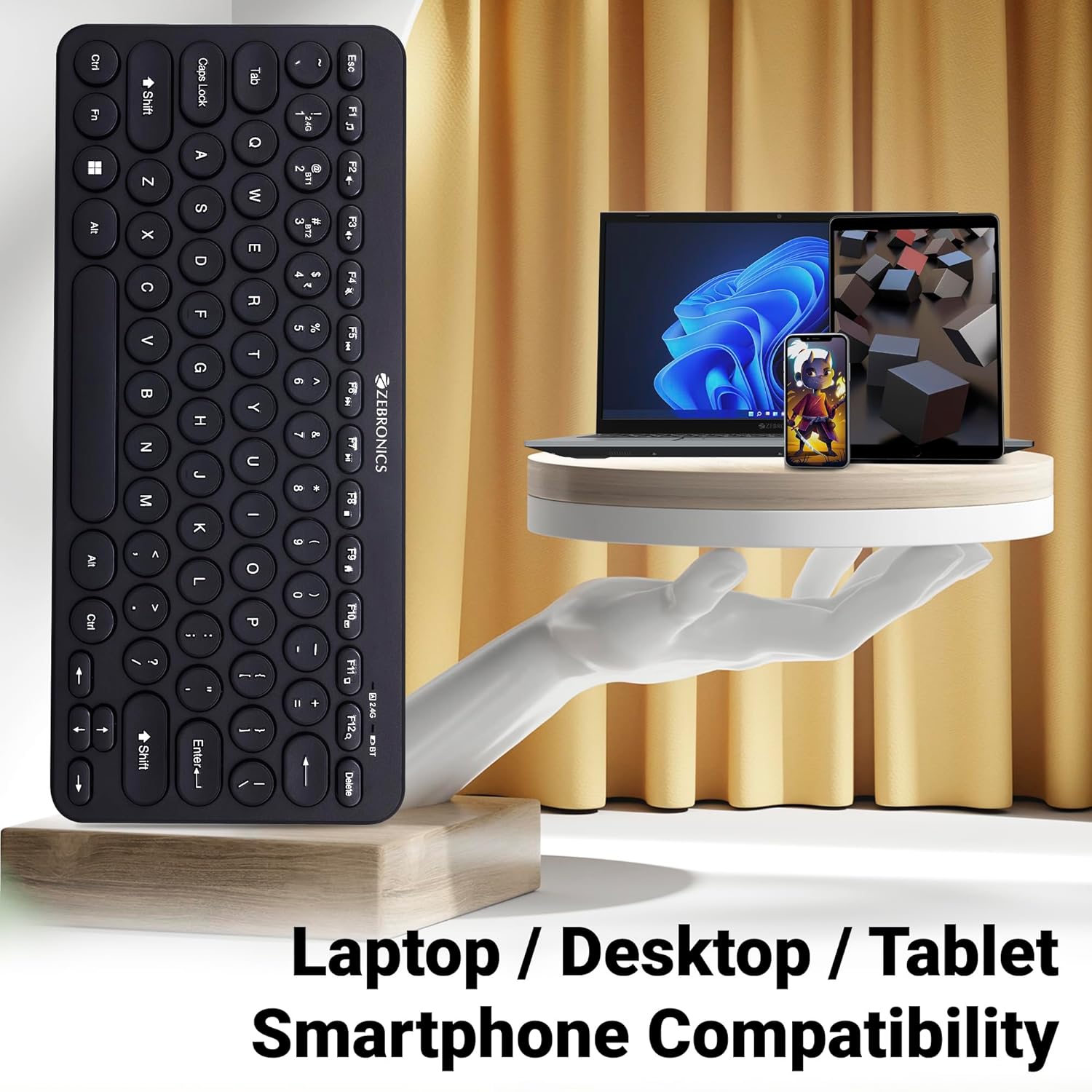
Image 6: The keyboard positioned next to a laptop, tablet, and smartphone, illustrating its multi-device compatibility.
4. Тэхнічнае абслугоўванне
4.1 Ачыстка
- Выкарыстоўвайце мяккую, сухую тканіну, каб праціраць паверхню клавіятуры.
- Для ўстойлівага бруду злёгку ачысціцеampПрацярыце тканіну вадой або мяккім ачышчальным растворам. Пазбягайце празмернай вільготнасці.
- Do not use harsh chemicals or abrasive cleaners, as these can damage the keycaps and finish.
- Выкарыстоўвайце сціснутае паветра, каб выдаліць пыл і смецце паміж клавішамі.
4.2 Сыход за акумулятарам
- Replace batteries when the low battery indicator illuminates to ensure uninterrupted operation.
- Калі клавіятура не будзе выкарыстоўвацца працяглы час, рэкамендуецца выняць батарэйкі, каб прадухіліць іх уцечку.
- Захоўвайце клавіятуру ў прахалодным, сухім месцы.
5. Выпраўленне непаладак
5.1 Клавіятура не рэагуе
- Праверце батарэі: Пераканайцеся, што батарэйкі ўсталяваны правільна і маюць дастатковы зарад. Пры неабходнасці замяніце іх.
- Праверце злучэнне: Verify that the 2.4 GHz nano receiver is securely plugged into the USB port, or that the Bluetooth connection is active and paired.
- Пераключэнне каналаў: If using Bluetooth, ensure you are on the correct BT1 or BT2 channel.
- Паўторнае спалучэнне Bluetooth: If connection issues persist, try unpairing and re-pairing the keyboard with your device.
- Перашкоды: Move the keyboard closer to the receiver/device and away from other wireless devices that might cause interference.
5.2 Keys Not Working or Lagging
- Чыстыя ключы: Пераканайцеся, што пад клавішамі няма смецця.
- Узровень батарэі: Low battery can sometimes affect key responsiveness. Replace batteries.
- Перашкоды: Wireless interference can cause lag. Try moving closer to the receiver/device.
- Сумяшчальнасць прылад: Ensure your device's operating system is compatible with the keyboard.
5.3 Праблемы з адключэннем Bluetooth
- Адлегласць: Ensure the keyboard is within the effective range of your Bluetooth device.
- Перашкоды: Other Bluetooth or wireless devices nearby can cause disconnections.
- Device Bluetooth Driver: Update your device's Bluetooth drivers to the latest version.
- Паўторная пара: Remove the keyboard from your device's Bluetooth list and re-pair it.
6. Тэхнічныя характарыстыкі
| Асаблівасць | Дэталь |
|---|---|
| Марка | ЗЕБРОНІКА |
| Назва мадэлі | K4000MW |
| Тэхналогія падлучэння | 2.4 GHz Wireless, Bluetooth (Dual BT) |
| Колькасць ключоў | 78 |
| мультымедыйныя клавішы | 12 Integrated Multimedia Keys |
| Тып клавішы | UV-Coated |
| Асаблівасці | Rupee Key, LED Indicator (Battery, Connectivity, Caps Lock) |
| Дызайн | Slim & Minimalist |
| Сумяшчальныя прылады | Desktop, Laptop, Tablet, Smartphone |
| Аперацыйная сістэма | Windows 10 (і іншыя сумяшчальныя АС) |
| Крыніца харчавання | Харчаванне ад батарэі |
| Памеры прадукту (ДxШxВ) | 29.4 х 13.4 х 3 см |
| Вага прадмета | 320 г |
7. Гарантыя і падтрымка
7.1 Інфармацыя аб гарантыі
For specific warranty terms and conditions, please refer to the warranty card included with your product or visit the official ZEBRONICS webсайт. Захоўвайце чэк аб куплі як пацвярджэнне пакупкі для гарантыйных прэтэнзій.
7.2 Падтрымка кліентаў
If you encounter any issues or have questions regarding your ZEBRONICS K4000MW Wireless Keyboard, please contact ZEBRONICS customer support through their official webсайт або кантактную інфармацыю, указаную на ўпакоўцы прадукту.


