1. Уводзіны
Thank you for choosing the Mecer 23.8 Inch Full HD LED Monitor. This manual provides essential information for setting up, operating, and maintaining your monitor. Please read it thoroughly before use to ensure proper functionality and longevity of your device.
This monitor features a 23.8-inch Full HD (1920 x 1080) display, offering crisp and clear visuals. It incorporates TFT LED panel technology for energy efficiency and vibrant colors, with a 16:9 aspect ratio suitable for widescreen viewing. Connectivity options include VGA and HDMI, making it compatible with various devices. Built-in speakers provide basic audio, and wide 178° viewing angles ensure comfortable use. With a 2ms response time, it is suitable for general computing and multimedia consumption.
2. Інфармацыя па бяспецы
- Крыніца харчавання: Выкарыстоўвайце толькі адаптар сілкавання, які пастаўляецца з маніторам. Пераканайцеся, што разетка правільна заземлена.
- Вентыляцыя: Не блакуйце вентыляцыйныя адтуліны. Пакіньце дастатковую прастору вакол манітора для належнай цыркуляцыі паветра і прадухілення перагрэву.
- Размяшчэнне: Place the monitor on a stable, flat surface. Avoid placing it in direct sunlight, near heat sources, or in environments with excessive dust or humidity.
- Уборка: Disconnect the power cord before cleaning. Use a soft, dry cloth for the screen and a slightly damp cloth for the casinг. Пазбягайце выкарыстання абразіўных ачышчальнікаў або растваральнікаў.
- Ўздзеянне вадкасці: Keep liquids away from the monitor. If liquid enters the monitor, disconnect power immediately and contact qualified service personnel.
- Разборка: Не спрабуйце разбіраць або рамантаваць манітор самастойна. Звяртайцеся па любыя паслугі па абслугоўванні да кваліфікаванага персаналу.
3. Змесціва ўпакоўкі
Калі ласка, праверце змесціва пакета, каб пераканацца ў наяўнасці ўсіх прадметаў:
- Mecer 23.8 Inch LED Monitor
- Падстаўка для манітора (аснова і шыя)
- Адаптар сілкавання і кабель
- Кабель HDMI
- Кабель VGA
- Кіраўніцтва карыстальніка (гэты дакумент)
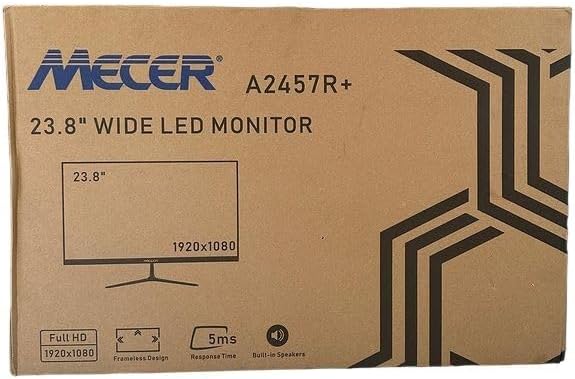
Малюнак 3.1: The monitor packaging box, indicating the model A2457R+ and key features like 23.8" display, Full HD 1920x1080 resolution, frameless design, 5ms response time, and built-in speakers.
4. Настройка
4.1. Зборка падстаўкі для манітора
- Асцярожна выміце кампаненты манітора і падстаўкі з упакоўкі.
- Прымацуйце шыйку падстаўкі да панэлі манітора, сумясціўшы выступы і моцна націснуўшы, пакуль яна не зафіксуецца пачуеце пстрычку.
- Attach the stand base to the stand neck, securing it with the provided screw (usually hand-tightened).
- Змесціце сабраны манітор на ўстойлівую, роўную паверхню.

Малюнак 4.1: Фронт view of the Mecer 23.8 Inch LED Monitor with its stand assembled, ready for connection.
4.2. Падключэнне да кампутара
The monitor supports both HDMI and VGA connections. Choose the appropriate cable for your computer.
- Падключэнне HDMI: Connect one end of the HDMI cable to the HDMI port on your computer's graphics card and the other end to the HDMI port on the monitor. HDMI transmits both video and audio signals.
- Падключэнне VGA: Connect one end of the VGA cable to the VGA port on your computer's graphics card and the other end to the VGA port on the monitor. VGA transmits only video signals.

Малюнак 4.2: Тыл view of the Mecer 23.8 Inch LED Monitor, showing the input ports including HDMI and VGA, as well as the power input.
4.3. Падключэнне сілкавання
- Connect the power adapter cable to the DC IN port on the back of the monitor.
- Падключыце адаптар сілкавання да насценнай разеткі.
5. Інструкцыя па эксплуатацыі
5.1. Уключэнне / выключэнне харчавання
Press the power button, typically located on the bottom right side or rear of the monitor, to turn the monitor on or off. The power indicator light will illuminate when the monitor is on.
5.2. Выбар крыніцы ўводу
If you have multiple devices connected, you may need to manually select the input source. Use the monitor's control buttons (usually located near the power button) to navigate to the input selection menu and choose between HDMI or VGA.
5.3. Экраннае меню (OSD).
The OSD menu allows you to adjust various display settings. Use the monitor's control buttons to:
- Доступ да экраннага меню.
- Navigate through menu options (e.g., Brightness, Contrast, Color Settings, Input Source).
- Adjust values or select options.
- Выйдзіце з экраннага меню.
Звычайныя рэгуляваныя налады ўключаюць:
- Яркасць/кантраст: Адрэгулюйце агульную яркасць і розніцу паміж светлымі і цёмнымі абласцямі.
- Налады колеру: Adjust color temperature, RGB values, or select preset color modes.
- Суадносіны бакоў: Change between 16:9, 4:3, or other available options.
- Аўдыё: Adjust volume for the built-in speakers.
5.4. Убудаваныя калонкі
The monitor includes built-in speakers for basic audio output. If using an HDMI connection, audio will be transmitted automatically. For VGA connections, ensure your computer's audio output is configured correctly. Adjust the volume through the OSD menu or your computer's operating system.
6. Тэхнічнае абслугоўванне
6.1. Ачыстка манітора
- Заўсёды адключайце манітор ад разеткі перад чысткай.
- экран: Акуратна працярыце экран мяккай тканінай без ворса. Для ўстойлівых плям злёгку працярыцеampen the cloth with water or a specialized screen cleaner (ensure it's alcohol-free and ammonia-free) and wipe carefully. Do not spray liquid directly onto the screen.
- Casing: Выкарыстоўвайце мяккую сухую тканіну, каб праціраць манітор casinг. Пры неабходнасці злёгку дamp можна выкарыстоўваць тканіну, а затым сухую тканіну.
6.2. Захоўванне
Калі манітор захоўваецца працяглы час, адключыце ўсе кабелі, спакуйце яго ў арыгінальную ўпакоўку (калі яна ёсць) і захоўвайце ў прахалодным, сухім месцы, удалечыні ад прамых сонечных прамянёў і экстрэмальных тэмператур.
7. Выпраўленне непаладак
Калі ў вас узніклі праблемы з маніторам, звярніцеся да наступных распаўсюджаных праблем і іх рашэнняў:
- Няма харчавання:
- Пераканайцеся, што кабель харчавання надзейна падключаны да манітора і разеткі.
- Праверце працаздольнасць разеткі, падключыўшы да яе іншую прыладу.
- Праверце, ці правільна працуе адаптар сілкавання.
- Няма сігналу:
- Ensure the video cable (HDMI or VGA) is securely connected to both the monitor and the computer.
- Verify that the correct input source is selected on the monitor (via the OSD menu).
- Check if your computer is powered on and outputting a video signal.
- Паспрабуйце іншы відэакабель, калі такі маецца.
- Выява размытая або скажоная:
- Пераканайцеся, што ў наладах дысплея вашага кампутара ўсталявана роднае дазвольнасць манітора (1920 x 1080).
- Adjust the monitor's OSD settings for brightness, contrast, and sharpness.
- For VGA connections, use the 'Auto Adjust' function in the OSD menu if available.
- No Audio from Built-in Speakers:
- Пераканайцеся, што гучнасць манітора не адключана або не ўсталявана занадта нізка ў экранным меню.
- Праверце налады аўдыёвыхаду вашага кампутара, каб пераканацца, што манітор выбраны ў якасці прылады прайгравання.
- If using VGA, ensure your computer's audio is routed to an external speaker system, as VGA does not carry audio.
8. Тэхнічныя характарыстыкі
| Асаблівасць | Спецыфікацыя |
|---|---|
| Марка | Mecer |
| Нумар мадэлі | A2457R+ |
| Памер дысплея | 23.8 цалі |
| дазвол | 1920 x 1080 пікселяў (Full HD) |
| Тып дысплея | LED (TFT LED Panel) |
| Суадносіны бакоў | 16:9 |
| Час водгуку | 2 мілісекунд |
| Частата абнаўлення | 75 Гц |
| Viewвуглавыя куты | 178° па гарызанталі / 178° па вертыкалі |
| Сувязь | 1x HDMI, 1x VGA |
| Убудаваныя дынамікі | так |
| Колер | Чорны |
| Памеры прадукту (Д х Ш х У) | 560D x 42W x 410H millimetres |
| Асаблівасці | High performance intelligent multi-frequency scanning, Micro Computer digital technology control, no radiation, no glare, Comply with VESA DPMS international power saving regulation, Support DDC 1/2B and Windows PNP Plug and Play |
9. Гарантыя і падтрымка
This Mecer monitor comes with a 1-гадовая абмежаваная гарантыя з даты пакупкі. Калі ласка, захавайце пацвярджэнне пакупкі для прэтэнзій па гарантыі.
For technical support, service, or warranty inquiries, please contact your retailer or the authorized Mecer service center in your region. Do not attempt to repair the product yourself, as this may void your warranty.


