1. Уводзіны
This manual provides essential information for setting up, operating, maintaining, and troubleshooting your Microsoft Surface Pro Copilot+ PC (11th Edition). Please read this guide thoroughly to ensure optimal performance and longevity of your device.
Што ў скрынцы
- Surface Pro device
- Кароткае кіраўніцтва
- Дакументы па тэхніцы бяспекі і гарантыі
- Блок харчавання 39 Вт
- Клавіятура Surface Pro
- Startup Card/Warranty Guide
2. Настройка
2.1 Першапачатковае ўключэнне і зарадка
Connect the included 39W Power Supply to your Surface Pro and a power outlet. The device will begin charging. Press the power button located on the top edge of the device to turn it on. For first-time use, ensure the device is sufficiently charged.
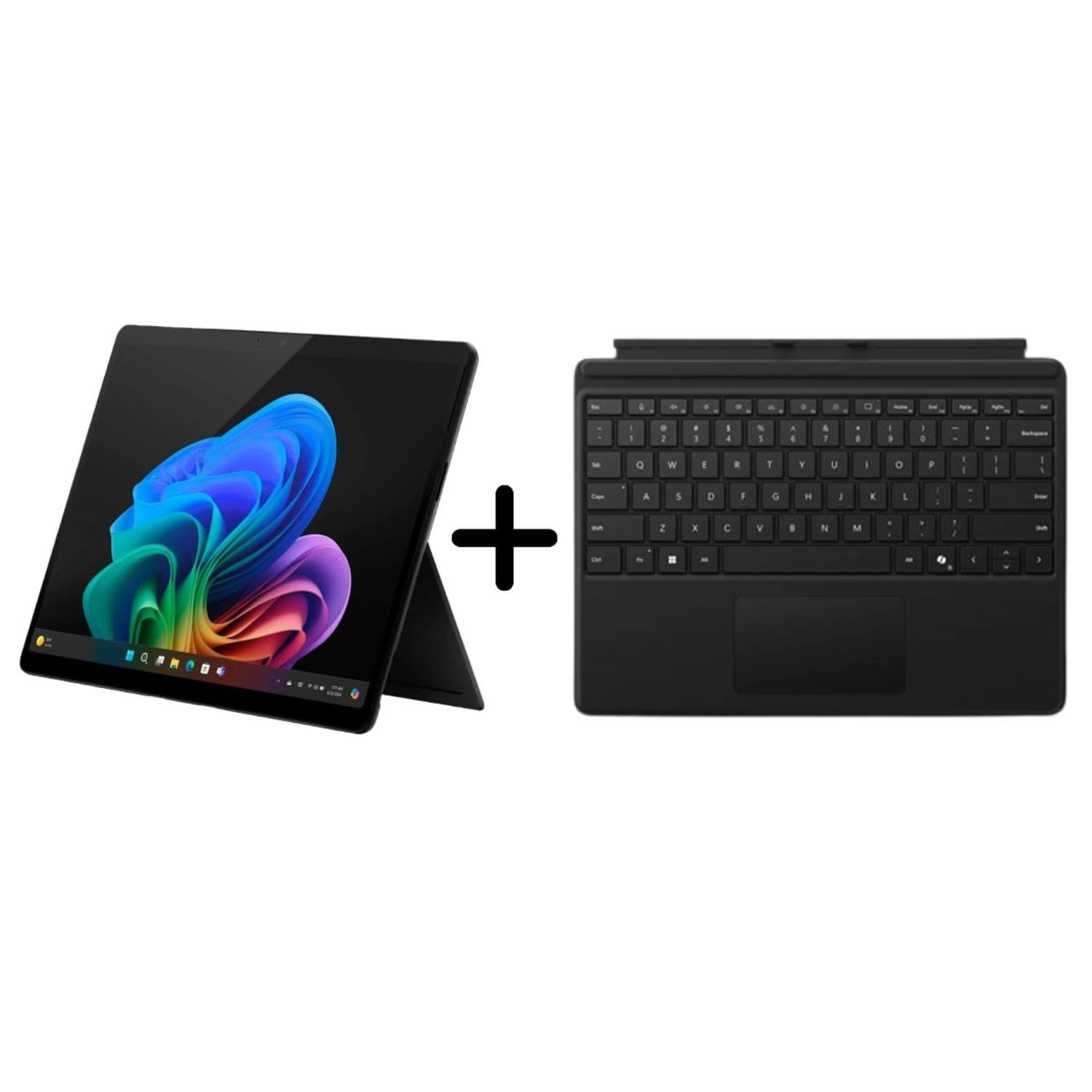
Figure 2.1: Microsoft Surface Pro Copilot+ PC with kickstand deployed, showcasing the vibrant Windows 11 desktop.
2.2 Attaching the Surface Pro Keyboard
Align the magnetic connector of the Surface Pro Keyboard with the corresponding port at the bottom edge of your Surface Pro. The keyboard will snap into place. Ensure a secure connection for proper functionality.
2.3 Усталёўка Windows 11
Follow the on-screen prompts to complete the Windows 11 setup process. This includes selecting your language, connecting to a Wi-Fi network, signing in with a Microsoft account, and configuring privacy settings.
3. Operating the Surface Pro
3.1 Touchscreen and Display
The 13-inch PixelSense Flow display offers a 2880 x 1920 resolution with a dynamic refresh rate up to 120Hz. Interact with the device using touch gestures. The display provides a 1200:1 contrast ratio for clear visuals.

Figure 3.1: Close-up of the Surface Pro screen, highlighting the display quality and Windows 11 interface.
3.2 Функцыі ПК Copilot+
Your Surface Pro is a Copilot+ PC, powered by the Snapdragon X Elite processor, enabling advanced AI experiences:
- AI-Powered Artwork: Generate images from text prompts using integrated AI capabilities.
- Нагадаем: Search across your past activities and content on the device to quickly find what you need.
- Жывыя субцітры: Instantly translate audio into captions in various languages.
3.3 AI-Enhanced Surface Studio Camera
The ultra-wide front-facing camera utilizes AI-powered Studio effects, such as automatic framing, to keep you centered during video calls, even if you move within the frame.

Малюнак 3.2: Задняя частка view of the Surface Pro, illustrating the kickstand functionality and device design.
3.4 Kickstand Flexibility
The integrated 165-degree fluid kickstand allows for flexible positioning of your Surface Pro, adapting from a laptop to a tablet or studio mode for various tasks.

Малюнак 3.3: Бакавы прафесіяналfile of the Surface Pro, demonstrating the kickstand's adjustable angle.
4. Тэхнічнае абслугоўванне
4.1 Ачыстка прылады
Для ачысткі экрана выкарыстоўвайце мяккую тканіну без ворса, злёгку dampened with water or an approved screen cleaner. For the body of the device and keyboard, use a soft, dry cloth. Avoid abrasive materials or harsh chemicals.
4.2 Сыход за акумулятарам
To prolong battery life, avoid extreme temperatures. For long-term storage, charge the battery to approximately 50% and store the device in a cool, dry place. Regular software updates can also optimize battery performance.
4.3 Абнаўленне праграмнага забеспячэння
Ensure your Surface Pro is always up-to-date by regularly checking for and installing Windows updates. Go to Налады > Цэнтр абнаўлення Windows to manage updates. This ensures you have the latest features, security patches, and performance improvements.
5. Выпраўленне непаладак
5.1 Агульныя праблемы і рашэнні
- Прылада не ўключаецца: Ensure the device is charged. Connect the power supply and wait a few minutes before attempting to power on again.
- Клавіятура не рэагуе: Detach and reattach the Surface Pro Keyboard to ensure a secure magnetic connection. Check for any debris in the connector ports.
- Праблемы з падключэннем да Wi-Fi: Restart your Surface Pro and your Wi-Fi router. Check network settings in Windows 11 to ensure the correct network is selected and credentials are entered correctly.
- Павольная прадукцыйнасць: Close unnecessary applications. Check for available Windows updates. Consider running a disk cleanup or checking for malware.
5.2 Seeking Further Support
If you encounter issues not covered in this manual, visit the official Microsoft Support website or contact Microsoft customer service for assistance. Have your device model number (EP2-23862) and serial number ready.
6. Тэхнічныя характарыстыкі
| Асаблівасць | Дэталь |
|---|---|
| Нумар мадэлі | EP2-23862 |
| Памер дысплея | 13 цалі |
| Дазвол экрана | 2880 х 1920 пікселяў |
| Працэсар | Qualcomm Snapdragon X Elite (3.4 GHz) |
| АЗП | 16 ГБ |
| Захоўванне | 1 ТБ SSD |
| Графічны супрацэсар | Адрэна |
| Аперацыйная сістэма | Windows 11 хатняя |
| Бесправадны тып | 802.11ax |
| Парты USB | 2 х USB 3.0 |
| Тыл WebДазвол камеры | 10.5 МП |
| Вага прадмета | 1.97 фунта |
| Памеры (ДхШхВ) | 16.1 х 10.7 х 3.3 цалі |
7. Гарантыя і падтрымка
7.1 Гарантыя на выраб
Your Microsoft Surface Pro Copilot+ PC comes with a standard manufacturer's warranty. Please refer to the included "Safety and warranty documents" and "Startup Card/Warranty Guide" for specific terms, conditions, and duration of your warranty. Retain your proof of purchase for warranty claims.
7.2 Зварот у службу падтрымкі
For technical support, warranty service, or additional information, please visit the official Microsoft Support webсайт: support.microsoft.com. You may also find contact numbers for your region on the support webсайт.


