1. Уводзіны
This manual provides comprehensive instructions for the installation, operation, and maintenance of your FoMaKo 4K 20X PTZ Camera system. This system includes three K20UH 4K PTZ Cameras and one KC608 Pro NDI PTZ Controller. Please read this manual thoroughly before using the product to ensure proper functionality and to prevent damage.
2. Прадукт скончыўсяview
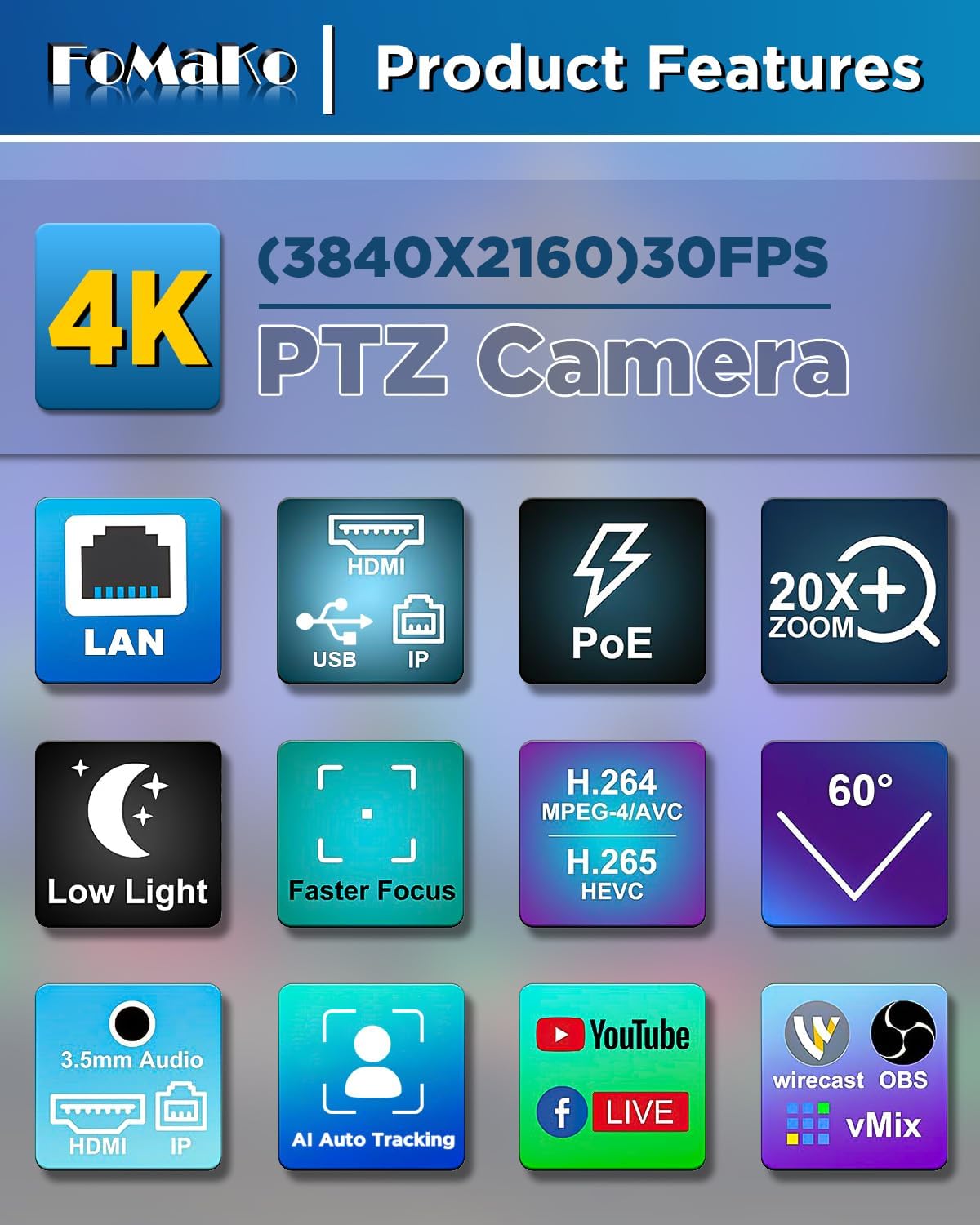
The FoMaKo 4K 20X PTZ Camera system is an all-in-one professional video solution designed for various applications including churches, classrooms, live events, and conferences. It features 4K UHD resolution, 20x optical zoom, AI auto-tracking, and NDI 6 & NDI HX3 certification for seamless multi-camera workflows.
2.1 Асноўныя магчымасці
- 4K UHD Clarity (3840x2160): Capture crisp, true-to-life 4K video with a high-end 1/2.8" CMOS sensor (8.42MP) and 20x optical zoom.
- AI Auto-Tracking (3rd Generation): Customizable tracking modes, sensitivity, figure size, character position, and lost target action. Supports real-time and regional tracking.
- NDI 6 & NDI HX3 Certified: Seamless integration with NewTek’s NDI ecosystem for ultra-low-latency, high-quality video over standard networks. NDI HX3 ensures stable streaming with limited bandwidth.
- Падтрымка PoE: Power over Ethernet simplifies setup with a single cable for both power and data.
- Некалькі інтэрфейсаў: Supports HDMI 2.0, USB 3.0, LAN, RS232, RS422, RS485.
- KC608 Pro NDI PTZ Controller: PoE PTZ IP Controller Keyboard with 4D Joystick, compatible with VISCA, PELCO-P & D protocols.
2.2 Змест пакета
Пакет уключае наступныя рэчы:
- 3 x FoMaKo K20UH 4K PTZ Camera
- 1 x FoMaKo KC608 Pro NDI PTZ Controller
- Сілавыя кабелі
- USB кабель 3.0
- RS232/RS485 Cable
- Насценны кранштэйн
- Потолочный кранштэйн
- Мантажнае абсталяванне
- IR Wireless Remote Control
- Кіраўніцтва карыстальніка
Відэа 1: Распакоўка і ўсёview of the FoMaKo 4K PTZ Camera and included accessories. This video demonstrates the contents of the package, including the camera, cables, mounting options, and remote control.
3. Настройка
3.1 Размяшчэнне і мантаж камеры
The camera can be placed on a flat surface, mounted on a wall, or suspended from the ceiling. Ensure the camera is positioned to capture the desired area without obstruction.
- Насценны мантаж: Use the provided metal wall bracket and hardware. Secure the bracket firmly to a sturdy wall surface before attaching the camera.
- Мацаванне на столі: Use the provided metal ceiling mount and hardware. Ensure the ceiling can support the camera's weight.

Малюнак 1: FoMaKo K20UH 4K NDI PTZ Camera mounted on a wall, demonstrating its pan and tilt range in a church environment.
3.2 Злучэнні
Падключыце камеру, выкарыстоўваючы адпаведныя кабелі для вашай канфігурацыі:
- Магутнасць: Connect the power adapter to the DC12V port and plug it into a power outlet. If using PoE, connect an Ethernet cable from a PoE-enabled switch to the LAN port.
- Відэа выхад:
- HDMI: Падключыце кабель HDMI ад порта HDMI камеры да дысплея або відэаперамыкача.
- USB 3.0: Connect the USB 3.0 cable from the camera to a computer for video capture and control.
- Лакальная сетка (струменевая перадача NDI/IP): Connect an Ethernet cable to the LAN port for NDI streaming and IP control.
- Аўдыё ўваход: Connect an audio source to the LINE IN port.
- кантроль:
- RS232/RS485: Use the provided cable to connect to a PTZ controller or control system.
- LAN (IP Control): Control the camera via its IP address using the KC608 Pro controller or web інтэрфейс.

Малюнак 2: Rear panel of the FoMaKo K20UH camera, highlighting the various input and output ports for connectivity.

Малюнак 3: Example connection diagram for a multi-camera setup using FoMaKo PTZ cameras, illustrating how to integrate with a video mixer, PoE switch, and computer for live streaming.
4. Інструкцыя па эксплуатацыі
4.1 Уключэнне/выключэнне
After connecting the power supply, toggle the ON/OFF switch on the rear of the camera to power it on. The camera will perform a self-test and initialize.
4.2 Using the KC608 Pro NDI PTZ Controller
The KC608 Pro controller provides comprehensive control over your PTZ cameras. Connect the controller to your network via Ethernet. Ensure the cameras are also connected to the same network.
- Выбар камеры: Use the camera selection buttons (CAM 1-7) to choose which camera to control.
- 4D-джойсцік: Use the joystick for precise pan, tilt, and zoom control.
- PTZ Speed Adjustment: Adjust the pan/tilt/zoom speed using the dedicated knobs or buttons on the controller.
- Кіраванне перадусталёўкамі: Store and recall camera positions using the preset buttons.
- Кіраванне фокусам: Adjust focus manually or use the auto-focus function.
- Кантроль экспазіцыі: Adjust exposure settings as needed.
Відэа 2: FoMaKo KC608 Pro web control panel operation workflow. This video demonstrates how to configure and manage camera settings through the controller's web інтэрфейс.

Малюнак 4: The FoMaKo KC608 Pro PTZ controller in use, displaying its 4D joystick and LCD screen with a camera feed.
4.3 Аўтаматычнае адсочванне з дапамогай штучнага інтэлекту
The 3rd generation AI Auto-Tracking feature allows the camera to automatically follow a presenter or subject. This feature can be activated and configured via the remote control or the web інтэрфейс.
- Activate Tracking: Press F2 on the remote control to turn on automatic tracking.
- Мэта адсочвання пераключэння: Press F4 on the remote control to switch between tracking targets.
- Настройка: Доступ да web interface to adjust tracking modes (Presenter/Zone), tracking sensitivity, figure size (Close, Half, Full), character position, and action upon lost target.

Малюнак 5: The FoMaKo 4K PTZ Camera demonstrating its AI auto-tracking feature, with a speaker highlighted by a green tracking box.

Малюнак 6: Web interface settings for AI tracking, illustrating options for adjusting target size (Full, Half, Close) and other advanced tracking parameters.
4.4 Функцыі дыстанцыйнага кіравання
The IR wireless remote control provides quick access to essential camera functions:
- Магутнасць: Уключыце або выключыце камеру.
- Camera Select: Switch between multiple cameras (Cam 1-4).
- Панарамаванне/нахіл/маштабаванне: Adjust camera direction and zoom level.
- Фокус: Manual and auto-focus controls.
- Зададзенае: Set and recall preset positions.
- F1/F2/F3/F4: Customizable function keys, pre-assigned for AI tracking on/off.
Малюнак 7: The IR wireless remote control for the FoMaKo PTZ camera, showing its layout and key functions.
5. Тэхнічнае абслугоўванне
- Уборка: Для чысткі корпуса камеры выкарыстоўвайце мяккую сухую тканіну. Для аб'ектыва выкарыстоўвайце спецыяльную тканіну і раствор для чысткі аб'ектываў. Пазбягайце выкарыстання агрэсіўных хімічных рэчываў.
- Абнаўленні прашыўкі: Рэгулярна правярайце інфармацыю вытворцы website for firmware updates to ensure optimal performance and access to new features. Firmware can be updated via the web інтэрфейс.
- захоўванне: Калі камера не выкарыстоўваецца працяглы час, захоўвайце яе ў сухім месцы без пылу.
6. Выпраўленне непаладак
| праблема | Магчымая прычына | Рашэнне |
|---|---|---|
| Няма відэавыхаду. | Incorrect cable connection, camera not powered on, incorrect input selected on display. | Check all cable connections (HDMI, USB, LAN). Ensure camera is powered on. Select the correct input source on your display/switcher. |
| Camera not responding to controller. | Incorrect network settings, wrong camera selected, remote control batteries low. | Verify IP addresses and network settings for both camera and controller. Ensure the correct camera is selected on the controller. Replace remote control batteries. |
| AI tracking not working. | Tracking feature disabled, subject out of range, incorrect tracking settings. | Activate AI tracking using F2 on the remote or via the web interface. Ensure the subject is within the camera's field of view. Adjust tracking sensitivity and mode in the web інтэрфейс. |
| Дрэнная якасць відэа. | Insufficient lighting, dirty lens, incorrect resolution settings. | Ensure adequate lighting. Clean the camera lens. Check video output resolution settings on the camera and receiving device. |
7. Тэхнічныя характарыстыкі
| Асаблівасць | Дэталь |
|---|---|
| Марка | ФоМаКо |
| Нумар мадэлі | K20UHx3+KC608 Pro |
| Тэхналогія фотадатчыка | CMOS (1/2.8 inch, 8.42MP Effective Pixels) |
| Дазвол відэазахопу | 4K (3840x2160) @ 30fps, 1080P @ 60fps |
| Аптычны зум | 20x |
| Асаблівасці | 4K Resolution, AI Auto-Tracking (3rd Gen), PoE Capability, NDI 6 & NDI HX3 Certified |
| Тэхналогія падлучэння | Ethernet, HDMI 2.0, USB 3.0, RS232, RS422, RS485 |
| Падтрымоўваны аўдыяфармат | PCM, AAC, MP3 |
| Памер экрана (кантролер) | 3 цалі |
8. Гарантыя і падтрымка
FoMaKo provides the following warranty and support for this product:
- 3-гадовая абмежаваная гарантыя: Пакрывае вытворчыя дэфекты і няспраўнасці пры нармальным выкарыстанні.
- 30-дзённая гарантыя вяртання грошай: Risk-free purchase.
- Free Online Training: Resources available to help you get started.
- 24/7 Expert Assistance: Responses within 24 hours. Please include your Order ID for faster service.
- Lifetime Customer Technical Support: Ongoing support for the product's lifespan. Remote assistance can be provided if necessary.

Малюнак 8: FoMaKo customer support information, detailing warranty, money-back guarantee, and technical assistance.


