1. Уводзіны
The TobenONE USB-C Docking Station (Model: XYY-PD100CL) is a versatile 16-in-1 solution designed to expand the connectivity of your USB-C enabled laptop. It provides comprehensive port expansion, multi-monitor support, high-speed data transfer, and power delivery, enhancing productivity for both professionals and students.

Image: The TobenONE USB-C Docking Station, showcasing its compact design alongside a laptop and the included 100W GaN III charger.
2. Асноўныя магчымасці
- Універсальная сумяшчальнасць: Seamlessly works with Windows 10+ and Chromebook devices featuring USB-C DisplayPort Alt Mode, Thunderbolt 4/3, and USB4. Compatible with HP, Dell, and Lenovo laptops. (Note: Not recommended for Mac users.)
- 16-у-1 падключэнне: Offers extensive port options including dual HDMI, one DisplayPort, multiple USB-C and USB-A ports, 2.5Gbps Ethernet, 100W Power Delivery, and SD/TF card slots.
- Blazing-Fast Data Transfer: Equipped with 10Gbps USB-C and USB-A ports, enabling data transfers up to 20 times faster than traditional USB 2.0.
- Ethernet 2.5 Гбіт/с: Provides stable and high-speed internet connectivity, ideal for video calls, streaming, and large file downloads.
- Зарадка 100 Вт PD: Features a robust 100W GaN power supply to keep your laptop charged during intensive work sessions, eliminating the need for a separate charger.
- Цудоўныя візуальныя эфекты: Supports up to 4K@60Hz resolution for dual or triple monitor setups. A single display can achieve 8K@30Hz or 4K@120Hz for razor-sharp clarity.
- Sleek Cooling Stand Design: Ergonomically designed to elevate your laptop, promoting better airflow and heat dissipation.
3. Змесціва ўпакоўкі
Калі ласка, пераканайцеся, што ўсе прадметы прысутнічаюць у вашай упакоўцы:
- TobenONE USB-C Docking Station (Model: XYY-PD100CL)
- Адаптар сілкавання 100 Вт
- 60CM (1.96 Feet) USB-C Cable

Image: The package includes the UDS041W Laptop Dock Stand, a 100W Power Adapter, and a 60CM USB-C Cable.
4. Кіраўніцтва па наладцы
Follow these steps to set up your TobenONE USB-C Docking Station:
- Падключыце харчаванне: Plug the 100W power adapter into the DC-IN port on the docking station, then connect the adapter to a wall outlet.
- Падключэнне да ноўтбука: Use the provided 60CM USB-C cable to connect the "HOST" USB-C port on the docking station to your laptop's USB-C port. Ensure your laptop supports USB-C DisplayPort Alt Mode, Thunderbolt 4/3, or USB4.
- Падключэнне дысплеяў:
- For single display: Connect your monitor to either HDMI 1, HDMI 2, or DisplayPort.
- For dual or triple displays: Connect your monitors to the available HDMI 1, HDMI 2, and DisplayPort outputs.

Image: A laptop connected to two external 4K monitors, demonstrating a dual display setup for enhanced productivity.
- Падключэнне перыферыйных прылад: Plug your USB devices (keyboard, mouse, external drives, etc.) into the available USB 3.0, USB 3.2 (10Gbps), or USB-C (10Gbps) ports.

Выява: Падрабязны view of the docking station's rear and side ports, including Ethernet, HDMI, DisplayPort, various USB types, SD/MicroSD slots, audio, and power button.

Image: An external hard drive connected to one of the 10Gbps USB ports, highlighting the high-speed data transfer capabilities.
- Падключэнне Ethernet: For a stable wired internet connection, plug an Ethernet cable into the 2.5Gbps Ethernet port on the docking station.
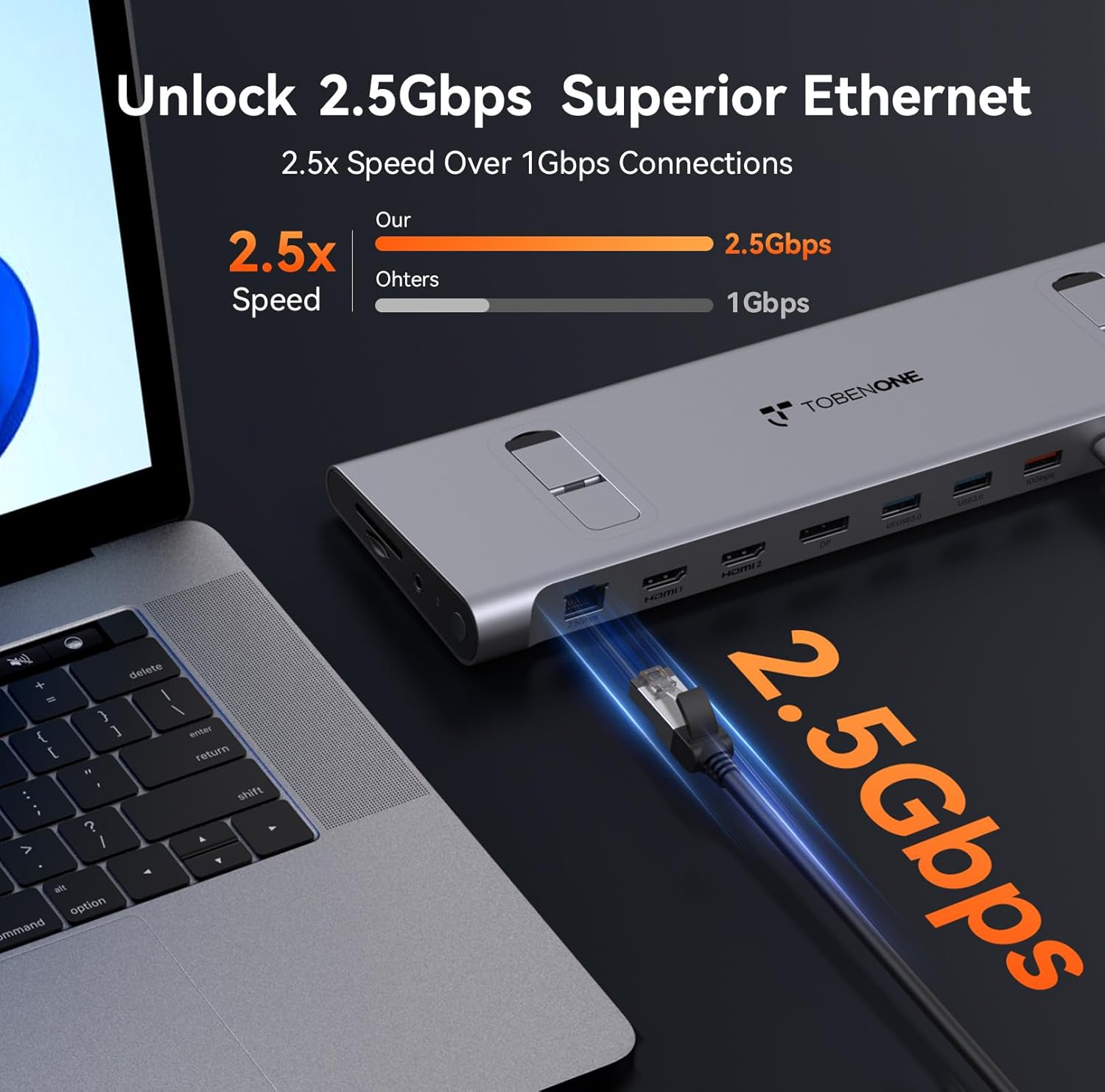
Image: An Ethernet cable connected to the 2.5Gbps Ethernet port on the docking station, ensuring a fast and reliable network connection.
- Insert SD/TF Cards: If needed, insert your SD or MicroSD cards into the dedicated slots on the side of the docking station.
- Аўдыё злучэнне: Connect headphones or speakers to the 3.5mm audio port for audio output.
- Уключэнне: Press the power button on the side of the docking station to turn it on.
5. Інструкцыя па эксплуатацыі
Display Configuration (Windows/Chromebook)
The docking station supports various display configurations. Your laptop's capabilities (e.g., Thunderbolt 4/DP 1.4 with DSC vs. DP 1.2) will determine the maximum resolution and refresh rates.
| Стандартны інтэрфейс | Thunderbolt 4/DP 1.4 (support DSC) | ДП 1.2 | ||||
|---|---|---|---|---|---|---|
| HDMI1 | HDMI2 | DP | HDMI1 | HDMI2 | DP | |
| Адзін дысплей | 8K @ 30 Гц | 8K @ 30 Гц | 8K @ 30 Гц | 4K @ 30 Гц | 4K @ 30 Гц | 4K @ 30 Гц |
| 4K @ 60 Гц | 4K @ 60 Гц | 4K @ 60 Гц | 1080P пры 60 Гц | 1080P пры 60 Гц | 1080P пры 60 Гц | |
| Двайны дысплей | 4K @ 60 Гц | 1080P пры 60 Гц | ||||
| 4K @ 60 Гц | 4K @ 60 Гц | 1080P пры 60 Гц | 1080P пры 60 Гц | |||
| патройны дысплей | 4K @ 60 Гц | 1080P пры 60 Гц | ||||
Table: This table outlines the supported display resolutions and refresh rates for single, dual, and triple monitor setups, depending on your laptop's DisplayPort interface standard.
Laptop Placement and Cooling
The docking station is designed to function as a sleek cooling stand. Place your laptop directly on top of the docking station, aligning it with the integrated supports. This ergonomic design helps improve airflow and prevent overheating during extended use.

Image: A laptop positioned on the docking station, illustrating how the design facilitates airflow for efficient cooling.
6. Тэхнічнае абслугоўванне
- Keep the docking station clean by wiping it with a soft, dry cloth. Avoid using abrasive cleaners or solvents.
- Забяспечце належную вентыляцыю вакол прылады, каб прадухіліць перагрэў.
- Захоўвайце док-станцыю ў прахалодным, сухім месцы, калі яна не выкарыстоўваецца.
- Handle cables and connectors carefully to prevent damage.
7. Выпраўленне непаладак
Агульныя праблемы і рашэнні:
- Няма вываду на дысплей:
- Ensure the docking station is powered on and properly connected to your laptop's USB-C port.
- Verify that your laptop's USB-C port supports DisplayPort Alt Mode, Thunderbolt 3/4, or USB4.
- Праверце ўсе кабелі дысплея (HDMI, DisplayPort) на надзейнасць падключэння.
- Паспрабуйце абнавіць драйверы відэакарты вашага ноўтбука.
- Confirm your laptop supports Display Stream Compression (DSC) for higher resolutions (e.g., 8K@30Hz or 4K@120Hz single display).
- Няма падачы харчавання на ноўтбук:
- Ensure the 100W power adapter is securely connected to the docking station and a working power outlet.
- Verify the USB-C cable connecting the dock to your laptop is capable of power delivery.
- USB-прылады не распазнаюцца:
- Падключыце прыладу USB да іншага порта на док-станцыі.
- Пераканайцеся, што док-станцыя ўключана.
- Try connecting the device directly to your laptop to confirm it functions independently.
- Праблемы з падключэннем да Ethernet:
- Праверце падключэнне кабеля Ethernet да док-станцыі і маршрутызатара/мадэма.
- Праверце налады сеткі на вашым ноўтбуку.
8. Тэхнічныя характарыстыкі
| Атрыбут | Дэталь |
|---|---|
| Нумар мадэлі | XYY-PD100CL |
| Памеры прадукту | 11.81 см Д х 3.14 см Ш х 0.86 см В |
| Вага прадмета | 2.27 фунта |
| Усяго партоў USB | 6 (including 10Gbps USB-A and USB-C) |
| Усяго партоў HDMI | 2 |
| DisplayPort | 1 |
| Порт Ethernet | 2.5 Гбіт/с |
| Пастаўка электраэнергіі | 100 Вт (уваход), 87 Вт (выхад) |
| Счытвальнік карт | Слоты SD/TF |
| Аўдыё порт | 3.5 мм аўдыё |
| Сумяшчальныя прылады | Supports full-featured USB-C, USB4, and Thunderbolt 3 / Thunderbolt 4 systems running Windows 10 / 11 & ChromeOS 100 or newer (e.g., HP ProBook/EliteBook/Spectre x360, Dell XPS/Latitude, Lenovo ThinkPad/IdeaPad/Yoga, Microsoft Surface Pro/Go/Book/Laptop, LG Gram). |
9. Гарантыя і падтрымка
TobenONE is committed to providing professional office connectivity solutions. For any questions, technical support, or warranty inquiries regarding your docking station, please refer to the official TobenONE webсайт або звярніцеся непасрэдна ў службу падтрымкі кліентаў. Захоўвайце чэк аб куплі для прэтэнзій па гарантыі.
Visit the official TobenONE Store: TobenONE Amazon Store


