Уводзіны
This manual provides comprehensive instructions for the setup, operation, and maintenance of your ZEBRONICS Glassy 10 Wireless Mouse. Designed for comfort and efficiency, this mouse features dual-mode connectivity (2.4GHz and Bluetooth), adjustable DPI up to 1600, silent operation, and convenient Type-C charging. Please read this manual thoroughly before using the product to ensure optimal performance and longevity.
Змест пакета
- Мыш - 1 адзінка
- Nano Receiver - 1 unit
- Зарадны кабель - 1 шт.
- Quick user Guide - 1 unit
Інструкцыя па наладзе
1. Зарадка мышы
The ZEBRONICS Glassy 10 mouse features a built-in rechargeable battery and Type-C charging. Connect the provided Type-C charging cable to the mouse's charging port and to a USB power source (e.g., computer, wall adapter). The LED indicator will show charging status and turn off when fully charged.

2. Уключэнне/выключэнне і выбар рэжыму
Locate the Mode/Power switch on the underside of the mouse. Slide the switch to turn the mouse ON or OFF, and to select between 2.4GHz wireless mode and Bluetooth mode.
3. Connecting via 2.4GHz Wireless Mode
- Take out the USB Nano Receiver from its storage slot on the underside of the mouse.
- Plug the USB Nano Receiver into an available USB port on your computer or laptop.
- Slide the Mode/Power switch on the mouse to the 2.4GHz position.
- Мышка павінна аўтаматычна падключыцца да вашай прылады.
4. Падключэнне праз рэжым Bluetooth
- Slide the Mode/Power switch on the mouse to the Bluetooth position.
- The mouse will enter pairing mode (an indicator light may flash).
- На вашым камп'ютары або прыладзе адкрыйце налады Bluetooth.
- Пошук new devices and select "ZEB-Glassy 10" (or similar) from the list.
- Confirm pairing on your device. The mouse will connect once paired.

Інструкцыя па эксплуатацыі
1. Mouse Buttons
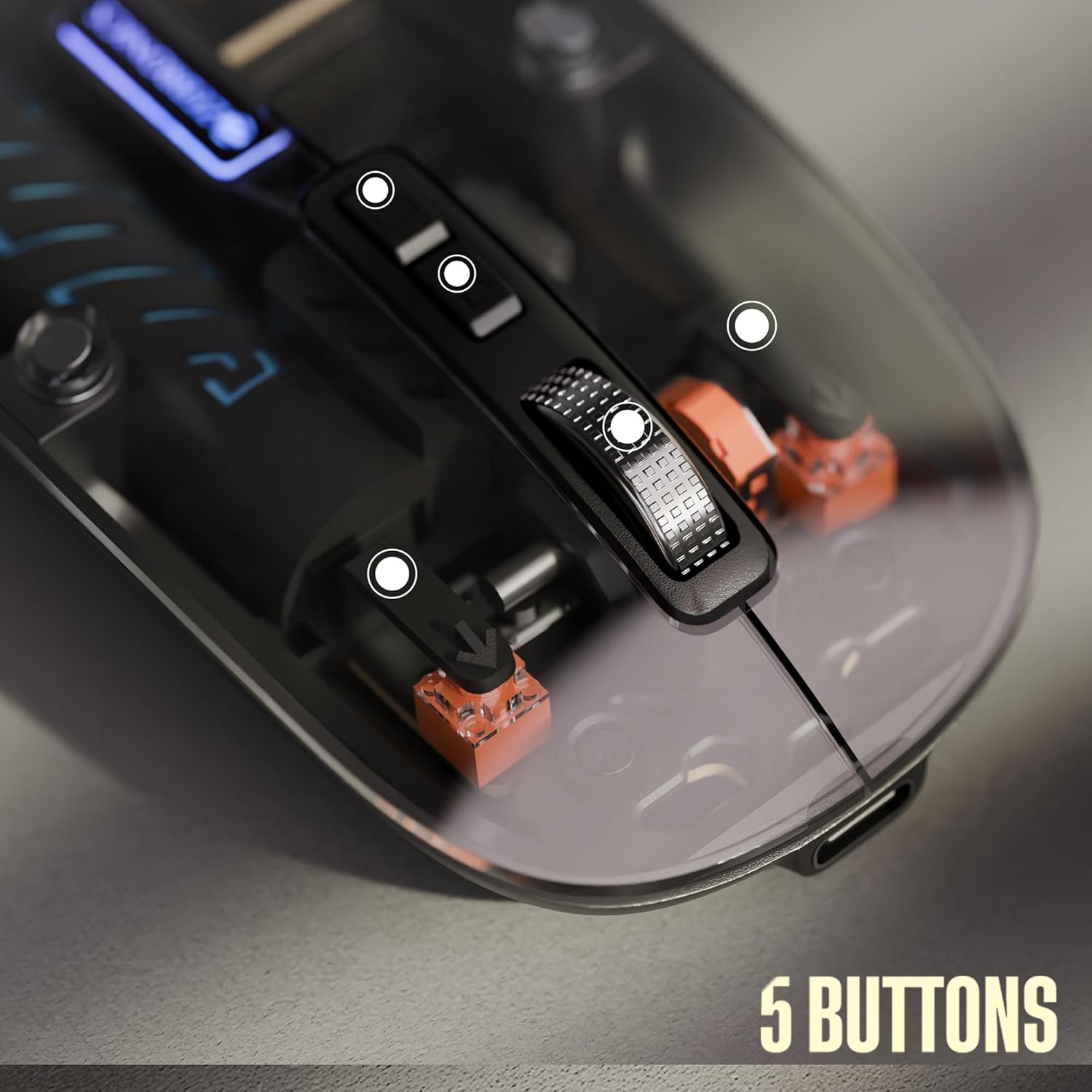
The ZEBRONICS Glassy 10 mouse is equipped with 5 buttons for enhanced functionality:
- Пстрычка левай кнопкай мышы: Стандартны выбар і актывацыя.
- Пстрыкніце правай кнопкай мышы: Доступ да кантэкстнага меню.
- Middle Scroll Wheel: Для пракруткі дакументаў і web pages. Can also be clicked for additional functions depending on software.
- Кнопка кіравання DPI: Рэгулюе адчувальнасць мышы (DPI).
- Спецыяльная кнопка на працоўным стале: Provides quick access to the desktop or other programmed functions.

2. Рэгуляванне DPI
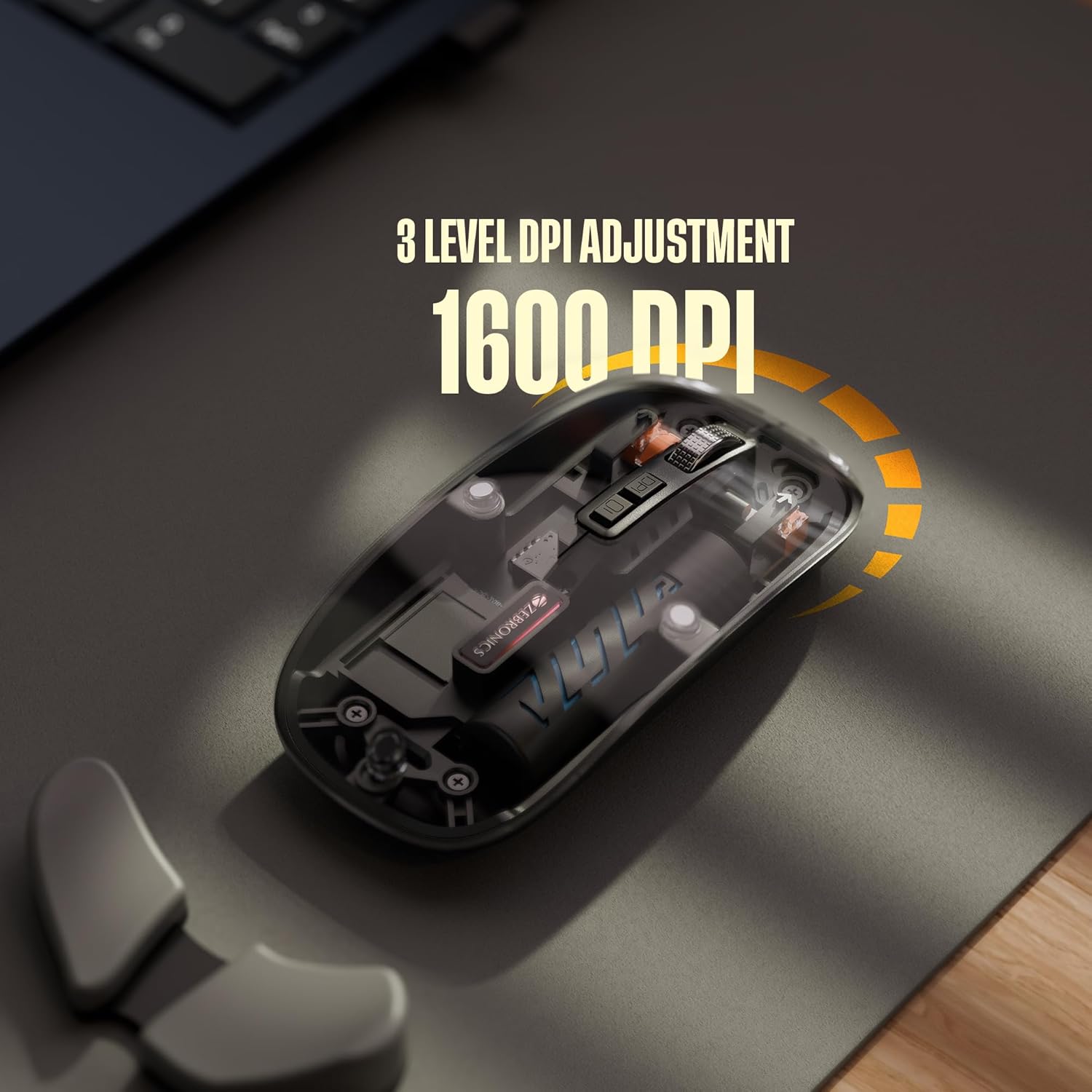
The mouse features 3 levels of DPI adjustment, up to 1600 DPI. Press the DPI control button to cycle through the available sensitivity settings. A higher DPI setting results in faster cursor movement across the screen with less physical mouse movement.
3. Silent Operation
The ZEBRONICS Glassy 10 mouse is designed for silent operation, minimizing click sounds. This feature is beneficial in quiet environments, ensuring a less disruptive user experience.

4. Сумяшчальнасць з паверхнямі
The mouse is ergonomically designed to function effectively on various surfaces, including mouse pads, plain tables, and wooden surfaces, providing consistent tracking performance.
Тэхнічнае абслугоўванне
- Уборка: Для чысткі мышы выкарыстоўвайце мяккую сухую тканіну. Пазбягайце выкарыстання агрэсіўных хімічных рэчываў або абразіўных матэрыялаў.
- захоўванне: When not in use, store the mouse in a cool, dry place. If storing for an extended period, ensure the mouse is turned off to preserve battery life.
- Сыход за батарэяй: Recharge the battery regularly. Avoid completely draining the battery frequently to prolong its lifespan.
Ліквідацыю непаладак
| праблема | Магчымае рашэнне |
|---|---|
| Мышка не рэагуе |
|
| Затрымка або перарывістае падключэнне |
|
| Cursor movement is too fast/slow |
|
| Праблема з зарадкай |
|
Тэхнічныя характарыстыкі
| Асаблівасць | Дэталь |
|---|---|
| Марка | ЗЕБРОНІКА |
| мадэль | Glassy 10 |
| Тэхналогія падлучэння | Dual Mode (2.4GHz Wireless, Bluetooth) |
| Ўзроўні DPI | Up to 1600 DPI (3-level adjustable) |
| Гузікі | 5 (Left, Right, Scroll Wheel, DPI, Dedicated Desktop) |
| Аперацыя | Бясшумны клік |
| Зарадка | Type-C, Built-in Rechargeable Battery |
| Сумяшчальнасць аперацыйнай сістэмы | Mac OS (і, як правіла, сумяшчальныя з Windows і Linux) |
| Памеры (ДхШхВ) | 11.3 х 5.7 х 0.1 см |
| Вага прадмета | 70 г |
Гарантыя і падтрымка
For warranty information and technical support, please refer to the warranty card included in your package or visit the official ZEBRONICS webсайт. Захоўвайце чэк аб куплі як пацвярджэнне пакупкі для гарантыйных прэтэнзій.
вытворца: Zebronics India Private Limited
Адрас: No.13/7, Smith Road, Royapettah, Chennai - 600 002, India


