DrayTek VigorAP 905 High Performance WiFi 6 Access Point User Manual
Model: VAP905-K
1. Прадукт скончыўсяview
The DrayTek VigorAP 905 is a high-performance WiFi 6 Mesh Wireless Access Point designed for efficient network management in demanding environments. It delivers robust wireless connectivity and flexible wired options.
Асноўныя характарыстыкі:
- Fast Wi-Fi 6 Access Point: Experience lightning-fast speeds with a combined speed of up to 3000Mbps, ideal for businesses requiring efficient networks for demanding applications.
- Strong WPA3 Connection Encryption: Ensures robust wireless security with the latest WPA3-Personal or 802.1x Enterprise. Supports mixed WPA3/WPA2 and different SSIDs with varying security levels.
- Easy to Configure and Manage: Effortlessly manage up to 8 compatible mesh VigorAPs and up to 20 APs using the Wireless Virtual Controller module. Features auto-provisioning and AP monitoring.
- Flexible 2.5 Gigabit Ethernet Uplink & 4 x GbE Connectivity: Connects to the network via its 2.5Gb Ethernet interface. Additional Gigabit Ethernet interfaces provide wired connectivity for devices like laptops or printers.
- High Density Performance: Capable of linking up to 256 clients with 802.11ax dual-band antennas and Wi-Fi 6 2x2 Multi-User MIMO technology, suitable for high-density environments.
- Wall/Desk Form Factor Design: A versatile design that complements both business and home interiors. LED indicators can be scheduled or disabled.

Малюнак 1: Спераду view of the DrayTek VigorAP 905 Access Point, showcasinдзякуючы кампактнаму дызайну і дзвюм знешнім антэнам.
2. Настройка
2.1 Змест пакета
Перад пачаткам пераканайцеся, што ў камплекце ёсць усе неабходныя рэчы:
- DrayTek VigorAP 905 Access Point
2.2 Фізічная ўстаноўка
The VigorAP 905 can be mounted on a wall or placed on a desk.
- Выберыце месца: Select a central location for optimal Wi-Fi coverage, away from obstructions and sources of interference.
- Падключэнне сілкавання: Connect the power adapter to the AP's PWR port and plug it into an electrical outlet. Alternatively, if using Power over Ethernet (PoE), connect an Ethernet cable from a PoE-enabled switch or injector to the 2.5G Ethernet port (P1/PoE).
- Падключэнне да сеткі: Connect an Ethernet cable from your router or network switch to the 2.5G Ethernet port (P1/PoE) on the VigorAP 905.
- Optional Wired Devices: Use the additional Gigabit Ethernet ports (P2, P3, P4, P5) to connect wired devices such as computers or printers.

Малюнак 2: бок view of the VigorAP 905, illustrating the power input, reset button, WPS button, 2.5G Ethernet port (P1/PoE), and four Gigabit Ethernet ports (P2-P5).
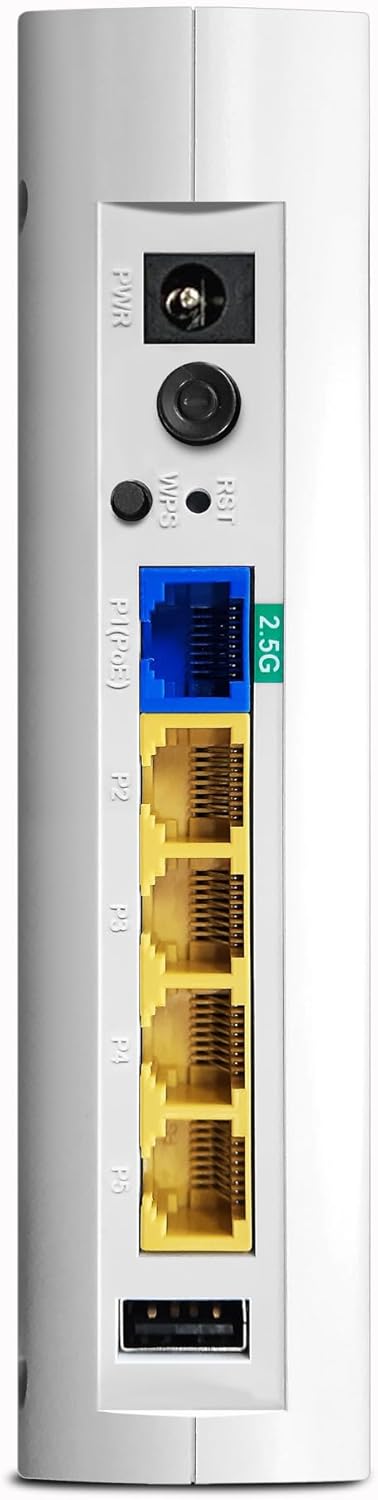
Малюнак 3: падрабязна view of the VigorAP 905's rear panel, highlighting the power port, reset/WPS buttons, 2.5G Ethernet port, and four standard Gigabit Ethernet ports.
2.3 Пачатковая канфігурацыя
After physical installation, the VigorAP 905 requires initial configuration. Refer to the DrayTek official website or the included quick start guide for detailed instructions on accessing the web interface and setting up your Wi-Fi network (SSID, password, security settings).
- Доступ да Web інтэрфейс: Typically, you connect a computer directly to one of the AP's LAN ports or connect wirelessly to its default SSID (usually printed on the device). Then, open a web browser and enter the default IP address (e.g., 192.168.1.1).
- Уліковыя дадзеныя для ўваходу: Use the default username and password (also usually printed on the device or in the quick start guide) to log in.
- Майстар наладкі: Follow the on-screen wizard to configure basic settings such as Wi-Fi name (SSID), password, and security type (WPA3 recommended).
3. Operating the VigorAP 905
3.1 Святлодыёдныя індыкатары
The VigorAP 905 features LED indicators on its front panel to provide status information:
- Святлодыёд харчавання: Паказвае стан харчавання прылады.
- WLAN LEDs: Indicate Wi-Fi activity for 2.4GHz and 5GHz bands.
- Святлодыёды лакальнай сеткі: Паказвае актыўнасць на партах Ethernet.
- Refer to the full user manual for a detailed explanation of each LED's behavior (e.g., solid, blinking, color).

Малюнак 4: Пад вуглом view of the VigorAP 905, highlighting the front panel with its array of LED indicators for various statuses.
3.2 Бесправадное падключэнне
Once configured, devices can connect to the VigorAP 905 wirelessly using the configured SSIDs and passwords. The device supports Wi-Fi 6 (802.11ax) for enhanced performance and efficiency.
- Падключэнне прылад: On your wireless device (smartphone, laptop, tablet), search for available Wi-Fi networks, select your configured SSID, and enter the password.
- Сеткаватая сетка: If you have multiple compatible VigorAPs, you can set up a mesh network for seamless roaming and extended coverage. Consult the DrayTek documentation for mesh setup procedures.
3.3 Правадное падключэнне
The VigorAP 905 provides five Ethernet ports for wired connections:
- P1 (2.5G Ethernet/PoE): Primary uplink to your network, supporting 2.5 Gigabit speeds and Power over Ethernet.
- P2-P5 (Gigabit Ethernet): Standard Gigabit Ethernet ports for connecting wired devices.
4. Тэхнічнае абслугоўванне
Regular maintenance ensures optimal performance and longevity of your VigorAP 905.
- Абнаўленні прашыўкі: Periodically check the DrayTek website for new firmware versions. Updating firmware can provide new features, performance improvements, and security patches.
- Уборка: Keep the device clean and free from dust. Use a soft, dry cloth. Do not use liquid cleaners.
- Вентыляцыя: Ensure the device has adequate ventilation to prevent overheating. Do not block ventilation holes.
- Канфігурацыя рэзервовага капіявання: Regularly back up your device's configuration settings through the web interface. This allows for quick restoration in case of a reset or replacement.
5. Выпраўленне непаладак
This section addresses common issues you might encounter with your VigorAP 905.
5.1 No Power / LEDs Off
- Праверце падключэнне сілкавання: Ensure the power adapter is securely connected to the AP and the electrical outlet.
- Праверце разетку: Праверце электрычную разетку з дапамогай іншай прылады, каб пераканацца, што яна працуе.
- PoE Check: If using PoE, ensure your PoE switch or injector is powered on and providing power.
5.2 Не ўдаецца падключыцца да Wi-Fi
- Check SSID and Password: Verify that you are selecting the correct Wi-Fi network name (SSID) and entering the correct password. Passwords are case-sensitive.
- AP Status: Check the WLAN LEDs on the AP. If they are off, the Wi-Fi might be disabled or the AP is not functioning correctly.
- Reboot AP: Power cycle the VigorAP 905 by unplugging and re-plugging the power adapter.
- Distance/Interference: Move closer to the AP or check for sources of interference (e.g., microwaves, cordless phones).
5.3 Павольная хуткасць Wi-Fi
- Перашкоды канала: Use the AP's web interface to perform a site survey and select a less congested Wi-Fi channel.
- Моц сігналу: Ensure your device has a strong Wi-Fi signal. Obstacles like walls can degrade performance.
- Колькасць прылад: Too many devices connected to the AP can impact performance.
- Прашыўка: Ensure the AP is running the latest firmware.
5.4 Немагчыма атрымаць доступ Web Інтэрфейс
- IP-адрас: Confirm you are using the correct IP address for the AP. If the AP is connected to a router, it might have received a dynamic IP address.
- Падключэнне да сеткі: Ensure your computer is connected to the same network as the AP (either directly via Ethernet or wirelessly).
- Брандмаўэр/Антывірус: Часова адключыце любы брандмаўэр або антывіруснае праграмнае забеспячэнне на вашым кампутары, якія могуць блакаваць доступ.
- Скід да заводскіх налад: As a last resort, perform a factory reset by pressing and holding the reset button for several seconds (refer to the full manual for exact duration). Заўвага: Гэта выдаліць усе канфігурацыі.
6. Тэхнічныя характарыстыкі
| Асаблівасць | Дэталь |
|---|---|
| Марка | DrayTek |
| Назва мадэлі | VAP905 |
| Нумар мадэлі тавару | VAP905-K |
| Тэхналогія падлучэння | Wi-Fi |
| Стандарт бесправадной сувязі | 802.11ax (Wi-Fi 6) |
| Клас дыяпазону частот | Двухдыяпазонны |
| Асаблівасці | WPA3 Security, Easy Management, High Density Performance, Versatile Design |
| Сумяшчальныя прылады | Laptop, Printer, Mobile Devices |
| Рэкамендуемае выкарыстанне | Бізнес |
| Вага прадмета | 330 грам |
| Памеры ўпакоўкі | 15 х 6 х 4 см |
| Краіна паходжання | Тайвань |
7. Гарантыя і падтрымка
7.1 Інфармацыя аб гарантыі
DrayTek products typically come with a manufacturer's warranty. Please refer to the warranty card included with your product or visit the official DrayTek website for specific warranty terms and conditions applicable to the VigorAP 905.
7.2 Тэхнічная падтрымка
For technical assistance, product registration, or to download the latest drivers and firmware, please visit the official DrayTek support website. You may also find helpful resources, FAQs, and community forums there.
DrayTek Official Webсайт: www.draytek.com


