1. Уводзіны
This manual provides essential instructions for the setup, operation, and maintenance of your SPC Zeus 2 Pro Smartphone. Designed for ease of use, this device features a simplified interface, physical buttons, and dedicated support features for seniors. Please read this manual thoroughly to ensure proper usage and to maximize the benefits of your new smartphone.
2. Змесціва ўпакоўкі
Пасля адкрыцця ўпакоўкі пераканайцеся, што ўсе наступныя рэчы наяўныя:
- SPC Zeus 2 Pro Smartphone
- Зарадная база
- USB-кабель Type-C
- Насценны адаптар
- Інструмент для выкіду латка SIM-карты
- Кароткае кіраўніцтва па запуску (гэтае кіраўніцтва)
3. Прылада скончанаview
The SPC Zeus 2 Pro is equipped with a 6.1-inch display and physical buttons for call management, designed for straightforward interaction.

Малюнак 3.1: Фронт view of the SPC Zeus 2 Pro Smartphone in its charging base, displaying the simplified "Easy Mode" interface with large, clear icons for essential functions. Physical call answer and end buttons are located at the bottom.
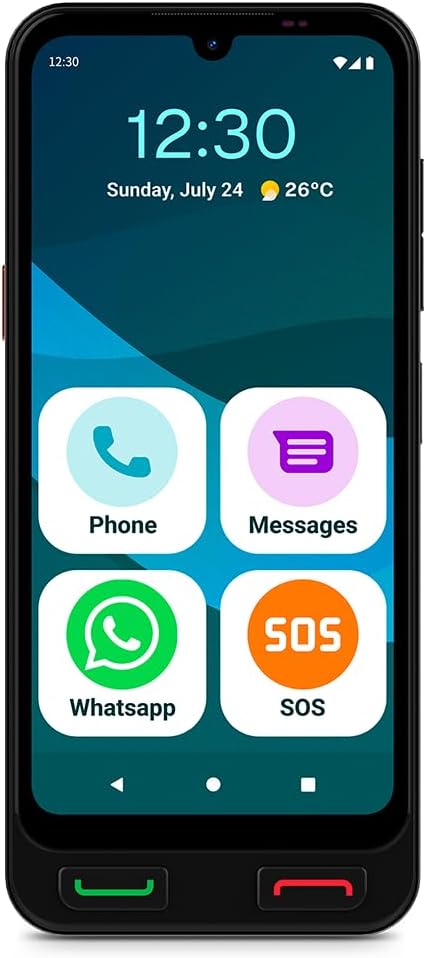
Малюнак 3.2: Фронт view of the SPC Zeus 2 Pro Smartphone, highlighting the 6.1-inch screen and the "Easy Mode" layout with oversized application icons.
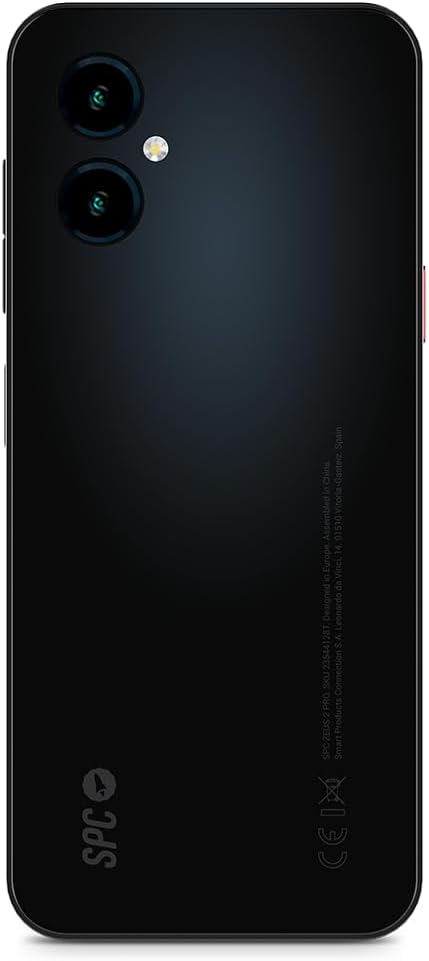
Малюнак 3.3: Тыл view of the SPC Zeus 2 Pro Smartphone, featuring the dual camera system and the brand's logo.
3.1. Фізічныя кнопкі і парты
- Кнопка адказу на выклік: Green button below the screen to accept incoming calls.
- Кнопка завяршэння выкліку: Red button below the screen to end calls or return to the home screen.
- Кнопка SOS: Located on the side, for emergency contact activation.
- Кнопкі гучнасці: On the side, to adjust audio levels.
- Кнопка харчавання: On the side, to turn the device on/off or lock/unlock the screen.
- Порт USB Type-C: Для зарадкі і перадачы дадзеных.
4. Настройка
4.1. Пачатковае ўключэнне і канфігурацыя
- Націсніце і ўтрымлівайце Кнопка харчавання пакуль экран не падсвечваецца.
- Follow the on-screen start-up assistant. This guide will walk you through initial settings.
- During setup, you can choose between Рэжым Android (standard smartphone interface) or Лёгкі рэжым (simplified interface with large icons).
- Adjust icon size and distribution as prompted.
4.2. SIM Card / eSIM Installation
Your SPC Zeus 2 Pro supports Dual SIM functionality and eSIM.
- Знайдзіце латок для SIM-карты на бакавой панэлі прылады.
- Insert the provided SIM tray ejector tool into the small hole next to the tray and gently push until the tray pops out.
- Place your Nano-SIM card(s) into the designated slots on the tray.
- Акуратна ўстаўце латок назад у тэлефон.
- For eSIM activation, follow the instructions provided by your mobile network operator.
4.3. Зарадка прылады
The smartphone comes with a convenient charging base.
- Connect the USB Type-C cable to the charging base and the wall adapter.
- Падключыце адаптар да электрычнай разеткі.
- Place the SPC Zeus 2 Pro Smartphone into the charging base. Ensure it is seated correctly and the charging indicator appears on the screen.
- Alternatively, you can connect the USB Type-C cable directly to the phone's charging port.

Малюнак 4.1: The SPC Zeus 2 Pro Smartphone positioned in its charging base, illustrating the ease of charging without direct cable connection to the phone.
5. Інструкцыя па эксплуатацыі
5.1. Здзяйсненне і прыём званкоў
- Каб зрабіць званок: In Easy Mode, tap the "Phone" icon or a contact photo. Select the desired contact or dial the number. Press the green physical button to initiate the call.
- Каб прыняць выклік: When a call comes in, press the green physical button to answer.
- Каб завяршыць выклік: Press the red physical button to terminate the call.
5.2. Messaging (SMS and WhatsApp)
- SMS: Tap the "Messages" icon to send and receive text messages.
- WhatsApp: Tap the "WhatsApp" icon to access the application for instant messaging and calls.
5.3. Выкарыстанне кнопкі SOS
The dedicated SOS button is designed for emergencies.
- У надзвычайнай сітуацыі націсніце і ўтрымлівайце Кнопка SOS на баку тэлефона.
- The phone will automatically initiate a cycle of calls and SMS messages to pre-configured emergency contacts.
- This cycle will repeat up to three times if no response is received from the emergency contacts.
5.4. SPC Care Application
The SPC Care app allows family members to remotely assist with phone settings and monitor the user's safety.
- Аддаленыя налады: Family members can rearrange icons, adjust volume, or increase font size from their own smartphone (Android or iOS) via the SPC Care app.
- Real-time Location: The app provides real-time location tracking, allowing authorized family members to know the user's whereabouts.
- Security Notifications: The SPC Care app can send notifications if the phone has been unused for several hours or if the battery level is low, indicating potential issues.
5.5. Выкарыстанне камеры
The SPC Zeus 2 Pro features a 50 MP rear camera and a 5 MP front camera.
- Tap the Camera icon on the home screen or app drawer to open the camera application.
- Select between the front or rear camera.
- Tap the shutter button to capture photos or record videos.
5.6. Функцыі бяспекі
The device supports fingerprint and facial recognition for secure unlocking.
- Перайсці да Налады > Бяспека to set up fingerprint or face unlock.
- Follow the on-screen instructions to register your fingerprint or facial data.
5.7. NFC Payments
The SPC Zeus 2 Pro supports NFC for contactless payments.
- Пераканайцеся, што NFC уключаны ў Налады > Падлучаныя прылады > Параметры падключэння > NFC.
- Set up your preferred payment application (e.g., Google Pay) and add your payment cards.
- To make a payment, hold the back of your phone near a compatible payment terminal.
6. Тэхнічнае абслугоўванне
6.1. Сыход за батарэяй
- Пазбягайце экстрэмальных тэмператур, якія могуць пагоршыць тэрмін службы батарэі.
- Charge the device regularly, preferably using the provided charging base or cable.
- Не пакідайце акумулятар цалкам разраджаным на працяглы час.
6.2. Уборка
- Выкарыстоўвайце мяккую тканіну без ворса для чысткі экрана і корпуса тэлефона.
- Пазбягайце выкарыстання агрэсіўных хімікатаў або абразіўных матэрыялаў.
- Трымайце парты чысцінёй ад пылу і смецця.
7. Выпраўленне непаладак
| праблема | Магчымая прычына | Рашэнне |
|---|---|---|
| Тэлефон не ўключаецца | Нізкі або разраджаны акумулятар | Charge the phone using the provided charger and cable/base for at least 30 minutes. |
| Немагчыма рабіць або прымаць званкі | No network signal, SIM card issue, or airplane mode is on. | Check network signal strength. Ensure SIM card is correctly inserted. Turn off airplane mode in settings. Contact your service provider. |
| Экран не рэагуе | Праграмны збой або часовае завісанне. | Restart the phone by holding the power button. If unresponsive, force restart (refer to device specific instructions if available, usually holding power and volume down). |
| SPC Care app notifications not received | App permissions, internet connection, or settings issue. | Ensure the phone has an active internet connection. Check app permissions for notifications. Verify settings within the SPC Care app on both devices. |
8. Тэхнічныя характарыстыкі
| Асаблівасць | Дэталь |
|---|---|
| Назва мадэлі | ZEUS 2 PRO |
| Нумар мадэлі | 23544128T |
| Марка | SPC |
| Аперацыйная сістэма | Android 15 |
| Памер экрана | 6.1 цалі |
| дазвол | 720 х 1560 |
| Частата абнаўлення | 60 Гц |
| АЗП | 4 ГБ |
| Унутраная памяць | 128 ГБ (з магчымасцю пашырэння) |
| Хуткасць працэсара | 2.3 ГГц (восьміядзерны) |
| Задняя камера | 50 мегапікселяў |
| Пярэдняя камера | 5 мегапікселяў |
| Склад батарэі | Літый-іённы |
| Сувязь | Bluetooth, USB Type C, NFC |
| Асаблівасці | Dual SIM, Mobile Hotspot, Integrated GPS, Expandable Memory, Fast Charging Support, Fingerprint Unlock, Face Unlock, SOS Button, Charging Base. |
9. Гарантыя і падтрымка
Your SPC Zeus 2 Pro Smartphone is covered by a standard manufacturer's warranty. Please refer to the warranty card included in your package for specific terms and conditions.
For technical support, troubleshooting assistance, or further inquiries, please visit the official SPC webсайт або звярніцеся ў службу падтрымкі кліентаў. Кантактную інфармацыю звычайна можна знайсці на ўпакоўцы прадукту або на сайце вытворцы webсайт.


