1. Уводзіны
This manual provides detailed instructions for the setup, operation, maintenance, and troubleshooting of the RGBlink NDI PTZ Camera Controller (RGBBKT). This device is designed for professional video production environments, offering comprehensive control over various PTZ cameras using multiple protocols.
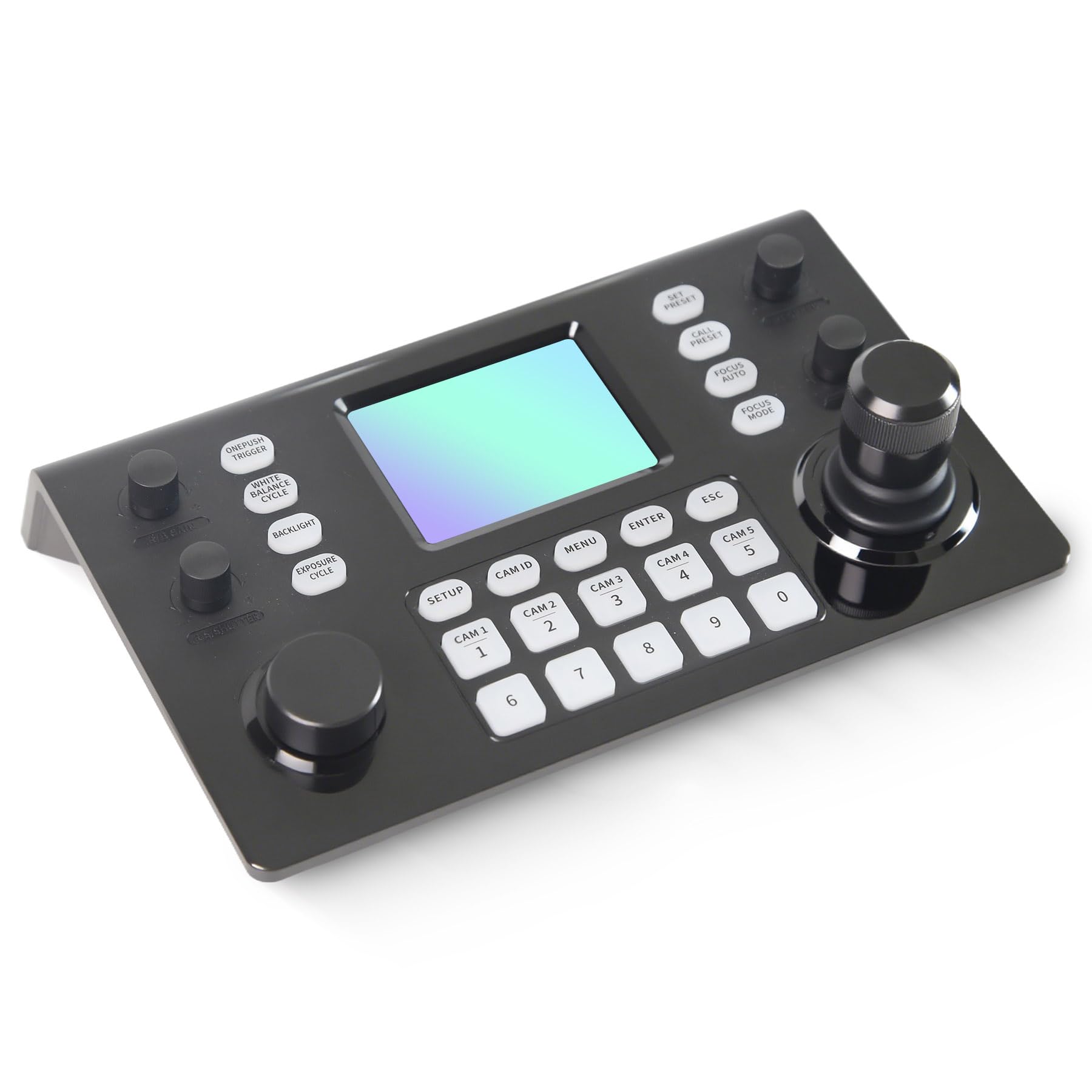
Image 1.1: RGBlink NDI PTZ Camera Controller (RGBBKT).
2. Настройка
Follow these steps to set up your RGBlink NDI PTZ Camera Controller.
2.1 Распакоўка і першапачатковы агляд
- Акуратна дастаньце ўсе кампаненты з упакоўкі.
- Пераканайцеся, што ўсе прадметы, пералічаныя ў пакавальным лісце, ёсць у наяўнасці.
- Inspect the controller for any signs of physical damage. If damage is found, contact your dealer immediately.
2.2 Падключэнне кантролера
The RGBlink NDI PTZ Camera Controller supports various connection methods for power and camera control.
- Харчаванне праз Ethernet (PoE): Connect a single RJ45 Ethernet cable from a PoE-enabled network switch to the controller's LAN port. This provides both power and network connectivity.
- Знешні адаптар сілкавання: If PoE is not available, connect the provided power adapter to the DC 12V input port and to a power outlet.
- Падключэнне камеры:
- Ethernet (IP Control): Connect PTZ cameras to the same network as the controller via RJ45 Ethernet cables. The controller supports VISCA over IP, ONVIF v2.42, and NDI v5.5 protocols.
- Serial Control: For cameras supporting serial communication, use RS232, RS422, or RS485 interfaces. Connect the appropriate cables from the controller's serial ports to the cameras.

Image 2.1: Rear panel connections including RS-232, RS-422, LAN (PoE), and Power Input.

Малюнак 2.2: Прыкладample connection diagram showing PTZ Controller, PoE Switch, PTZ Cameras, Audio Mixer, and Computer.

Image 2.3: Diagram illustrating IP camera connections via a network switch.
2.3 Канфігурацыя сеткі
For IP-based camera control, ensure the controller and cameras are on the same network segment. The controller supports automatic detection of NDI-enabled PTZ cameras.
- Access the controller's web інтэрфейс, увёўшы яго IP-адрас у a web browser. (Refer to the device's display or network tools to find the IP address).
- The default login credentials are typically 'admin' with a blank password. It is recommended to set a strong password immediately.
- У межах ст web interface, configure camera protocols (e.g., ONVIF, VISCA over IP) and enter camera-specific user credentials if required.

Image 2.4: NDI|HX camera search and control interface on the controller.
3. Аперацыя
This section details the operational functions of the RGBlink NDI PTZ Camera Controller.
3.1 Скончанаview элементаў кіравання
The controller features a 3.49" LCD display, a 3D joystick, various knobs, and a numeric keypad for intuitive control.

Image 3.1: The controller's 3.49-inch LCD display.

Малюнак 3.2: Падрабязны view of the 3D joystick and multi-function knobs.

Image 3.3: Layout of the controller's buttons and numeric keypad area.
3.2 Выбар камеры
- Кнопкі хуткага выбару: Use the dedicated CAM 1-5 buttons for quick selection of up to 5 cameras.
- Лічбавая клавіятура: For cameras beyond the quick select buttons (up to 255), press the ID камеры button, then enter the camera number using the numeric keypad, and press УВОД.

Image 3.4: The controller's ability to manage multiple cameras.
3.3 Кіраванне PTZ
- Джойстык: The 3D joystick controls pan (left/right), tilt (up/down), and zoom (rotate the joystick).
- Ручка хуткасці PT: Adjusts the gimbal movement speed for pan and tilt.
- Zoom Knob: Provides precise zoom control, especially useful in preview рэжым.
3.4 Image Parameter Adjustment
- IRIS/SHUTTER Knob: Rotate to adjust aperture and shutter speed. Press to switch control modes.
- R/B GAIN Knob: Rotate to adjust red and blue gain. Press to switch control modes.
- FOCUS Button: Націсніце АЎТАФОКУС button to switch the camera to auto focus mode.
- EXPOSURE Button: Cycles through exposure modes (Aperture Priority, Shutter Priority, Gain Priority, Manual Exposure, Auto Exposure).
- BACKLIGHT Button: Toggles the camera's backlight mode.
- WHITE BALANCE CYCLE Button: Cycles through white balance modes (Indoor, Outdoor, Manual, Auto).
- ONE PUSH TRIGGER Button: When white balance is set to "One-Push White Balance", press this button to initiate a one-push white balance calibration.

Image 3.5: Functions of buttons and knobs on the left side of the controller.

Image 3.6: Functions of buttons and knobs on the right side of the controller, including preset controls.
3.5 пресетов
- SET PRESET Button: Press to enter preset position mode. Use the numeric keys to enter the preset number (0-9) and press УВОД захаваць. Прэса ESC да выхаду.
- CALL PRESET Button: Press to enter preset recall mode. Use the numeric keys to enter the preset number (0-9) and press УВОД to recall. Press ESC да выхаду.
- The controller supports saving and recalling up to 255 presets per camera.
3.6 Навігацыя па меню
- Кнопка МЕНЮ: Press to open or close the camera settings menu. In menu control mode, the joystick controls navigation (up, down, left, right), УВОД confirms selections, and ESC acts as a back button.
4. Тэхнічнае абслугоўванне
Proper maintenance ensures the longevity and optimal performance of your RGBlink NDI PTZ Camera Controller.
4.1 Ачыстка
- Use a soft, dry cloth to clean the exterior of the controller.
- Для ўстойлівага бруду злёгку ачысціцеampпрамыйце тканіну вадой або мяккім неабразіўным ачышчальным растворам.
- Avoid using harsh chemicals, solvents, or abrasive materials, as these can damage the surface and display.
- Ensure no liquids enter the device through openings or ports.
4.2 Захоўванне
- When not in use for extended periods, store the controller in a cool, dry place away from direct sunlight and extreme temperatures.
- Беражыце прыладу ад пылу і вільгаці.
5. Выпраўленне непаладак
У гэтым раздзеле прадстаўлены рашэнні распаўсюджаных праблем, з якімі вы можаце сутыкнуцца.
5.1 Няма харчавання
- Праверце крыніцу харчавання: Ensure the power adapter is securely connected to both the controller and a working power outlet.
- PoE Check: If using PoE, verify that the Ethernet cable is connected to a PoE-enabled port on your network switch and that the switch is powered on.
- Цэласнасць кабеля: Inspect the power cable and Ethernet cable for any damage.
5.2 Cannot Control Camera
- Падключэнне да сеткі: For IP cameras, ensure the controller and cameras are on the same network and can communicate. Check network cables and IP addresses.
- Неадпаведнасць пратаколу: Verify that the correct control protocol (e.g., VISCA over IP, ONVIF, NDI, Pelco-D/P) is selected on both the controller and the camera.
- Ідэнтыфікатар камеры: Ensure the correct camera ID is selected on the controller.
- Уліковыя дадзеныя для ўваходу: If the camera requires authentication, confirm that the correct username and password are configured in the controller's web інтэрфейс.
- Паслядоўнае злучэнне: For serial control, check RS232/RS422/RS485 cable connections and ensure baud rates and addresses match between the controller and camera.
- Прашыўка: Ensure both the controller and cameras have the latest firmware installed. Visit the RGBlink support webсайт для абнаўленняў.
5.3 Праблемы з ВК-дысплеем
- Няма дысплея: Пераканайцеся, што кантролер уключаны.
- Цьмяны дысплей: Check if there are any brightness settings on the controller that can be adjusted.
6. Тэхнічныя характарыстыкі
| Асаблівасць | Дэталь |
|---|---|
| мадэль | RGBBKT |
| Памеры (Д х Ш х У) | 11.4 x 7.8 x 5.9 цалі (прыблізна 290 x 200 x 150 мм) |
| Вага | 2.2 фунта (прыблізна 1 кг) |
| Дысплей | 3.49-цалевы ВК-дысплей |
| Пратаколы кіравання | VISCA over IP, ONVIF v2.42, NDI v5.5, Pelco-D/P |
| Інтэрфейсы | RS232, RS422, RS485, RJ45 Ethernet (PoE) |
| Camera Capacity | Up to 255 PTZ cameras |
| Увод магутнасці | PoE or DC 12V (external adapter) |
| Джойстык | High-precision Hall sensor 3D joystick |

Image 6.1: Controller dimensions and typical usage environments.

Image 6.2: Visual representation of supported protocols including RJ45, RS485, RS422, RS232, ONVIF, NDI, Pelco-D, Pelco-P, and Visca.
7. Відэадэманстрацыя прадукту
Watch the official product video for a visual demonstration of the RGBlink NDI PTZ Camera Controller's features and operation.
Video 7.1: Official demonstration of the RGBlink PTZ Camera Controller Joystick, showcasing multi-camera control and key features.
8. Гарантыя і падтрымка
For warranty information, technical support, or service inquiries, please contact RGBlink customer service or visit their official webсайт.
- вытворца: Сямэнь RGBlink Навука і тэхналогіі ТАА
- Афіцыйны Webсайт: www.rgblink.com (Заўвага: Гэта запаўняльнік URL, please refer to your product packaging or official documentation for the correct support webсайт.)
- Кантактная інфармацыя: Refer to the RGBlink official website for the most current contact details for technical support and warranty claims.


