Уводзіны
This manual provides comprehensive instructions for the INPHIC Tri-Mode Wireless Mouse, Model B0FQCFSHPQ. It covers setup, operation, maintenance, and troubleshooting to ensure optimal performance and user experience. Please read this manual thoroughly before using the product.
Прадукт скончаныview
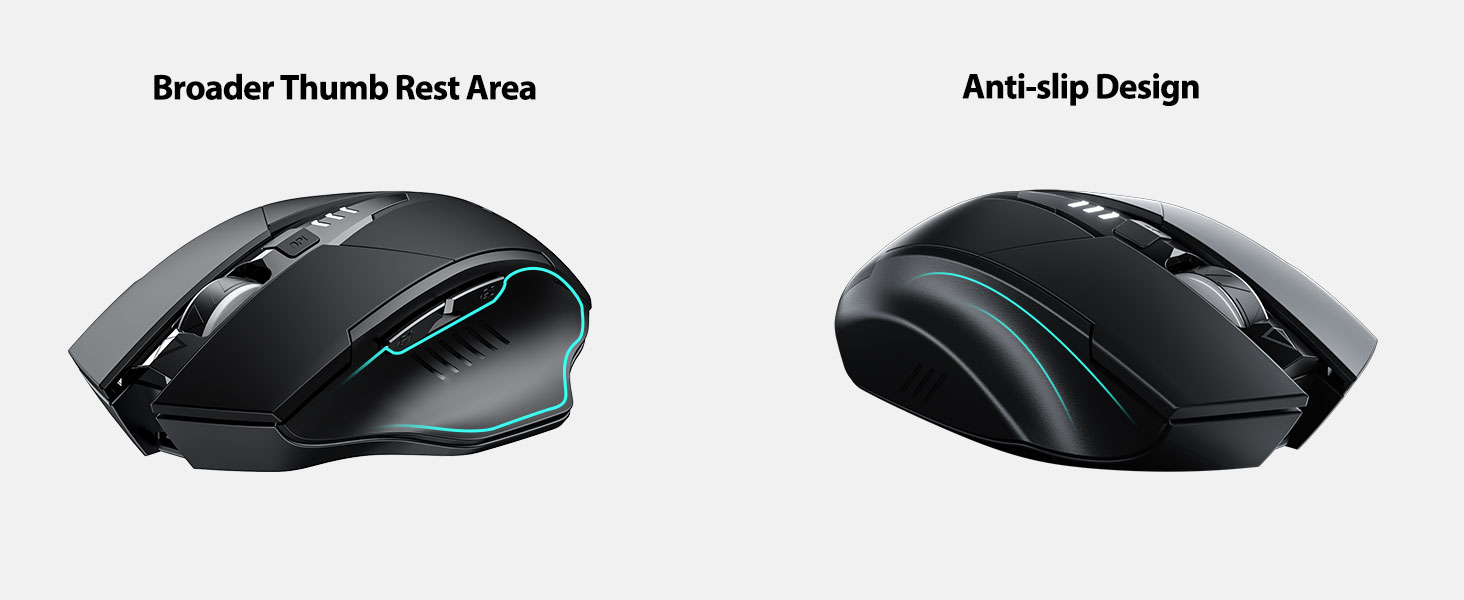
The INPHIC Tri-Mode Wireless Mouse offers versatile connectivity options (Bluetooth 5.0, Bluetooth 4.0, and 2.4G USB) and an ergonomic design for comfortable use. Key features include a visible battery indicator, silent click buttons, and adjustable DPI settings.
Змест пакета
- INPHIC Tri-Mode Wireless Mouse
- USB Receiver (stored in the mouse)
- Зарадны кабель USB-C
- Кіраўніцтва карыстальніка (гэты дакумент)
Кампаненты мышы

- Левая/правая кнопкі мышы: Ціхая праца.
- Кола пракруткі: Для вертыкальнай пракруткі.
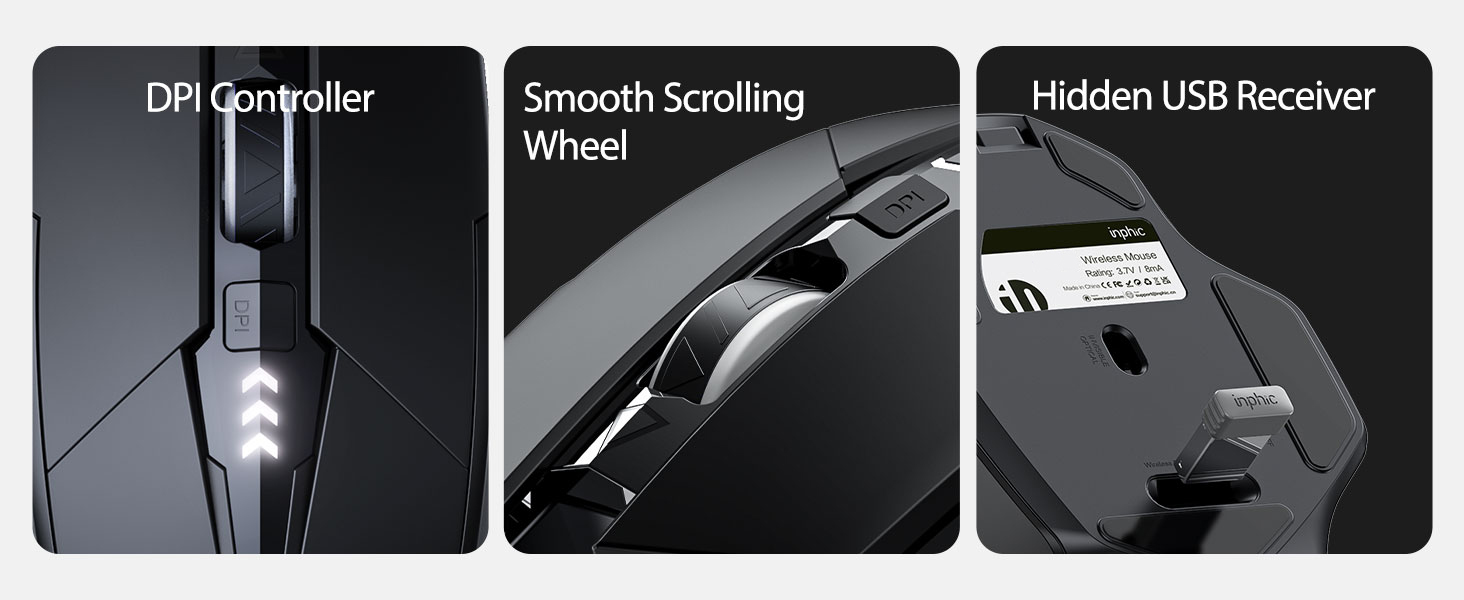
- Кнопка DPI: Adjusts cursor speed (800/1200/1600/2000/2400 DPI).
- Forward/Backward Buttons (Side): Для навігацыі ў web браўзэры або file даследчыкі.
- Індыкатар батарэі: LED lights on top display remaining battery level.
- Connection Type Switch (Bottom): Toggles between 2.4G USB, Bluetooth 4.0, and Bluetooth 5.0 modes.
- Power Switch (Bottom): Пераключальнік ON / OFF.
- USB Receiver Slot (Bottom): Stores the 2.4G USB receiver.
- Charging Port (Front): USB-C port for recharging the internal battery.
Настройка
Першапачатковая зарадка
Before first use, fully charge the mouse for approximately 1 hour. Connect the USB-C charging cable to the mouse's charging port and to a USB power source (e.g., computer USB port, USB wall adapter).

Падлучэнне мышы
The mouse supports three connection modes: 2.4G USB, Bluetooth 4.0, and Bluetooth 5.0. Use the switch on the bottom of the mouse to select your desired mode.
USB-злучэнне 2.4G
- Locate the USB receiver stored in the slot on the bottom of the mouse.
- Падключыце USB-прыёмнік да вольнага порта USB на вашым кампутары.
- Switch the connection mode on the bottom of the mouse to "2.4G".
- Turn on the mouse using the power switch. The mouse should connect automatically.
Bluetooth Connection (BT 4.0 / BT 5.0)
- Switch the connection mode on the bottom of the mouse to "BT 4.0" or "BT 5.0".
- Уключыце мыш з дапамогай выключальніка харчавання.
- On your device (laptop, tablet, etc.), open Bluetooth settings.
- Пошук new Bluetooth devices. The mouse should appear as "INPHIC Mouse" or similar.
- Выберыце мыш для спалучэння.
- Пасля спалучэння мыш гатовая да выкарыстання.
Заўвага: Bluetooth 5.0 is compatible with Windows 8/10 (not Windows 7 or XP), Android, and Mac OS systems. iOS systems (iPad and iPhone) require iOS 14 or later for Bluetooth 5.0 compatibility.
Інструкцыя па эксплуатацыі
Уключэнне/выключэнне харчавання
Use the ON/OFF switch located on the bottom of the mouse to power the device. To conserve battery, turn off the mouse when not in use for extended periods.
Пераключэнне рэжымаў злучэння
The mode switch button on the bottom of the mouse allows you to cycle between 2.4G USB, Bluetooth 4.0, and Bluetooth 5.0 connections. This enables seamless switching between multiple paired devices.

Рэгуляванне DPI (хуткасць курсора)
Press the DPI button located on the top of the mouse, below the scroll wheel, to cycle through 5 adjustable DPI levels: 800, 1200, 1600, 2000, and 2400. This allows you to customize cursor sensitivity to your preference.

Індыкатар батарэі
The mouse features a visible battery indicator on its top surface. LED lights illuminate to show the remaining battery power, providing a clear visual cue for when recharging is needed.

Аўтаматычны рэжым сну
To conserve power, the mouse will automatically enter sleep mode after 5 minutes of inactivity. To wake the mouse, simply click any button.
Тэхнічнае абслугоўванне
Уборка
Wipe the mouse with a soft, dry cloth. For stubborn dirt, a slightly damp можна выкарыстоўваць тканіну, сачыце за тым, каб вільгаць не трапляла ўнутраныя кампаненты. Пазбягайце выкарыстання агрэсіўных хімічных рэчываў або абразіўных ачышчальнікаў.
Сыход за батарэяй
- Recharge the mouse when the battery indicator shows low power.
- Пазбягайце частай поўнай разрадкі акумулятара, каб падоўжыць тэрмін яго службы.
- Захоўвайце мыш у прахалодным, сухім месцы, калі яна не выкарыстоўваецца працяглы час.
Ліквідацыю непаладак
| праблема | Магчымая прычына | Рашэнне |
|---|---|---|
| Мышка не рэагуе |
|
|
| Рух курсора няўстойлівы або павольны |
|
|
| Праблемы з падключэннем Bluetooth |
|
|
Тэхнічныя характарыстыкі
| Асаблівасць | Дэталь |
|---|---|
| мадэль | B0FQCFSHPQ |
| Тэхналогія падлучэння | Bluetooth 5.0 / Bluetooth 4.0 / 2.4G USB Wireless |
| Ўзроўні DPI | 800 / 1200 / 1600 / 2000 / 2400 (рэгуляваны) |
| Гузікі | 6 (Left, Right, Scroll Wheel, DPI, Forward, Backward) |
| Тып батарэі | Rechargeable (400mAh built-in) |
| Порт для зарадкі | USB-C |
| Дыстанцыя дзеяння | Да 10 метраў (33 футаў) |
| Памеры прадукту | 4.7 х 3.1 х 0.04 цалі |
| Вага прадмета | 3.36 унцыі |
| Сумяшчальнасць | Windows 7/8/10/XP, Vista, Mac OS. Bluetooth 5.0: Windows 8/10, Android, Mac OS, iOS 14+ (iPad/iPhone). 2.4G USB: Any USB-enabled device. |

Гарантыя і падтрымка
INPHIC products are designed for reliability and performance. For warranty information and technical support, please refer to the official INPHIC webсайт або звярніцеся непасрэдна ў службу падтрымкі кліентаў.
- вытворца: INPHIC
- Прадавец: YingFeiTe (on Amazon)
- Палітыка вяртання: Refer to Amazon's current return policy.
- Кантакт службы падтрымкі: Каб атрымаць дапамогу, наведайце INPHIC Store on Amazon або афіцыйны прадстаўнік вытворцы webсайт.
Важная інфармацыя па бяспецы
- Не падвяргайце мыш уздзеянню экстрэмальных тэмператур або вільготнасці.
- Пазбягайце падзення мышы і не падвяргайце яе моцным ударам.
- Do not attempt to disassemble or repair the mouse yourself. This may void the warranty.
- Захоўваць у месцах, недаступных дзецям.
Відэа прадукту
Апісанне відэа: An official product video from INPHIC demonstrating the features and usage of the INPHIC Bluetooth Mouse. It shows the mouse being unboxed, its various components, connection methods, and ergonomic design in action.


