1. Уводзіны
This manual provides detailed instructions for the installation, operation, and maintenance of your Zebronics ZEB-WR3004G 4G/5G SIM Router. Please read this manual thoroughly before using the device to ensure proper functionality and safety. This router is designed to provide high-speed internet access using 4G or 5G nano SIM cards, featuring LAN/WAN auto-switching and WPA2-PSK security.
2. Інфармацыя па бяспецы
- Выкарыстоўвайце толькі адаптар сілкавання, які пастаўляецца з прыладай.
- Не падвяргайце маршрутызатар уздзеянню вады, вільгаці або экстрэмальных тэмператур.
- Пазбягайце размяшчэння маршрутызатара паблізу крыніц цяпла або пад прамымі сонечнымі прамянямі.
- Забяспечце належную вентыляцыю вакол маршрутызатара, каб прадухіліць перагрэў.
- Не спрабуйце адкрываць або рамантаваць прыладу самастойна. Звяртайцеся да кваліфікаванага персаналу па любыя паслугі па абслугоўванні.
- Keep the router away from children and pets.
3. Змесціва ўпакоўкі
Праверце наяўнасць усіх прадметаў у камплекце:
- Zebronics ZEB-WR3004G Router
- Адаптар сілкавання
- Сеткавы кабель
- Кіраўніцтва карыстальніка (гэты дакумент)
4. Прадукт скончыўсяview
The Zebronics ZEB-WR3004G router is designed for reliable and high-speed internet connectivity. It features multiple external antennas for enhanced signal coverage and performance.
Выява: спераду view of the Zebronics ZEB-WR3004G router, showcasing its sleek white design and external antennas.
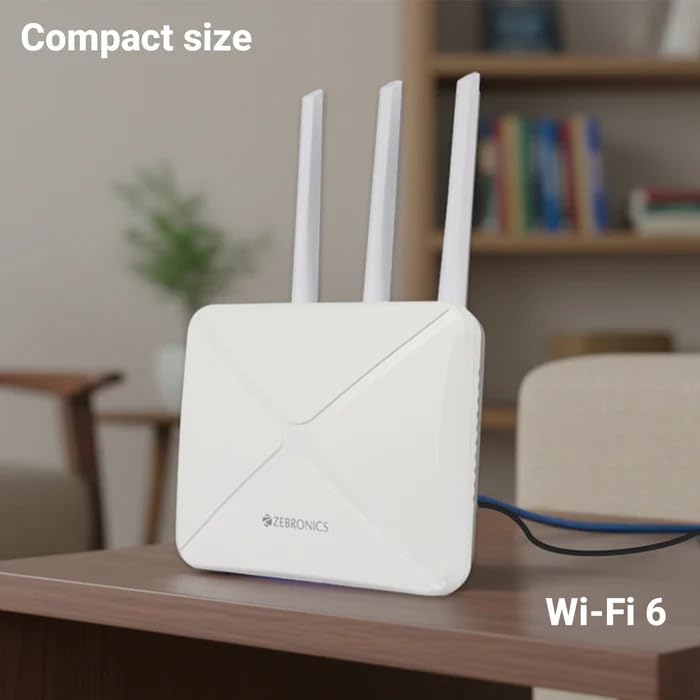
Image: The Zebronics ZEB-WR3004G router placed on a desk, illustrating its compact size and modern aesthetic.
4.1. Парты і індыкатары
Familiarize yourself with the ports and indicators on your router:
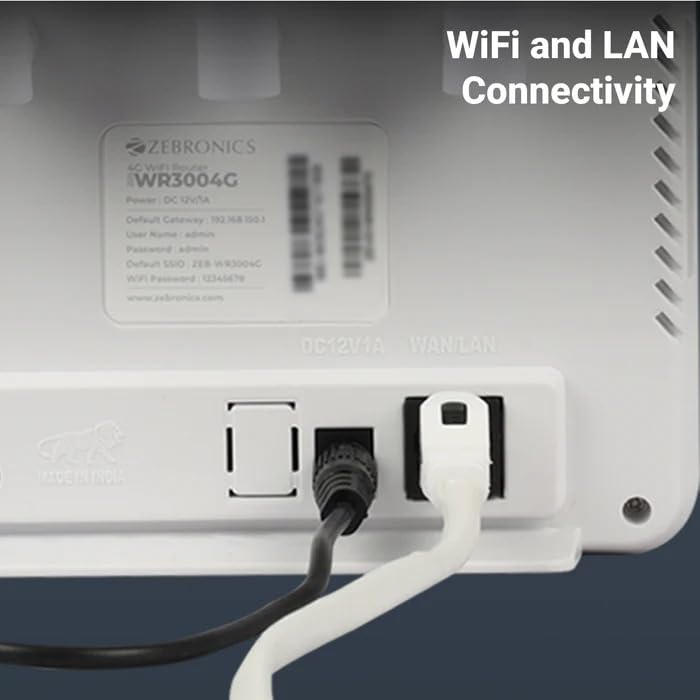
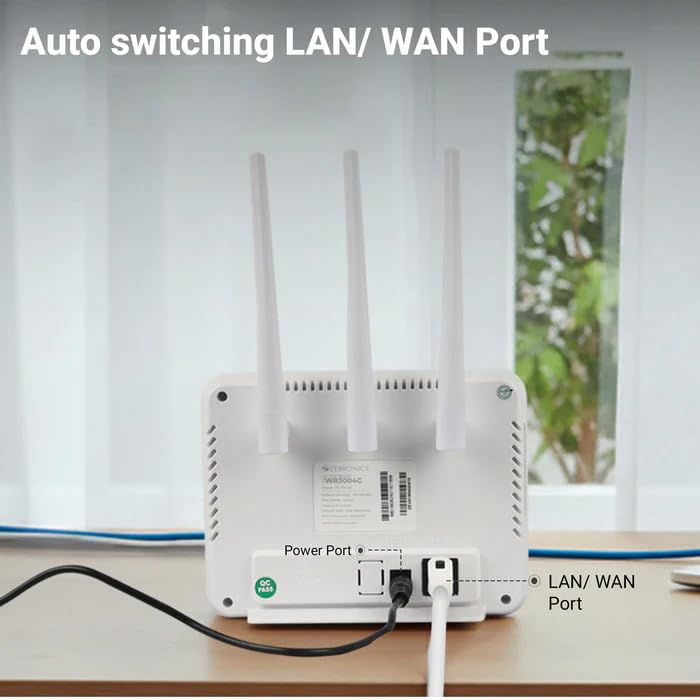
Выява: Задняя частка view of the Zebronics ZEB-WR3004G router, highlighting the power port and the auto-switching LAN/WAN port.
- Порт харчавання: Падключаецца да адаптара сілкавання.
- Порт LAN/WAN: An auto-switching port for connecting to a wired network or an external modem.
- Слот для SIM-карты: For inserting a nano SIM card.
- Кнопка скіду: Used to restore factory default settings (usually a small pinhole button).
- Святлодыёдныя індыкатары: Provide status information for power, internet connectivity, Wi-Fi, and signal strength.
5. Настройка
5.1. Ўстаноўка SIM-карты
- Пераканайцеся, што маршрутызатар выключаны.
- Знайдзіце слот для SIM-карты на маршрутызатары.
- Insert a nano SIM card into the slot with the gold contacts facing down and the notched corner aligned correctly. Push until it clicks into place.
5.2. Падключэнне сілкавання
- Connect the supplied power adapter to the router's power port.
- Падключыце адаптар сілкавання да насценнай разеткі.
- The router will power on automatically. Wait for the LED indicators to stabilize, which may take a few minutes.
5.3. Пачатковая канфігурацыя
- Падключыцеся да Wi-Fi: On your computer or mobile device, search for available Wi-Fi networks. The default Wi-Fi name (SSID) and password are usually printed on a label on the bottom of the router.
- Access Admin Panel: Адкрыйце a web browser and enter the default gateway IP address (e.g.,
192.168.1.1) into the address bar. This IP address is also typically found on the router's label. - Лагін: Увядзіце імя карыстальніка і пароль па змаўчанні (напрыклад,
adminfor both). It is highly recommended to change these default credentials immediately for security. - Налады сеткі: Follow the on-screen wizard or navigate to the network settings to configure your internet connection. The router should automatically detect the SIM card and establish a connection.
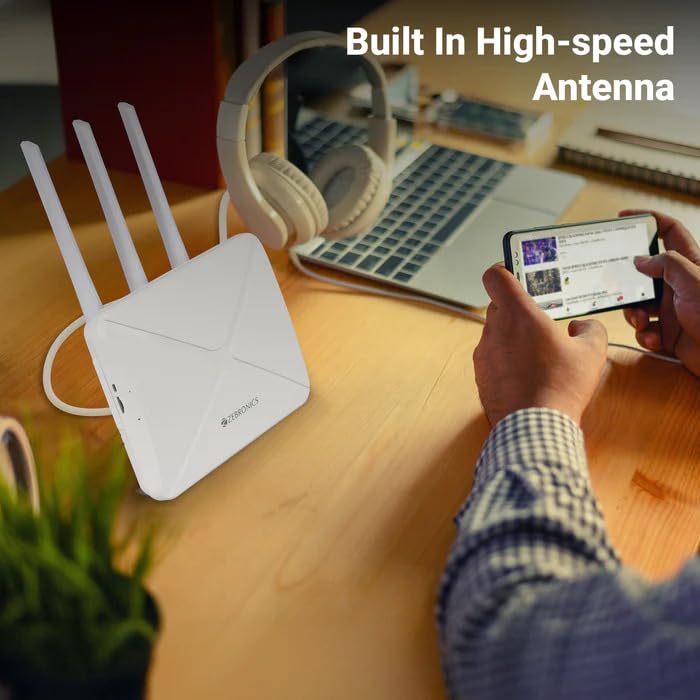
Image: The Zebronics ZEB-WR3004G router on a desk, emphasizing its built-in high-speed antenna system for optimal signal reception.
6. Інструкцыя па эксплуатацыі
6.1. Падключэнне прылад
- Падключэнне Wi-Fi: On your wireless devices (smartphones, laptops, tablets), select the router's Wi-Fi network name (SSID) and enter the Wi-Fi password.
- Падключэнне да лакальнай сеткі: Use an Ethernet cable to connect devices like desktop computers, smart TVs, or gaming consoles to the LAN/WAN port on the router. The port automatically switches to LAN mode when a device is connected.
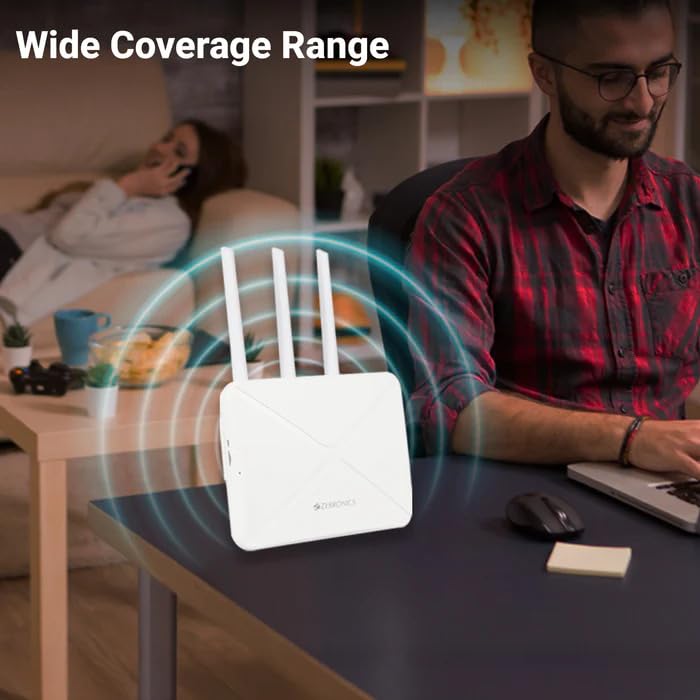
Image: The Zebronics ZEB-WR3004G router emitting a wide coverage range, indicating its ability to provide internet across a large area.
6.2. Налады маршрутызатара
Доступ да маршрутызатара web-based management interface (as described in Section 5.3) to configure advanced settings:
- Налады Wi-Fi: Change SSID, password, security type (WPA2-PSK is recommended), and channel.
- Рэжым сеткі: Configure 4G/5G specific settings if required by your service provider.
- LAN/WAN Configuration: Adjust IP address, DHCP server settings, or switch between LAN and WAN modes manually if auto-switching is not desired.
- Бяспека: Set up firewall rules, port forwarding, and parental controls.
Image: The Zebronics ZEB-WR3004G router with visual cues indicating a faster and more efficient internet connection.
Image: The Zebronics ZEB-WR3004G router with visual representation of minimized network congestion, ensuring smoother data flow.
7. Тэхнічнае абслугоўванне
7.1. Абнаўленне прашыўкі
Periodically check the Zebronics official website for firmware updates. Keeping your router's firmware up-to-date ensures optimal performance, security, and access to new features. Follow the instructions provided with the firmware update carefully.
7.2. Уборка
Выкарыстоўвайце мяккую сухую тканіну для чысткі вонкавага боку маршрутызатара. Не выкарыстоўвайце вадкія ачышчальнікі або аэразолі, бо яны могуць пашкодзіць прыладу.
7.3. Аптымальнае размяшчэнне
For the best Wi-Fi coverage and signal strength, place the router in a central location in your home or office, away from obstructions like thick walls, metal objects, and other electronic devices that may cause interference.
8. Выпраўленне непаладак
| праблема | Магчымая прычына | Рашэнне |
|---|---|---|
| Няма падключэння да інтэрнэту | SIM card not inserted correctly, no data plan, network issue, incorrect APN settings. | Check SIM card insertion. Verify data plan with your service provider. Check APN settings in the router's admin panel. Restart the router. |
| Слабы сігнал Wi-Fi | Router placement, interference, outdated firmware. | Relocate the router to a central, open area. Avoid placing near other electronics. Update firmware. |
| Cannot access admin panel | Incorrect IP address, wrong credentials, network conflict. | Ensure correct IP address (e.g., 192.168.1.1). Verify username and password. Try a different browser. Reset router to factory defaults if necessary. |
| LAN/WAN port not working | Faulty cable, incorrect settings, device issue. | Try a different Ethernet cable. Ensure the connected device is working. Check LAN/WAN settings in the admin panel. |
9. Тэхнічныя характарыстыкі
| Асаблівасць | Дэталь |
|---|---|
| мадэль | ZEB-WR3004G |
| Сумяшчальнасць | 4G and 5G Nano SIM cards |
| Антэнная сістэма | Built-in High-speed Antenna, Multiple External Antennas |
| Парты | 1x LAN/WAN Auto-switching Port, Power Port |
| Бяспека | WPA2-PSK encryption |
| Стандарты бесправадной сувязі | 802.11b, 802.11g, 802.11n |
| Хуткасць перадачы даных | Да 150 Мбіт/с |
| Сумяшчальнасць аперацыйнай сістэмы | Android, iOS, macOS, Windows |
| Увод магутнасці | 12 вольт |
| Памеры (ДхШхВ) | 20 х 15.2 х 18.5 см |
| Вага | 200 г |
10. Гарантыя і падтрымка
For warranty information and technical support, please refer to the warranty card included with your product or visit the official Zebronics webсайт. Захоўвайце чэк аб куплі як пацвярджэнне пакупкі для гарантыйных прэтэнзій.
Zebronics Customer Support:
- Webсайт: www.zebronics.com
- Contact information can typically be found in the 'Support' or 'Contact Us' section of the webсайт.


